NOTE: The Insight+ Landing Page is enabled and configured by your iManage Insight+ administrator in the administration application. If you don’t see this page upon signing in, this Landing page hasn’t probably been enabled by the iManage Insight+ administrator in your organization. In such a case, upon signing in, you'll be navigated to the iManage Insight+ search interface.
Insight+ Landing Page provides you with a customized, browsable page that helps you search for content that is relevant to you. On this page you can view content that is pre-configured with filters within which your search query will run.
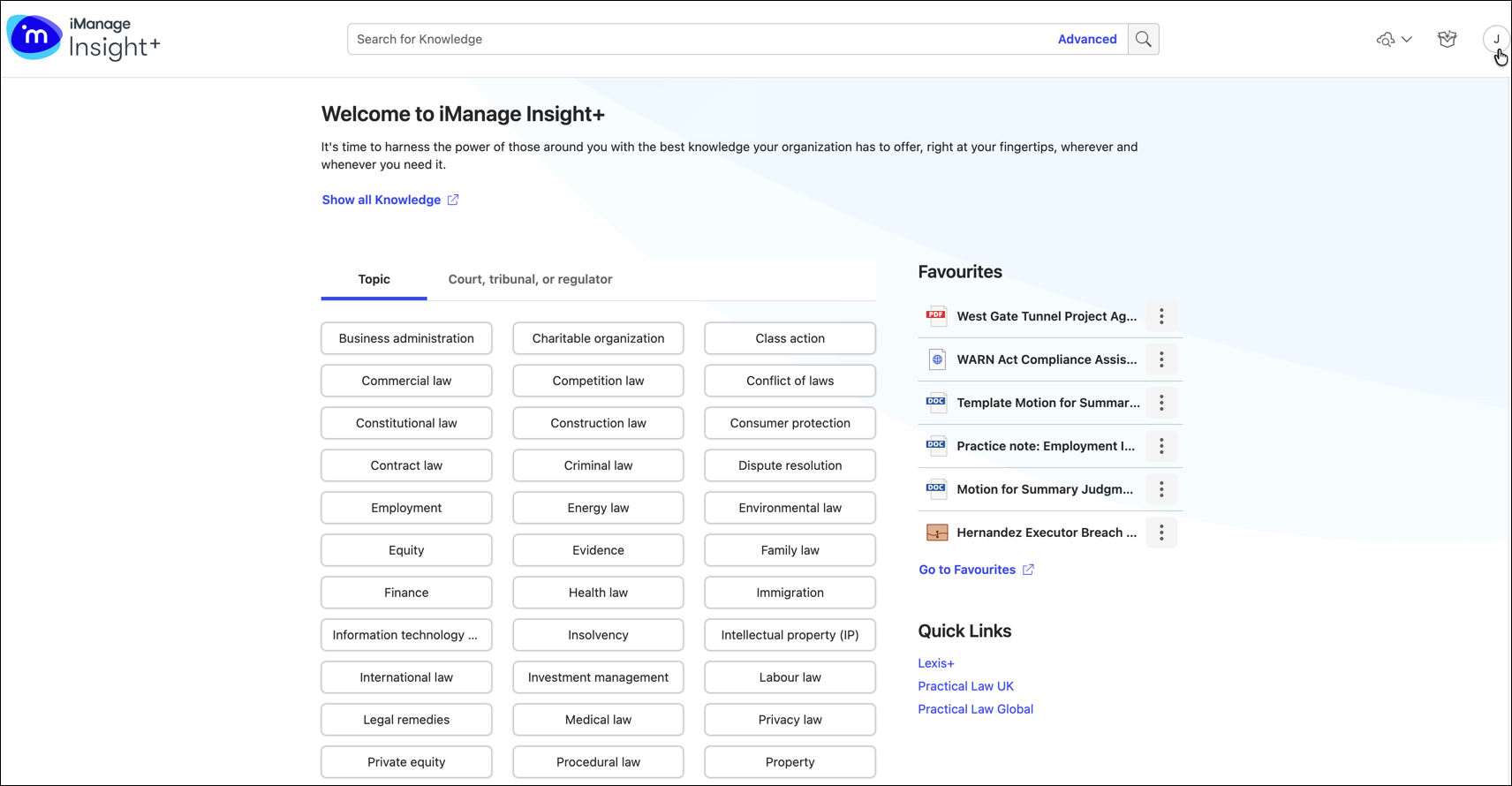
Search using a query in the search field
When you enter a search query in the search field, the system searches for relevant content in the pre‑configured tab. As shown in the figure below, the search is executed in the Knowledge tab.

For instructions about how you query (simple and advanced), refer to Searching content using the search interface.
Search using Taxonomy
Depending on how your administrator has configured the Landing page to align with your organization’s domain of work, you'll either see single or dual taxonomy properties displayed. Selecting a taxonomy property navigates you to the taxonomy page that displays all the relevant documents that conform to your selection.
You can set any sub-landing page from either of the taxonomies as your default home page.
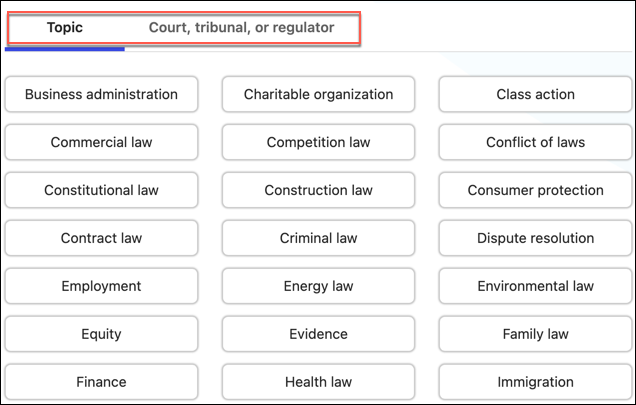
NOTE: The following are the key navigation points:
Use the back button in your browser to go to the last viewed taxonomy tab.
Select the iManage icon to browse to the primary taxonomy tab, as set by the administrator.
Browse to the Main Landing page from anywhere in the Insight+ application. It takes you to the primary taxonomy tab.
In addition to the filters set up for sub-landing pages, all default filters set by the administrator will also be applied and will reflect on the sub-landing pages.
For more information on administrator default filters set by the administrator for Landing pages, refer to navigating default filters and user profiles for main and sub-landing pages.
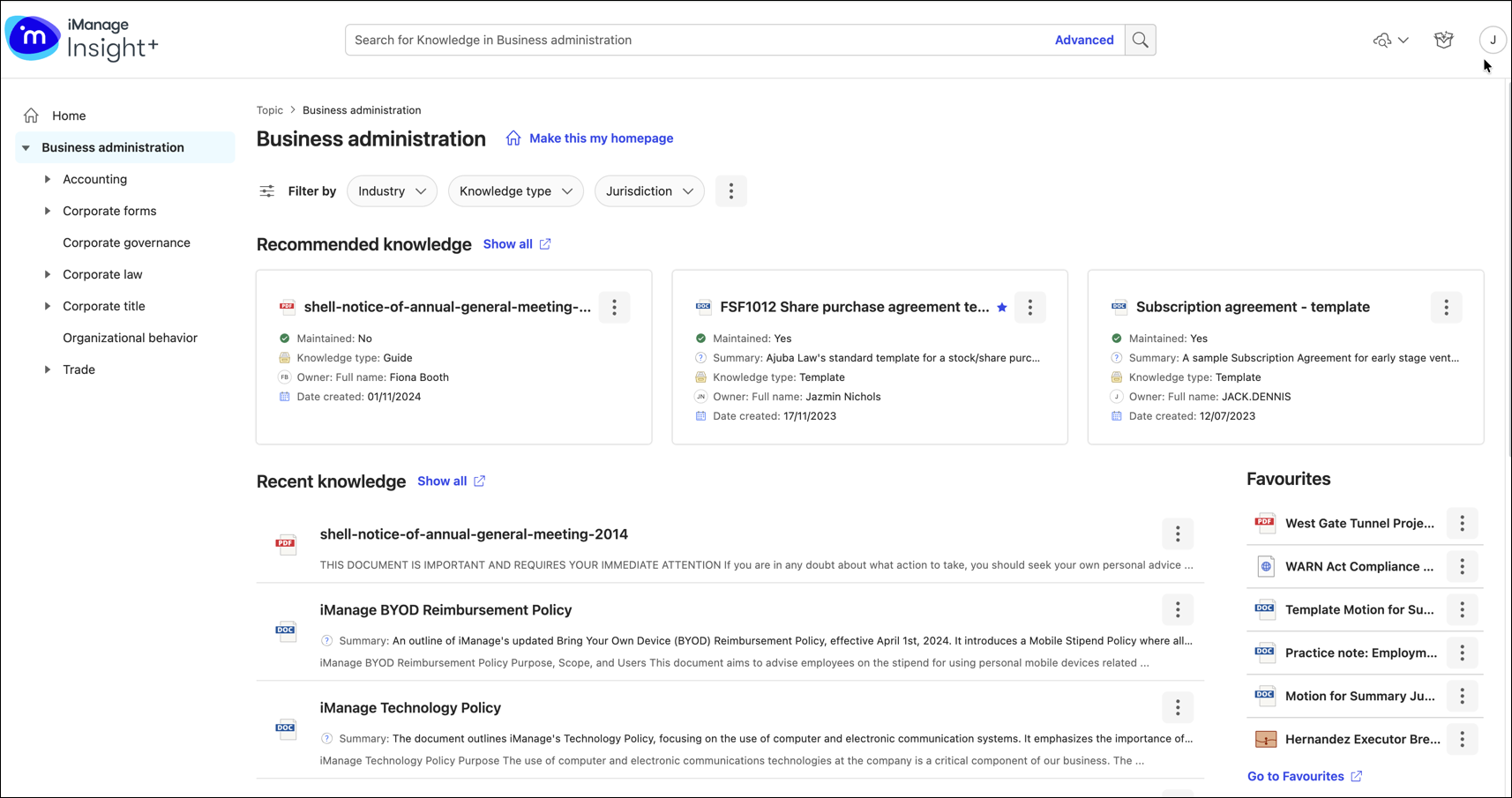
The left navigation pane displays the taxonomy tree configured for your organization. Your selection is visible in the expanded form, displaying the second level of taxonomy properties under it.
Figure: Taxonomy tree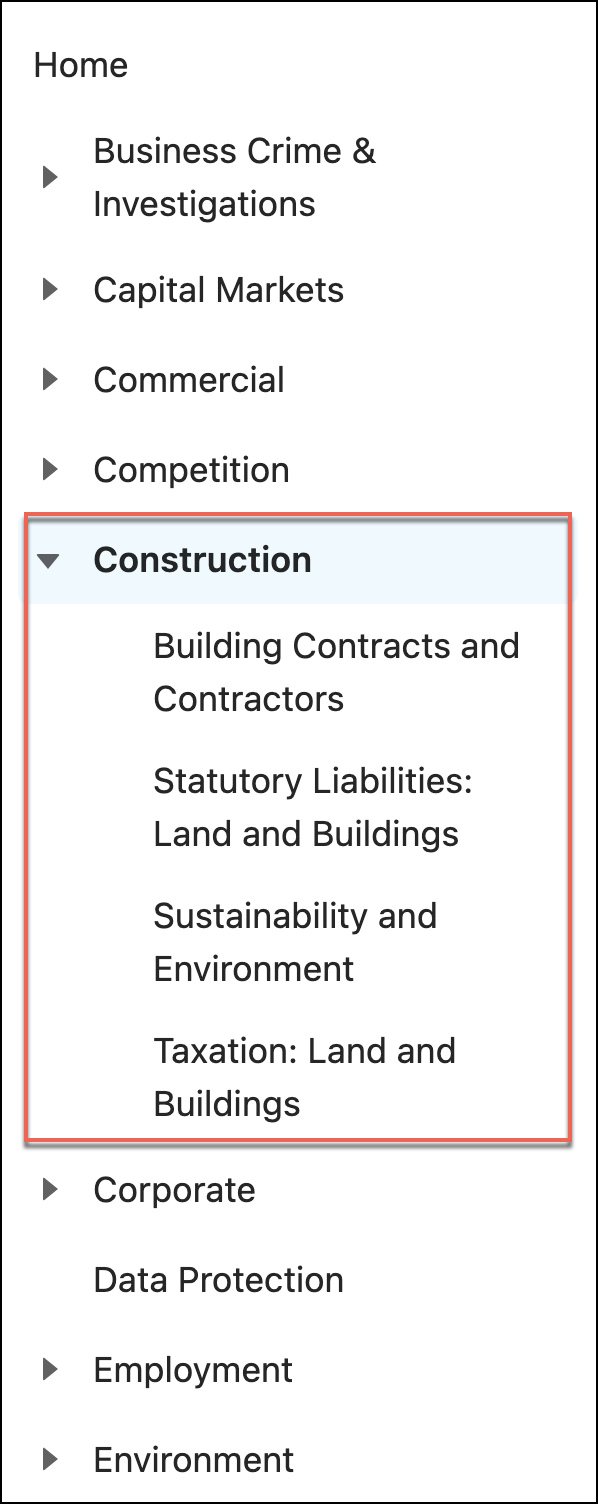
Select a different taxonomy property to change the displayed results.
Select a sub-taxonomy property to refine your displayed results.
The sub-taxonomy properties are also displayed as links under the root taxonomy name. Selecting a link will refine the displayed results.
Figure: Sub-taxonomy properties links
The Recent knowledge section displays the results based on your selection in the configured tab. In the figure above, this section displays the most relevant results for Construction under the Knowledge tab.
Select Show all next to Recent knowledge to display all the relevant results in the search interface.
Select a document to preview. For more information about preview functionality, refer to Previewing content.
Select the document’s kebab menu
 and then select Open > View in Work to open the document in iManage Work at Cloudimanage.com
Select the document’s kebab menu
and then select Copy link to copy the document link and share it with another user offline.
The Recommended knowledge section displays only those set of documents for which a property field has been set as recommended. In the figure Taxonomy tree, the property, Maintained, appears to have been configured to qualify as recommended content. So, the documents that are related to Construction, available under Knowledge tab, and configured as Maintained are displayed.
Select Show all next to Recommended knowledge to display all the recommended results in the search interface.
Select a document to preview. For more information about preview functionality, refer to Previewing content.
Select the kebab menu
for the document and then select Open > View in Work to open the document in iManage Work at cloudimanage.com.Select the kebab menu
for the document and then select Copy link to copy the document link and share it with another user offline.
The Knowledge Lawyers section displays the list of individuals who have contributed to the displayed documents.
Select a name to view the list of relevant documents that the Knowledge Lawyer has contributed to.
The Quick Links section displays the list of relevant external websites that you can quickly reference for any information.
Select a link to open the website in a new tab.
NOTE: The Quick Links section is also available on the Insight+ Landing page.
Search using saved searches
You can use the saved searches option to quickly retrieve the search results. You can view the list of all your saved queries using the cloud icon in the upper-right corner of the page. The cloud icon appears only if you have at least one search query saved.
Select the cloud icon and from the list of saved searches displayed, and then select the required search query. The search results are displayed.
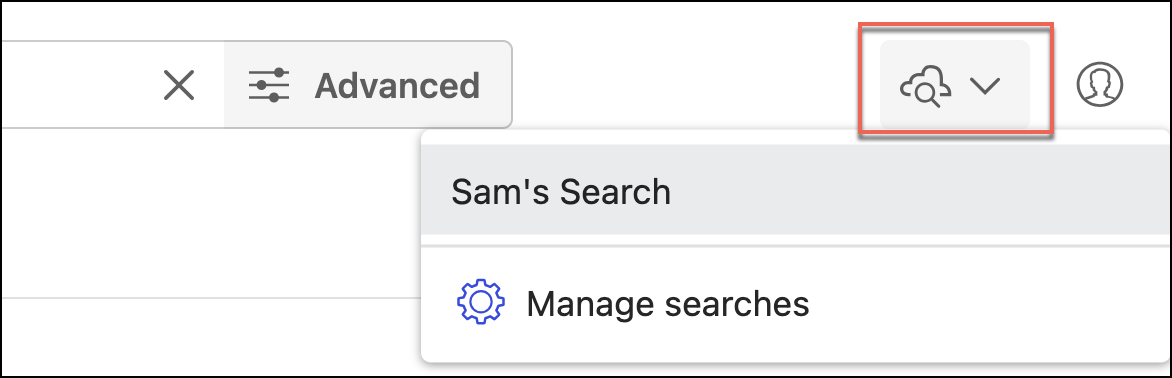
For more information about how to save a search and manage saved searches, refer to the relevant sections in Common tasks and functionality.
Show all <configured tab>
You can directly browse to the search interface by selecting the Show all <configured tab> link.
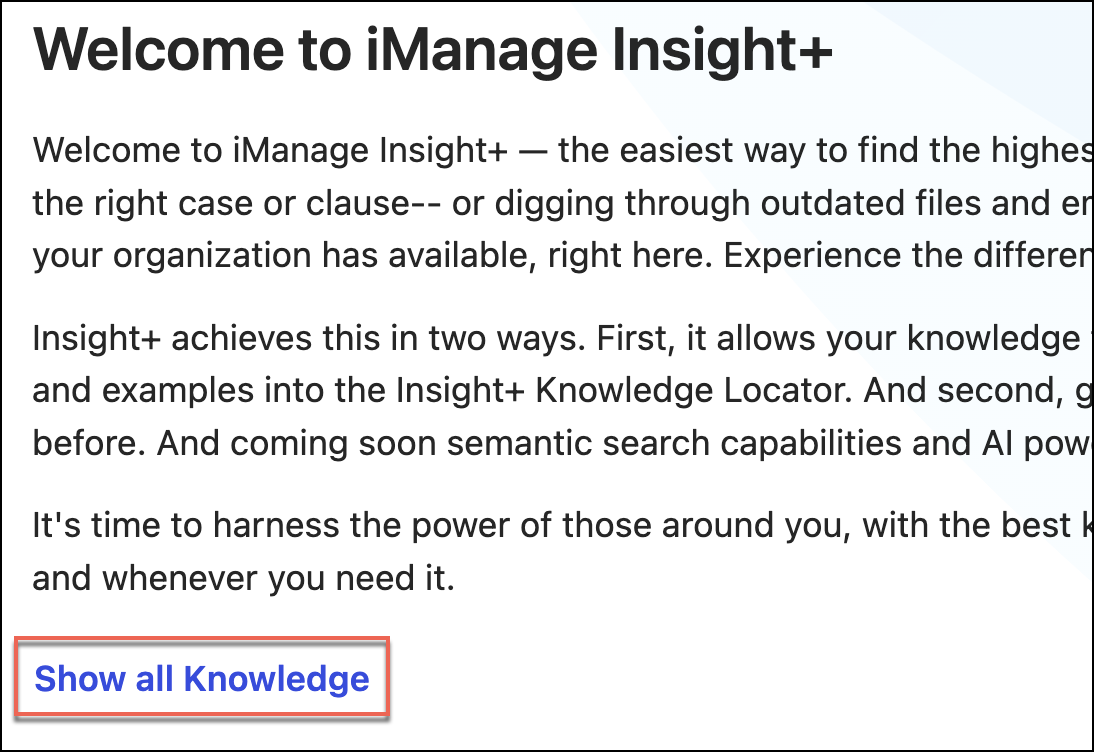
In this example, the configured tab is Knowledge, and upon selecting the link you'll be navigated to the Knowledge tab in the search interface.
Reset all queries
At any point, you can reset your current progress and return to the Landing Page. Select the iManage Insight+ logo in the upper-left corner of the page to reset and return to the landing page.