Knowledge administrators are the members of the knowledge team in the organization who can access the Insight+ Curation application and the Knowledge Properties panel. The Knowledge Properties panel is accessible to all users within an organization but, the actionable buttons and the properties that can be edited in the Curation flow are available only to the Knowledge administrators.
Knowledge administrators can perform the following functions in iManage Insight+ Curation:
Edit a new version of the document
Publish a document or document version
Unpublish a document or document version
Reject a document
Retire a document
To add Knowledge administrators:
Sign in to iManage Control Center with the Global Role privilege for App Management.
In the left navigation pane, select Extensions and then select Insight+ Curation.
Select the knowledge library where you wish to use Insight+ Curation.
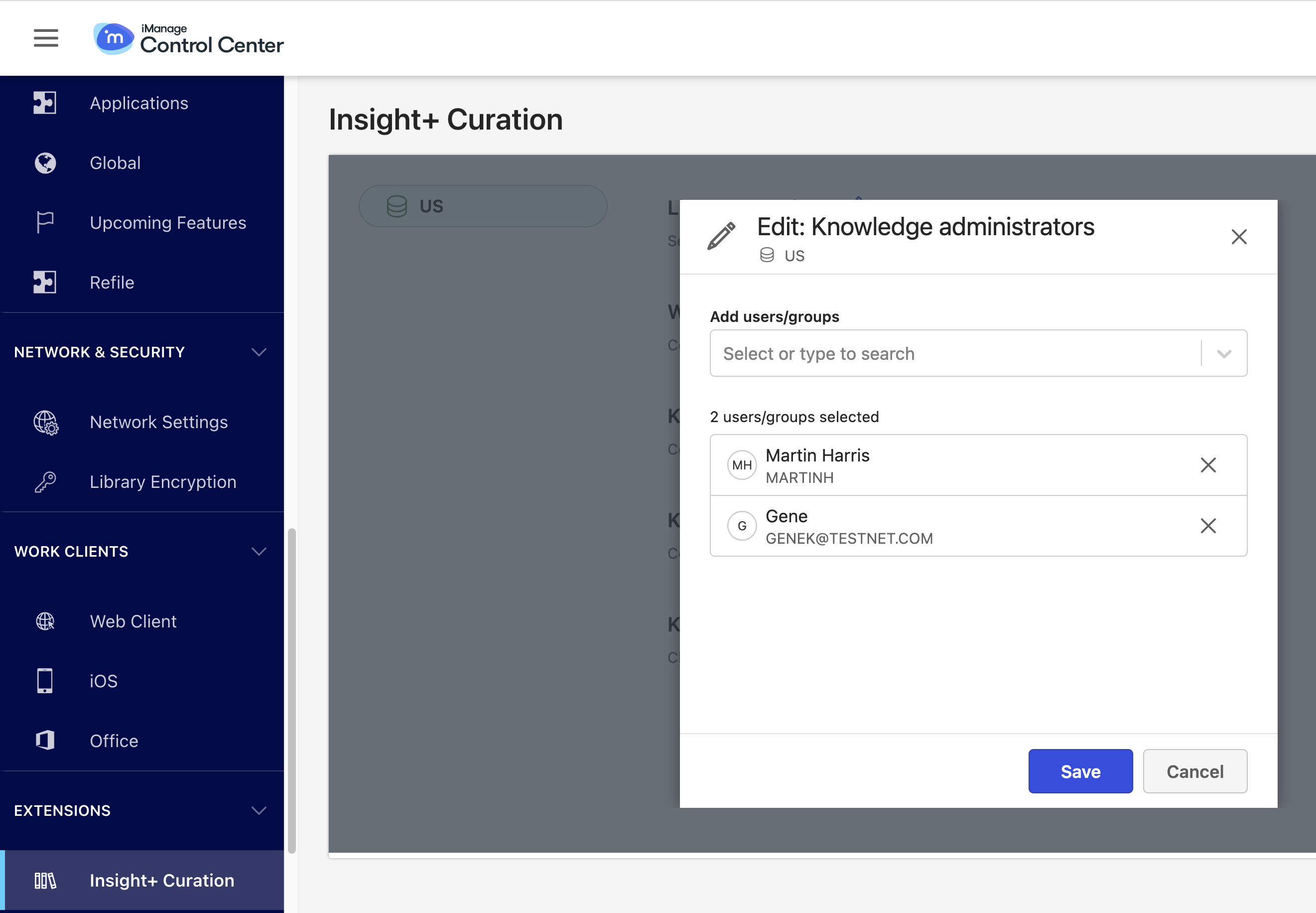
Select Edit next to Knowledge administrators.
In the Edit: Knowledge administrators dialog, select the Add users/groups box and then from the list of available users/groups, select your preferred users/groups and then select Save. A green ribbon appears, indicating that you have successfully added the Knowledge administrators to the specified knowledge library.
Figure: Adding Knowledge administrators
NOTE:
To remove a Knowledge administrator, select
 and then select Save.
After designing the Knowledge submission form, you must add the Submit as Knowledge option in the document context menu for users, which allows them to submit a document as knowledge. For more information, refer to Enabling the Submit as Knowledge content menu option in iManage Control Center.