Any organization must configure the Knowledge Properties panel to:
Design or build a format in which they wish to see their Knowledge Properties panel.
Understand and collect knowledge properties that they are interested in.
Make certain Knowledge Properties as required fields for publishing a document as knowledge, and so on.
The Knowledge Properties panel is available to administrators as well as users in iManage Work. Only Knowledge Administrators can see the Curation actions and edit the properties of documents in curation mode.
Figure: Knowledge Properties panel
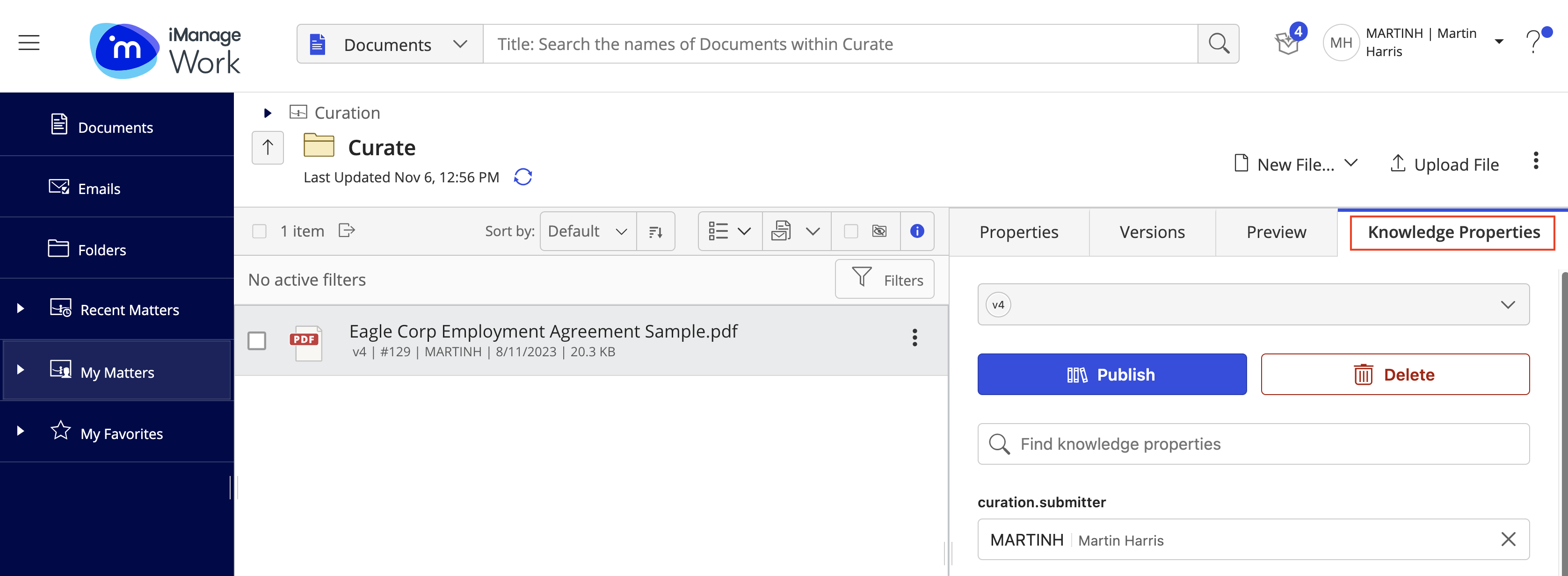
Configuring the Knowledge properties panel in iManage Control Center:
Sign in to iManage Control Center with the Global Role privilege for App Management.
In the left navigation pane, select Extensions and then select Insight+ Curation.
Select the knowledge library where you wish to use Insight+ Curation.
Select Edit next to Knowledge properties panel.
Figure: Configuring the Knowledge properties panel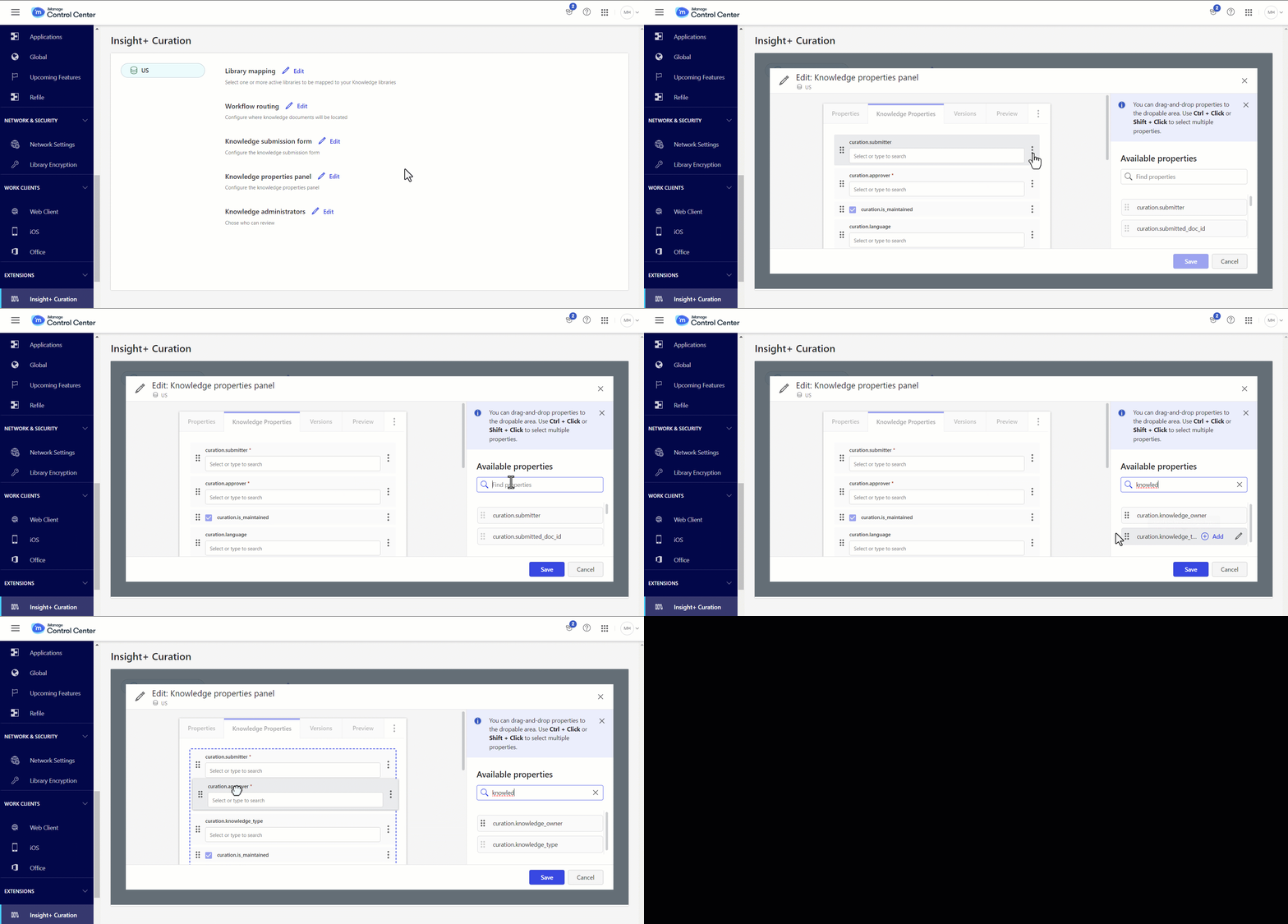
Drag the required knowledge properties from the Available Properties list on the right-hand side to the Knowledge Properties panel dialog.
(Optional)Required field: Use this option if you wish to set a knowledge property as a required field in the knowledge properties panel.
You can edit the name of the property in the Available Properties list. Renaming a property through the Available Properties list on the right-hand side renames the property in the Submission form, Knowledge properties panel and in Power Automate.
NOTE: You must save the Submission form whenever you rename a property.Use the Find Properties search box to search for a particular knowledge property.
Use the Shift+Click (or Cmd+Click on macOS) shortcut to select multiple knowledge properties.
Re-order the properties as required.
Select Save.
NOTE:
The Knowledge Properties panel must be turned on in iManage Control Center to be displayed as a tab in the Properties panel in iManage Work.
For more information, refer to Enabling the Knowledge Properties panel in iManage Control Center.