You can export label information to a file in the XML format. This XML file can be used by an external label printing application to print labels.
In the Record Activities pane, select File Labels.
In the Desktop Label Printing interface, select the Configure link.
In the Options dialog, select Export label data to.
To select a location to save the file, select
 to display the Browse For Folder dialog.
NOTE: This location is saved and automatically selected the next time you export labels.
To close the Browse for Folder dialog, and return to the Options dialog, select OK.
To close the Options dialog, select OK.
In the Record Activities pane, select File Labels.
Select Print Report. Alternatively, select file parts, and then select Print Selected.
The Report Exported window opens in the lower-right corner of the screen.
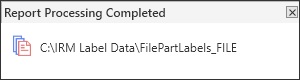
The label report information is saved as a file on your local system.
NOTE: After exporting label information, the file parts move from the Pending Items list to the Printed Items list.