Owners and Co-Owners of a folder can now increase the access level for a user or user group on sub-folder from the Add Member(s) drop-down menu, available on the Share screen.
Hover over the desired sub-folder and select the
 icon. (Optional) Right-click on the sub-folder and select Share, or open the sub-folder and select
  Share at the top.
The Share screen is displayed that shows the users and user groups that the sub-folder is currently shared with, as shown in the following figure:Figure: Share screen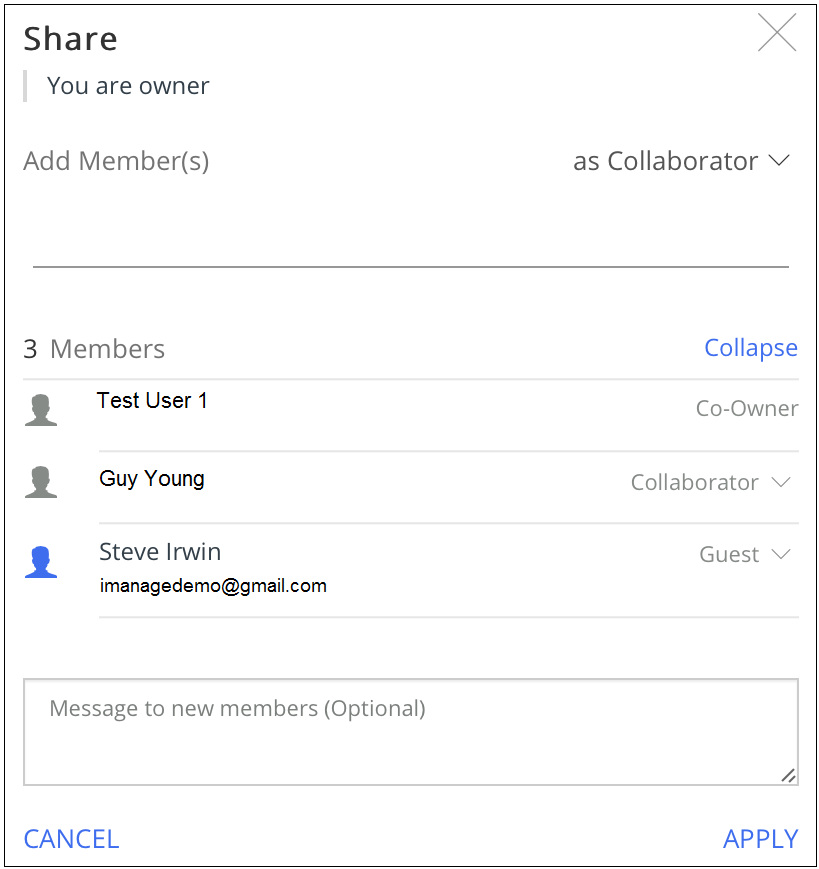
NOTE:
User(s) with Guest access for the Shared folder cannot view the Share.
Use the drop-down menu available next to each user or user group to change the access level.
NOTE:
You can only increase the access level for a sub-folder using this progressive security feature. In other words, the new access level that you assign to a user or user group must be greater than the current one.
The  icon is displayed for a sub-folder if there is a change in the access level, where a new user was added to the shared folder or additional permissions were assigned to an existing user.
IMPORTANT:
The above change in the sub-folder icon is visible to only the users with Owner access on the main folder.