You can install SPM applications for iManage Work to provide permitted users direct access to SPM from Work, for commonly accessed functions.
NOTE: The addition of these applications is optional.
Two SPM applications are available for addition to iManage Work:
SPM Edit Policy for iManage Work
SPM Request Access for iManage Work
Each can be added to as an application in iManage Control Center.
The applications are separate and independent; you can optionally add either or both.
About the SPM Edit Policy for iManage Work application
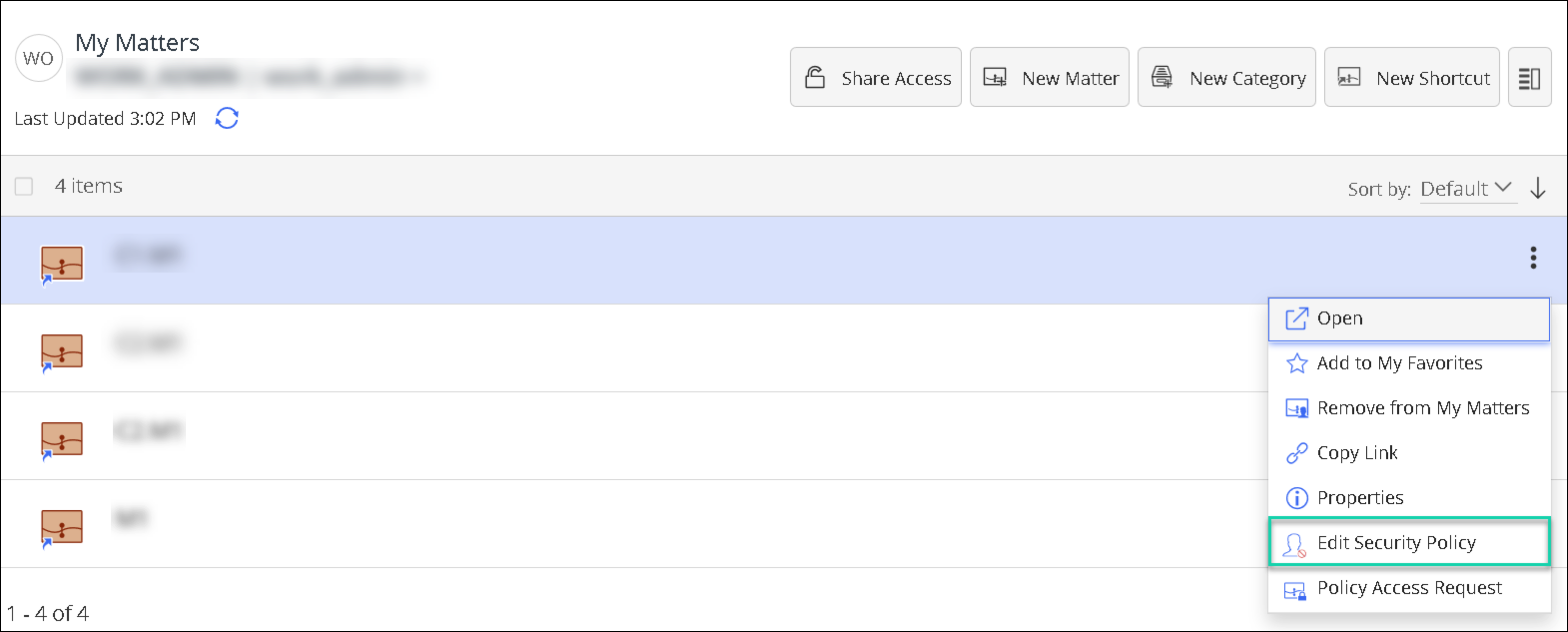
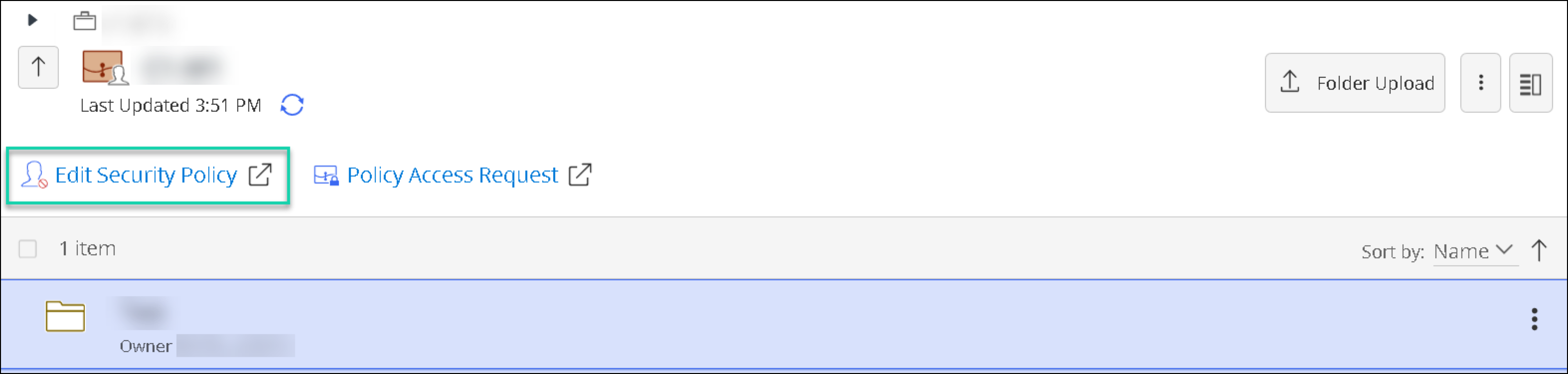
The SPM Edit Policy for iManage Work application provides an Edit Security Policy option for matters in Work. Selecting this option opens SPM Administration Console at the dashboard of that matter.
The option is available:
On the matter context (kebab) menu of a matter in the Matters list (as shown in Figure 1a below)
On the matter context (kebab) menu of a matter page
On the matter page (as shown in Figure 1b below)
NOTE: Users specified for access to this application see the menu options and links to SPM in Work, where applicable, but access to pages in SPM is defined by SPM permissions and security policies; if the user does not have the required access, the SPM page will not load.
About the SPM Request Access for iManage Work application
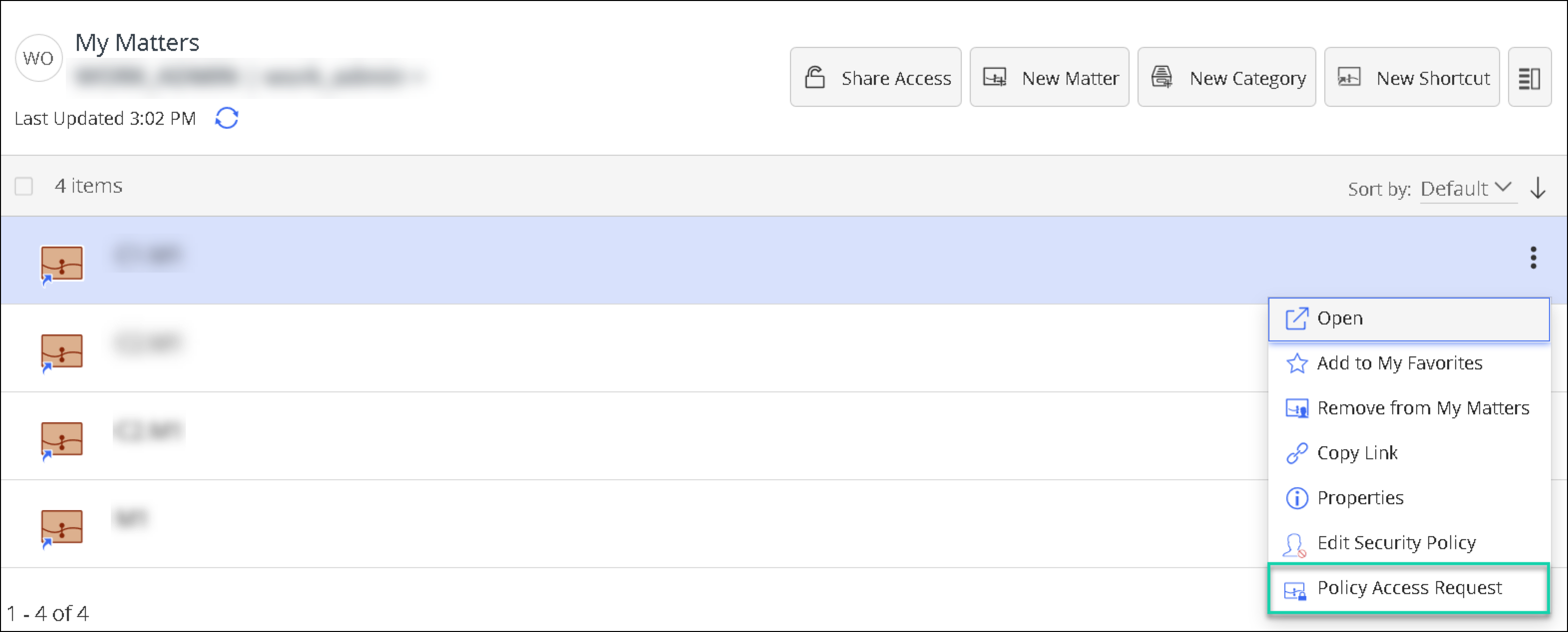
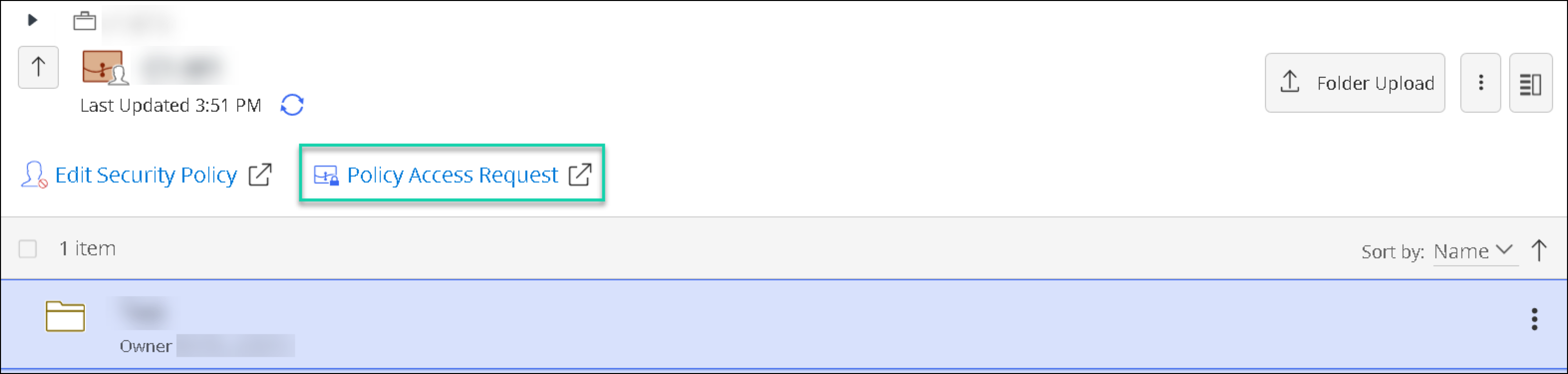
The SPM Request Access for iManage Work application provides a Policy Access Request option for a matter in Work. Selecting this option opens SPM User Console at the Request Access For dialog of the matter, with some of the fields pre-populated.
The option is available:
On the matter context (kebab) menu of a matter in the Matters list (as shown in Figure 2a below)
On the matter context (kebab) menu of a matter page
On the matter page (as shown in Figure 2b below)
NOTE: Users specified for access to this application see the menu options and links to SPM in Work, where applicable, but access to pages in SPM is defined by SPM permissions and security policies; if the user does not have the required access, the SPM page will not load.
Installing the applications
The method for adding SPM applications for iManage Work varies in accordance with the iManage Work platform that you are using.
Installing the applications for iManage Work on premises or iManage Work at imanage.work
Installing the applications for iManage Work at cloudimanage.com
Installing the applications for iManage Work on premises or iManage Work at imanage.work
Installation overview
The applications are separate and independent: you can add either, or both, as required.
Prerequisite and detailed procedural information for adding the applications is provided below. For additional information about applications in iManage Control Center, refer to Applications in iManage Control Center online help.
Prerequisite
Administrative user must have sufficient (Tier 2 or NRTADMIN) privileges in iManage Work to access, and add applications to iManage Control Center.
Step 1: Downloading and preparing the applications
Download the SPM-Work Integrations installation package file (
SPM-Work Integrations.zip) from the latest iManage SPM Cloud Service Update, or iManage Help Center, and extract to a destination folder of your choice.
The following files are contained within:SPM Edit Policy for iManage Work.zipSPM Request Access for iManage Work.zip
Extract these files, also, to a destination folder of your choice.
The following steps can be applied to either of:SPM Edit Policy for iManage Work.zipSPM Request Access for iManage Work.zip
as required.
NOTE: Only one application can be added at a time.
In the
web_extensionsfolder, open the YAML file.In the url field, enter the SPM server URL.
Save the YAML file.
Multi-select the following:
manifest.yaml fileresourcesfolderweb_extensionsfolder
Compress (zip) these items to a new ZIP folder. You can name these folders as required, for example to the name of the original parent folder:
SPM Edit Policy for iManage Work.ziporSPM Request Access for iManage Work.zip
Step 2: Adding the applications
The following steps describe how to add the SPM applications using Control Center 10.3.x or later.
NOTE: If you are using iManage Work on-premises at a version prior to 10.3, the procedure to add these applications, or extensions, is different. For more information, refer to the Installing the optional SPM applications for iManage Work section of iManage Work Agent for SPM and Preparation of iManage Work for SPM Integration.
Open iManage Control Center.
Browse to Settings > Applications.
Select + Add Application.
The Add Application dialog box displays. Select Upload Package.
Navigate to the folder which contains the required SPM ZIP file, that is,
SPM Edit Policy for iManage Work.ziporSPM Request Access for iManage Work.zip
Select the required ZIP file.
Select Open. The Add Application wizard displays at the Configuration tab. The default settings can be used (or you can configure as required).
Select Authentication. The Add Application wizard displays at the Authentication tab. The default settings can be used (or you can configure as required).
Select Access. The Add Application wizard displays at the Access tab.
For the setting Allow access to, select All Users or Custom, and specify the users as required.
NOTE: The users specified here can see links to SPM in Work, where applicable, but access to pages in SPM is defined by SPM permissions and security policies; if the user does not have the required access, the SPM page will not load.
Select Review.
Review the information presented. Note that the Enable application? slider is set to be Yes by default.
Select Finish. A confirmation displays. The application is now available for use.
Repeat these steps for the other SPM application, as required.
Installing the applications for iManage Work at cloudimanage.com
Installation overview
The iManage - SPM Edit Policy and iManage - SPM Request Access applications (extensions) are separate and independent: you can add either, or both, as required.
Prerequisite and detailed procedural information for adding the applications is provided below.
Prerequisite
Th user signed into Control Center must have a Global Management role, which has the App Management privilege in iManage Work to access, and add applications to iManage Control Center at cloudimanage.com. For more information, refer to Global privilege descriptions in iManage Control Center at cloudimanage.com online help.
Adding the applications
Open iManage Control Center at cloudimanage.com.
Browse to Settings > Applications.
Select + Add Application.
In the Add Application dialog, use the Search for Applications field to filter to one of the following applications, as required:
iManage - SPM Edit Policy Extension
ORiManage - SPM Request Access Extension
NOTE: Both of these applications are now available in the applications list by default; there's no longer a requirement to raise a CS Operations support request for their enablement.
Select the application to add and then select Authentication.
On the Authentication tab, use default settings or configure authentication settings as required.
TIP: For additional details about the configuration options available when adding applications in iManage Control Center at http://cloudimanage.com , refer to the Applications section in iManage Control Center at cloudimanage.com documentation.
Select Access to configure which users can use the application.
Select Settings.
On the Settings tab, add your iManage SPM server root domain in URL.
Example:123.spm-cloudimanage.com
NOTE: Other components of the URL are subsequently added in the background by iManage Control Center, so you only need enter the root domain of your iManage SPM server.
In the example given, the root domain entered info the URL field entered would, upon saving, be incorporated to complete the URL used by the extension: https://123.spm-cloudimanage.com/admin/workAction/matter-security
Select Review to review your changes.
Select Finish. A confirmation message is displayed. The application is now available for use.
Repeat these steps for the other SPM application, as required.