In this section you can find out how to access and get started with iManage Security Policy Manager. Key interface items are also provided.
Accessing iManage Security Policy Manager
Before you access the iManage Security Policy Manager application, the iManage Security Policy Manager Server service must be running.
TIP: If you sign in to iManage SPM at your existing address, you'll see a banner telling you that iManage SPM is moving to a single iManage address, with a Take me to the new SPM address button. The banner is informational, can't be dismissed, and doesn't affect your access. It stops appearing once you sign in at your iManage Work address with /spm/web added. Your existing address stops working on December 7, 2026.
If your organization has enabled single sign-on, you do not need to enter any user credentials to access the application. Your organization single sign-on provides you access to the iManage Security Policy Manager application.
If your administrator has enabled form-based sign-in for you, you are required to sign in using the credentials provided by your administrator:
Enter the following URL in your web browser:
http(s)://host:port/login. The iManage Security Policy Manager sign-in page appears.
NOTE:
The default port is 8080. The port number is the number the iManage Security Policy Manager Server service has been configured to run under.
Depending on how iManage Security Policy Manager Server service is configured, the transport protocol can be either http or https.
In the Username and Password field, enter your user name and password, respectively.
NOTE: To display or hide the password, select the  icon.
icon.
Select Sign In.
You have now signed in to the application. The iManage Security Policy Manager User Console opens at the My Security Policies page. This contains the list of matters that you have access to.
Home Page
Resetting the Password
You can reset your login password. This feature is available in the top banner. This is available only for those accounts where form-based authentication is enabled.
Select <User name> > Reset Password.
The Reset Password page appears. The password definition is present on the page to guide you while setting a new password.In the Existing Password field, enter your current password.
In the New Password field, enter a new password conforming to the password definition.
In the Confirm your New Password field, re-enter the new password you set.
NOTE: Selecting Submit in the next step will sign you out of iManage SPM.Select Submit.
You will automatically be signed out of iManage SPM and brought to the sign-in page. Use your new password to sign in again.
Signing Out
You can sign out from the iManage Security Policy Manager application anytime by selecting the <User name> > Sign Out option in the top banner.
NOTE: If your iManage SPM session is inactive for a time, you'll automatically be signed out.
Bookmarks
If you are logged in to the application, you can access a specific page in the console by entering the exact URL of the page. However, if you aren't signed in and are trying to access a page through a URL provided to you, you are directed to the sign-in page first and after you enter your credentials, the application redirects you to the specific page you were trying to access.
Understanding the Interface
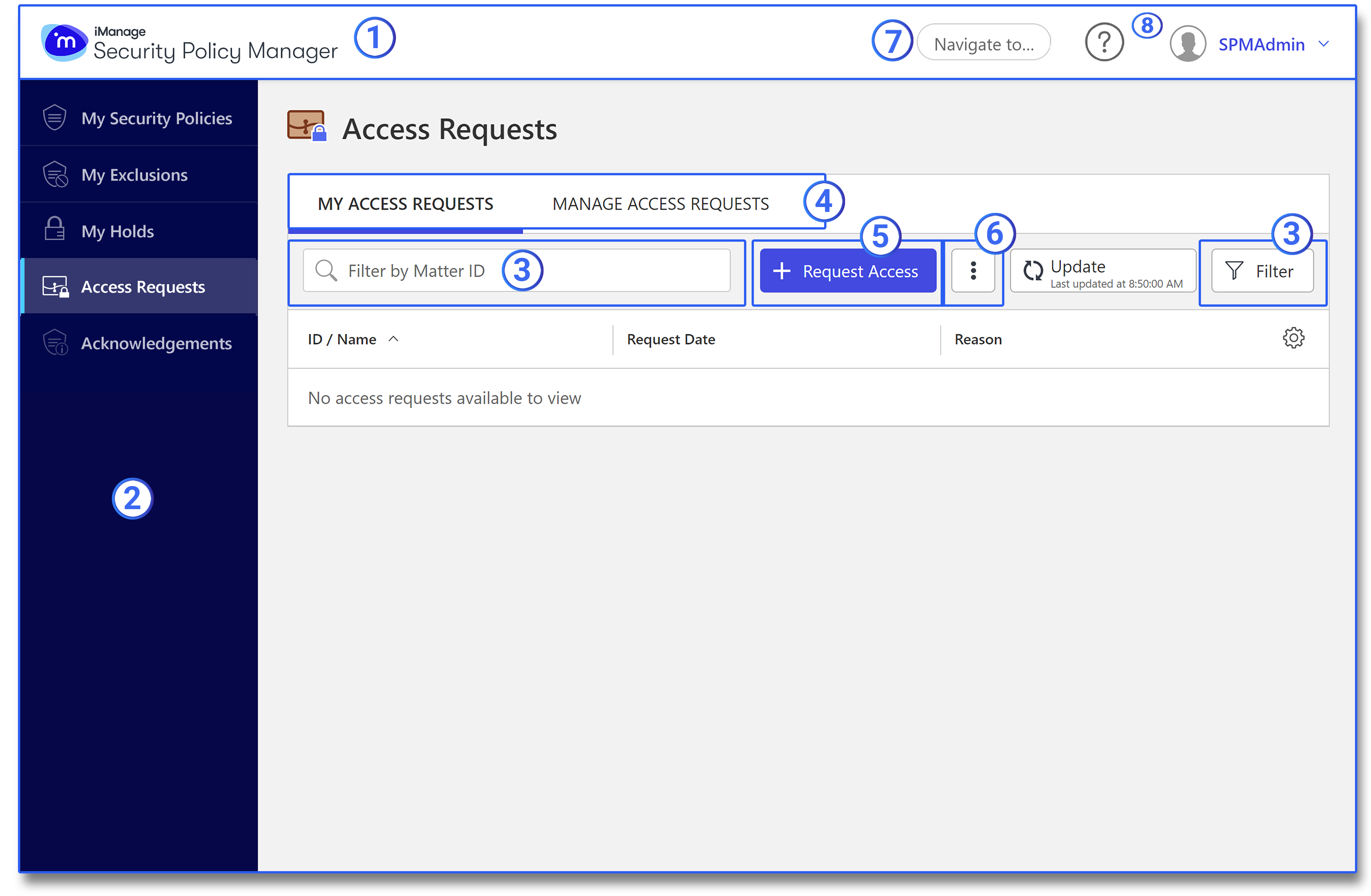
No. | UI element | Description |
|---|---|---|
1 | Top banner | The top banner comprises the product logo on the left side and the common tasks that you can perform after you have logged in, at any instance during the session. |
1* | iManage applications switcher | Available only if you sign in to iManage SPM at your iManage Work address (using NOTE: If you see an error when you select iManage Work from the iManage applications switcher, this means that the supporting application in iManage Work is not currently enabled by your organization. |
2 | Navigation pane | The navigation pane lists out the tabs, which include My Security Policies, My Exclusions, My Holds, My Conflicts, Access Requests, and Acknowledgments. From here, you can navigate to the corresponding tasks that you can perform under each tab. The navigation pane is populated based on your user roles in iManage Security Policy Manager. |
3 | Filters (search bar) | Filters are provided on the home page to refine the search and find relevant content/ documents. The Search bar provides the ability to perform text searches and criteria-based searches. The filtering feature enables you to lock specific criteria, and use them as filters when searching and browsing content. In this way, you work only with relevant information that matches your filters. |
3* | Pinnable filters | Individual, applied, filters can be pinned. For example, you can pin the Acknowledgment Required filter to the My Exclusions page. Example of pinned filter: |
4 | Tabs | Tabs (for example, My Access Requests, Manage Access Requests) are provided for navigation to the respective pages/panes in the application. |
5 | Buttons | Buttons are provided to effect an action. |
6 | More Options buttons | The more options button ( |
7 | Quick Navigation | Access an asset page or hold page with Quick Navigation by entering the asset ID or hold ID in this field. You can use period (.) or hyphen (-) as the client/matter separator in these types of searches. Incomplete entries are applied as filters to the respective list.
TIP: You can access Quick Navigation instantly by pressing "n" on your keyboard (or other input device). |
8 | Help | Select the Help |


*Not shown in figure.
Setting the language of SPM user console
SPM can be displayed in American English, British English, Canadian French, and Japanese. Alternative languages may be available if these are added by your organization. Set the language using the locale or language settings of the browser used to access SPM user console.
Accessing the help
The Help  icon on the top banner provides you with access to information that can help you make full use of iManage Security Policy Manager (SPM).
Select the Help icon to access the online user documentation for iManage SPM.