The number of Playbooks can quickly grow as you and other users start creating Playbooks. You may use a few Playbooks more often than others for your regular work.
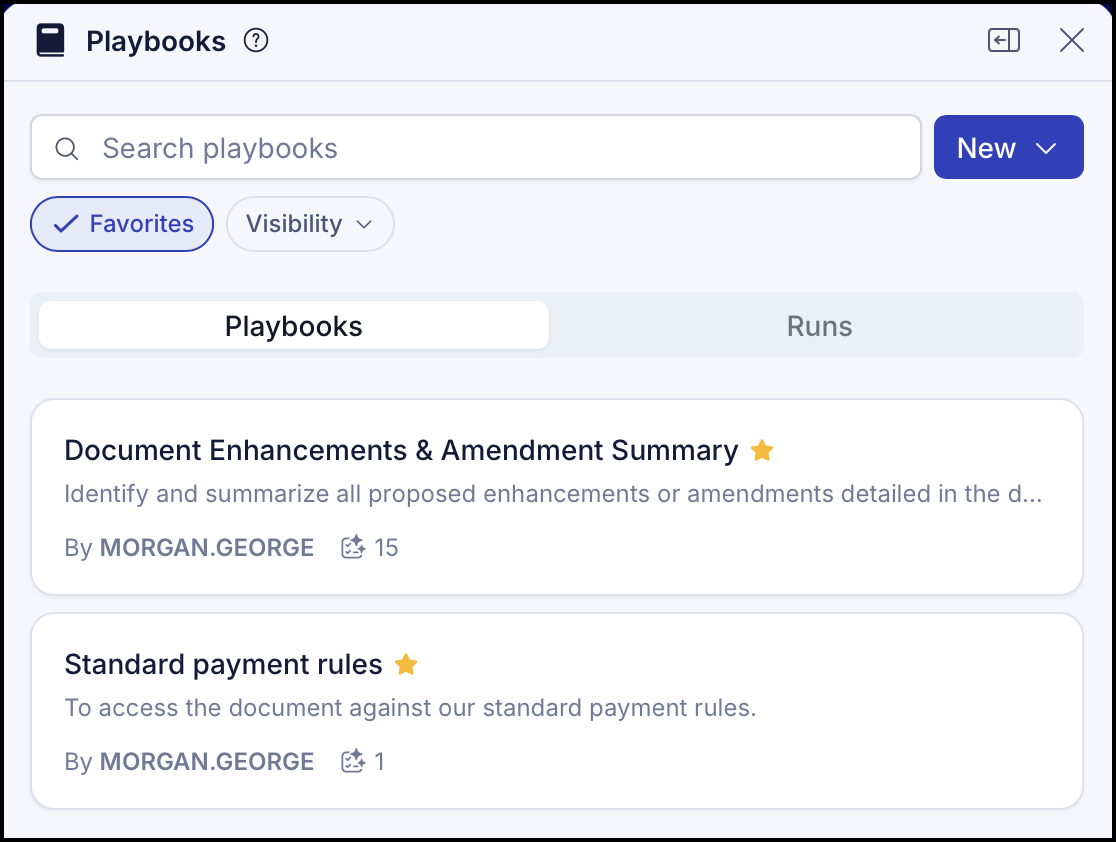
iManage platform provides you with an option for marking all such Playbooks as favorites and quickly gain access to these lists by using the Favorites option. You can also remove Playbooks from the favorites list as required.
Add Playbook as a favorite
To add a Playbook as a favorite,
On the left navigation bar, select Playbooks
 to display the Playbooks dialog and view the existing Playbooks.
In the Playbook dialog, hover over the Playbook that you want to add as a favorite and select Add to favorites.
Figure: Add to favorites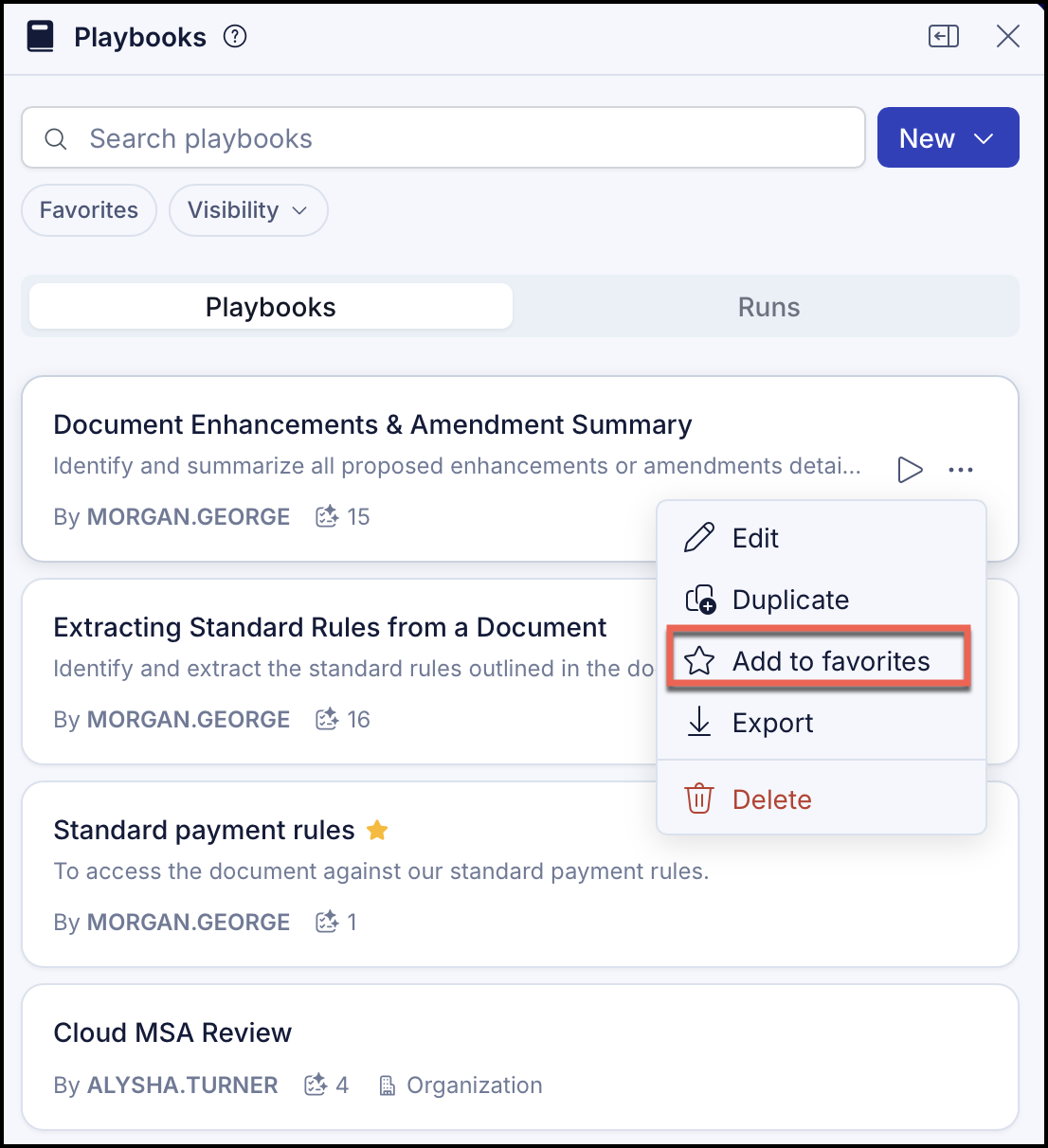
Remove Playbook from Favorites
To remove a Playbook from favorites,
On the left navigation bar, select Playbooks
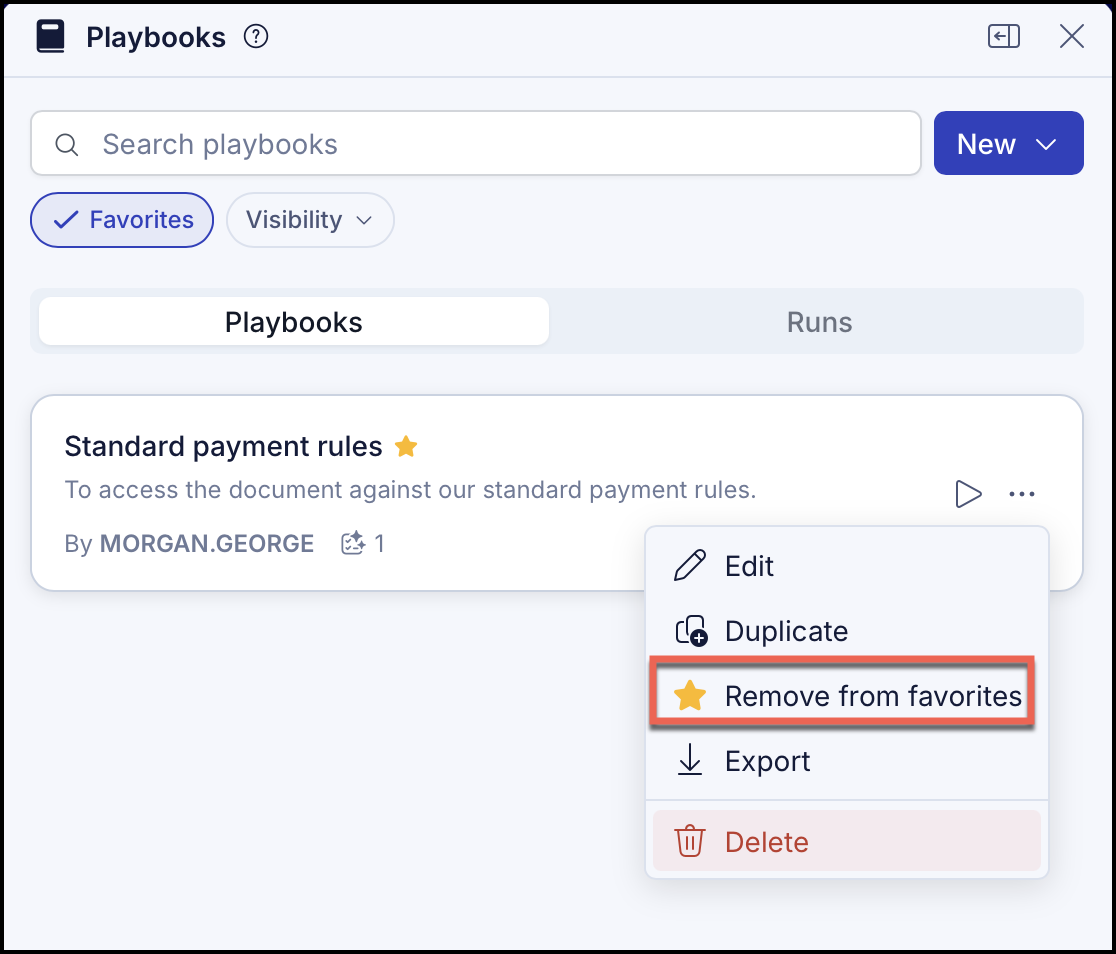
to display the Playbooks dialog and view the existing Playbooks.In the Playbook dialog, hover over the Playbook you want to remove and select Remove from favorites. Alternatively, select Favorites to view all favorited Playbooks, then hover over the Playbook to remove and select Remove from favorites.
Figure: Remove from Favorites