To create a Playbook manually,
On the left navigation bar, select Playbooks
 to display the Playbooks dialog.
 Select New > Create manually to open the Create a playbook dialog.
Figure: Creating a Playbook manually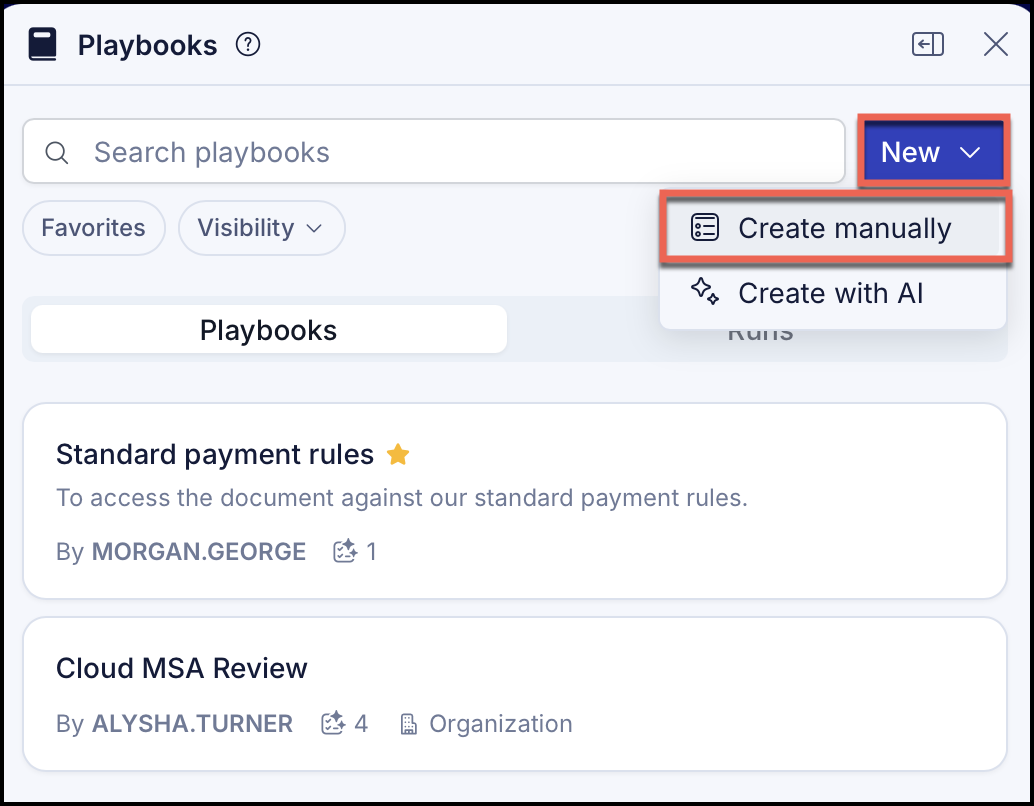
In the Create a playbook dialog, do the following:
Figure: Create a playbook dialog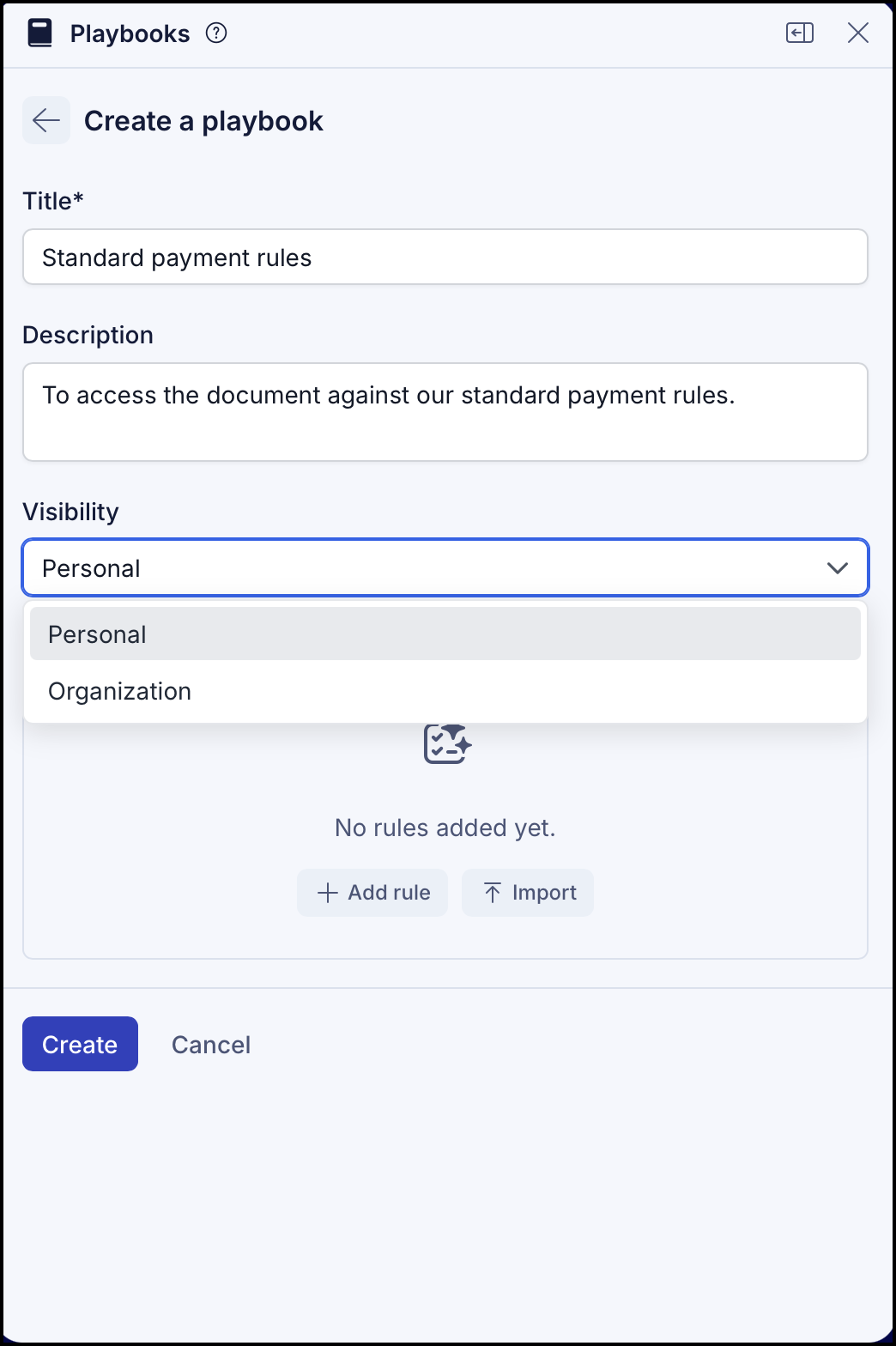
In Title, enter a name for the Playbook that's easily identifiable when applying it to a document.
In Description, enter any information that can provide additional information about the Playbook, like information that can help you understand the purpose of the Playbook and what it contains.
In Visibility drop-down, select Personal to make the Playbook visible only to you, or Organization to make the Playbook visible to the organization.
A Playbook must have at least one rule in it. To add a rule, select Add rule.
Figure: Adding rules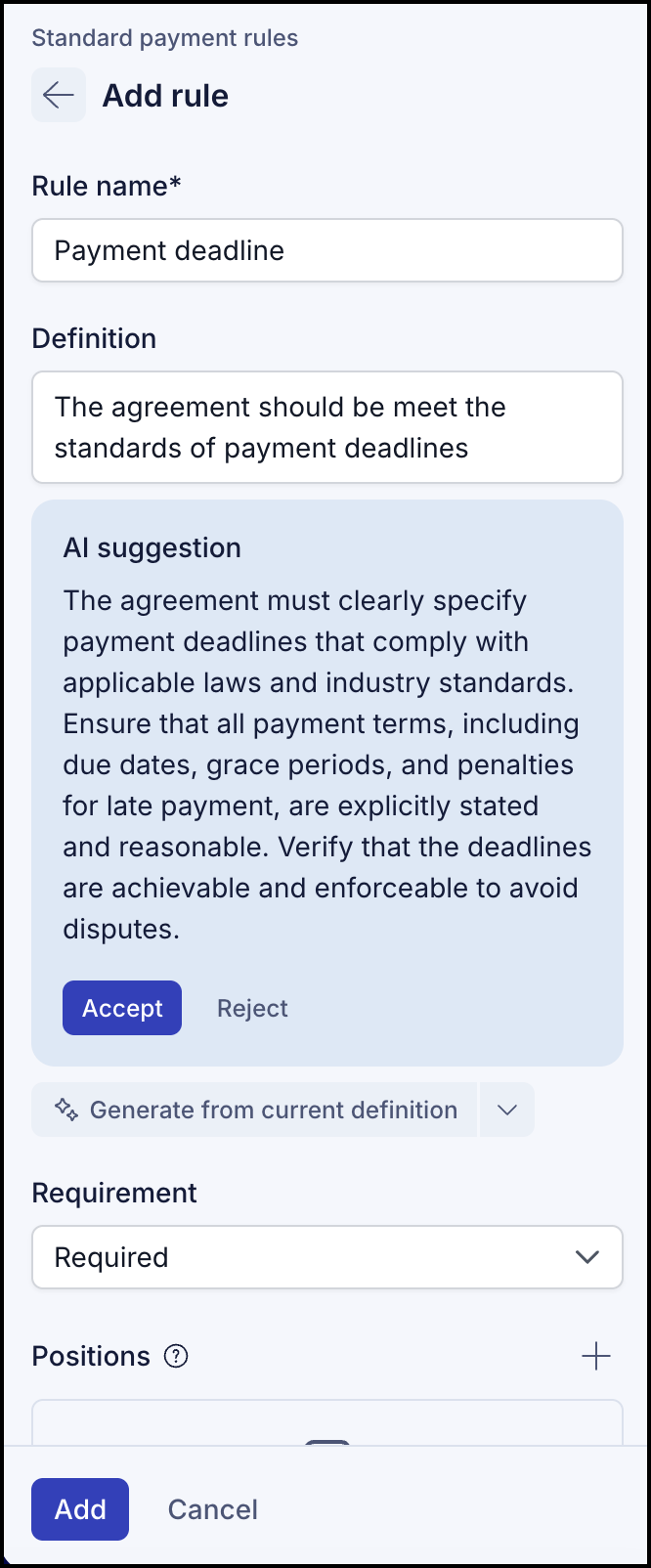
In Rule name, add a name for the rule. For example, Payment deadlines.
In Definition, enter the description of the rule. For example, Agreement should set a clear payment deadline.
Alternatively, you can use AI and do any of the following.Enter the rule name and generate a definition by using Generate from rule name option.
Provide the description and improve it by using Generate from current option option.
Select Open document and browse and select a document to open it in preview. Select a text from the document opened and generate the definition using Generate from selected text.
After the definition is generated, select Accept to accept or Reject to reject the definition.
In the Requirement drop-down field, select if the rule is Required, Preferred, or Optional.
Select Add standard position to open the Add standard position pane and do the following:
Figure: Adding position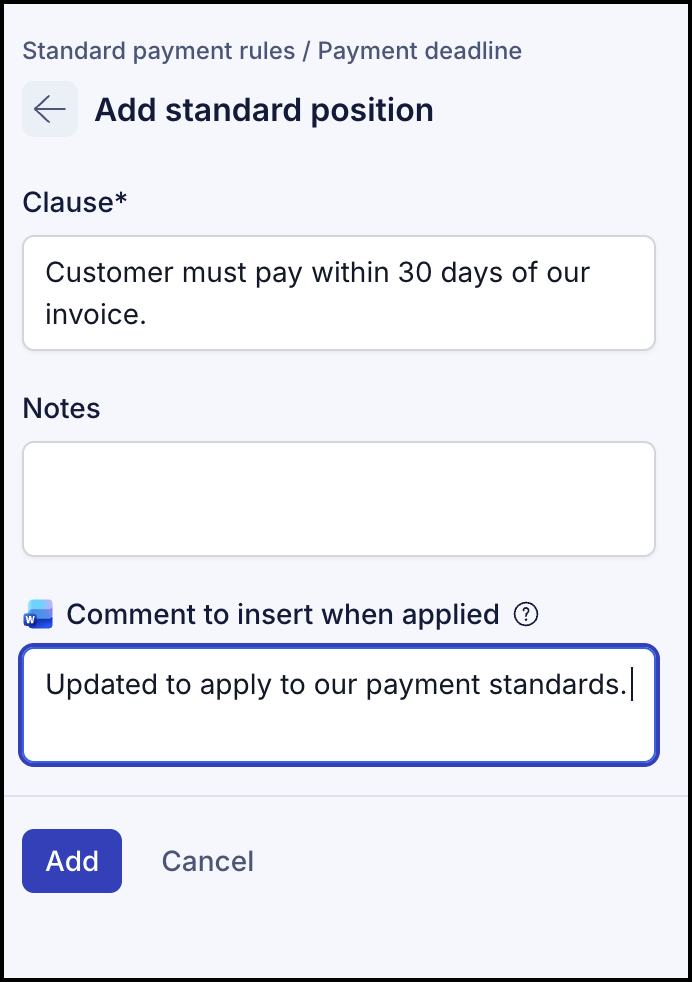
In Clause, enter the clause. For example, The customer must pay within 30 days of our invoice.
Enter notes in Notes, if any.
Enter the comment to be inserted in Microsoft Word document.
Select Add to add the position. The position is now saved.
(Optional) Select Add standard position to add another position.
Select Add. The rule is saved.
(Optional) You may now proceed to add another rule to the Playbook.
Select Create. The Playbook is now available to you to apply to a selected document.