Deleting documents
To delete a document in a table,
Select Tables
 in the left pane to open the Tables pane.
In the Tables pane, select and open the table you want to export. Alternatively, in the Search tables field, search and open the table in which you want to delete the document.
After the table opens, slide the Select mode
 toggle to right to enable it. Select the document row or document rows to be deleted.
Select
 to delete the document or documents selected. Figure: Deleting document or documents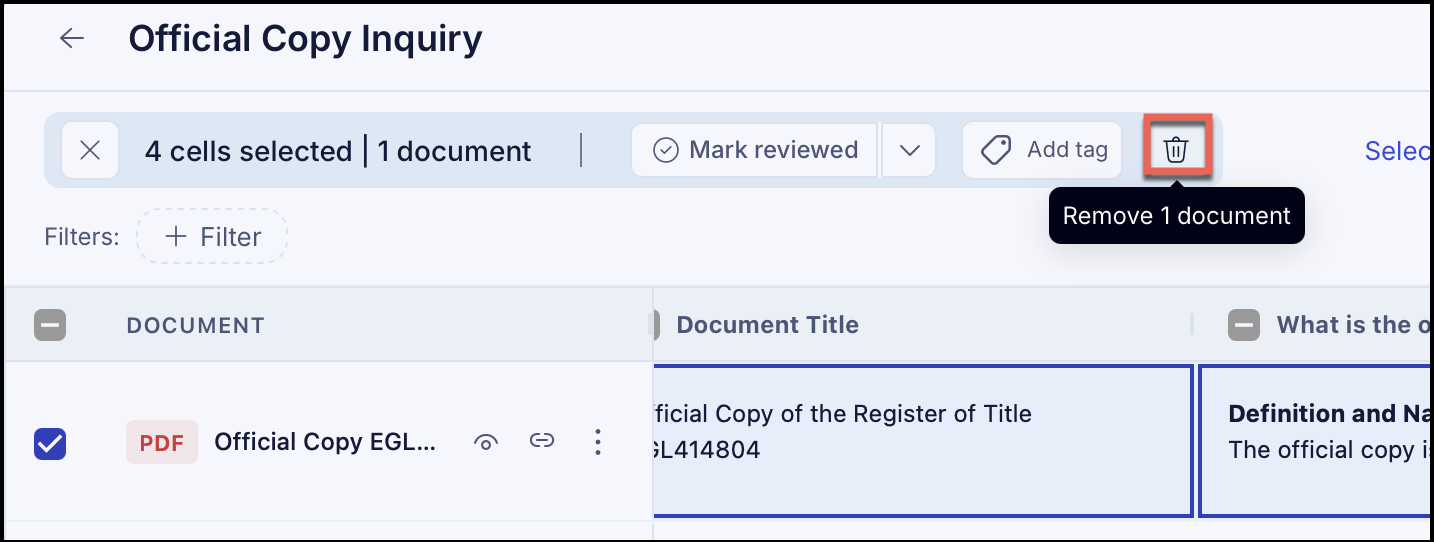
The document rows are deleted.
NOTE: There's no confirmation dialog displayed when deleting document. The document is deleted and a confirmation message is displayed.
You cannot delete individual columns. You can only delete individual rows.
Deleting a table
To delete a table,
Select Tables
in the left pane to open the Table pane.In the table pane, under Recent tables, hover over the table you want to delete. Alternatively, in the Search tables field, search for the table you want to delete.
Select
 three dots next to the table you want to rename and then select Delete table.Figure: Deleting table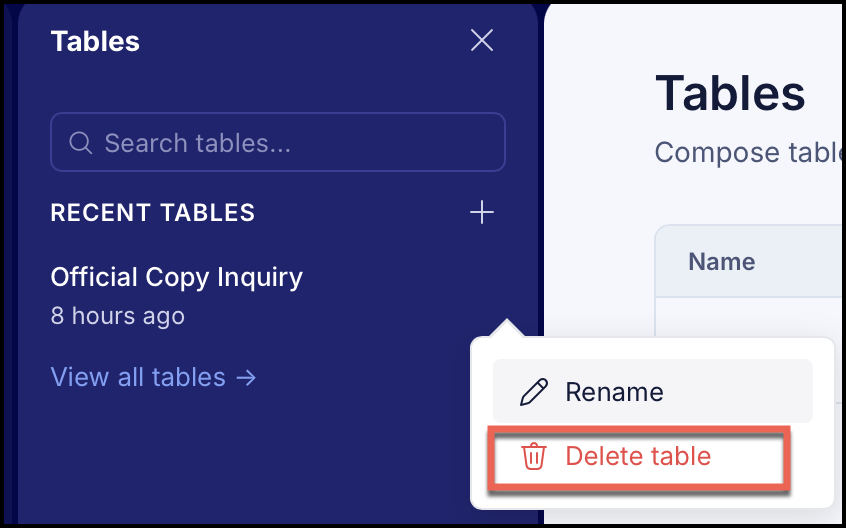
Select Delete in the confirmation dialog displayed. The table is deleted.
Figure: Deletion confirmation
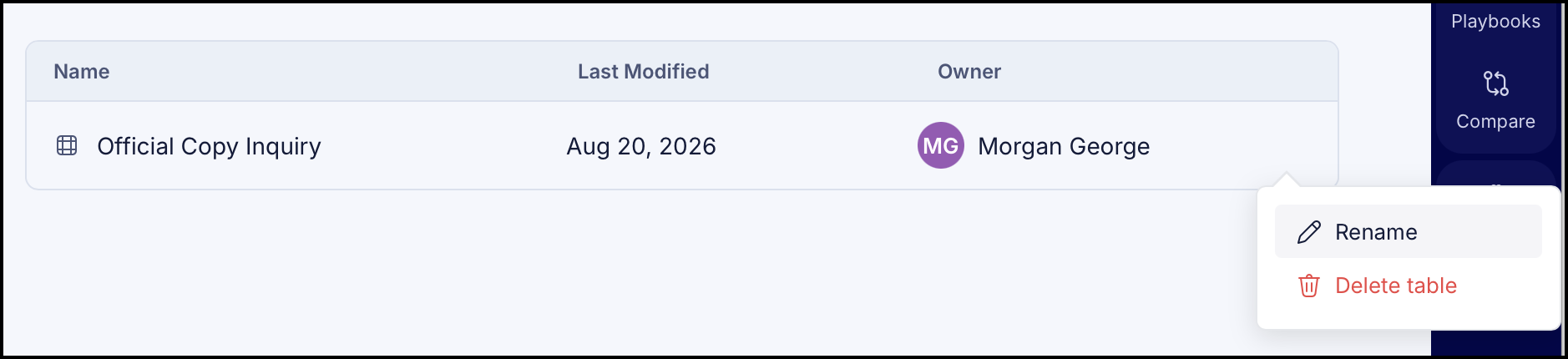
(Optional) Alternatively, select View all tables to open the Tables page. In the Tables page, select
 three dots next to the table you want to delete and then select Delete.
Select Delete in the confirmation dialog that is displayed. The table is deleted.Figure: Deleting the table in Tables page