iManage platform now automatically names the table based on the first column added to the table. You can however, rename the table by doing the following:
Select Tables
 in the left pane to open the Table pane.
 In the table page, under Recent tables, hover over the table you want to rename. Alternatively, in the Search tables field, search for the table you want to rename.
Select
 the three dots next to the table you want to rename and then select Rename. Figure: Renaming the table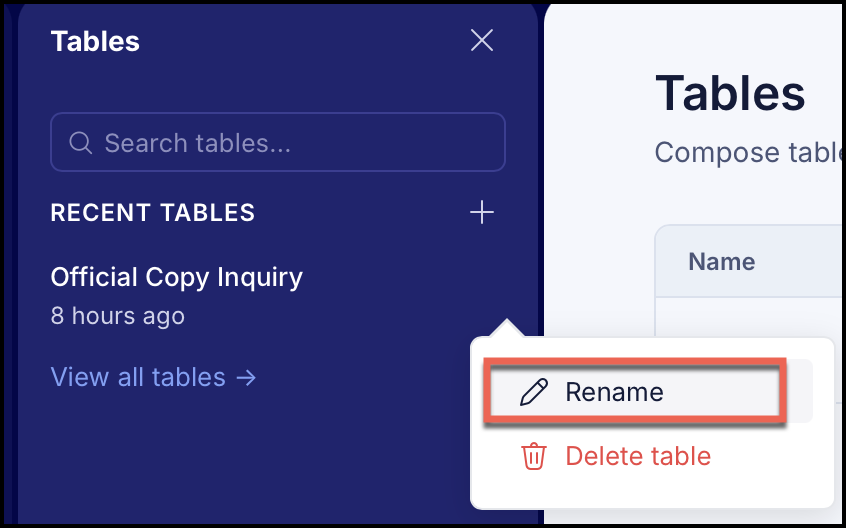
Enter the name of your choice. The table is renamed.
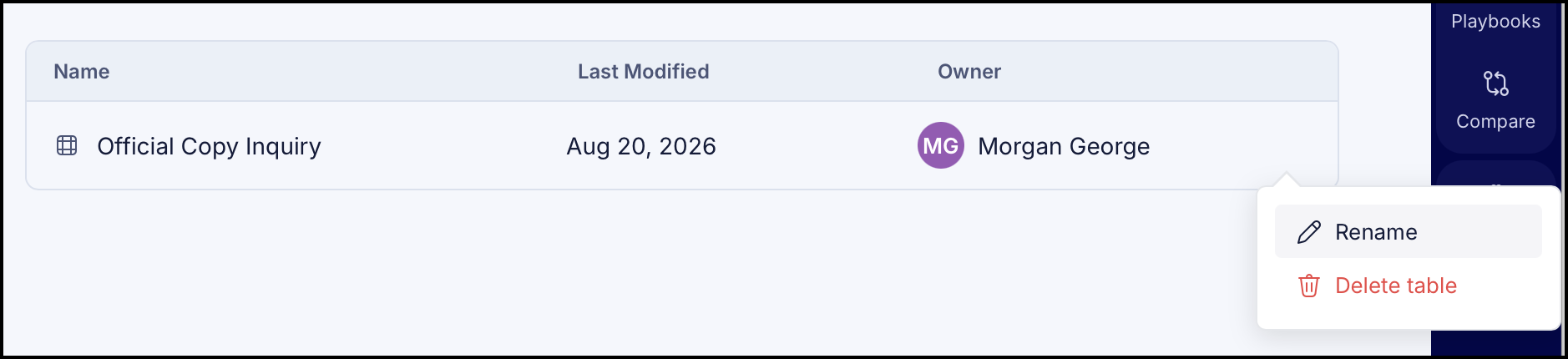
(Optional) Alternatively, select View all tables in to open the Tables page. In the Tables page, select the
 three dots next to the table you want to rename and then select Rename. The table is renamed. Figure: Renaming the table in Tables page