To export tables:
Select Tables
 in the left pane to open the Tables pane.
In the Tables pane, select and open the table you want to export. Alternatively, in the Search tables field, search and open the table you want to export.
After the table opens, select Export
 .
. In the Export table dialog that opens, do the following:
Figure: Export table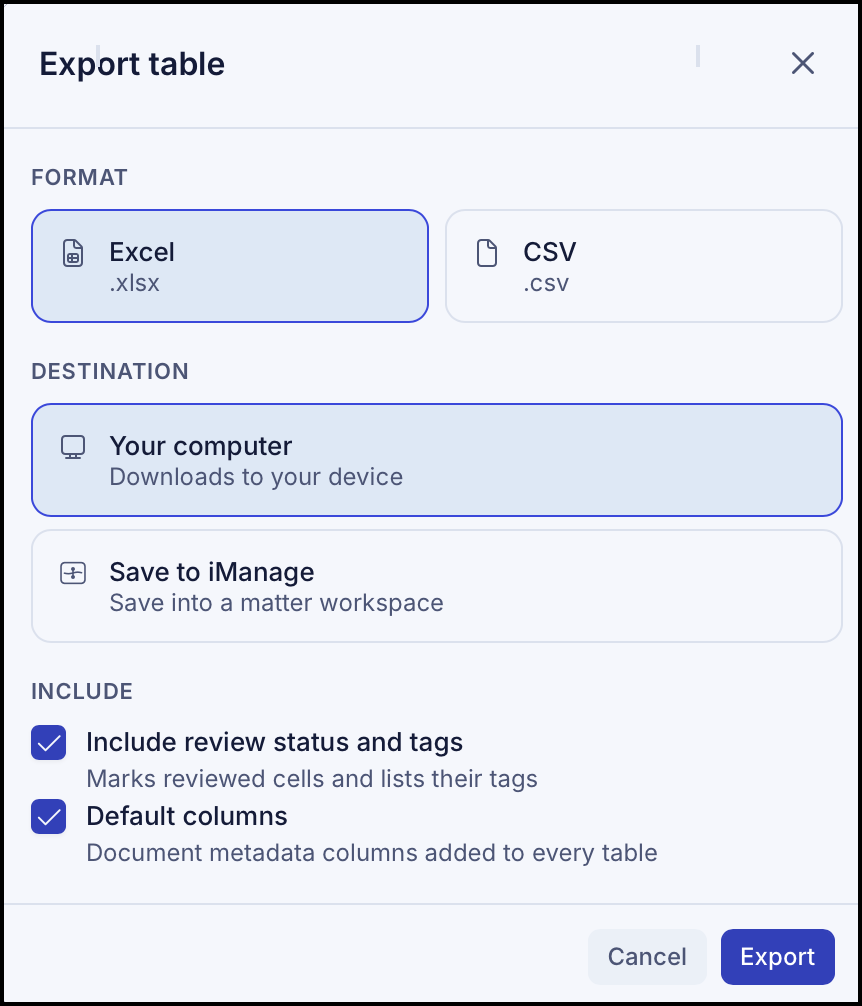
Select the format (either Excel or CSV)
Select the destination.
If you select Your Computer, the file is downloaded to the default location on your device.
If you select Save to iManage, the iManage Save dialog opens. Browse to the destination folder to save the file in iManage platform.Select the Include review status and tags or Default Columns check boxes if you want to export all review status, tags, and metadata columns added to every table.
Select Export to export the table or Cancel to cancel the export action.