To export the comparison results, do the following:
Select the
 Export button in Compare panel (either in an expanded or collapsed view)
In the Export dialog that opens, do one of the following:
In Content, select either:
Redline: Tracked changes document
Change Summary: Summary of detected changes
In Destination, select either:
Your computer: Downloads to your device.
New document: Saves as a new document in iManage platform.
New version: Saves as a new version of an existing document in iManage platform.
In Format, select either:
Word (.docx)
PDF (.pdf) (for redline only)
Figure: Select values for exporting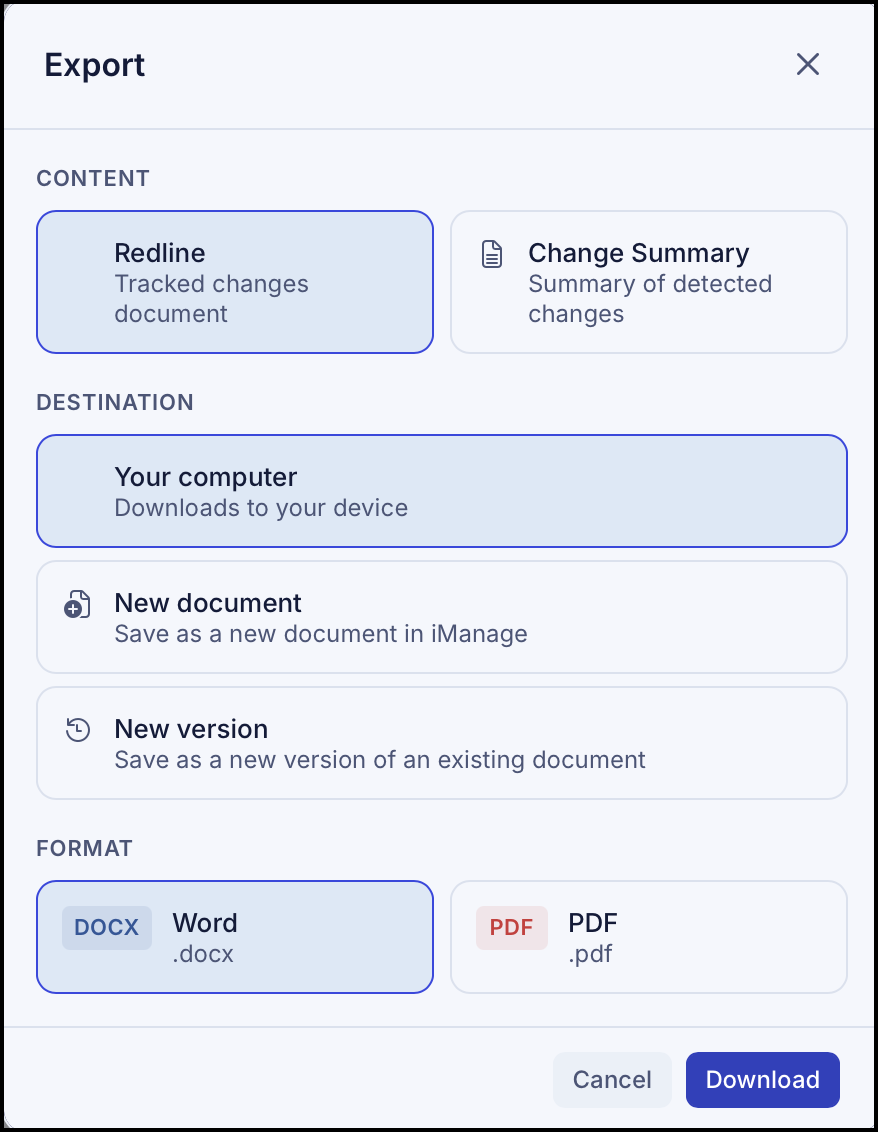
Selecting New document or New version opens the Save to iManage dialog, where you select the workspace (these may also be called matters depending on your configuration) or folders and confirm with Save.
Selecting Your computer downloads the file directly to your default download location on your device.
NOTE: Change Summaries can only be exported as Word (.docx). PDF is available for Redlines only, regardless of destination.