As you work, the Notifications panel can fill up quickly, and important notifications, such as failures, can be hard to spot. You can filter the list by category, show only unread notifications, or both.
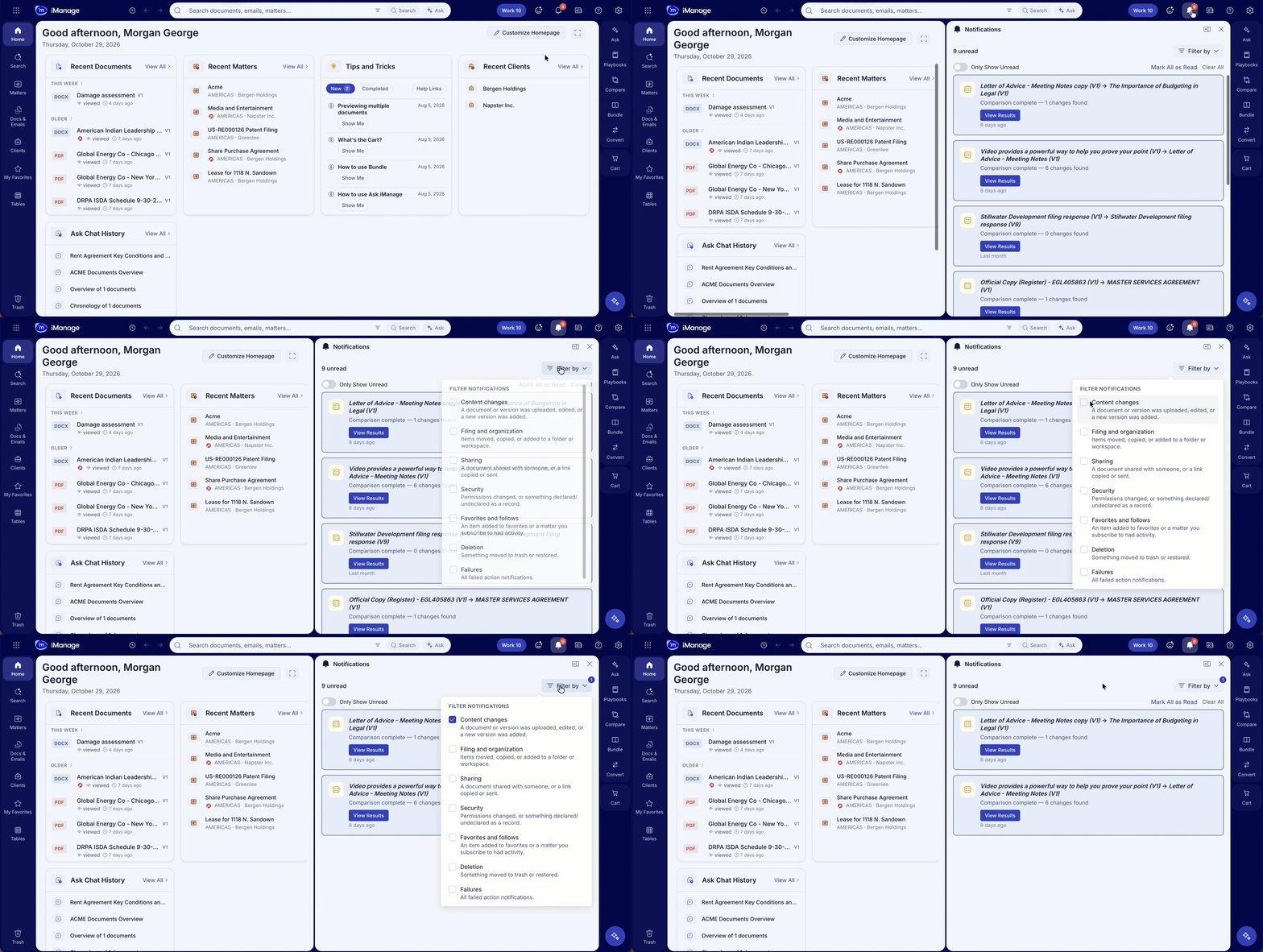
Filters change only which notifications are listed. They don’t delete notifications, and they don’t affect the following:
Unread count: The count at the top of the panel and the badge on the Notifications icon always include all unread notifications, including notifications hidden by a filter.
Mark All as Read: Marks every notification read, including notifications hidden by a filter.
Clear All: Removes every notification from the panel, including notifications hidden by a filter.
The Notifications panel header includes two controls for filtering:
Filter notifications: Select this button to choose which categories of notification appear in the list.
Only Show Unread: Turn on this switch to hide notifications you’ve already read.
Notification categories
The Filter notifications list contains the following categories. By default, no categories are selected and all notifications appear. When you select one or more categories, only notifications in those categories appear.
Category | Includes |
|---|---|
Content changes | A document or version was uploaded or edited, or a new version was added. |
Filing and organization | Items were moved, copied, or added to a folder or workspace. |
Sharing | A document was shared with someone, or a link was copied or sent. |
Security | Permissions changed, or an item was declared or undeclared as a record. |
Favorites and follows | An item was added to favorites, or a matter you follow had activity. |
Deletion | An item was moved to trash or restored. |
Failures | Any action that failed, including compare, bundle, convert, and workflow jobs that fail after they start. |
Some background-task notifications don’t belong to a category yet, such as workflows in progress, playbook runs, multi-file downloads, and Ask iManage tasks. Warnings don’t belong to a category either. These notifications appear only when no categories are selected.
NOTE: Filter Notifications is a Public Preview feature. Public Preview features are off by default. To use this feature, turn it on in User Settings, as described below. For more information, see Preview features.
Enable notification filters
In the iManage platform web client, open Settings > Advanced.
Find the Public Preview section. If you don’t see it, ask your administrator whether you are in a group with Public Preview access.
Turn on Filter notifications.
To filter notifications by category
Select the Notifications icon (bell) on the toolbar at the upper right of the page.
Select Filter notifications.
Select the checkbox for each category you want to show. To remove a category from the filter, deselect its checkbox. To show all notifications again, deselect all checkboxes.
The list updates as soon as you change a selection.
To show only unread notifications
Select the Notifications icon (bell) on the toolbar at the upper right of the page.
Turn on Only Show Unread. To show read notifications again, turn it off.
Only Show Unread works together with the category filters. For example, if you filter to Content changes and turn on Only Show Unread, the panel lists only the content changes you haven’t read.
If none of your notifications match the current filters, the panel shows “No notifications match your filters.” Select Reset Filters to clear your category selections. If Only Show Unread is on, turn it off to show read notifications too.
Your filter choices are saved to your profile, so they stay in place when you refresh the page or sign in on another device.