As a member of the NRTAdmin group in iManage Work, you are automatically assigned roles in iManage Threat Manager. This enables you to assign roles to other users and add roles to yourself as needed.
In this section:
User onboarding and role management in iManage Threat Manager
The following topics provide an overview of user initialization and role management within iManage Threat Manager.
Initial users from the NRTAdmin group
The first user in your organization to sign in to iManage Threat Manager must belong to the NRTAdmin group, as defined in iManage Work Server. Members of this group are automatically granted Role Manager and Configuration Manager roles, letting them assign additional users to iManage Threat Manager roles and configure system settings. This ensures a secure and controlled onboarding process for administrative users.
User and roles overview
Users are imported and authenticated through iManage Work, using the same credentials for iManage Threat Manager access. Roles in iManage Threat Manager determine the tasks users can perform, ranging from configuration and rule creation to investigations and compliance reporting. These roles are designed to align with organizational needs, ensuring flexibility and security in task delegation.
Roles in Threat Manager
iManage Threat Manager defines specific roles, each with distinct responsibilities.
Table: Roles in iManage Threat Manager
Role | Applicable Tasks |
|---|---|
Role Manager | Can assign users to iManage Threat Manager roles. This role is auto-assigned to members of the NRTAdmin group. |
Configuration Manager | Can view and configure iManage Threat Manager setup and configuration settings. This role is auto-assigned to members of the NRTAdmin group. |
Integrations Manager | Can create, edit, and delete access tokens, using the Application Tokens for Utility Access function in Configuration > Settings > System. |
Rule Editor | Can create, edit, and delete Detect and Protect rules, Behavior Analytics rules, and Matter Activity rules, and edit the global exclusion list. |
Investigator | Can view Behavior Analytics rule reports, Matter Activity rule reports, and Detect and Protect rule reports, investigate alerts, download Microsoft Excel exports (single- and multi-sheet), run Compliance reports (including User Activity Report exports), perform Outlier analysis, and run Analyze. |
Assigning roles to users/groups
Roles can be assigned efficiently through the Configuration > Roles page using two methods:
Assign by Role: Assign a single role to multiple users or groups simultaneously, ideal for bulk assignments.
Assign individually by User or Group: Assign multiple roles to a single user or group, offering granular control.
NOTE: In many organizations, compliance officers are assigned both Rule Editor and Investigator roles to create rules and conduct investigations. However, some firms may require separation between rule creators and investigators for enhanced oversight. The flexible role assignment system in Threat Manager supports these varying needs, ensuring compliance and operational efficiency.
Assign by Role
Browse to Configuration > Roles. The Users/Groups tab lists all users and groups in the system.
Select the Roles tab.
Figure: Configuration > Roles > Roles tab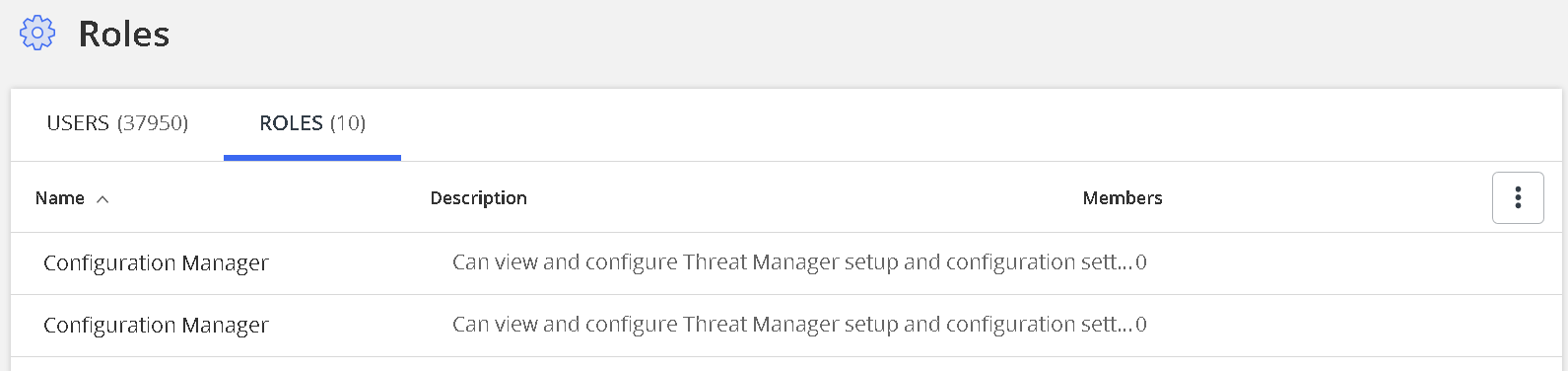
Select the desired role from the list to open its details page.
Select Add Members to view the list of users and groups.
Use the filter and sort tools as needed to locate users or groups.
Select the users or groups to assign to the role. The users or groups you choose remain selected even if you navigate through multiple pages.
Select OK to add the selected users or groups to the role. The role details page gets updated to reflect the changes.
Repeat Steps 2–7 for additional roles as needed.
TIP: To verify your selections before assigning, select View selected items to filter the list to only your chosen users or groups.
Assign individually by User or Group
Browse to Configuration > Roles. The Users/Groups tab lists all users and groups in the system.
Use the filter and sort tools to find the desired user or group.
Select the row of a user or group to open its details page.
Select the Roles tab to view any existing roles.
To add a role, select + Add Role and then choose the role(s) to assign.
Select OK to confirm. A confirmation message is displayed.
Select Roles in the navigation bar to return to the Users tab.
Repeat Steps 2–7 for additional users or groups as needed.