A client secret is a string that the application uses to prove its identity when requesting a token. This can be thought of as an application password.
Follow these steps to create a client secret for the Work for Outlook app.
On the iManage Work for Outlook app Overview page, select Manage > Certificates & secrets in the left-hand menu.
On the Certificates & secrets page, select the Client secrets tab, and then select + New client secret.
In the Add a client secret dialog, provide the following details:
Description: Enter a meaningful description for the client secret.
Expires: Select a duration for which the client secret will be valid.
NOTE: We recommend setting a reminder in your Outlook calendar to update the client secret two weeks before it expires. If you don't update it before it expires, all email management functions will stop working.
Select Add.
Record the client secret value, because it's required when enrolling the application in iManage Control Center. Before you leave the page, take note of the value to use in other steps.
Important: Make a note of the value before you leave the Certificates & secrets page, because you won't be able to access it again later.
For more information about enrolling the application in Control Center, refer to the Enroll the iManage Work for Outlook app section.
An example of the Certificates & secrets page after creating a client secret is shown in the figure below.
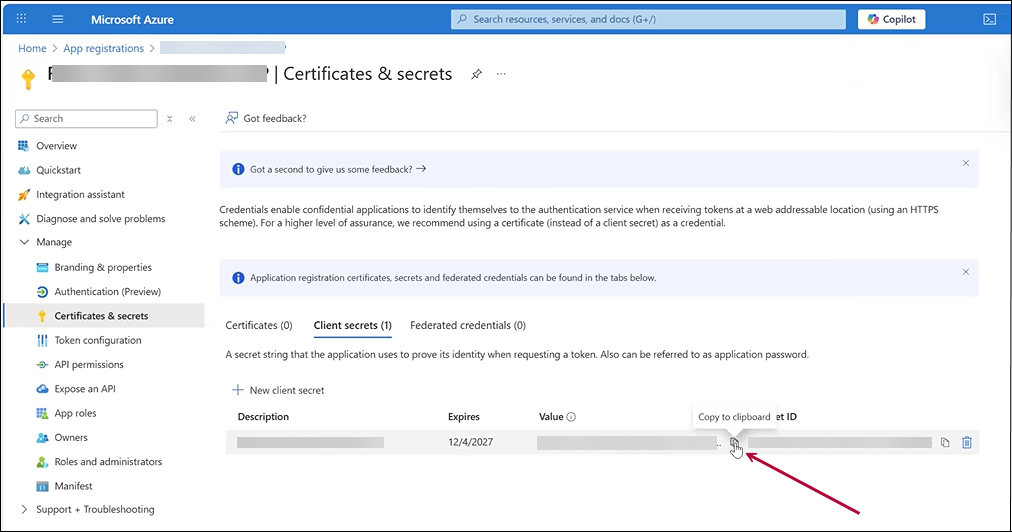
NOTE: After creating the client secret, the Certificates & secrets page for the iManage Work for Outlook app displays the following information:
Description
Expiration date
Client secret value
Client secret ID