iManage Work for Outlook app is supported by the following applications:
iManage - CEM Backend: This provides the backend service that accesses mailboxes and moves emails to iManage Work.
iManage - Email Admin Center: This adds the Email Admin Center plug-in to iManage Control Center. You can configure iManage Work for Outlook settings within this plug-in.
iManage - Work for Outlook: This application controls which users can sign in to iManage Work from the iManage Work for Outlook app within Outlook.
All three applications must be added and enabled for iManage Work for Outlook to function properly.
To enable these applications through iManage Control Center, follow these steps:
NOTE: To enable the iManage Work for Outlook app, the user signed in to iManage Control Center must be assigned to a Global Management role, which has the App Management privilege. For more information, refer to Global privilege descriptions.
In iManage Control Center, browse to Settings > Applications.
Select Add Application.
In the Add Application dialog, find and select an iManage Work for Outlook app (the descriptions of each are in the list at the beginning of this topic):
iManage - CEM Backend
iManage - Email Admin Center
iManage - Work for Outlook
Select Authentication to review and edit user authentication settings.
Allow Refresh Token: This setting allows the application to obtain a new access token when the current one expires, without requiring the user to re-authenticate.
Refresh Token Expiry: This setting determines the number of days a refresh token remains valid.
Access Token Expiry: This setting specifies the number of minutes of inactivity after which a user’s access token is invalidated.
Select Access to configure which users can use the iManage Work for Outlook app. Select one of the following options:
All Users: This setting grants access to all users.
Custom: This setting lets you search for and grant access to specific users.
Select Review to review the settings and enable the application.
Set Enable application? to Yes.
Select Finish.
Repeat these steps for each iManage Work for Outlook app in the list above.
NOTE: All three applications must be activated in your iManage environment. If you can’t find these applications, contact iManage to confirm they’ve been activated for your account.
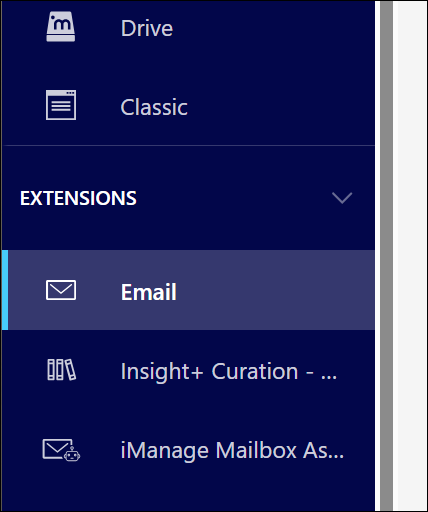
After the iManage - Email Admin Center application is enabled, the Email menu item becomes available in the Extensions section of the iManage Control Center navigation pane. You may need to refresh your browser for the Email menu item to be displayed.
For more information about adding and configuring applications, refer to Applications.