The iManage Work task pane, which is available in the email compose view in Microsoft Outlook, helps you file emails to iManage Work as you send them with the same options you have when filing emails from your inbox. You can select the required filing folder or just the workspace if it has the default email filing folder and file the emails. Attachments, if any, also get filed along with the email.
Additionally, while selecting the filing location, you can choose one or both of the following options:
Deleting emails that are filed
Filing emails as private so that no other users can view the emails even when they have all rights to the workspace and the filing folder.
To file an email while sending it, follow the steps:
In the email you're composing, select iManage Work from the toolbar to open the iManage Work task pane.
If the File to iManage option isn't already selected, select the toggle to display the filing options and filing locations.
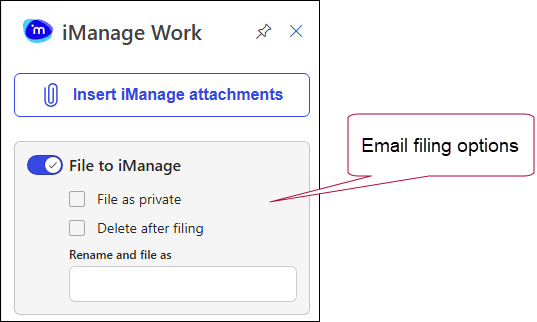
(Optional) Select one or both of the following filing options and rename if desired:
File as private: File the email as private so that no other users can view the emails even when they have all rights to the workspace and the filing folder, unless you give them permission.
Delete after filing: Deletes the email from Microsoft Outlook folders after it’s filed to iManage Work.
Rename and file as: Enter a file name you want associated with the email other than the default subject line.
NOTE: If you rename the file and the file name exceeds 220 characters, you’ll be prompted to rename the file with fewer characters due to a Windows character limitation.
Find the location among the workspaces and folders visible in the task pane, or use the search bar to find a destination workspace and select the check box.
Select Send to Send and File your email to the location(s) you selected.
The luggage tag is added at the end of the email subject line, to identify emails saved to iManage Work using the Send and File option and the tag displays the following details by default:
Your organization's identity
Name of the database where the email is filed
ID of the folder where the email is filed
The emails also have the  label applied.

NOTES:
After you file an email, the
Category will be applied to that email for the To and Cc recipients in your organization, so they know it's already been filed to iManage Work.A Bcc recipient in your organization will only see the Filed Category on the email if they filed it or if the Sender filed the email in Sent Items, even if these replies and forwards get filed and a record of the entire conversation is saved in iManage Work for future reference. To Send and File the replies and forwards to another location, repeat the above procedure.