You can also unlink folders that have been linked.
From the ribbon in Microsoft Outlook, open the iManage Work task pane and select the Linked folders tab.
Select Manage or link folders.
In the Manage folders dialog, browse to Inbox and expand it to view the Inbox folders you or your organization created.
Select the folder you want to unlink from the corresponding iManage Work folder, and select the
 to expand the menu.
From the menu, select
 to launch the Unlink folder dialog, which provides more details, including:
Outlook folder: The Outlook folder name
iManage folder: The linked iManage folder name
File as private: The status that was set for this folder
Delete after filing: Whether email was set to delete after filling or not
Last synced on: The date and time the folder was last synced
Select Unlink. The status displays while synchronizing, and the confirmation of success or failure message follows at the top of the dialog.
Figure: Unlink confirmation and status indicators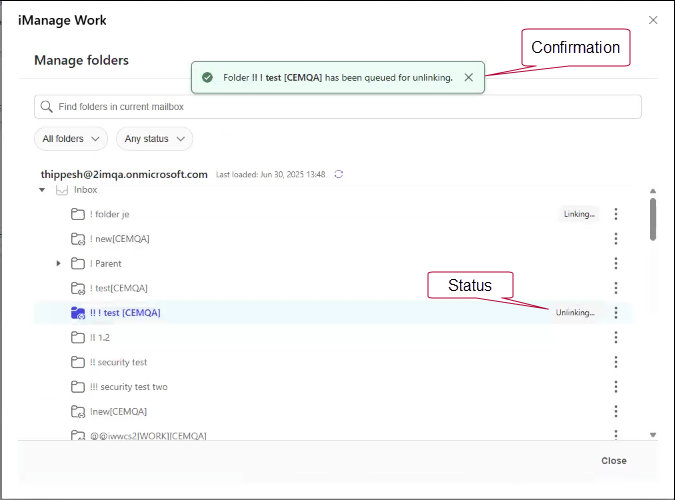
To link the folder to another iManage Work folder, refer to Linking and editing folders for automated filing.