The same process is used to link Outlook folders to iManage Work folders and edit existing linked folders to take advantage of Work for Outlook’s automated filing feature.
From the ribbon in Outlook, open the iManage Work task pane and select the Linked Folders tab.
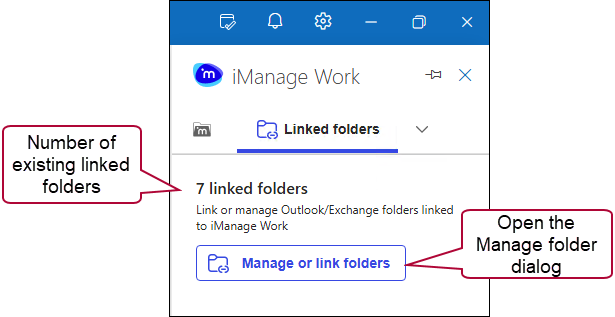
Select Manage or link folders to open the Manage folders dialog.
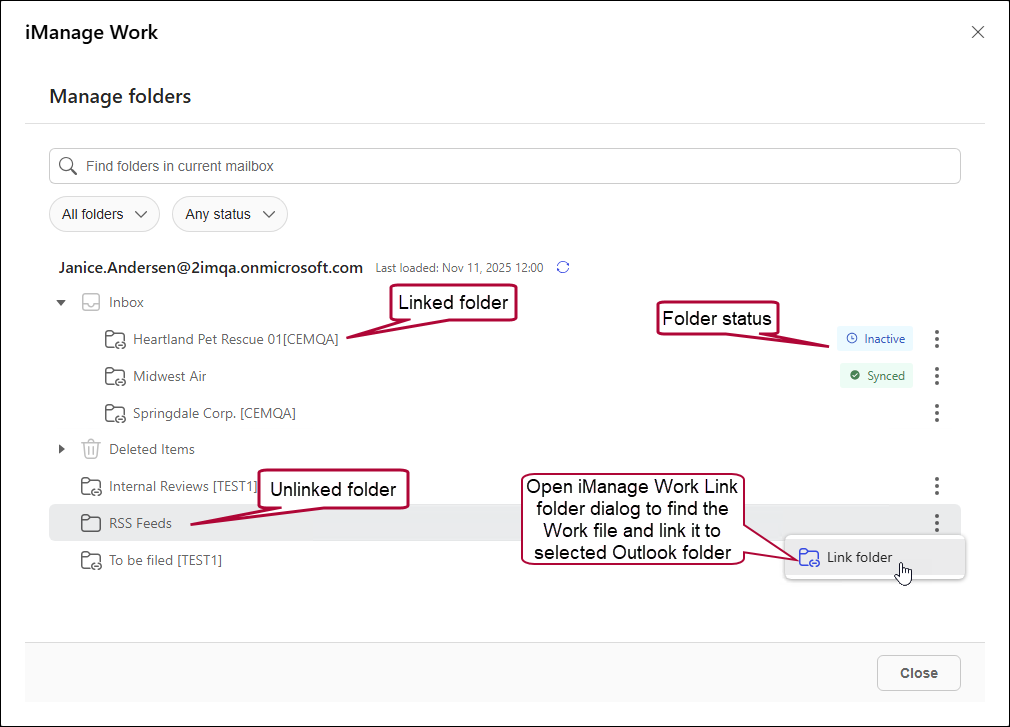
In the Manage folders dialog, browse to Inbox and expand it to view the folders.
NOTE: Any folder that has a suffix is a linked folder. The suffix is set up by your administrator in Control Center.
Select an unlinked Inbox folder that you want to link to an iManage Work folder for automated filing, and select the
 menu to display the Link folder button and select it to open the Link folder dialog with the iManage Work matters, folders, and documents, and so on.
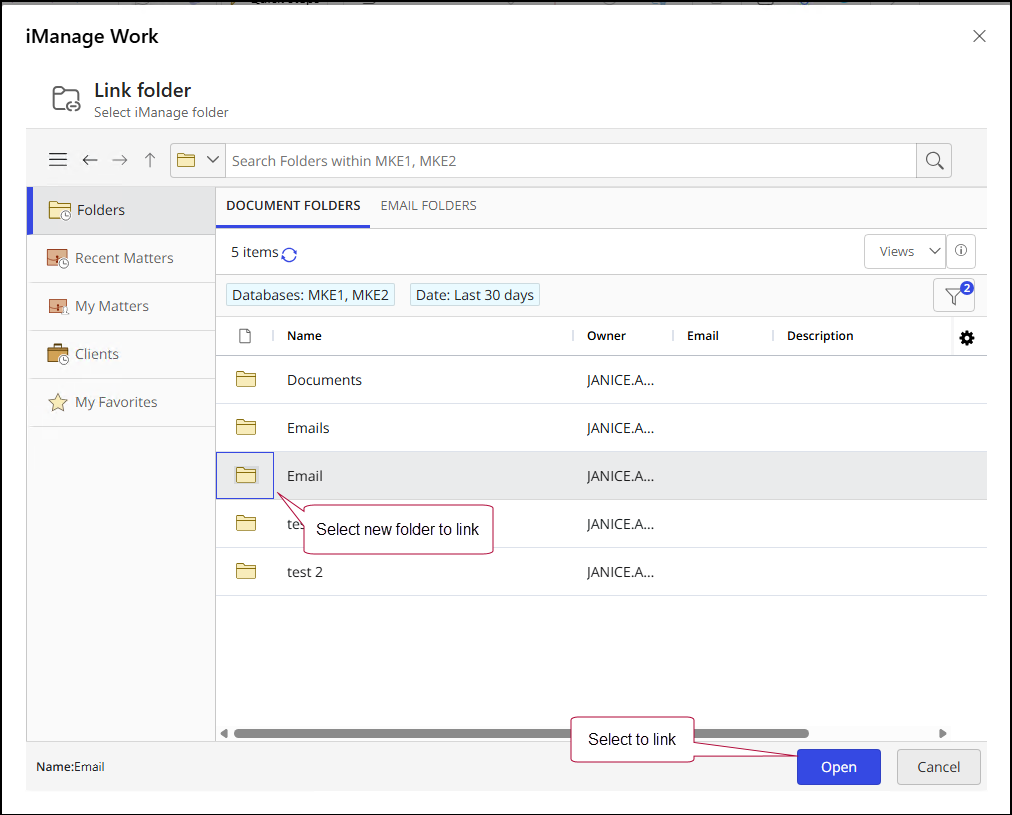
In the Link folder dialog, search for the iManage Work folder you want to link to the email folder, select it, and then select Open.
In the Link folder—Filing settings dialog, confirm the folders listed for Outlook folder and iManage folder are the ones you want linked.
To change the iManage folder, select
 , then go to Edit linked folders.
To file the emails to the iManage Work folder as private, toggle the switch to change No (default) to Yes.
To delete the emails from the Outlook folder after filing, toggle the switch to change from No (default) to Yes.
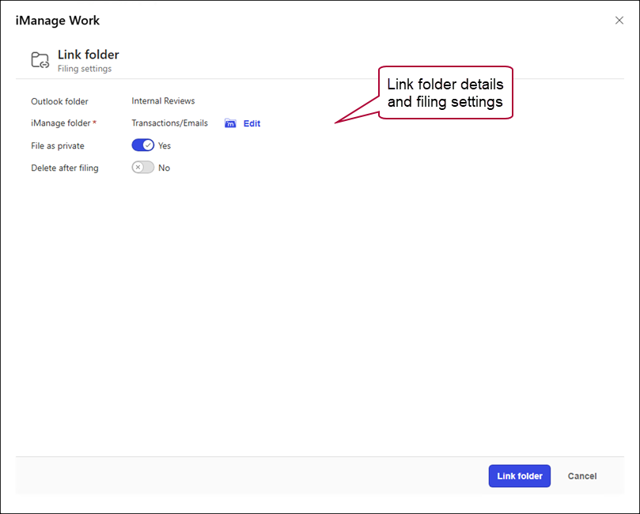
Select Link folder when you’re done. The folder is now queued for linking, and the following message displays:
“Folder <<folder name>> has been queued for linking. Once linked, it will begin syncing shortly.”
NOTE: The Microsoft Outlook folder will link to your selected iManage Work folder. When linked, all the emails in the Microsoft Outlook folder will be filed to the corresponding iManage Work folder through email syncing. It may take some time depending on how many emails are in the folder.
Editing linked folders
After you've followed Steps 1 through 3 in Linking and editing folders for automated filing, above, select the linked folder you want to edit, and then select the
in that row to display the Manage folders menu and select Edit link. Figure: Link folder—Filing settings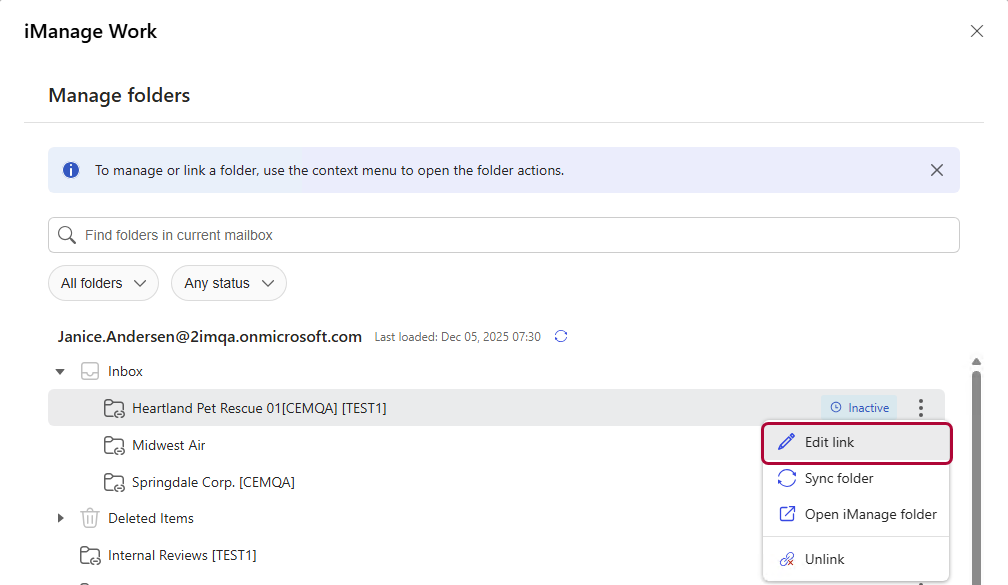
In the Edit link folder, verify the iManage folder is the one you want to edit, and select
to open the Edit link—Select iManage folder dialog.In the dialog, search and locate the folder you want to change the link to the Outlook folder, and click
 .
.In the Edit link dialog, select
 . In the Manage folders dialog, status messages display indicating the folder is being linked, how long it may take, and when it's complete.