In addition to the options that perform some app functions, the Settings tab gives you information about the email filing with iManage Work.
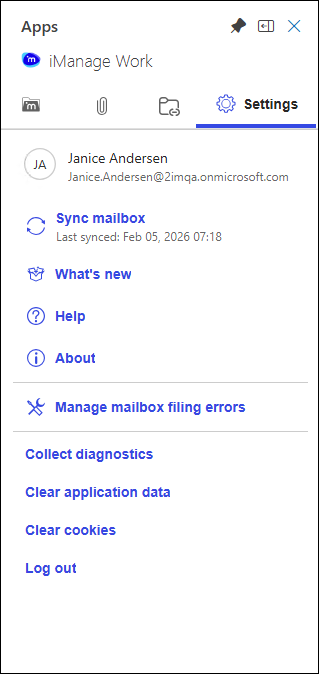
Settings tab EAP.png

The following functions are available on the Settings tab in iManage Work for Outlook.

Table: Functions on the settings tab

Setting

Function

Sync mailbox

The synchronization process occurs automatically once every 24 hours. If you receive many emails or want to file multiple emails before the daily sync, use this button.

  • Lets you synchronize the Inbox folders to their linked iManage Work folders on demand for filing emails and their attachments.

  • Provides the date and time of the last time the mailbox was synced.

What’s New

  • In future versions, will link to the What’s New page for iManage Work for Outlook.

Help

  • Links to the iManage Work for Outlook User Help on docs.imanage.com.

About

  • Displays the version numbers for iManage Work, the add-in server version (the version of the server to which the app is connected), and the Filer service version, as well as the iManage copyright information.

Manage mailbox filing errors

  • In future versions, this feature will also provide a link to mailbox filing errors.

Collect diagnostics

  • Runs additional diagnostics to send to an iManage support request to help with troubleshooting. Run these diagnostics only if your support representative requests it.

Clear application data

  • Clears cached data stored by the app, such as mailbox folders, their hierarchy, and metadata shown in the Manage Linked Folder Tree View. This action helps refresh outdated or corrupted data. The app refreshes with the latest information after this action.
    This option is useful for resetting the state and starting over if you encounter data issues during the session.

Clear cookies

  • Clears sign-in information, requiring you to sign in to iManage Work to access your files again.

Log out

  • Signs you out of iManage Work.