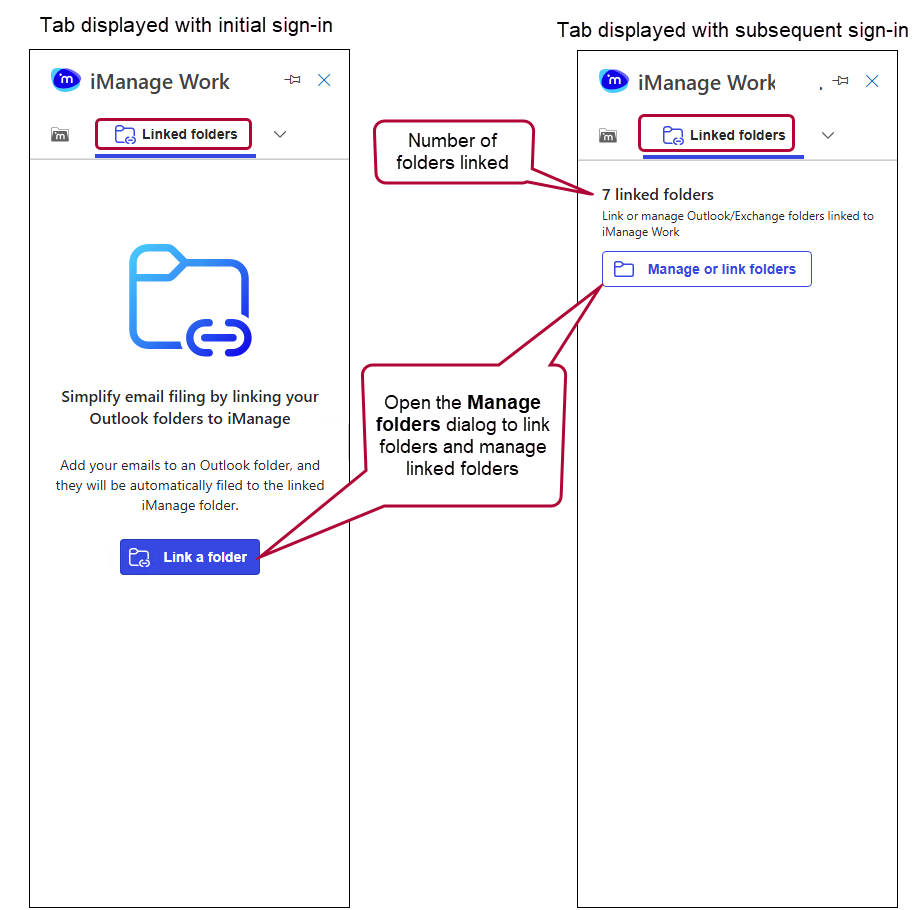
The Linked folders tab in the iManage Work task pane has two views:
Link a folder: This view displays the first time you use the product or when no folders are linked. It explains how to link folders and includes the Link a folder button, which opens the Manage folders dialog. From there, you can create links between Microsoft Outlook folders and iManage Work folders. Once linked, you can drag emails into the linked Outlook folders, and they’ll automatically file when the mailboxes sync. For more information, refer to Linking folders for automated filing.
Manage or link folders: If you already have linked folders, this view displays. It shows the number of Microsoft Exchange folders linked to iManage Work and includes the Mange or Link folders button to open the Manage folders dialog. In the dialog, you can:
Filter folders (link, linked, or not linked),
Check the status of linked folders (any status, broken link, or inactive link), and
Link folders. For more information, refer to Managing Folders.