Step 1: Add the Microsoft Teams Configuration application in iManage Control Center
To configure Microsoft Teams for iManage Work, you must first add the Microsoft Teams Configuration app to iManage Control Center.
In iManage Control Center, select Settings in the left pane and then select Applications.
Select Add Application.
From the available list of applications in the Add Application dialog, choose Microsoft Teams Configuration and then select Authentication to configure OAuth details for the application.
In the Add Application dialog, all settings are pre-configured by iManage. Select Authentication > Access > Review > Finish.
The Microsoft Teams Configuration application is added to the list of configured applications.Select Finish to complete configuring the Microsoft Teams integration.
Refresh the iManage Control Center page and the Microsoft Teams extension appears under Extensions in the side panel.
Figure: Microsoft Teams extension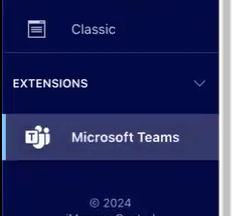
Continue with Step 2: Configure connection to iManage Work to complete the configuration.
Step 2: Configure the connection to iManage Work
The following steps configure the connection between the iManage Work for Microsoft Teams app and Microsoft Teams. These steps also explain how to grant the necessary permissions for iManage Work to access users' Microsoft Teams data using the Graph API.
In iManage Control Center, browse to the side panel and select Extensions > Microsoft Teams.
If required, select Login to authenticate to iManage Work.
Select Edit under Configuration Settings. The Edit Connection Settings dialog opens.
Install the Microsoft Teams application by selecting Install. If it is already installed, proceed to the next step.
Configure the desired duration for Access Token Expiry as applicable to this application. By default, access tokens are set to expire after 30 minutes of inactivity. To provide a seamless user experience, we recommend setting the access token expiration to be at least 1 week (10080 mins).