You can save your meetings and all the related artifacts—participants, chats, and any shared files, to a secure location in iManage Work from the Microsoft Teams extension. You also have the option to store the meeting recording when saving a meeting.
NOTE: If you wish to know more about granting graph API permissions required to modify this feature, refer to (Optional) Additional Configuration Settings and Permissions.
Accessing meetings:
Browse to the iManage app in the App bar.
Select the conversation box.
Enter meetings. The first time you use this option, you’re prompted to sign in again with your Microsoft credentials.
After successful sign-in, your 10 most recent meetings are displayed.
Figure: Accessing recent meetings in Teams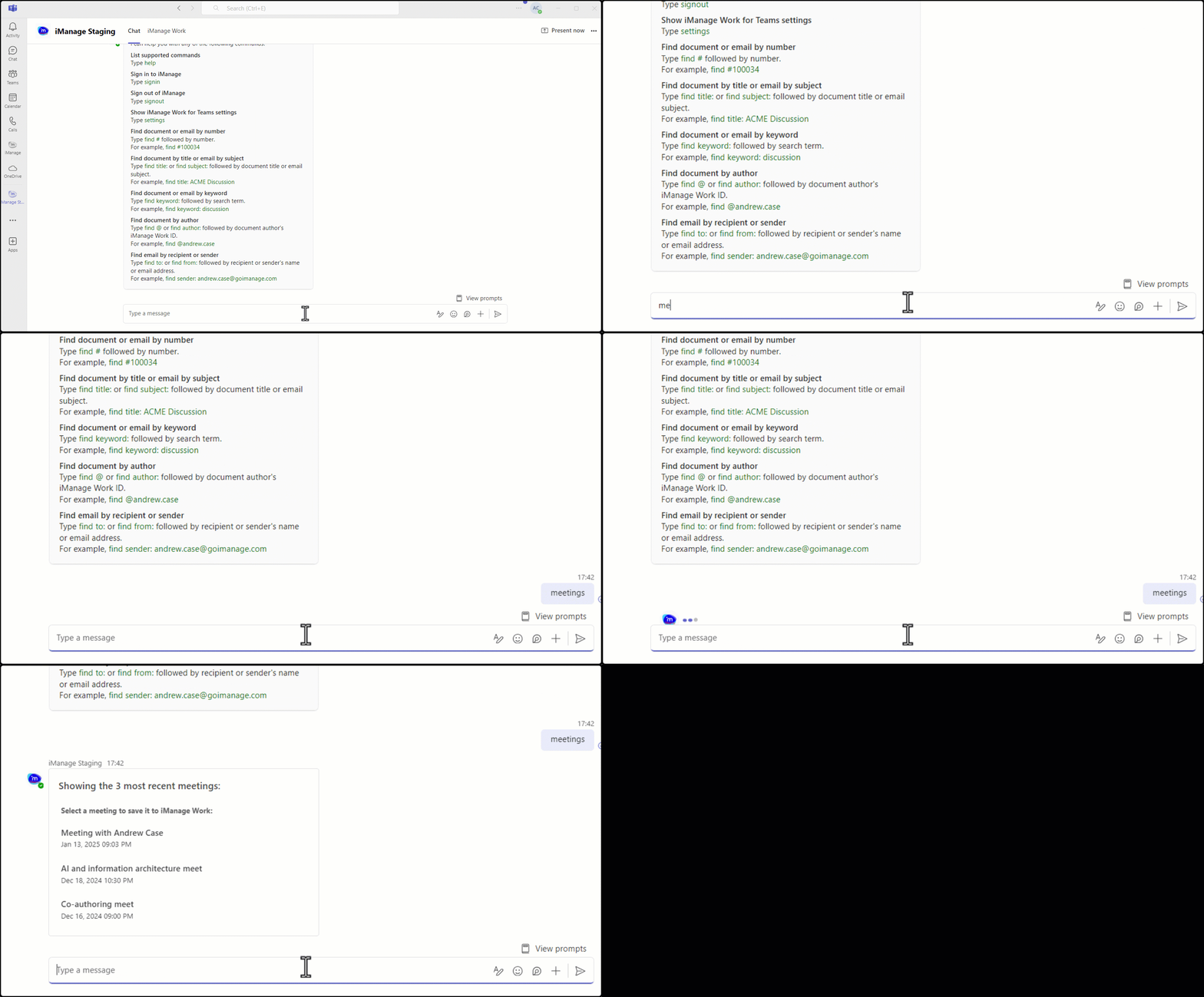
Saving meetings:
Select the meeting you wish to save from the list. Your most recent location in iManage Work is preselected as your preferred location to save meetings.
Figure: Saving meetings to iManage Work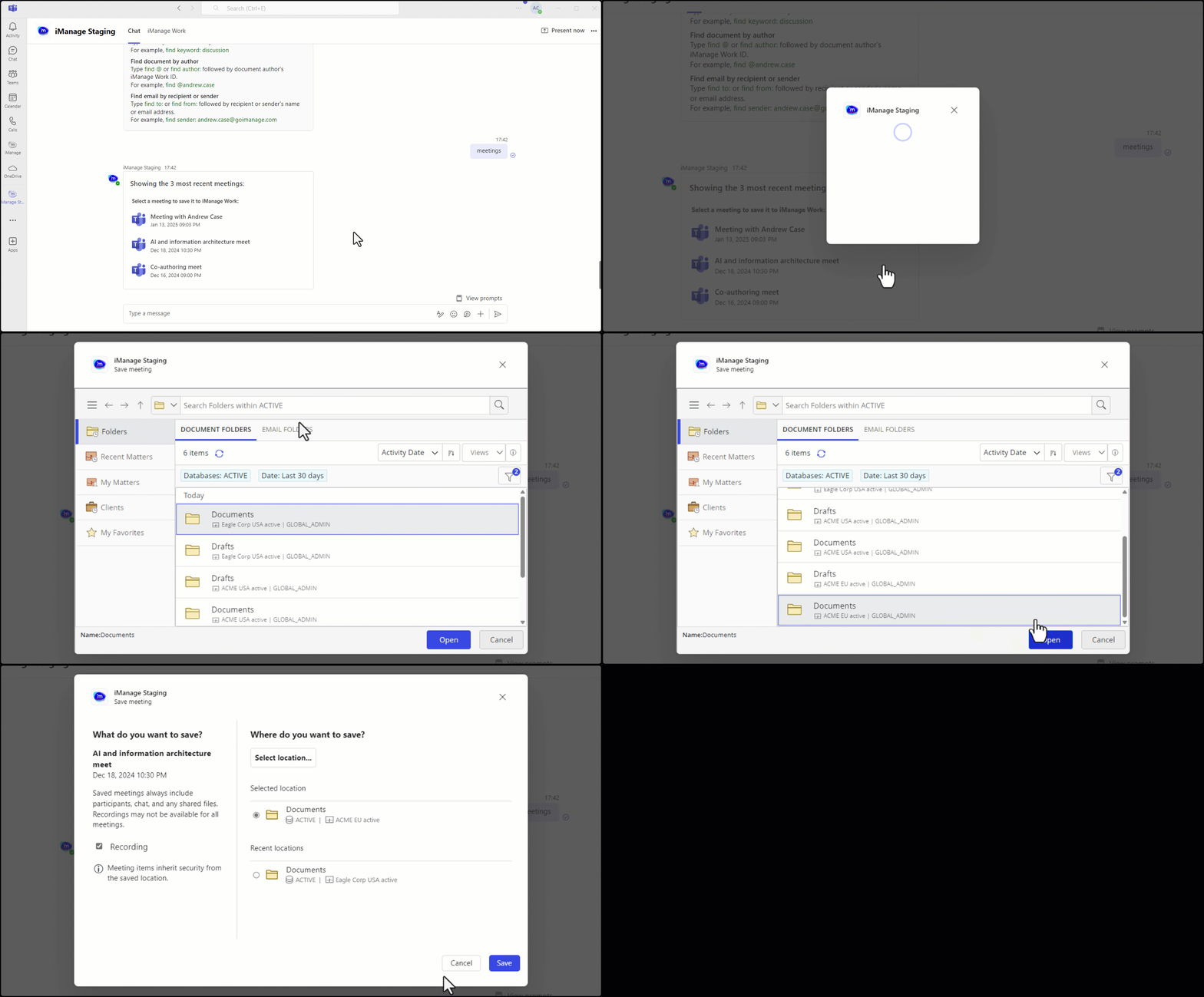
Choose Select location to save your meeting to another location in iManage Work. If you wish to also save the available recording of the meeting, select the Recording check box.
Select Save.
Select:
Copy link to folder: To share the saved meeting with another user in your organization.
View in iManage: To open your saved meeting in iManage Work.
Figure: Viewing a saved meeting in iManage Work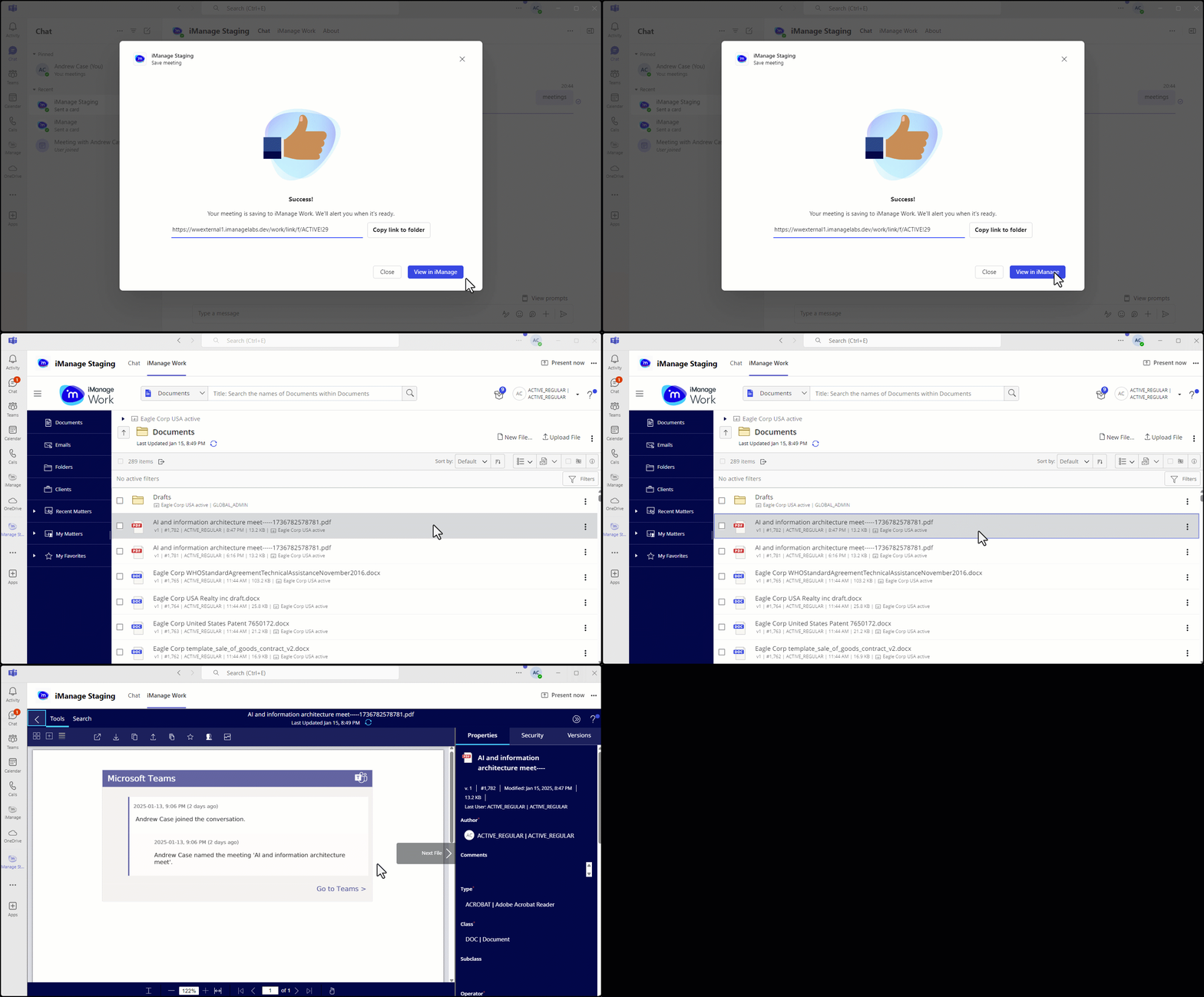
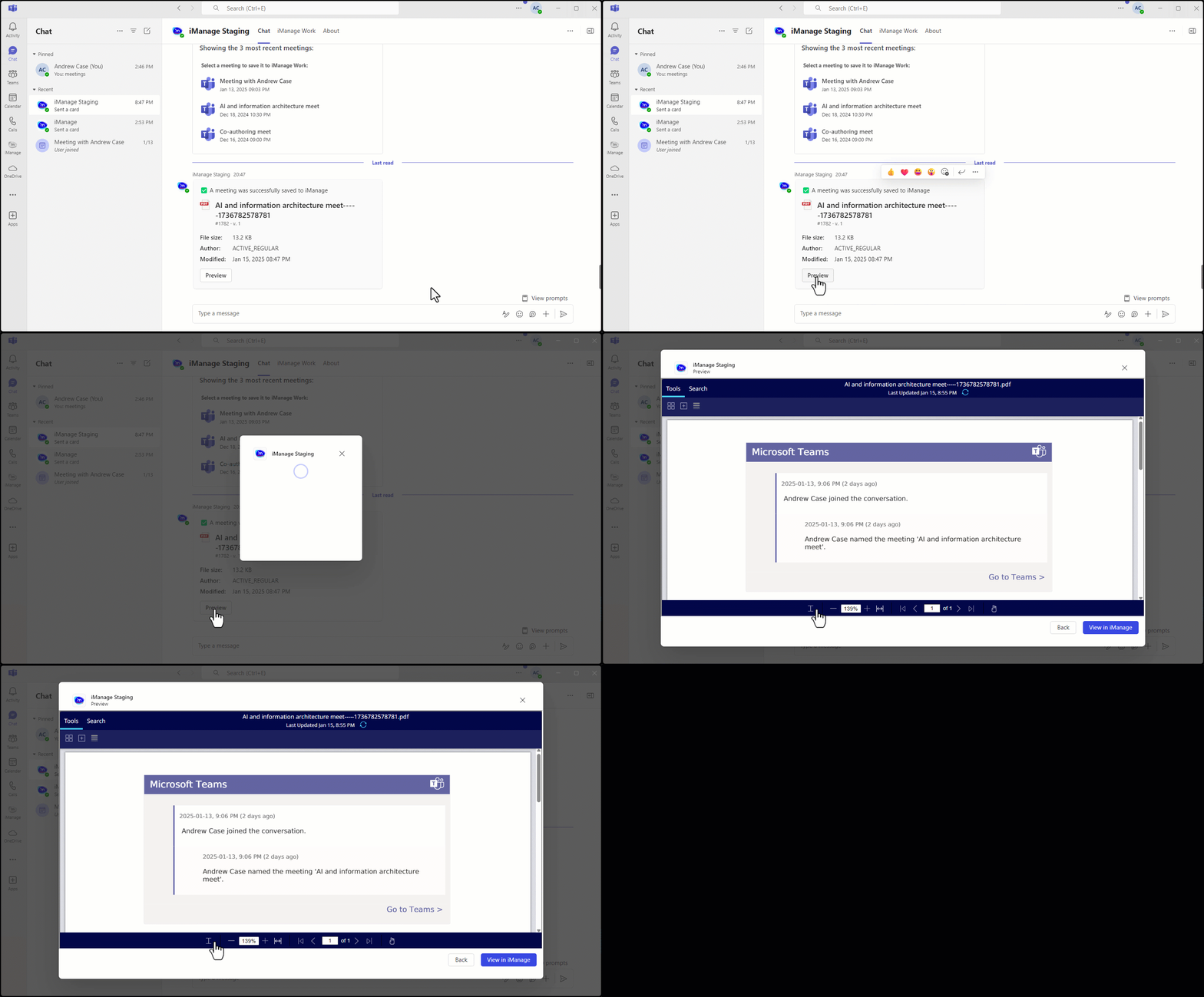
After your meeting is successfully saved to iManage Work, the iManage Teams bot sends a card for the newly-saved meeting in the private chat.
NOTE:
Any shared files and recordings saved as part of the meeting are listed in the Related documents tab of the meeting artifact.