Microsoft 365 file open options lets you configure how Microsoft 365 file extensions open when you select the document title or double-click the document row.
The extension types and a few of the format examples supported are listed in the following table:
Table: Extension type and example formats
Extension type | Example Formats |
|---|---|
Microsoft 365 file extension |
|
Microsoft 365 apps in iManage Work |
|
The following table shows the options available to set the Microsoft 365 file-open behavior for title click and row double-click.
The available options depend on whether Next Generation Co-authoring is enabled on your tenant. For more information about enabling Next Generation Co-authoring, refer to Configuring iManage Work Next Generation Co-authoring in iManage Control Center.
Title click options | Row double-click options |
|---|---|
Options available when Next Generation Co-authoring isn’t enabled:
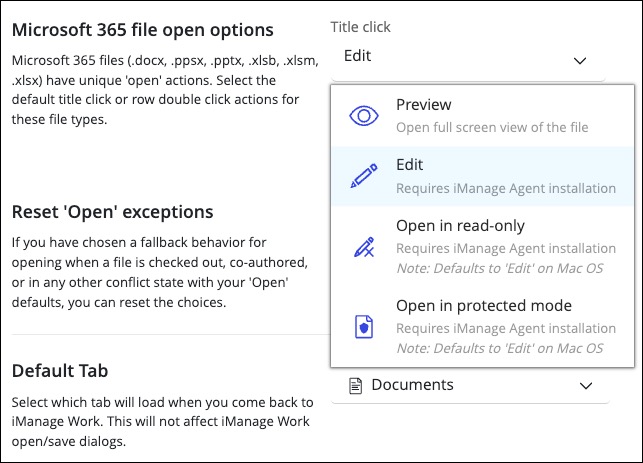 Options available when Next Generation Co-authoring is enabled:
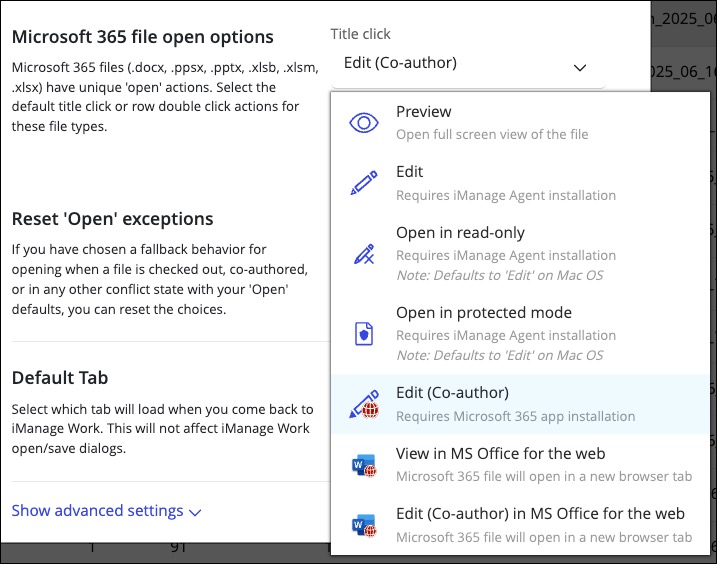
| Options available when Next Generation Co-authoring isn’t enabled:
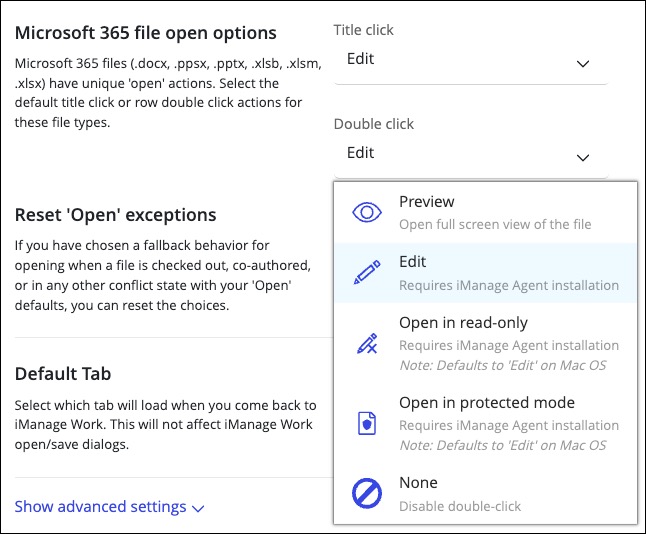 Options available when Next Generation Co-authoring is enabled:
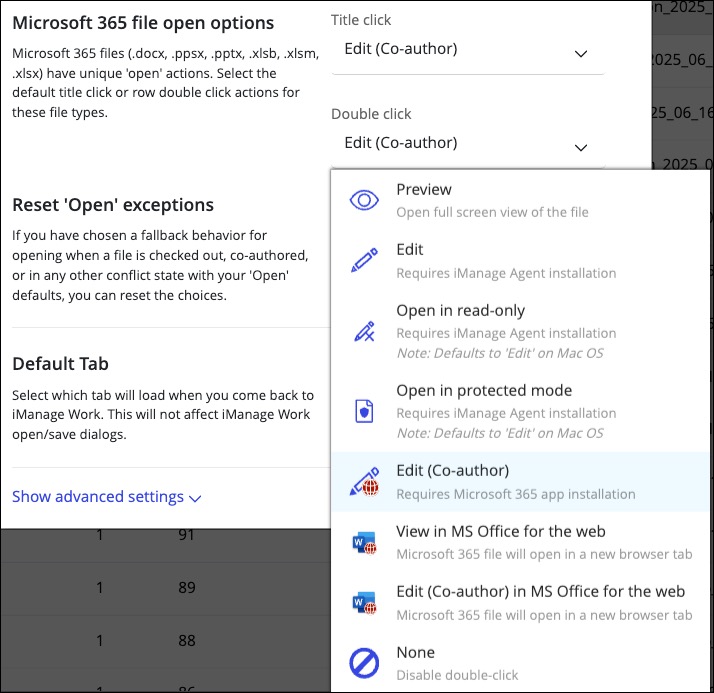 NOTE: Selecting the None option disables the row double-click action. |
iManage Work Agent must be installed and configured on your device for the following title and row-double click actions to work:
Edit
Open in read-only
Open in protected mode
NOTE: The Open in read-only and Open in protected mode actions default to the Edit action on macOS.
For all title and row double-click actions, you're provided with fallback options in situations where your configured action can't be completed.
Here’s an example of when a fallback option would appear and how you'd continue.
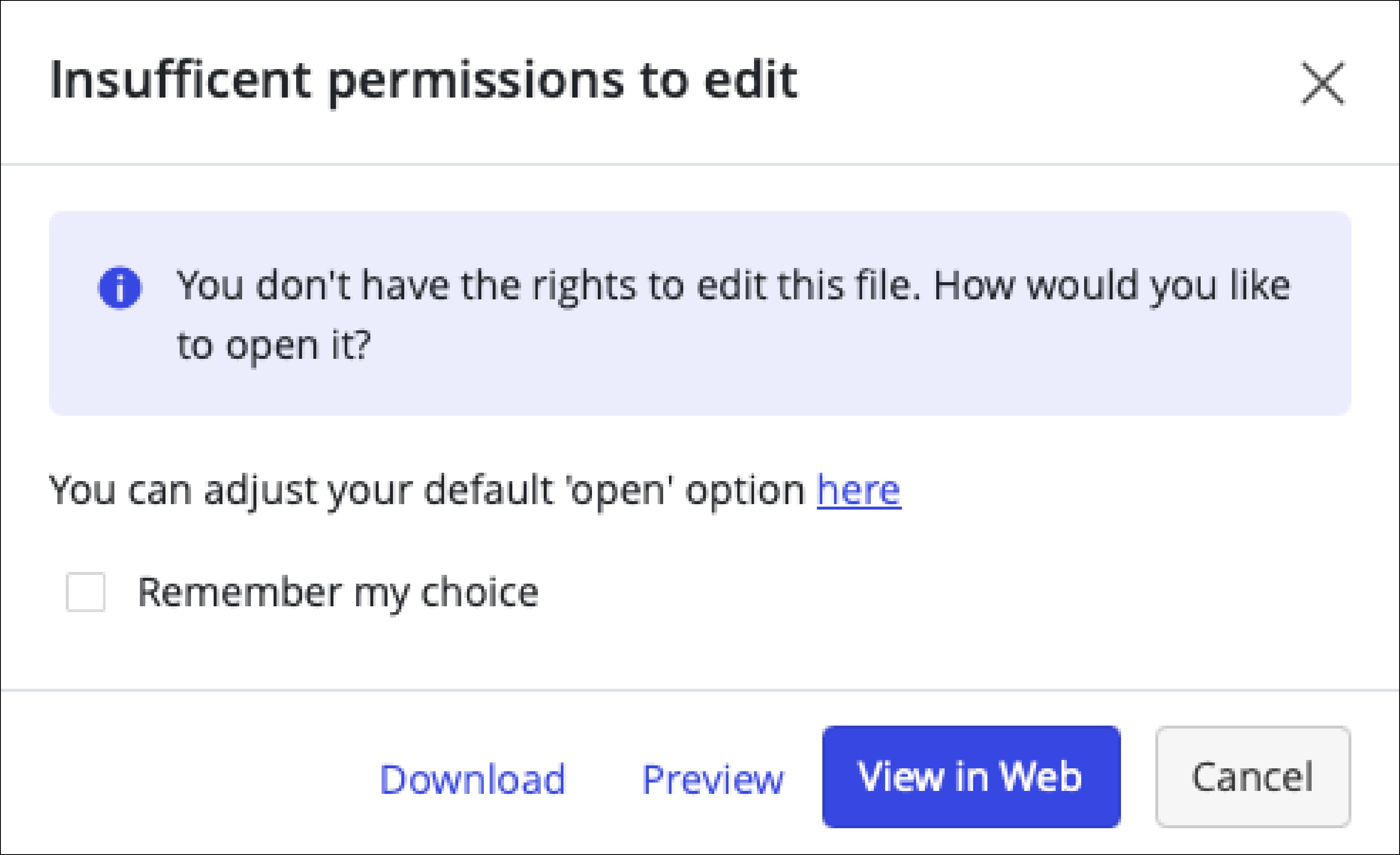
If you’ve set Edit as the File open option for title click and the file is open in a co-authoring session by another user, then you’re presented with the following fallback options dialog when you click the title of the document:
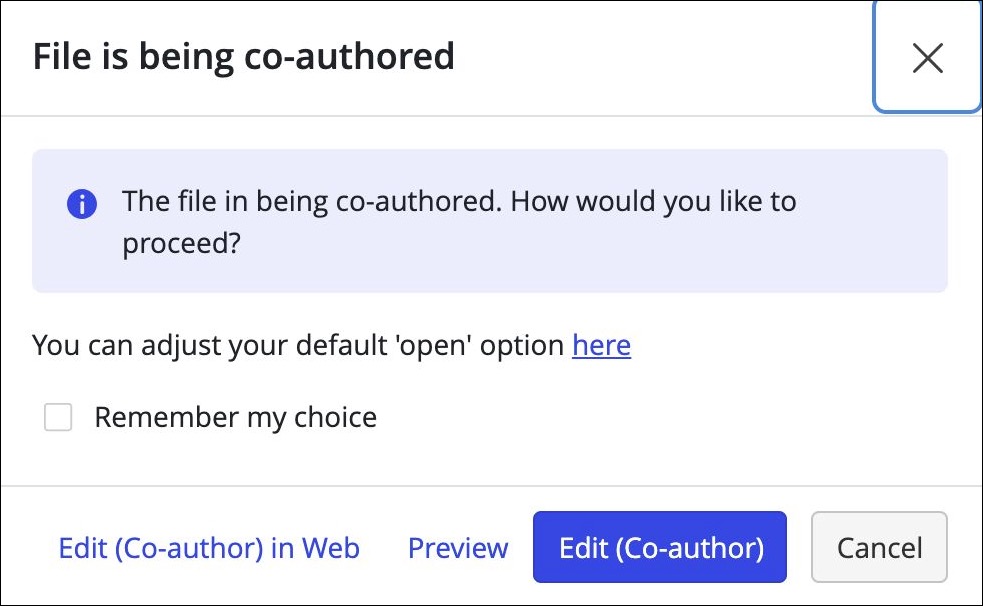
You can either Cancel the action or perform one of the following actions on the document:
Edit (Co-author)
Preview
Edit (Co-author) in Web
You can also select the Remember my choice check box and then select Edit (Co-author), Preview, or Edit (Co-author) in Web as your preferred action to be executed when you face the same situation again.
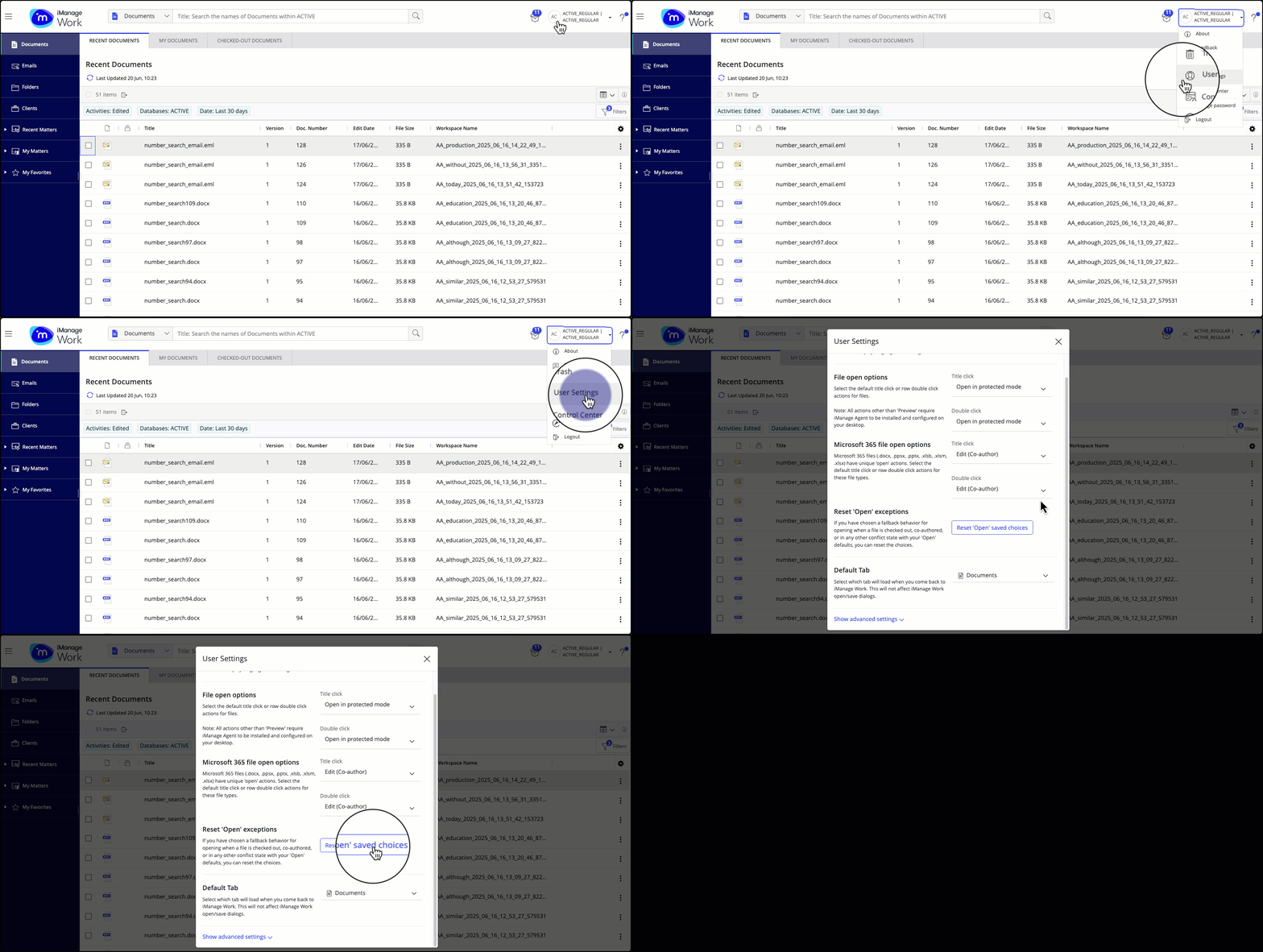
At any time, if you want to reset the preferred action set by you using Remember my choice in any fallback dialog, browse to User Settings and then select Reset ‘Open’ saved choices.
Based on the document status and whether iManage Work Agent is installed and configured on your device, each of the following title and row double-click actions offer fallback options:
Table 1: Fallback options for Edit title and row double-click action
Document status | If iManage Work Agent is enabled on your device | If iManage Work Agent isn't enabled on your device | Mobile device |
|---|---|---|---|
You have edit rights for the document |
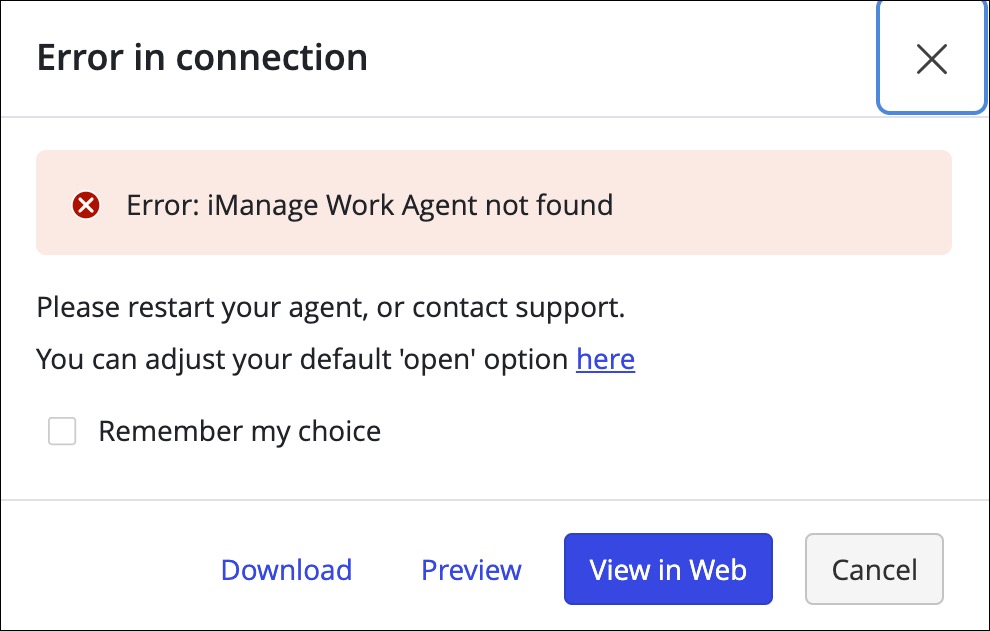
| You can perform any of the following actions on the document:
 | Preview |
You have read-only rights for the document
| You can preview or open the document as 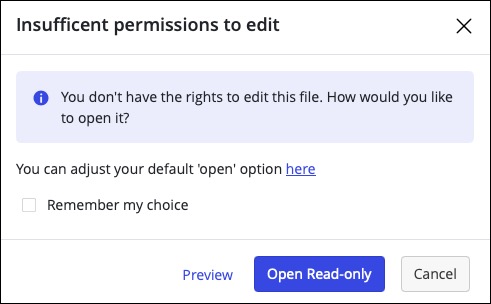 | You can perform any of the following actions on the document:
| Preview |
Document is checked out or locked | Scenario 1: If the document is checked out or locked by someone else, then you can preview or open the document as read-only. 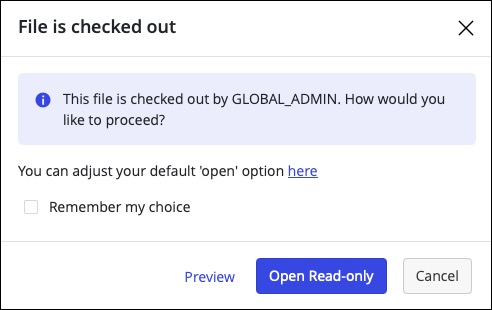 Scenario 2: If you’ve checked out the document, then the document opens in the native desktop application using iManage Work Agent. | You can perform any of the following actions on the document:
| Preview |
Document is declared as a record | You can preview or open the document as 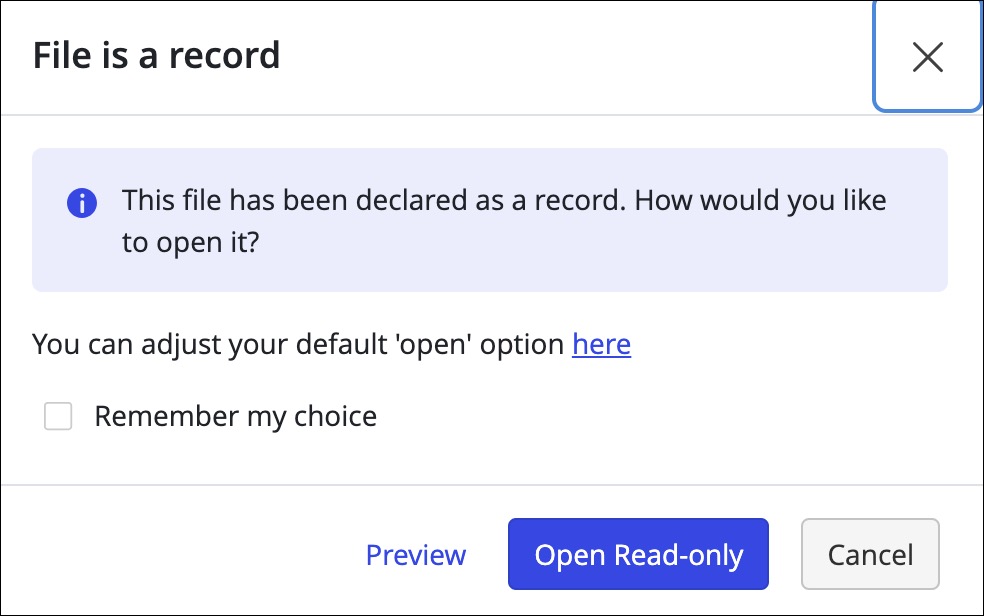
| You can perform any of the following actions on the document:
| Preview |
Document is open in a | Scenario 1: If either Microsoft 365 for the web application or Microsoft 365 for the desktop application is enabled, you can perform any one of the following actions:
Scenario 2: If neither Microsoft 365 for the web application or Microsoft 365 for the desktop application is enabled, you can then perform any of the following actions:
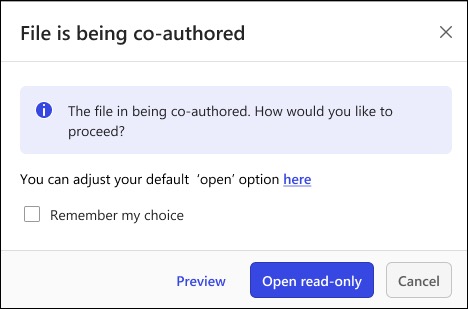 | Scenario 1: If either Microsoft 365 for the web application or Microsoft 365 for the desktop application is enabled, you can then perform any one of the following actions:
Scenario 2: If neither Microsoft 365 for the web application or Microsoft 365 for the desktop application is enabled, you can then Preview the document. 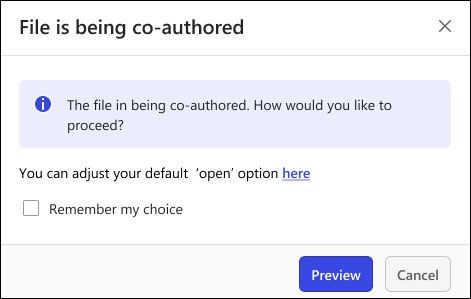 | Scenario 1: If either Microsoft 365 for the web application or Microsoft 365 for mobile app is enabled, you can then perform any one of the following actions:
|
Table 2: Fallback options for Open in read-only title and row double-click action
Document status | If iManage Work Agent is enabled on your device | If iManage Work Agent isn't enabled on your device | macOS (if iManage Agent is installed on your device) NOTE: The Open in read-only action isn't supported on macOS. | Mobile device |
|---|---|---|---|---|
You have edit rights on the document | Document opens in the native desktop application using iManage Work Agent in read-only mode. | You can perform any one of the following actions on the document:
|
| Preview |
You have read-only rights to the document | Document opens in the native desktop application using iManage Work Agent in read-only mode. | You can perform any of the following actions on the document:
|
| Preview |
Document is checked out or locked | Document opens in the native desktop application using iManage Work Agent in read-only mode. | You can perform any of the following actions on the document:
| You can perform any of the following actions on the document:
| Preview |
Document is declared as a record | Document opens in the native desktop application using iManage Work Agent in read-only mode. | You can perform any of the following actions on the document:
| You can perform any of the following actions on the document:
| Preview |
Document is open in a | Document opens in the native desktop application using iManage Work Agent in read-only mode. | You can perform any of the following actions on the document:
| Scenario 1: If either Microsoft 365 for the web application or Microsoft 365 for the desktop application is enabled, you can then perform any of the following actions:
| Preview |
Table 3: Fallback options for Open in protected mode title and row double-click action
Document status | If iManage Work Agent is enabled on your device | If iManage Work Agent isn't enabled on your device | macOS (if iManage Agent is installed on your device) NOTE: The Open in protected mode action isn't supported on macOS. | Mobile device |
|---|---|---|---|---|
You have edit rights on the document |
| You can perform any of the following actions on the document:
|
| Preview |
You have read-only rights on the document | Document opens in the native desktop application using iManage Work Agent in the protected view.
| You can perform any of the following actions on the document:
| You can perform any of the following actions on the document:
| Preview |
Document is checked out or locked | Document opens in the native desktop application using iManage Work Agent in the protected view. | You can perform any of the following actions on the document:
|
Scenario 2: If you’ve checked out the document, then the document opens in the native desktop application using iManage Work Agent. | Preview |
Document is declared as a record | Document opens in the native desktop application using iManage Work Agent in the protected view.
| You can perform any of the following actions on the document:
| You can perform any of the following actions on the document:
| Preview |
Document is open in a | You can perform any of the following actions on the document:
| You can perform any of the following actions on the document:
| Scenario 1: If either Microsoft 365 for the web application or Microsoft 365 for the desktop application is enabled, you can then perform any of the following actions:
Scenario 2: If neither Microsoft 365 for the web application nor Microsoft 365 for the desktop application is enabled, you can then perform any of the following actions:
| Preview |
Table 4: Fallback options for Edit (Co-author) title and row double-click action
Document status | If Microsoft 365 for the desktop application is enabled and iManage Work Agent is installed on your device | If Microsoft 365 for the desktop application is enabled but iManage Work Agent isn't installed on your device | If Microsoft 365 for the desktop or mobile application isn't enabled but iManage Work Agent is installed on your device | If Microsoft 365 for the desktop or mobile application isn't enabled and iManage Work Agent isn't installed on your device |
|---|---|---|---|---|
You have edit rights on the document | You can start a co-authoring session on the document using a native desktop application through the Microsoft Cloud Storage Partner Program (CSPP) integration. | You can start a co-authoring session on the document using a native desktop application through the Microsoft Cloud Storage Partner Program (CSPP) integration. |
| You can perform any of the following actions on the document:
|
You have read-only rights on the document | You can perform any of the following actions on the document:
 | You can perform any of the following actions on the document:
| You can preview or open the document as read-only. | You can perform any of the following actions on the document:
|
Document is checked out or locked | You can perform any of the following actions on the document.
| Preview | Scenario 1: If the document is checked out or locked by someone else, then you can preview or open the document as read-only. Scenario 2: If you’ve checked out the document, the document opens in the native desktop application using iManage Work Agent. | You can perform any of the following actions on the document.
|
Document is declared as a record | You can perform any of the following actions on the document:
| Preview | You can perform any of the following actions on the document:
| You can perform any of the following actions on the document:
|
Document is open in a | You can join an existing co-authoring session on the document using native desktop application through the Microsoft Cloud Storage Partner Program (CSPP) integration. | You can join an existing co-authoring session on the document using native desktop application through the Microsoft Cloud Storage Partner Program (CSPP) integration. | Scenario 1: If either Microsoft 365 for the web application or Microsoft 365 for the desktop application is enabled, you can then perform any one of the following actions:
Scenario 2: If neither Microsoft 365 for the web application or Microsoft 365 for the desktop application is enabled, you can then perform any of the following actions:
| Scenario 1: If either Microsoft 365 for the web application or Microsoft 365 for the desktop application is enabled, you can then perform any one of the following actions:
Scenario 2: If neither Microsoft 365 for the web application or Microsoft 365 for the desktop application is enabled, you can then Preview the document. |
Table 5: Fallback options for View in MS Office for the web title and row double-click action
Document status | If Microsoft 365 for the web application and mobile are enabled | If Microsoft 365 for the web application isn't enabled | Mobile |
You have edit rights on the document | You can edit the document using the |
| Preview |
You have read-only rights on the document | View in Web | You can preview or open the document as read-only. | |
Document is checked out or locked | View in Web | Scenario 1: If the document is checked out or locked by someone else, then you can preview or open the document as read-only. Scenario 2: If you’ve checked out the document, then the document opens in the native desktop application using iManage Work Agent. | |
Document is declared as a record | View in Web | You can preview or open the document as read-only. | |
Document is open in a co-authoring session | You can edit the document using the | Scenario 1: If either Microsoft 365 for the web application or Microsoft 365 for the desktop application is enabled, you can then perform any of the following actions:
Scenario 2: If neither Microsoft 365 for the web application nor Microsoft 365 for the desktop application is enabled, you can then perform any one of the following actions:
|
Table 6: Fallback options for Edit (Co-author) in MS Office for the web title and row double-click action
If Microsoft 365 for the web application and mobile are enabled | If Microsoft 365 for the web application isn't enabled | If Microsoft 365 for the web application isn't enabled | Mobile |
You have edit rights on the document | View in Web |
| Preview |
You have read-only rights on the document | View in Web | You can preview or open the document as read-only. | |
Document is checked out or locked | View in Web | Scenario 1: If the document is checked out or locked by someone else, then you can preview or open the document as read-only.
| |
Document is declared as a record | View in Web | You can preview or open the document as read-only. | |
Document is open in a co-authoring session | View in Web | Scenario 1: If either Microsoft 365 for the web application or Microsoft 365 for the desktop application is enabled, you can then perform any of the following actions:
Scenario 2: If neither Microsoft 365 for the web application nor Microsoft 365 for the desktop application is enabled, you can then perform any of the following actions:
|