The Files & Folders field for a task lets you attach files, folders, or a mix of both from iManage Work to a task—including files from more than one workspace. Group documents that need a single decision, such as a contract and its exhibits, under one task instead of creating a task per file. You can attach up to 10 files and folders to a single task.
Attach files and folders to a task
Select the Files & Folders field for the task. The Files & Folders (up to 10) panel opens, showing anything already attached.
Select + Add.
In the Select Files & Folders dialog, select the files or folders you want to attach:
To attach individual files, select the checkbox next to each file. You can select files from more than one folder or workspace before confirming.
To attach an entire folder, select the folder checkbox.
Choose Select.
Figure: Adding files or folders to a task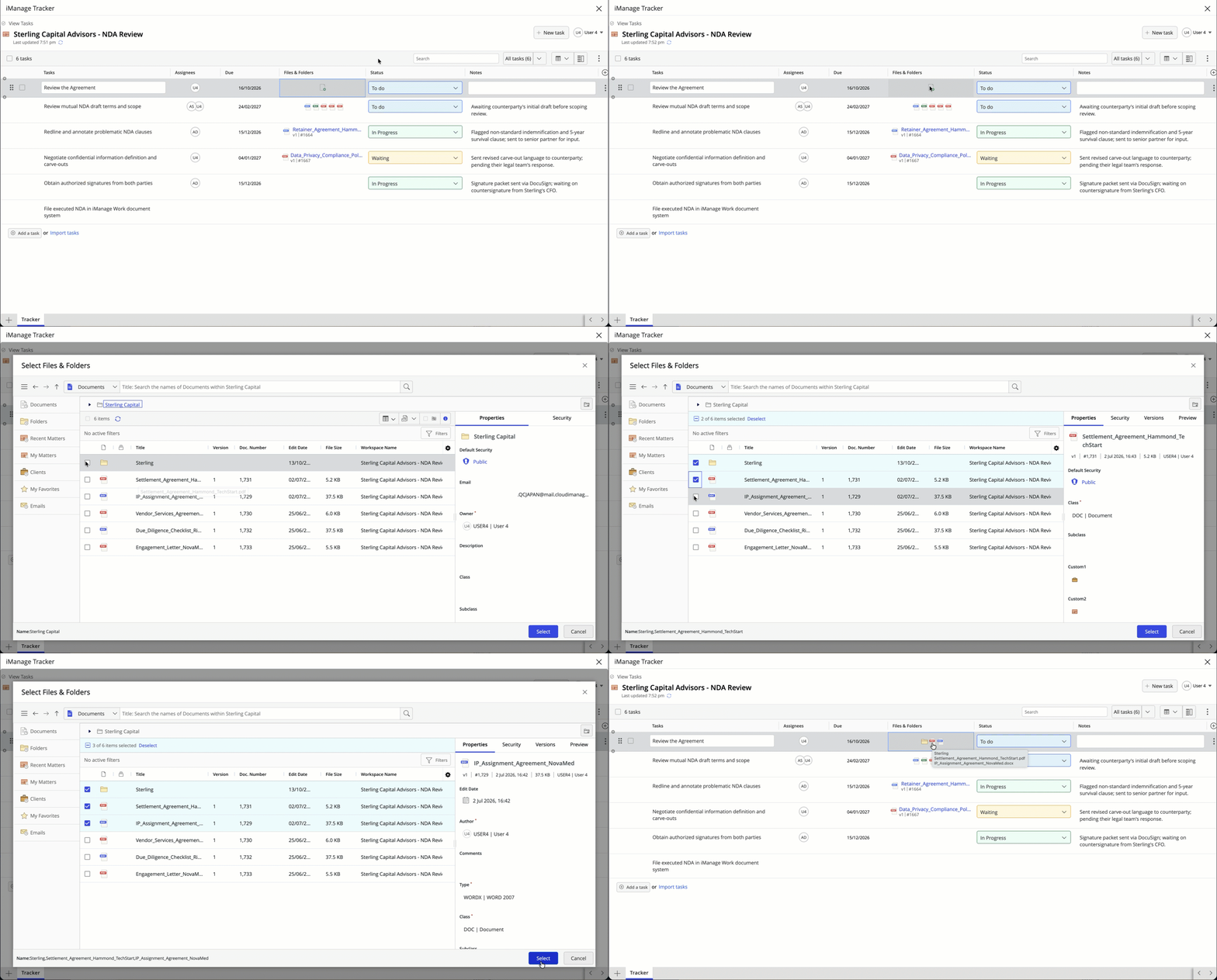
The Files & Folders field displays the attached files and folders. A single attached item displays as an icon with its name and version, while multiple items display as a row of icons by type (document, folder, or email). Point to the row to see the individual file names.
NOTES:
You can't attach the same file to a task more than once.
iManage Tracker doesn't treat a file and its parent folder as duplicates—you can attach both.
You can't exceed the 10 files and folders limit per task. If you select more than the limit, iManage Tracker asks you to deselect items before continuing.
If a newer version of the file is available in iManage Work, iManage Tracker updates the attachment to the latest version when it performs a sync.
If iManage Security Policy Manager restricts a file and the assignee doesn't have access, iManage Tracker displays it as Undisclosed Item but keeps it visible in the list.
For emails attached to tasks, you can select the required attachment in the email preview to preview the attachment in a separate tab.
Manage files and folders for a task
To view, add, or remove files and folders after you create a task, select Files & Folders field for the task. The Files & Folders panel opens, where you can manage up to 10 files and folders.
To add more files or folders, select + Add, then follow the steps in Attach files and folders to a task.
To remove a file or folder, point to it in the list and select the unlink
 icon. Removing a file or folder from a task doesn't delete it from iManage Work.
Each item in the list also has an edit or preview icon for editing or previewing the file directly. For details, refer to Open, preview, or edit an attached file.
Figure: Managing files and folders attached to a task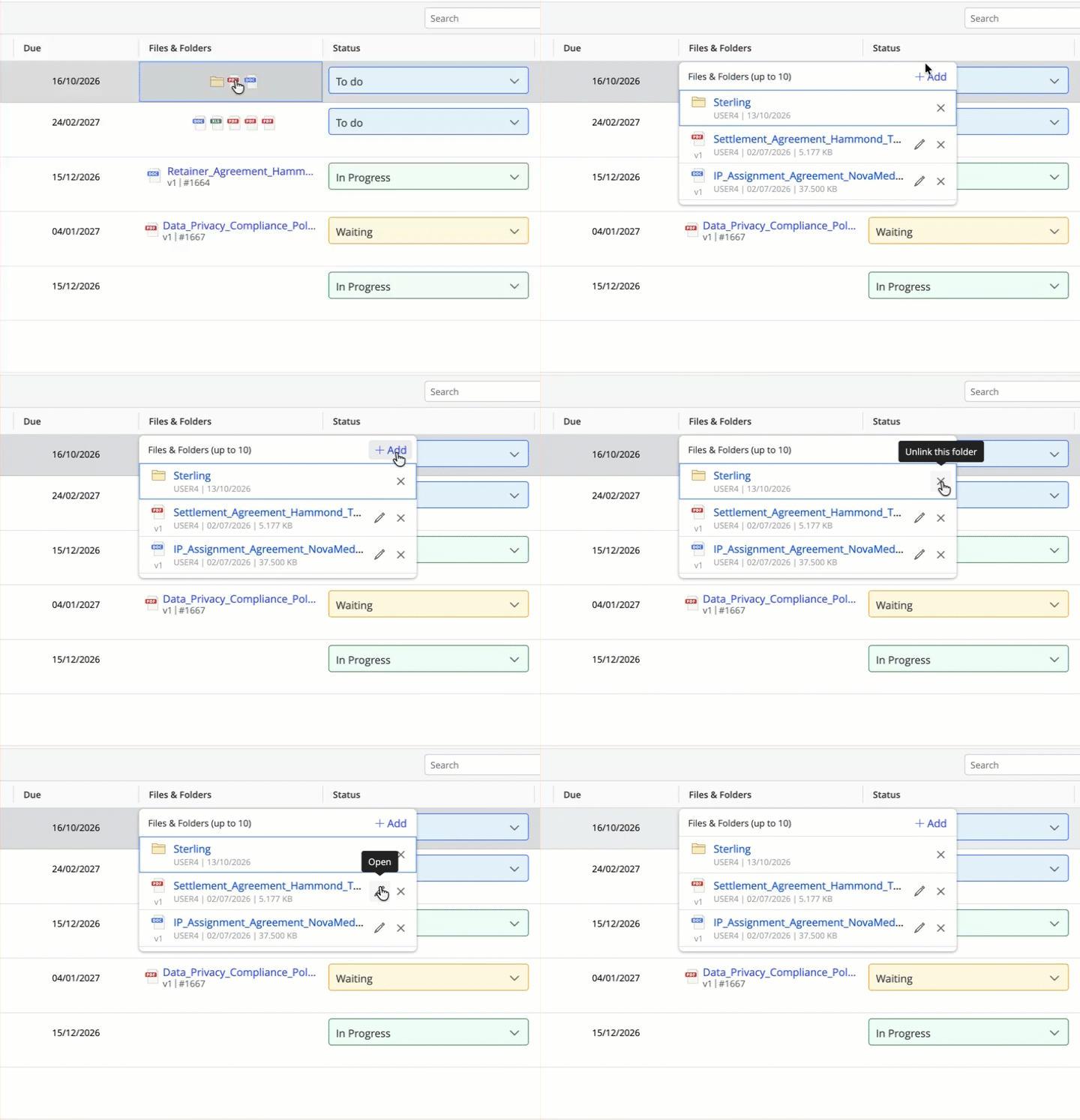
Open, preview, or edit an attached file
You can preview, open, or edit a file linked to a task without leaving the checklist or task details panel. The available action depends on the file's type and your file open preferences in your iManage Work user settings.
File open preferences
Two settings in your iManage Work user settings control how iManage Tracker opens files:
File open options: Applies to all file types except those covered by Microsoft 365 file open options. For more information, refer to File open options.
Microsoft 365 file open options: Applies to .docx, .ppsx, .pptx, .xlsb, .xlsm, and .xlsx files. For more information, refer Microsoft 365 file open options.
Use the action icon
In the Files & Folders panel and the task details panel, each attached item has an action icon next to the Unlink icon. The icon depends on the item type:
Files: The icon matches the Double click action set for that file type. Selecting the icon is equivalent to double-clicking the file.
Emails: The Preview icon is displayed. Selecting it opens the email in a preview.
Folders: Only the unlink
icon is displayed.
For files, the action icon is one of the following:
Preview: Opens the file in preview mode.
Open in read-only mode: Opens the file without allowing changes.
Open in protected mode: Opens the file in protected mode.
Open for editing: Opens the file in edit mode.
Files attached to the same task can show different icons because each file follows its own file open setting.
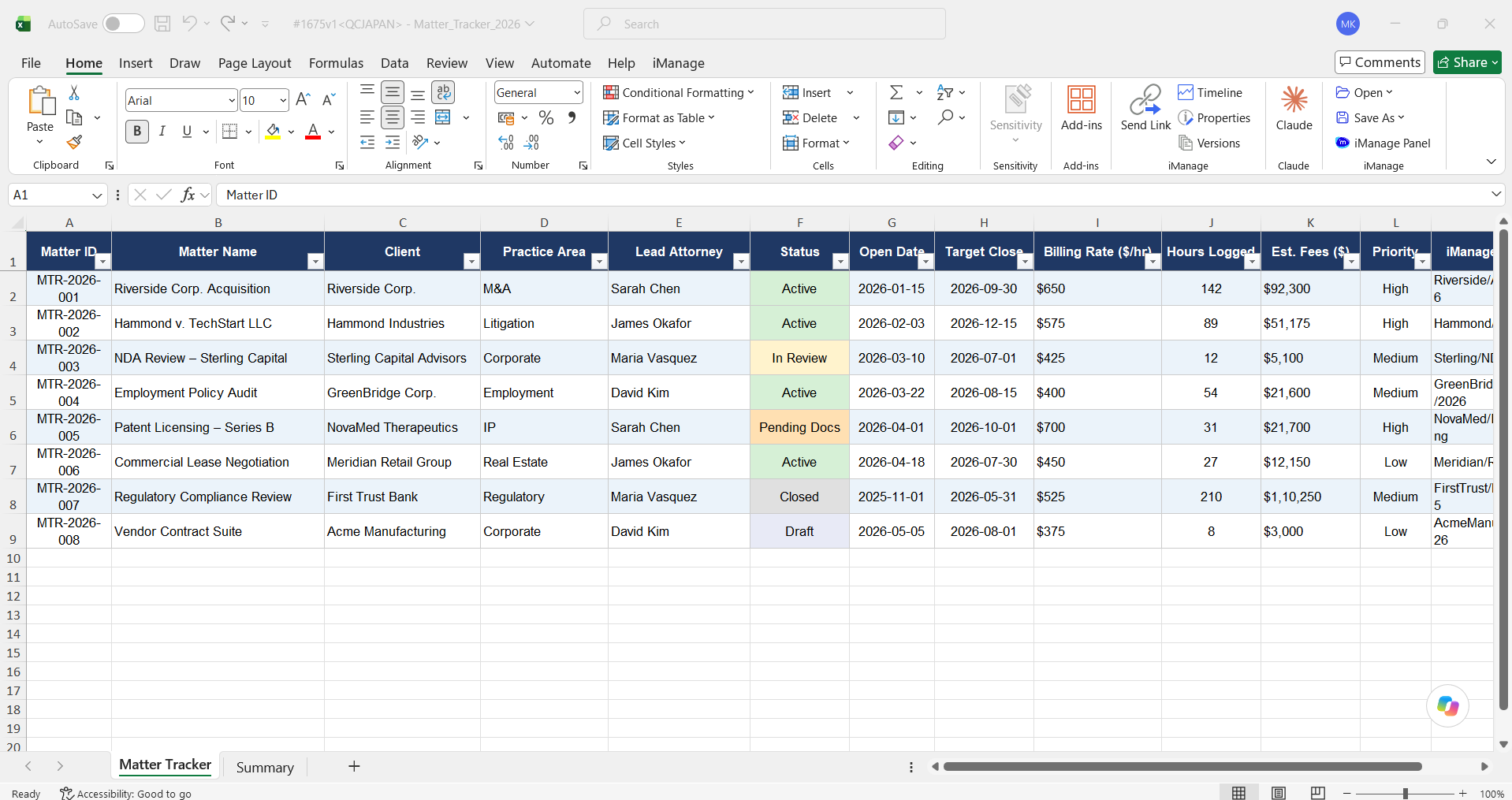
For Microsoft Word or Microsoft Excel files set to Open for editing, iManage Tracker loads the iManage Work add-in. If you are’nt signed in to iManage Work, iManage Tracker prompts you to sign in. The file then opens in Microsoft Word or Microsoft Excel.
NOTES:
iManage Tracker reads your preferences when you sign in. Changes take effect only after you sign out and sign in again.
All actions other than Preview require iManage Agent to be installed and configured on your device.
File access permissions
iManage Work controls access to files and folders attached to a task, not iManage Tracker. If an assignee doesn't have access to the workspace containing a file, they can't open that file from the task.