As tasks progress or requirements change, you may need to update task details. For example, you may need to change a task assignee if the current assignee leaves the organization, update due dates, or manage attached files and folders.
You can update tasks at any time in iManage Work or in the iManage Tracker panel in Microsoft Outlook.
Update tasks in iManage Work
Sign in to iManage Work.
Browse to the matter for which you want to update task details, and select
 .
Update the required fields using either of the following methods:
In the checklist: Select the field in the task row and make your changes.
In the Details pane: Select the task and open the Details pane by selecting Show Details
 in the upper-right corner of the checklist, or select More options
 > Properties.Figure: Details pane
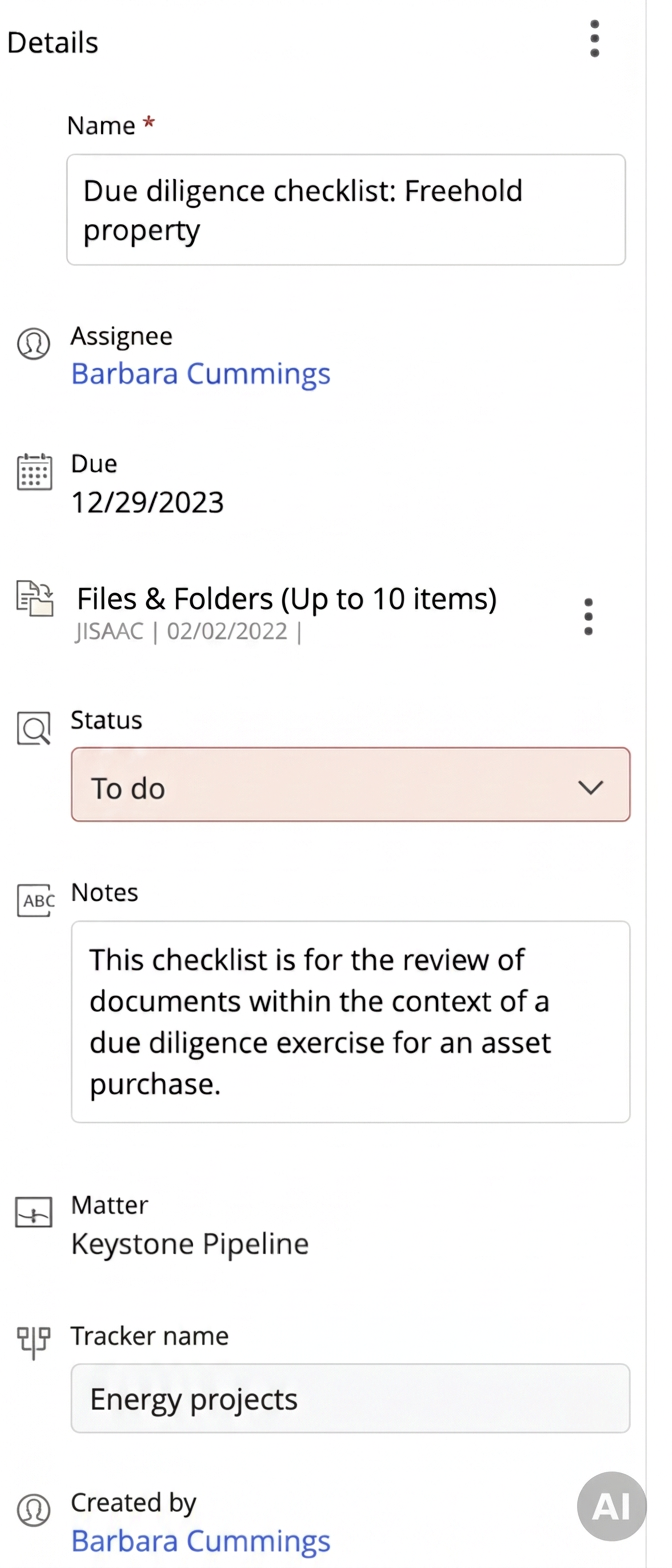
TIP: If you customize the checklist to display only a few fields and keep the view focused, use the Details pane to update hidden fields. This Details pane shows all default and custom fields.
Update attached files and folders
To view, add, remove, or edit attached files and folders on an existing task, select the Files & Folders field in the checklist or in the Details pane to open the Files & Folders (up to 10 items per task) panel.
To add more files or folders: Select + Add to attach files or folders from iManage Work.
To remove an attached item: Point to the item in the list and select the unlink
 icon. Removing an item from a task doesn't delete it from iManage Work.
To edit a file: Select the edit
 icon next to the item.
For more information about attaching items, refer to Adding files and folders from iManage Work.
Update tasks in iManage Tracker panel in Microsoft Outlook
The same Details pane that's available in iManage Work opens when you select a task in the iManage Tracker panel. Edit the task details and manage the attached files and folders as needed using this pane. For more information, refer to Accessing the iManage Tracker panel in Microsoft Outlook.