Use the Format your Table of Contents page in Bundle Builder to organize and customize how your bundled PDF will appear. This step is optional but recommended for bundles with multiple documents.
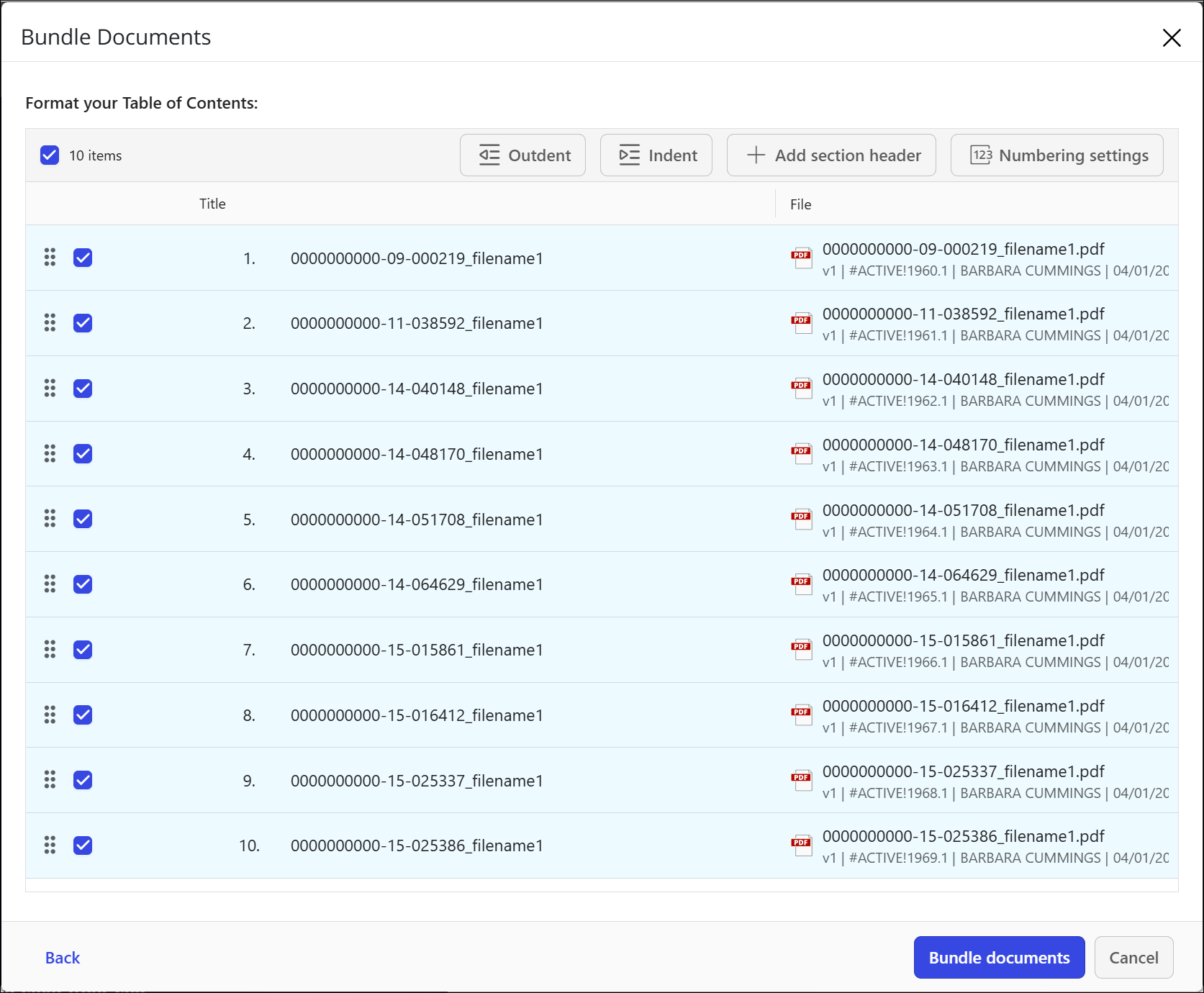
If when you Configure the bundle, you choose to Create table of contents, you will proceed to the Format your table of contents page where you can:
Outdent or Indent items.
Select the Outdent or Indent icons to adjust the hierarchy of documents and section headers. Up to five levels of hierarchy are supported.
Reorder items.
Drag the Reorder icon to move documents or section headers into the desired sequence.
Rename titles.
Hover over a document or section header, then select the title to edit it. The updated title will appear in the Table of Contents.Add section headers to group related documents for better organization.
Select the Add section header icon, choose the location, and enter a name.
Set the number format.
Select the Numbering settings icon, then choose a numbering style for each hierarchy level. Available formats include:
A, B, C
a, b, c
I, II, III
i, ii, iii
1, 2, 3
Select Bundle documents to continue with creating your bundle.