Check E-signature status
To access E-signature dashboard from the Folders view, select the folder name in iManage Work to open the documents in the folder. Right-click the document and select Check Adobe Sign E-signature status. Alternatively:
Select the three dots
 icon on the right side of the document and select Check Adobe Sign E-signature status.
 Right-click the workspace and select Check Adobe Sign E-signature status.
E-signature dashboard for Adobe Sign
The E-signature dashboard for Adobe Sign contains all the information about agreements sent for signing.
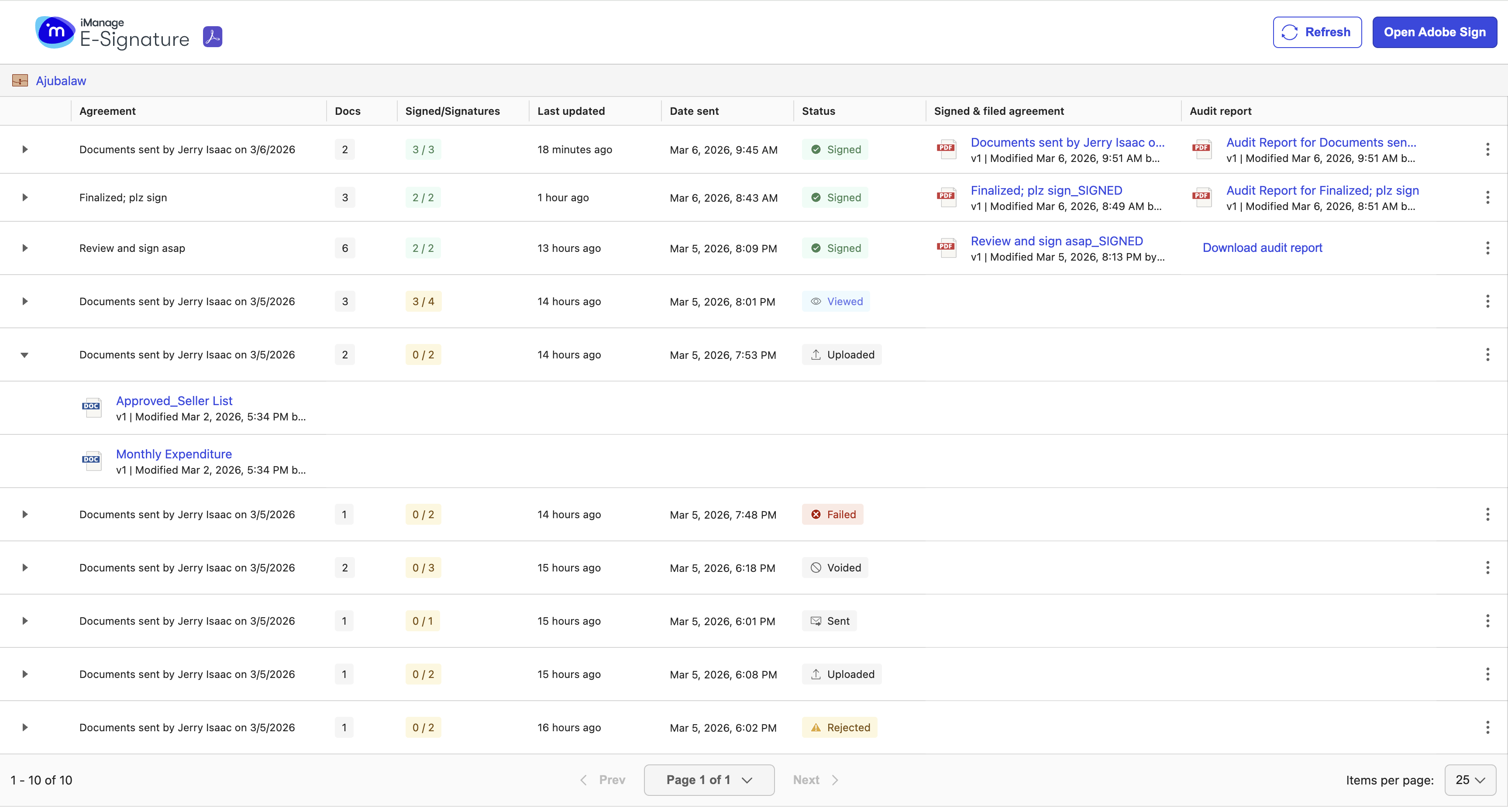
The dashboard provides the following information:
Agreement: The Adobe Sign agreement name containing the documents for signing. Select the expand
 icon to view the list of documents in the agreement. If you select the link for a document, it opens in iManage Work.
 Docs: The number of documents sent for signing as part of the agreement.
Signed/Signatures: The number of signatories out of the total count that have signed the agreement. Example: 0/2 means 0 signatories out of 2 have signed the document.
If approvers are added to the agreement:The total signatory count includes the approvers, even when the sender hasn’t added any signature fields for them.
After they provide approval, the count of those who signed also goes up accordingly.
Last updated: The local time when any change or action happened in the signing process.
Date sent: The date when the agreement was sent for signing to the signatories.
Status: The current status of the agreement. For more information, refer to the following table.
Signed & filed agreement: Select the agreement link to open the signed agreement in iManage Work. Depending on the settings the sender has configured for Adobe Sign, the Final audit report may also be added at the end of the document.
Audit report: Select Download Audit report and then select the document link to open the report in iManage Work. For more information, refer to Accessing the Audit Report.
Agreement statuses in E-signature dashboard
Table: Meaning of agreement statuses in E-signature dashboard
Status | Meaning |
|---|---|
Uploaded | The sender has sent the agreement to E-signature for signing. They can open the agreement in Adobe Sign. |
Sent | The agreement is sent to recipients for signing. |
Viewed | All the signatories have viewed the agreement. |
Signed | All the signatories have signed the agreement. If approvers are added to an agreement, the status changes to Signed only if all of them have approved the agreement. |
Rejected | One or more signatories have declined to sign the agreement. |
Failed | The document(s) in the agreement that the sender tried to send for signing exceeds the limit for their Adobe Sign license type. For more information, go to https://helpx.adobe.com/sign/using/transaction-limits.html. NOTE: The timeline entry for this event specifies that the agreement couldn’t be created because the limit that was exceeded. |
Voided | The sender has canceled the agreement sent for signing. |
View the timeline of the agreement signing process
Select the three dots icon for the agreement and then select Show timeline from the menu.
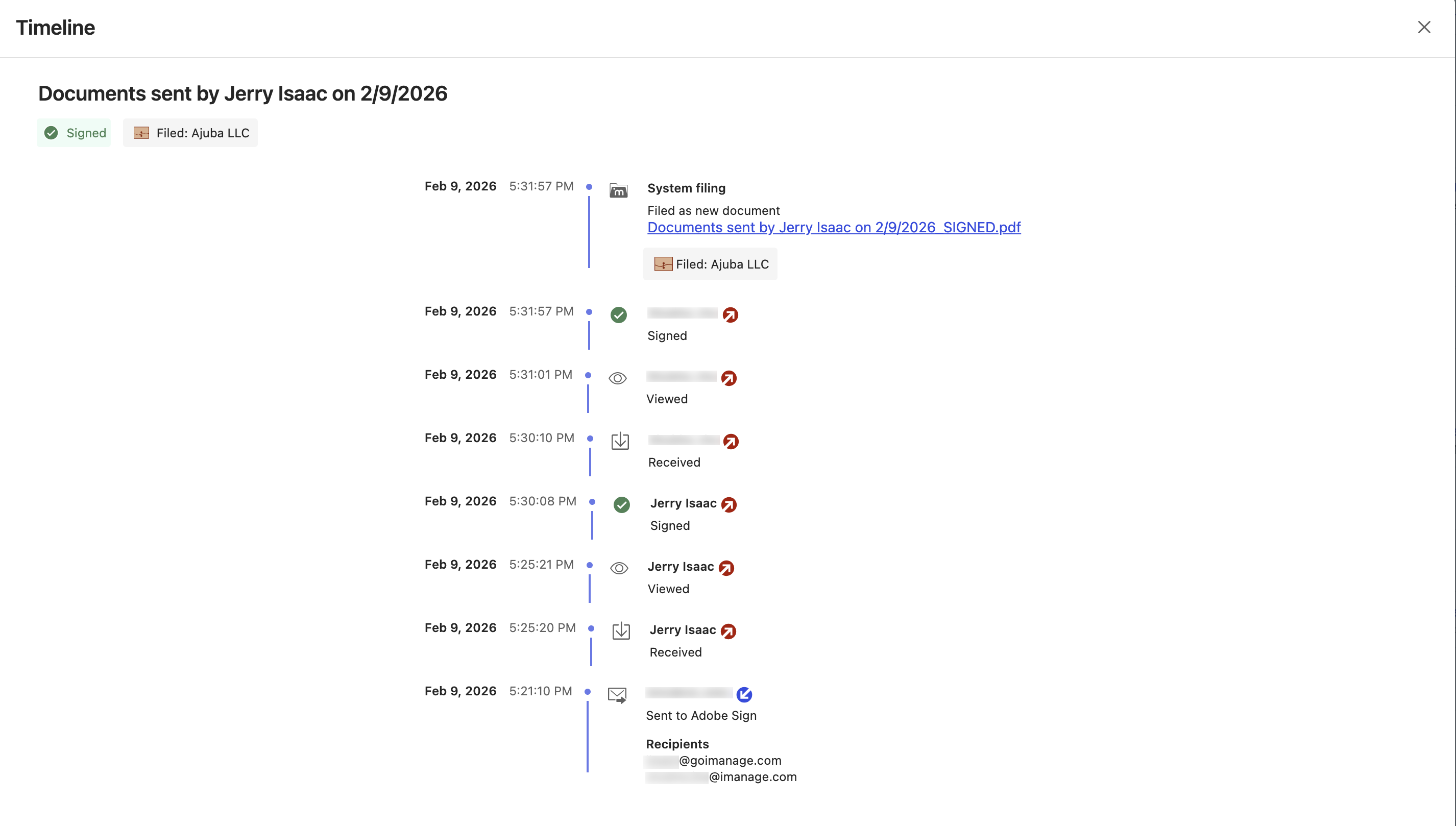
If approvers are added for an agreement, an Approved entry is displayed in the timeline for each of them after they approve the agreement (instead of the Signed entry).
Open the document in Adobe Sign
Select the three dots icon for the agreement and then select Open in Adobe Sign from the menu. Alternatively, select Open Adobe Sign in the top-right corner of the E-signature dashboard. For more information, refer to Opening agreements in Adobe Sign.
Automatic filing of signed agreement to iManage Work
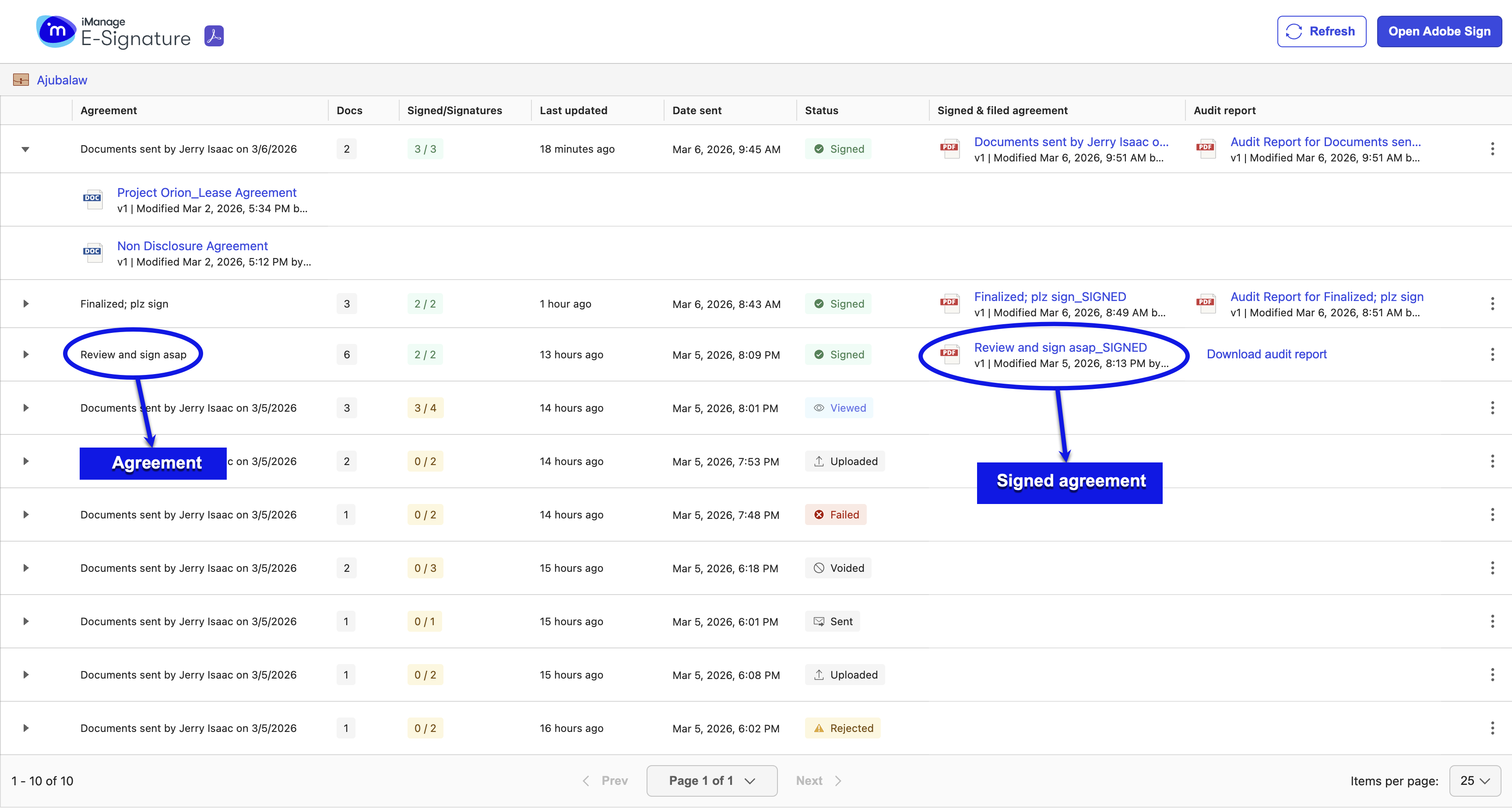
After all signatories sign an agreement, E-signature saves a copy in the same iManage Work folder that contains the document(s) in the agreement. This signed copy is saved in PDF format and retains the agreement name, with the word _SIGNED appended to the file name.
NOTE: The signed agreement inherits the security and metadata (custom1 to custom30 fields) of the folder in which it’s saved.
Accessing the Audit Report
To complete the audit trail and to ensure that a record of the signing activity is available, Adobe Sign provides an Audit Report (in PDF format) for every agreement that gets signed. For more information, go to https://helpx.adobe.com/in/sign/using/sign-download-audit-report.html.
This Audit Report is displayed in the Audit report column in the E-signature dashboard for each signed agreement and saved in the same iManage Work folder where the first document in the agreement is located. It inherits the security and metadata (custom1 to custom30 fields) of the folder in which it’s saved and has the name of the agreement added after the words Audit Report for. For example, the Audit Report for the Lease finalization agreement is named Audit Report for Lease finalization (refer to the figure below).
When the documents are being sent to Adobe Sign, the name of the iManage folder where the report will be uploaded is displayed as a link. Select this link to open the folder in a new tab in the browser. Alternatively, hover over the link to view the folder path.
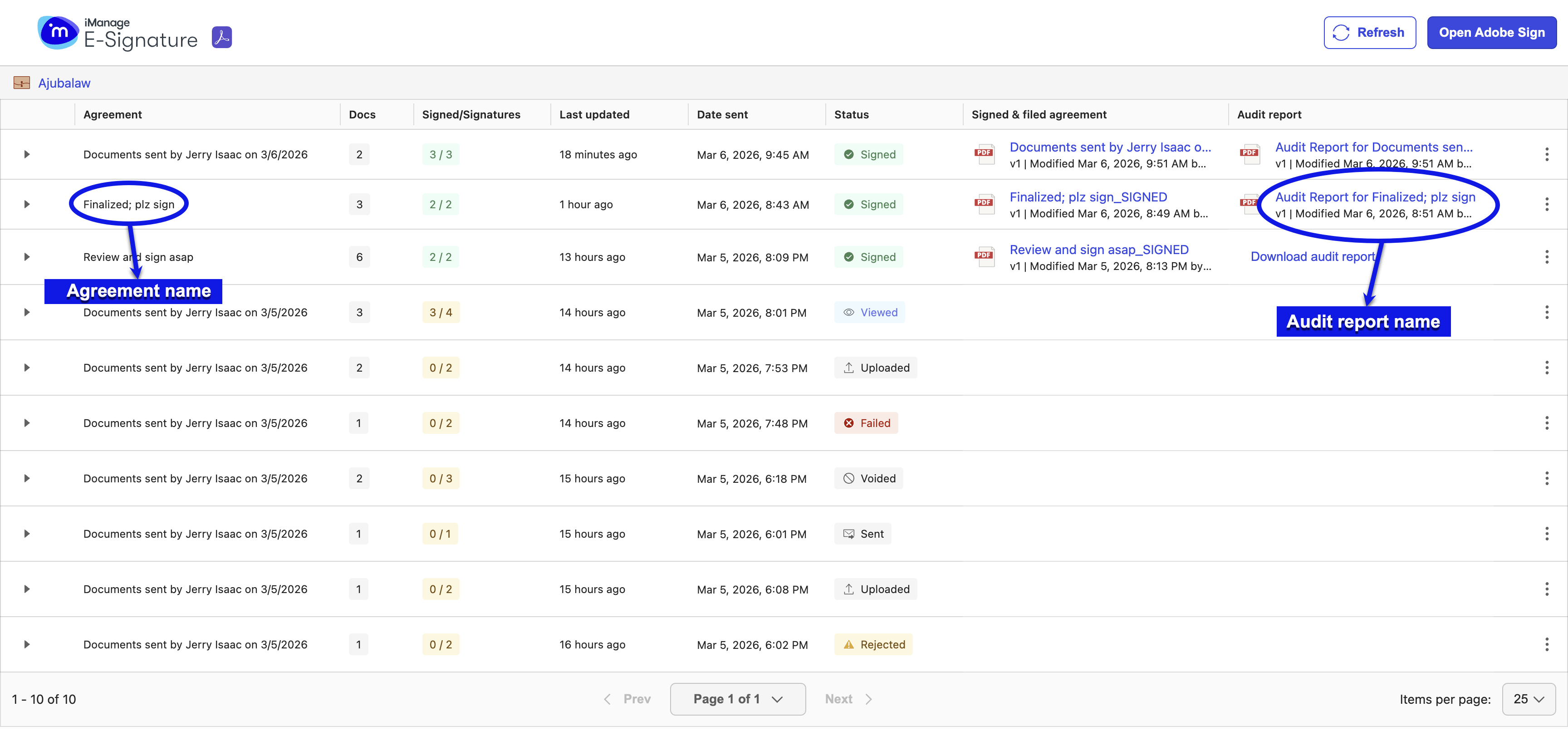
In the dashboard, select Download audit report and then select the report link to open the document in iManage Work. It's displayed on a new browser tab in preview mode from where you can download it, copy the link, view the timeline of activities, and so on. While in this mode, select the Related Documents tab to view the signed copy of the agreement as it’s linked to the report. Similarly, the Audit Report is linked to the signed agreement and can be viewed using its Related Documents tab.
Based on the agreement settings that the sender has configured for their Adobe Sign account, the Audit Report may also be added at the end of the signed agreement.