We recommend that you deploy iManage Work Mobility for Intune as a Managed App. Managed Apps are pushed to the user devices after the device registration.
Administrators can use the Intune administrator portal to remote-wipe an application and its data if the device is lost or stolen, or when an employee is no longer with the organization.
TIP: For an introduction to Intune, go to this tutorial walkthrough:
https://learn.microsoft.com/en-us/intune/intune-service/fundamentals/tutorial-walkthrough-endpoint-manager
NOTE: The following steps are accurate as of this release. These steps may be subject to change as Microsoft updates their Intune Endpoint Manager portal.
To add iManage Work Mobility from App Store as an Intune Managed App and configure access and app behavior:
Sign in to Microsoft Intune: https://intune.microsoft.com/
Select Devices.
Create a device configuration.
The following steps show how to create a device configuration that blocks the sharing of corporate documents from a managed app to an unmanaged app.Select Configuration Profiles.
Select +Create profile.
In the Platform field, select iOS/iPadOS.
In the Profile Type field select Device restrictions, then select Create.
Enter a Profile Name and Description, then select Next.
In the Configuration settings step, select App Store, Doc Viewing, Gaming.
Figure: Configuring Device restrictions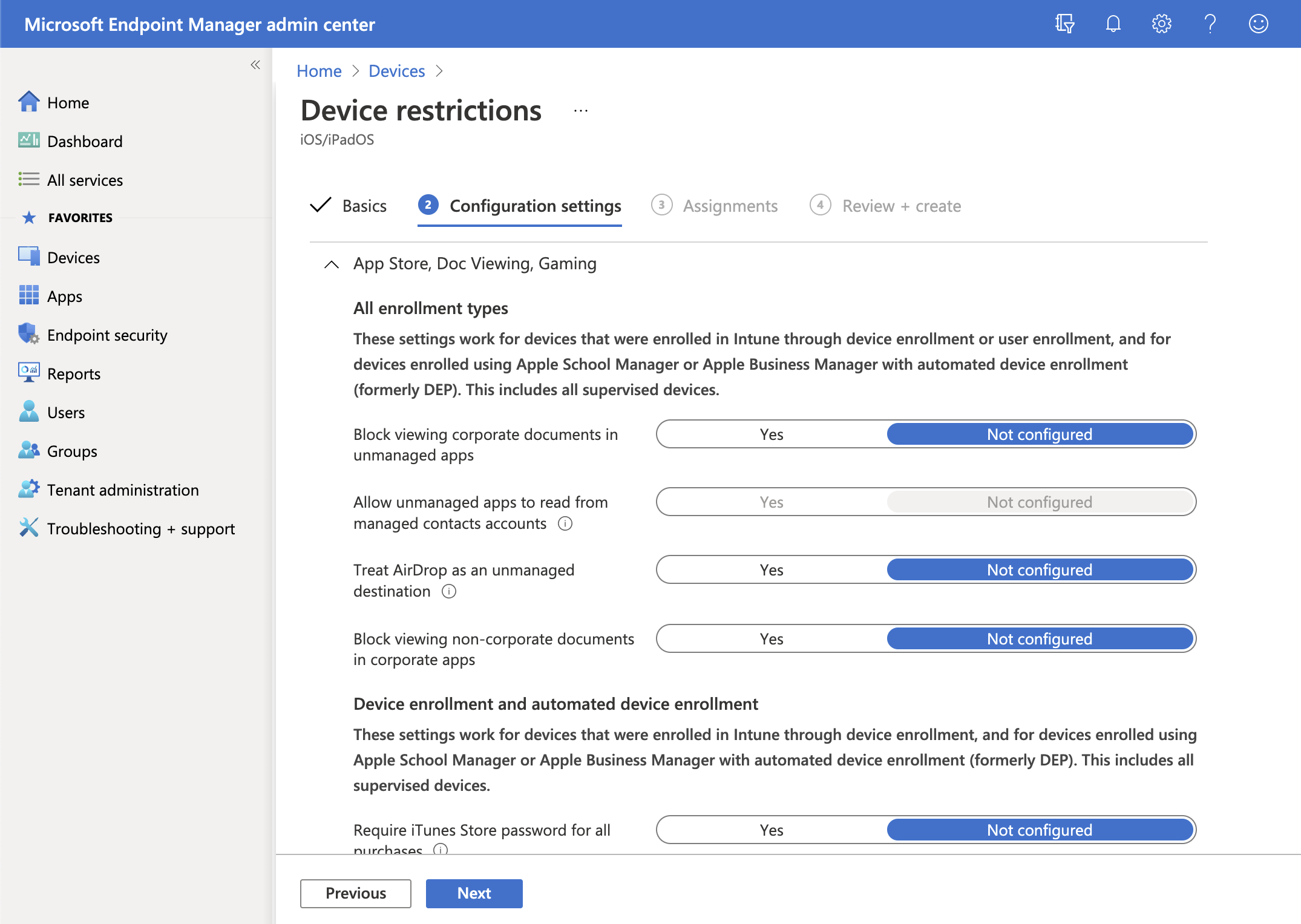
Under All enrollment types, set Block viewing corporate documents in unmanaged apps to Yes.
Select Next.
Create assignments for this device profile. The following steps let you set which groups will receive the device configuration. For more information about using groups in Intune, go to https://learn.microsoft.com/en-us/intune/intune-service/fundamentals/groups-add.
On the Assignments page, use the Included groups section to add specific groups (Add groups), all users (Add all users), or all devices (Add all devices).
Figure: Configuring Device restrictions assignments
When you've finished defining which users or devices should receive this configuration, select Next.
Review your settings, then select Create.
Add the iManage Work 10 Mobility for Intune app to the device profile:
Browse to
 Apps > All apps.
Select +Add.
On the App type menu, select iOS store app, then click Select.
In the Search the App Store search field, enter iManage Work 10 for Intune, select the app from the results list, and then click Select.
Figure: Add iManage Work 10 for Intune to the device profile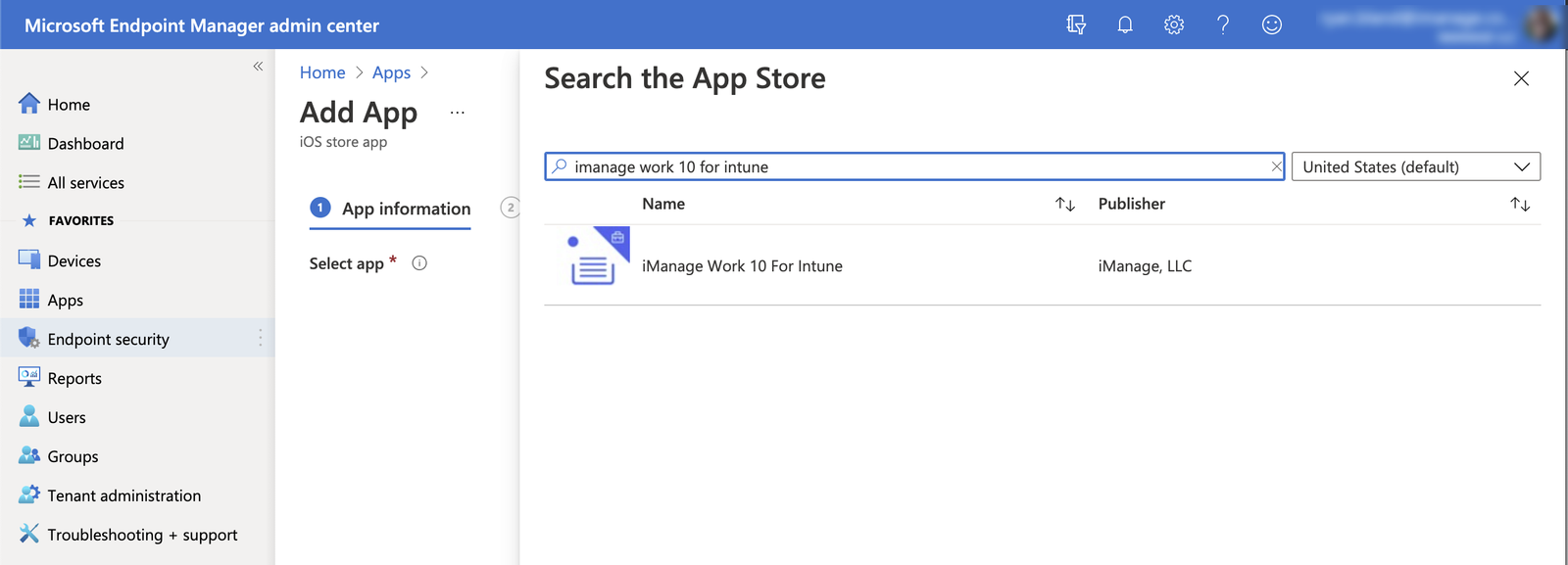
Optionally, add any other apps to this device profile, such as Microsoft Word or Microsoft Outlook. This simplifies deployment of all apps using a single application policy instead of having to create separate policies for each app.
Select Next.
On the Assignments page, configure how users are given access to the iManage Work Mobility app.
Figure: Assign which users can access the iManage Work Mobility app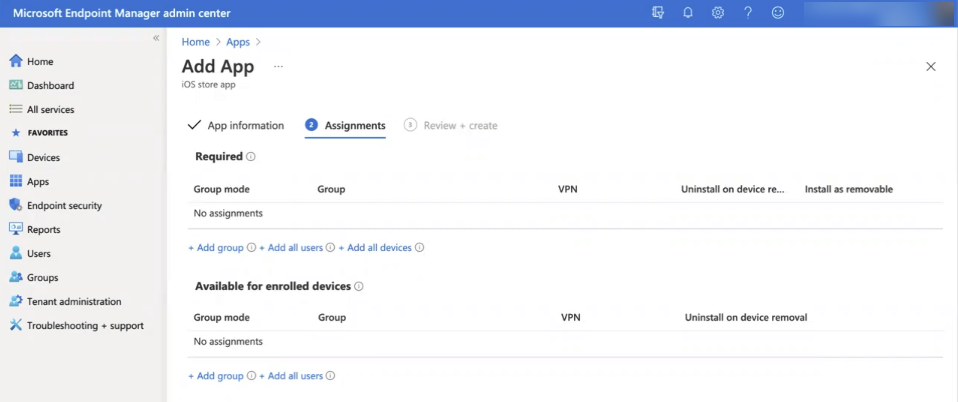
Add specific groups (Add groups), all users (Add all users), or all devices (Add all devices) under one of the following recommended options:
- Required: The user will receive a push notification to install this app.
- Available for enrolled devices: The app is available for enrolled users to download from the Intune portal.Select Next.
Review your configurations, then select Create.
Add an App protection policy to the Client app you just added. This controls which apps users can save and share data between, including Copy and Paste.
In the navigation panel on the left, select Apps.
In the Policy section, select App protection policies.
Figure: App protection policies page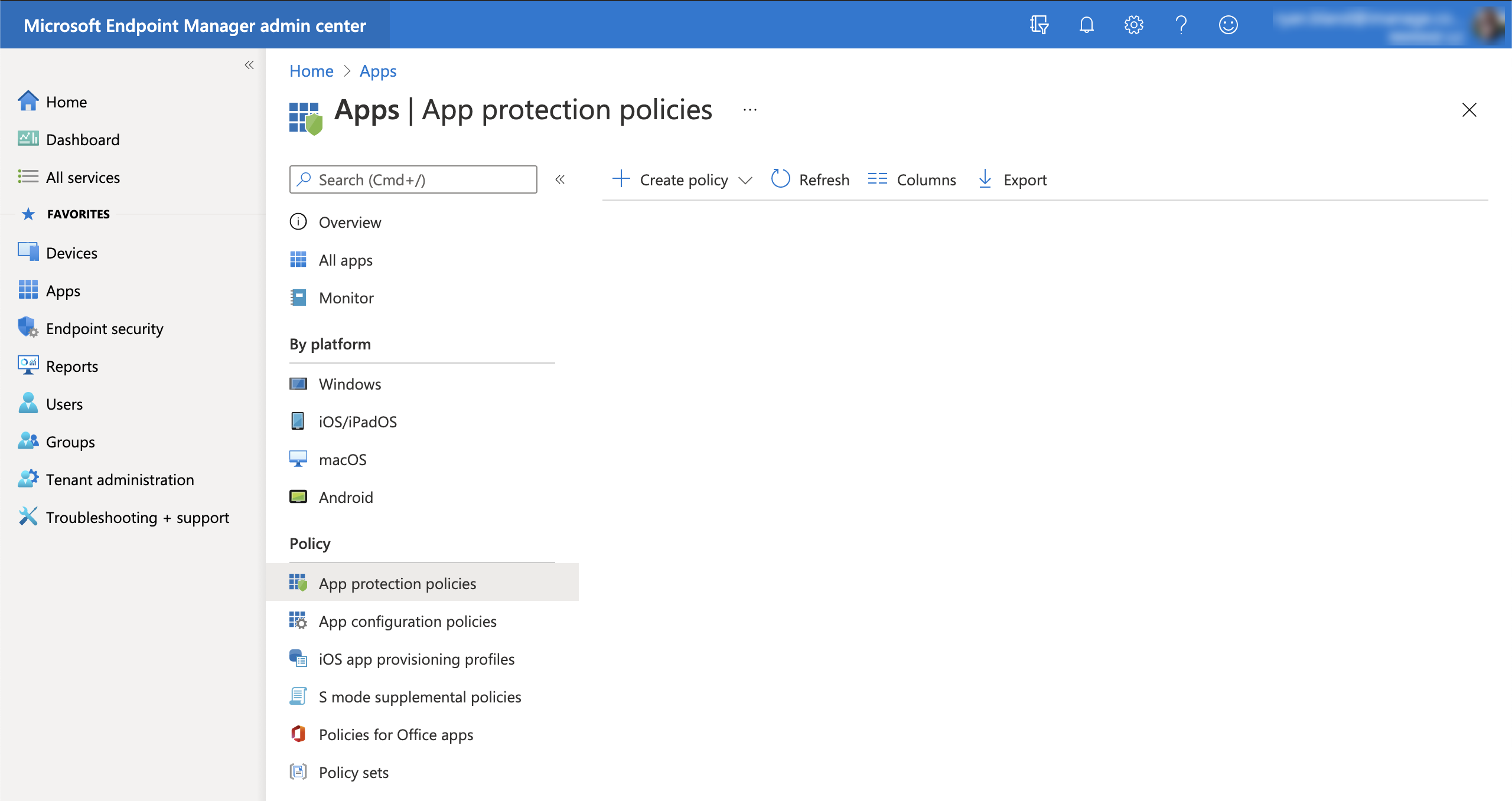
Select +Create Policy > iOS/iPadOS.
On the Basics page, enter a Name and Description of the policy, then select Next.
On the Apps page, in Target policy to, select Selected apps.
Select +Select public apps. In the list of apps displayed on the right, select iManage Work 10 for Intune.
Select Next.
The Data protection page shows the data loss prevention (DLP) controls, like cut, copy, paste, and save-as restrictions. These settings determine how users interact with data in the apps.Configure the following recommended settings:
Figure: App protection policies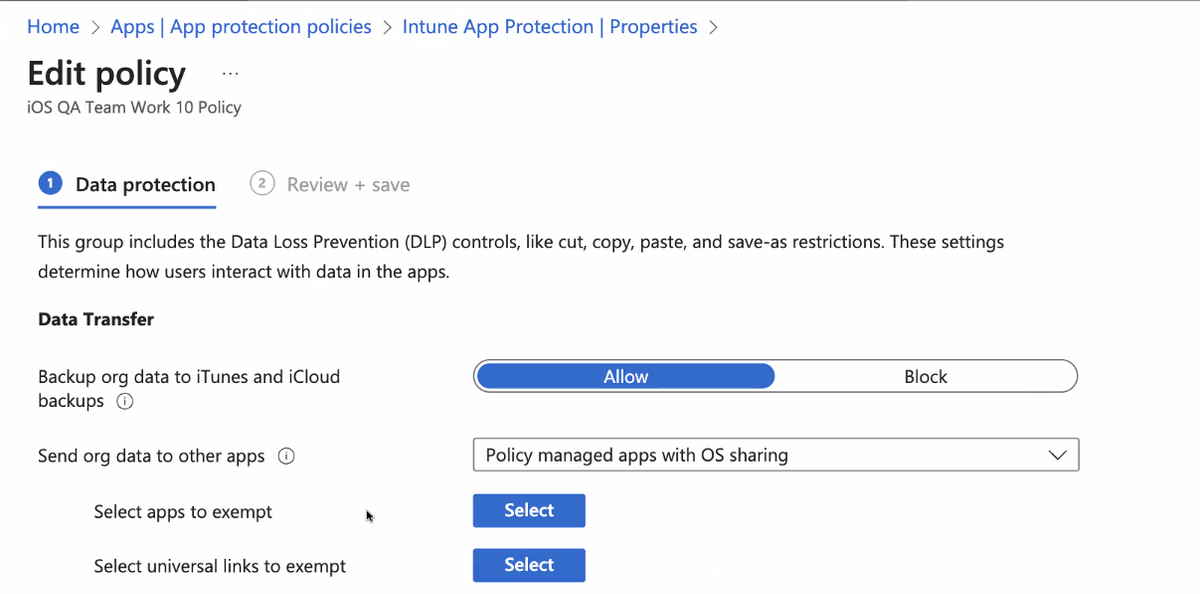
Set Send org data to other apps to Policy Managed with OS Sharing. This enables users to share data to other apps that are managed and also block the opening of documents in any unmanaged apps. We recommend this setting because it allows iManage Work Mobility for Intune to interact with other corporate apps that aren't supported by Intune. It also facilitates the Edit in place feature.
If you select Policy Managed Apps or Policy Managed Apps with Open-In/Share filtering, Edit in place won't work, and the edit workflow will use the normal workflow: send a copy, save, send a copy back.
IMPORTANT:
If your organization uses managed apps (MAM), the setting for Policy Managed with OS Sharing falls back to Policy Managed. For more information, go to https://learn.microsoft.com/en-us/mem/intune/apps/app-protection-policy-settings-ios.Set Receive data from other apps to All Apps. This option lets users receive documents and data from all apps, regardless of whether they come from a different organization or account.
NOTE: The Policy managed apps option will trigger the following error message if a user tries to send data from an unmanaged app or managed app.Figure: Error message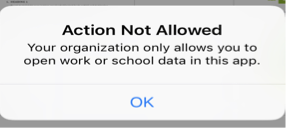
Don't select the None setting. If you do, users won’t be able to edit documents in iManage Work.
To block cloud storage providers (CSPs), such as DropBox, set Save copies of org data to Block. When the user signs in to a CSP as a personal identity, they'll be prevented from saving iManage documents to any CSP.
To allow users to save copies to their local system, expand Allow user to save copies to selected services and select Local Storage as an exception. Local Storage must be an exemption to edit documents. Microsoft Word, Excel, and Powerpoint apps require you to save a local copy of the document before you can make edits.
Set Restrict cut, copy, and paste between other apps to Any app. This controls whether text can be cut, copied, or pasted from the iManage Work for Intune app to other apps.
If your organization uses managed apps, set this instead to All apps.
If your organization uses only policy managed apps (which utilize the Intune SDK), set this to Policy managed apps with paste in.
Set Encrypt org data to Not required. All data is already encrypted.
If you set it to required, iManage users won't be able to open or use the documents they upload to iManage Work.(Optional) If you're connecting to iManage Work at cloudimanage.com and set Restrict web content transfer with other apps to Microsoft Edge on this page, you must complete the following additional steps:
Locate the Send org data to other apps > Select manage universal links setting on this page, and click Select.
The Manage universal links panel opens.Add the following universal links:
https://cloudimanage.com/work/link/*
https://cloudimanage.com/work/web/dialogs/link/*
If you have configured a custom subdomain for your iManage Work at cloudimanage.com environment, you must include your actual subdomain in the these links, for examplecompanyas shown below:https://company.cloudimanage.com/work/link/*https://company.cloudimanage.com/work/web/dialogs/link/*
Select Next.
Configure Access requirements as needed, such as PIN and credential requirements that users must meet to access apps in a work context. Select Next.
Configure the Conditional launch requirements for this access protection policy. This sets sign-in requirements for your access protection policy. For more information, refer to the on-screen Intune instructions. Select Next.
Configure the Assignments to determine which groups should receive this specific policy, under either Included groups or Excluded groups. Select Next.
Review the App protection policy, then select Create to create the policy.
Add an App configuration policy specifically assigned for iManage Work for Intune. The settings available for configuration are explained in detail in App policy configurations.
NOTE: When using a third-party MDM (for example AirWatch or Ivanti), don’t set Managed App Configuration using the third-party MDM. Instead, the Managed App Configuration must be set in the Intune Portal as described in the following steps.Browse to
Apps > App configuration policies.To add iManage Work for Intune using a managed app policy, select +Add > Managed apps.
Managed app policies are recommended for when the device belongs to the user, commonly referred to as Bring Your Own Device (BYOD).Alternatively, to add iManage Work for Intune using a manage device policy, select +Add > Managed devices.
Managed device policies should be used only if the devices are provided by the company.
On the Basics tab, enter a Name and Description for this App configuration policy.
Select +Select public apps or Select app.
In the Select apps to target panel on the right, search for and then select iManage Work 10 for Intune. Click Select to proceed.
Select Next.
On the Settings tab, define all of the Name and Value pair settings for iManage Work for Intune. Refer to the settings available in App policy configurations. This includes the specific iManage Work system(s) to which users will connect.
Figure: Intune settings for iManage Work Mobility
IMPORTANT: When configuring a Managed device policy, you must include the following values:
IntuneMAMUPN | String | {{userprincipalname}}
IntuneMAMOID | String | {{userid}}
IntuneMAMDeviceID | String | {{deviceID}}
When configuring a Managed App policy, you must include the following values:
IntuneMAMUPN {{userprincipalname}}
IntuneMAMOID {{userid}}
For more information, go to https://learn.microsoft.com/en-us/intune/intune-service/apps/app-protection-policies#device-management-typesAfter you've added all of the necessary settings, select Next.
On the Assignments tab, select Add groups, then search for and select the group(s) you defined earlier.
Click Select and then select Next > Create.
You've now completed all of your Intune configuration. Users will receive a notification within 8 hours.
TIP: For assistance diagnosing and solving issues with your Intune configuration, go to https://learn.microsoft.com/en-us/troubleshoot/mem/intune/app-management/app-management.