After your administrator configures the iManage Work Next Generation Co-authoring menus in iManage Control Center, you can access them in iManage Work or on Microsoft Windows devices or macOS devices as follows:
- Accessing iManage Work Next Generation Co-authoring menu options in iManage Work at cloudimanage.com
- Accessing iManage Work Next Generation Co-authoring menu options on Microsoft Windows, iOS, and macOS devices
- Accessing iManage Work Next Generation Co-authoring menu options in iManage Work Desktop for Windows
Accessing iManage Work Next Generation Co-authoring menu options in iManage Work at cloudimanage.com
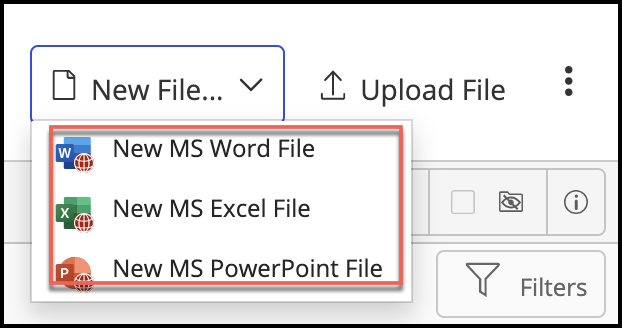
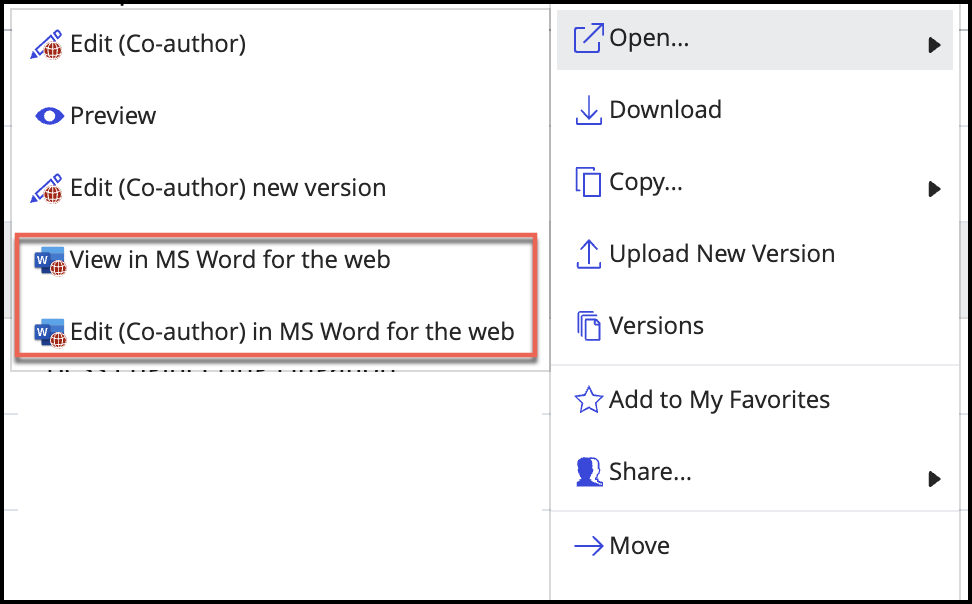
When your administrator enables Microsoft 365 for the web in iManage Control Center, you should get the following options in iManage Work at cloudimanage.com:
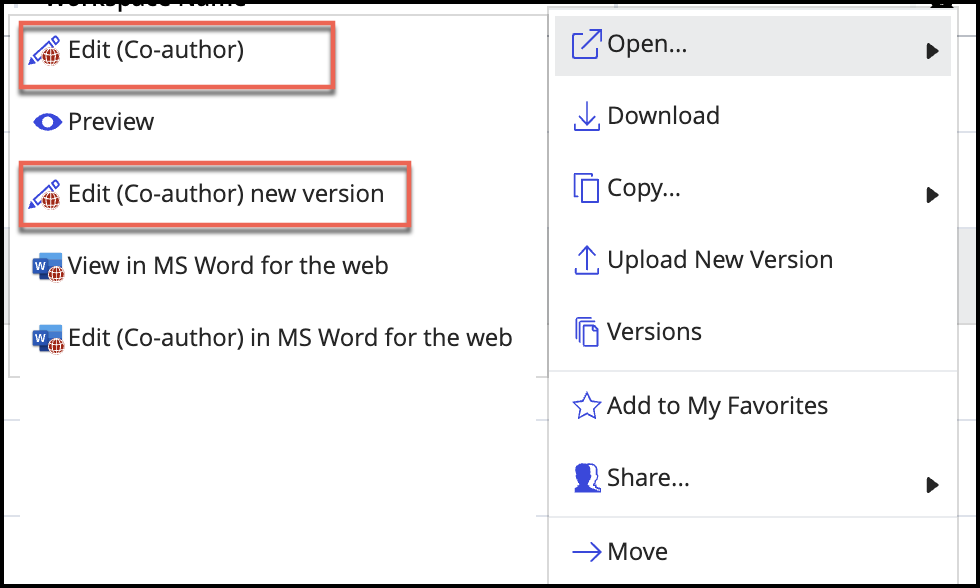
If your administrator has enabled Microsoft 365 for the desktop in iManage Control Center, you’ll find the following option:
Clearing the cache
If the co-authoring options aren’t available, clear the cache:
Select your name in the upper-right corner and then select User Settings.
Figure: User settings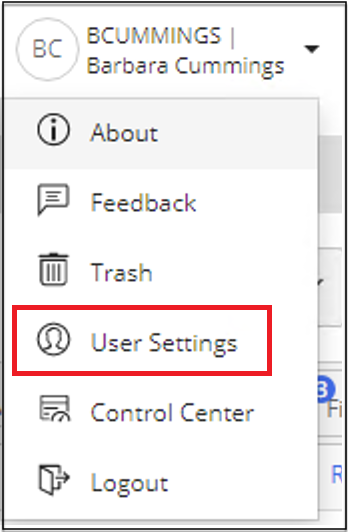
In the User Settings dialog, select Show advanced settings.
Figure: Show advanced settings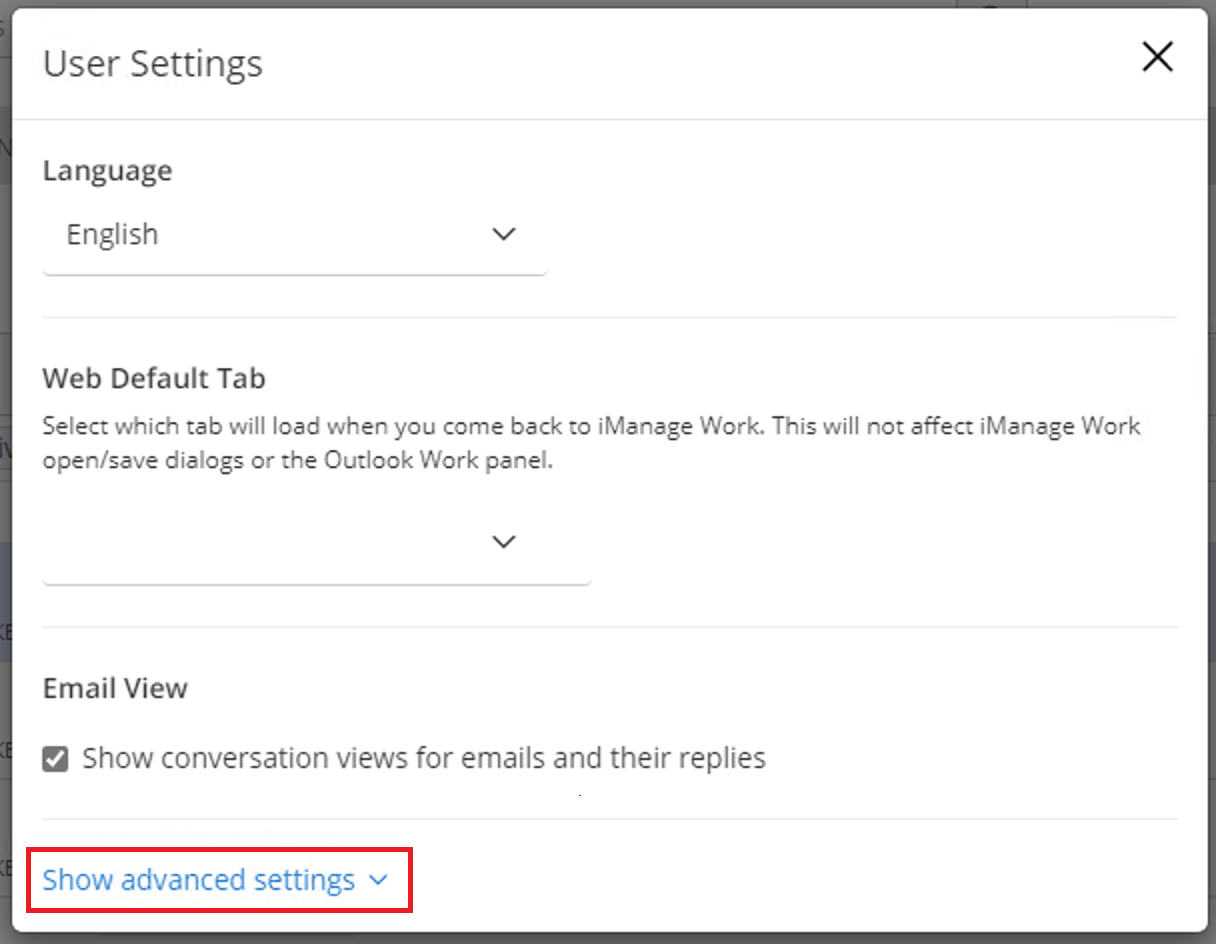
Select Clear local cached settings. We recommend that you clear local cached settings twice.
The cache is cleared and iManage Work reloads.Figure: Clear local cached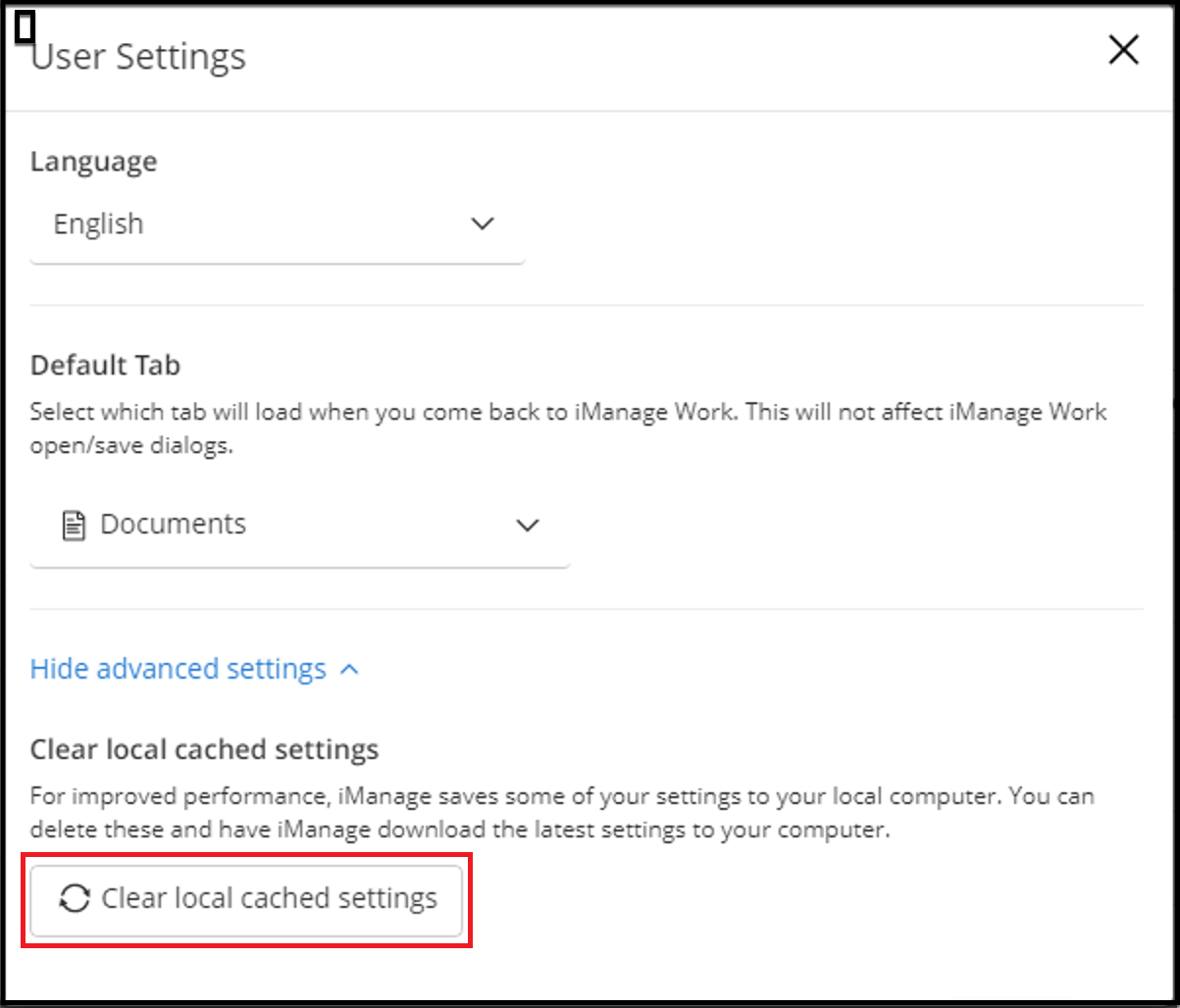
Select a supported file format and check if Microsoft 365 for the web options or Edit (Co-author) menu options are available.
Disabling popup blockers when accessing iManage Work
If pop-up blockers are enabled in your browser, you may be blocked from opening files using Microsoft 365 for the web. We recommend that you turn off pop-up blockers when accessing iManage Work.
You can also open your browser settings, browse to the block popups preference, and then add your iManage Work at cloudimanage.com URL in the allow/exceptions list.
Accessing iManage Work Next Generation Co-authoring menu options on Microsoft Windows, iOS, and macOS devices
If your administrator has enabled Microsoft 365 for the desktop in iManage Control Center, you have to add iManage to any one of the Microsoft 365 applications. This is required to access iManage Work files in the Microsoft 365 applications. To add iManage using Add a Place, refer Signing into Microsoft 365 applications.
Additionally, when your administrator enables the Microsoft 365 for mobile application in iManage Control Center, you should get the following options in iManage Work app in iOS devices after a period of 24 hours. Even after 24 hours, if you aren't seeing the menu options, restart the iManage Work app on your iOS device and options should now be visible.
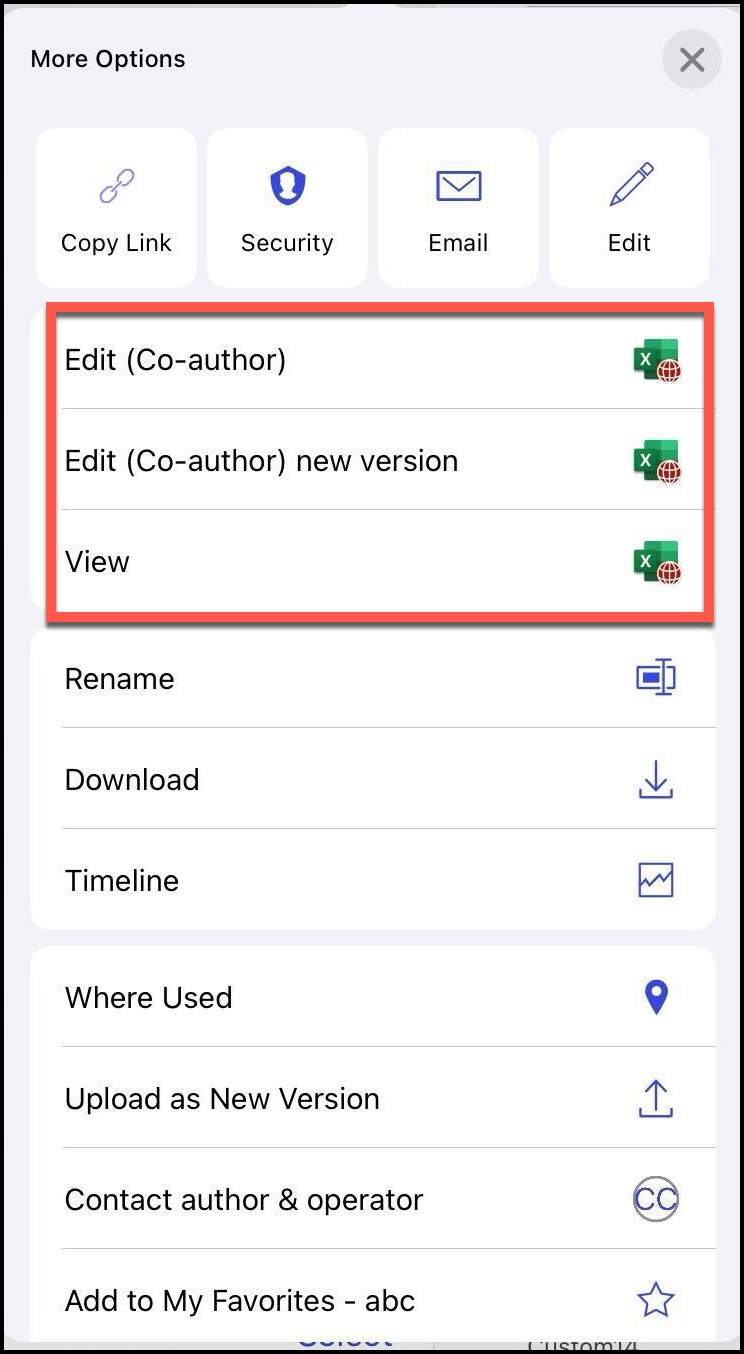
You can also add a new Microsoft Office file by selecting the Select+ option on the iOS device.
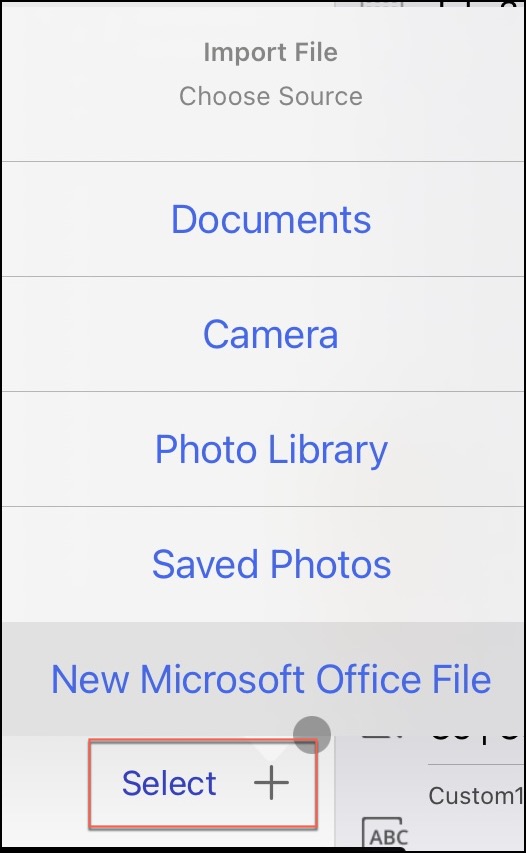
Accessing iManage Work Next Generation Co-authoring menu options in iManage Work Desktop for Windows
If your administrator has enabled Microsoft 365 for the desktop in iManage Control Center and set EnableMicrosoft365forthedesktop to Enable-M365forthedesktopAsDefault in the imWorkOptions.xml file, then the iManage Work Next Generation Co-authoring option is enabled on the device on which iManage Work Desktop for Windows is installed.

When the value is set to Enable-ExclusiveCheckoutAsDefault, the iManage Work Next Co-authoring option is available but disabled as shown in the following figure. Users can enable co-authoring by sliding the toggle to the right.
