When a user creates, views, or edits a file using iManage Work Next Generation Co-authoring, all the operations are reflected in Timeline. It provides information about who accessed or modified the content and who participated in the co-authoring sessions.
When a file is created using:
Microsoft 365 for the web: The timeline event displayed is "Created version 1 using Microsoft 365 for the web" with the user’s details.
Microsoft 365 applications for the desktop (Microsoft Word, Microsoft Excel, and Microsoft PowerPoint): The timeline event displayed is "Created version 1 using Microsoft 365 for the desktop" with the user’s details.
Microsoft 365 for iOS or Microsoft Word, Microsoft Excel, or Microsoft PowerPoint for iOS: The timeline event displayed is “Created version 1 using Microsoft 365 for mobile” with the user’s details.
When a user opens a document using either the Edit (Co-author) options or Open option in iManage Work, the timeline event displayed is:
Checked out version # using Microsoft 365 for the desktop or
Checked out version # using Microsoft 365 for the web
Checked out version # using Microsoft 365 for mobile
When a file is modified using:
Microsoft 365 for the web: The timeline event displayed is "Modified version <#> using Microsoft 365 for the web" with the user’s details.
Microsoft 365 applications for the desktop: The timeline event displayed is "Modified version <#> using Microsoft 365 for the desktop" with the user’s details.
Microsoft 365 for iOS or Microsoft Word, Microsoft Excel, or Microsoft PowerPoint for iOS: The timeline event displayed is "Modified version <#> using Microsoft 365 for mobile" with the user’s details.
When multiple users are co-authoring a Microsoft 365 file using iManage Work Next Generation Co-authoring, the timeline displays the names of all the users who are modifying the Microsoft file.
Figure: Timeline entries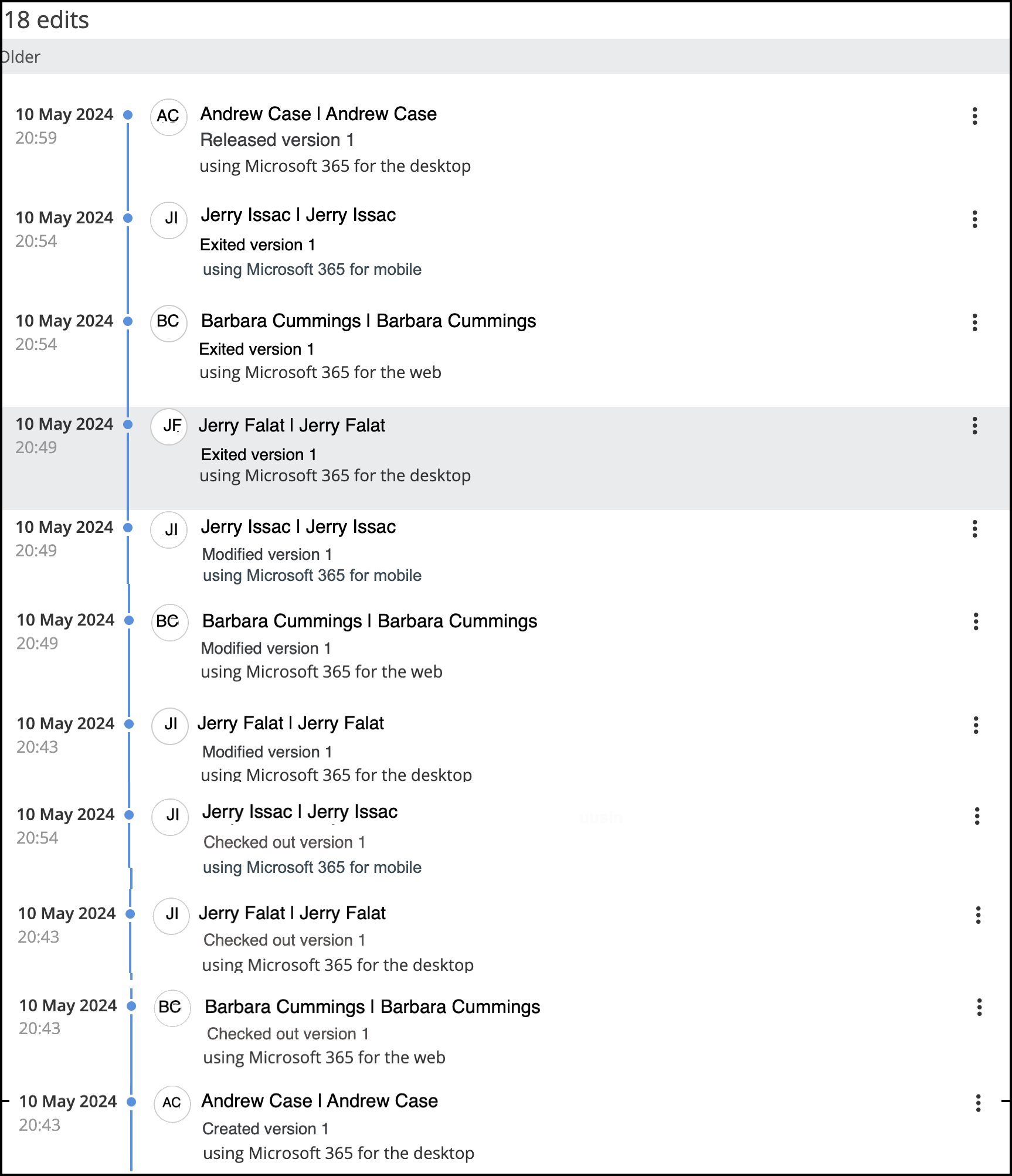
When a new version of an existing file is created using the Edit (Co-author) new version in MS <application> menu option, the timeline event displayed is "Created new version <#> using Work_Client. This version was created by selecting "Copy as new version" from Version <#>."
When the file is closed by a user in either their browser tab or by closing the file in Microsoft 365 applications for desktop, or Microsoft 365 for iOS or Microsoft Word, Microsoft Excel, or Microsoft PowerPoint for iOS, then the timeline displays:
Microsoft 365 for the web: The timeline event displayed is "Exited version <#> using Microsoft 365 for the web" with the user’s details.
Microsoft 365 applications for the desktop (Microsoft Word, Microsoft Excel, and Microsoft PowerPoint): The timeline event displayed is “Exited version <#> using Microsoft 365 for the desktop” with the user’s details.
Microsoft 365 for iOS or Microsoft Word, Microsoft Excel, or Microsoft PowerPoint for iOS: The timeline event displayed is “Exited version <#> using Microsoft 365 for mobile” with the user’s details.
When the file is checked in by the last user and the co-authoring is finally complete, the time displays:
Microsoft 365 for the web: The timeline event displayed is "Released version <#> using Microsoft 365 for the web" with the user’s details.
Microsoft 365 applications for the desktop (Microsoft Word, Microsoft Excel, and Microsoft PowerPoint): The timeline event displayed is “Released version <#> using Microsoft 365 for the desktop” with the user’s details.
Microsoft 365 for iOS or Microsoft Word, Microsoft Excel, or Microsoft PowerPoint for iOS: The timeline event displayed is “Released version <#> using Microsoft 365 for mobile” with the user’s details.