You can customize the names of iManage AI Enrichment properties with captions. The captions you define are automatically displayed to users wherever they interact with these properties in any iManage product.
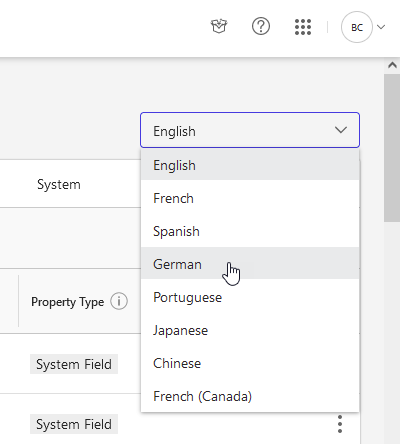
The Extension Fields tab (in iManage Control Center, Metadata > Properties) displays the captions for each property in the Caption column. In the following example, the English captions are displayed. To display the captions in another language, use the Caption language drop-down menu.
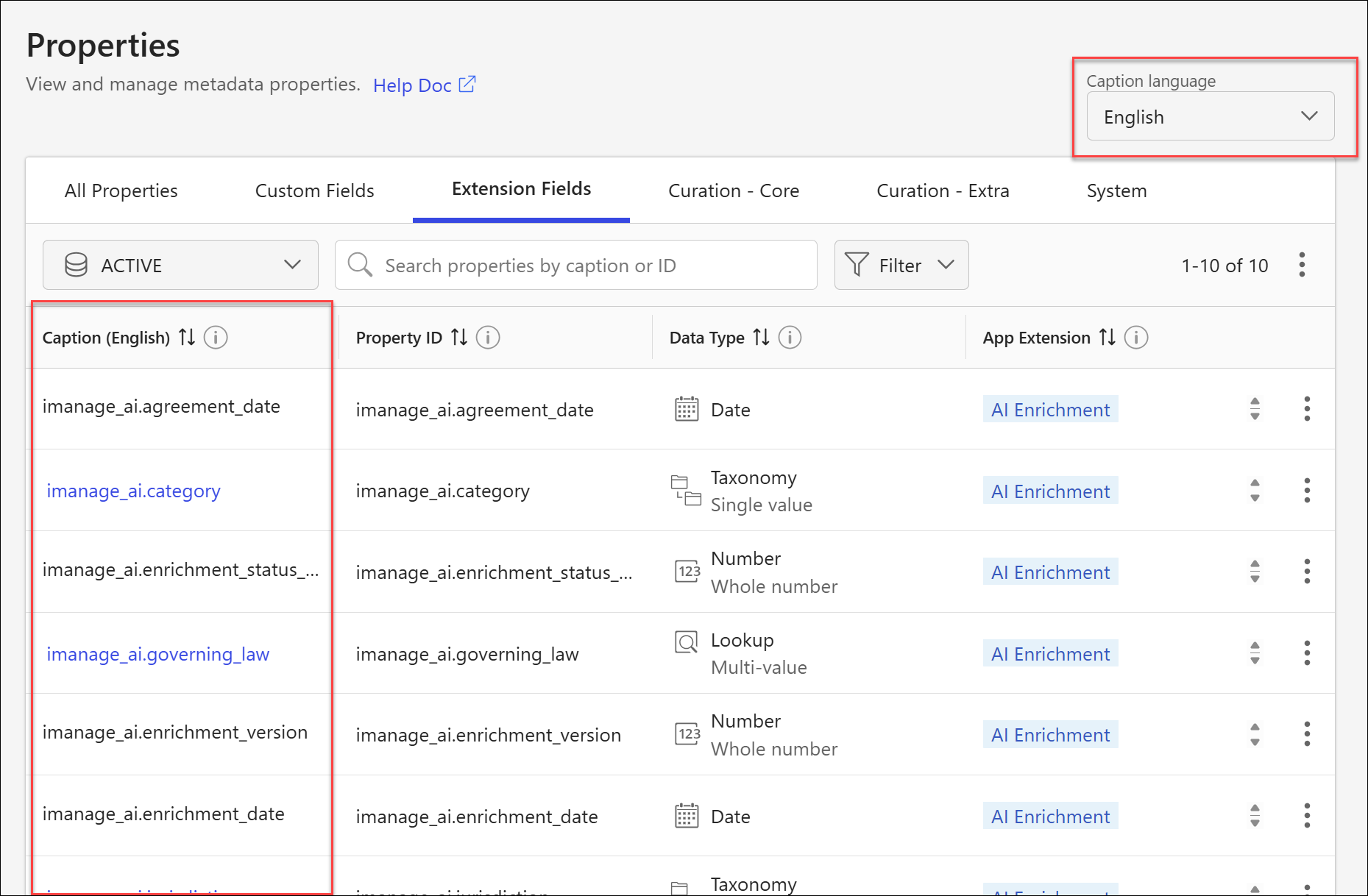
NOTE: To ensure consistent display of property values in Grid views, List views, and search results, we recommend keeping the captions for the following iManage AI Enrichment properties identical across all libraries:
Category (
imanage_ai.category)Jurisdiction (
imanage_ai.jurisdiction)Governing Law (
imanage_ai.governing_law)
Inconsistent captioning of these properties across libraries can lead to discrepancies in how enriched values are displayed to users, particularly in Recent lists and search results.
This is the third step in the Setup and validation workflow.
In this section:
Recommended English captions
The following table lists the recommended English caption for each iManage AI Enrichment property, identified by its property ID.
Property ID | Recommended English caption |
|---|---|
| Agreement Date |
| Category |
| Enrichment Date |
| |
| Enrichment Version |
| Governing Law |
| Heading |
| Jurisdiction |
| Enrichment Disabled |
| Parties |
Task: Edit a caption
To change the caption displayed for a property:
In iManage Control Center, go to Metadata > Properties, then select the Extension Fields tab.
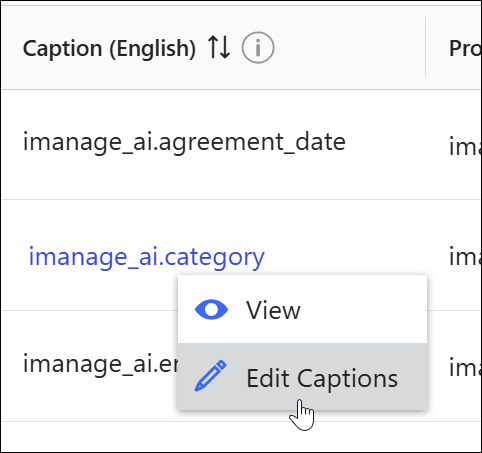
In the Caption column, right-click the property and select Edit Captions. (Alternatively, you can edit the captions from the Captions page in iManage Control Center.)
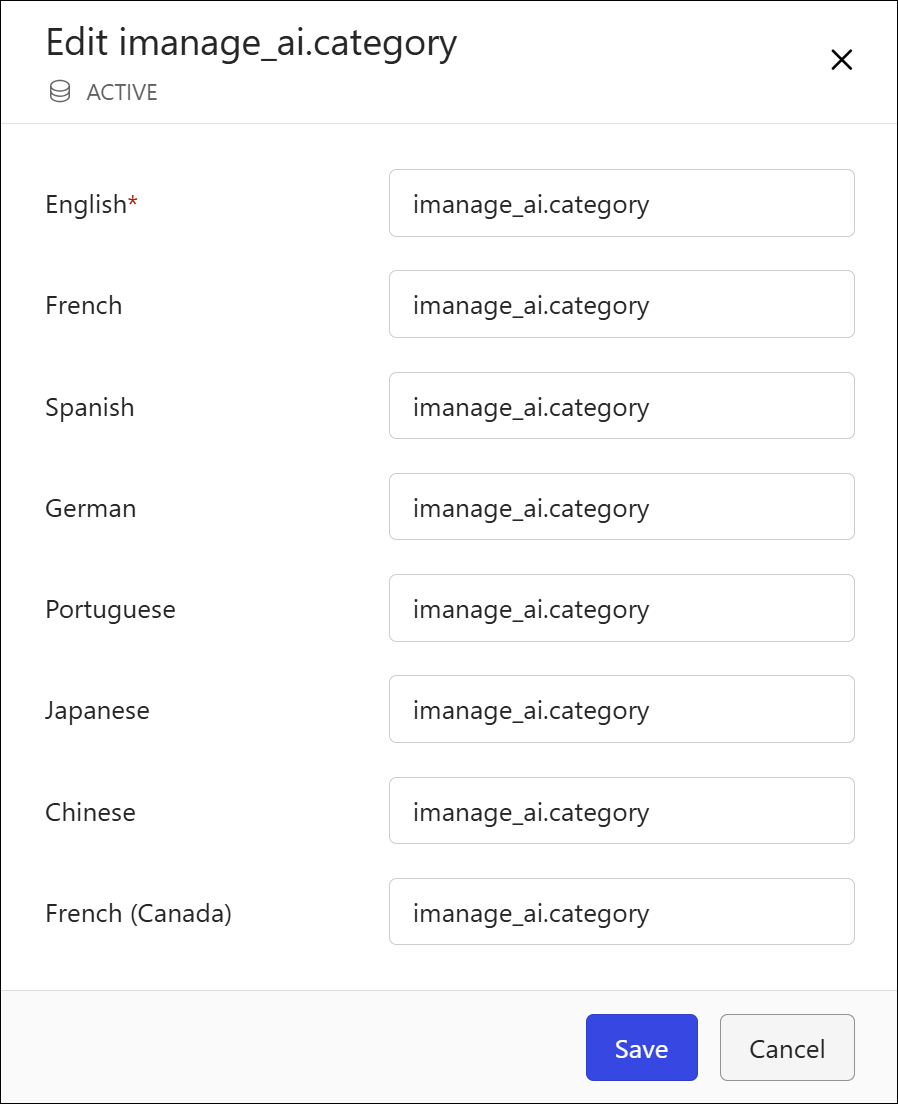
Enter your captions for each supported language.
Select Save to apply the new caption.
Task: View captions for a specific language
To view or edit captions in a different language:
In iManage Control Center, go to Metadata > Properties.
Select the Caption language drop-down menu in the upper-right corner, then choose a language. The Caption column updates to show captions in the selected language.