After you enable the iManage AI Enrichment application, you must import CSV files, provided by iManage, to populate the values for the required enrichment properties: Category, Jurisdiction, and Governing Law. The service uses these values to classify documents and apply consistent metadata during enrichment. This page covers the requirements to check beforehand, how to download and import the required files, considerations for multiple library environments, how to reimport files later to refine metadata, and how to verify that categorization is working after import.
Only admin users (including Tier 2) with a global role that has the App Management privilege can upload these CSV files. After importing a file, these users can view the populated properties and manage their descriptive metadata. For more information, refer to Enable iManage AI Enrichment > Prerequisites and Permissions.
This is the second step in the Setup and validation workflow.
In this section:
Properties populated by CSV import
Importing CSV files populates values for the following three properties:
Category: The list of document categories used by iManage AI Enrichment.
Populated by Category.csv.Jurisdiction: The list of jurisdictions (such as countries, states, or regions) used to tag documents.
Populated by Jurisdiction.csv.Governing Law: The list of recognized governing laws that agreements may be subject to.
Populated by Governing_law.csv.
The Category.csv, Jurisdiction.csv, and Governing_law.csv files can be reimported as needed to refine metadata, correct formatting issues, and update taxonomy structures without requiring a system reset. For details, refer to Reimport CSV files to update metadata.
Before you import CSV files
The following requirements must be met to ensure successful metadata import and enrichment:
Alias values: Alias values (alternative names or identifiers such as
imanage_ai.category,imanage_ai.governing_law, andimanage_ai.jurisdiction) must remain exactly as provided by the iManage AI Enrichment service. These aliases are required by iManage and must not be modified unless explicitly instructed by iManage. Changing aliases can cause the enrichment service to malfunction or fail to populate metadata correctly.Back-end propagation: If iManage AI Enrichment was just enabled, wait the full 8-hour back-end propagation period before importing CSV files. During this period, back-end services may not be fully initialized, even if the UI appears ready.
Insight+ and Knowledge libraries: For Insight+ environments, importing CSV files before back-end propagation completes may result in incomplete metadata and Insight+ failures. Knowledge libraries don't display the Extension Fields tab because they use Extended Metadata tabs instead.
For more information, refer to Enabling iManage AI Enrichment in Insight+ environments and the NOTE in Step 8 of Task: Add and enable the application.
Task: Download the required CSV files
Three CSV files are required to populate enrichment properties. You can download them from AI Enrichment: Document classification model:
In a browser, go to AI Enrichment: Document classification model.
Download the following CSV files and save them in a location accessible during the enrichment property configuration process:
Category.csv
Governing_law.csv
Jurisdiction.csv
NOTE: The Category.csv file provided by iManage defines the values for the Category property. Documents are classified as one of three categories: Agreement, Court Document, or Undetermined. For details about category usage, refer to Classification model overview in the How iManage AI Enrichment works section of iManage AI Enrichment Help.
Task: Import the CSV files provided by iManage
After you download the required CSV files, you must import them to iManage.
You need a global role with the App Management privilege to complete this task.
In iManage Control Center, go to Metadata > Properties.
Select the Extension Fields tab.
Select the
imanage_ai.categoryproperty.On the details page, select Import CSV file.
Figure: Import CSV file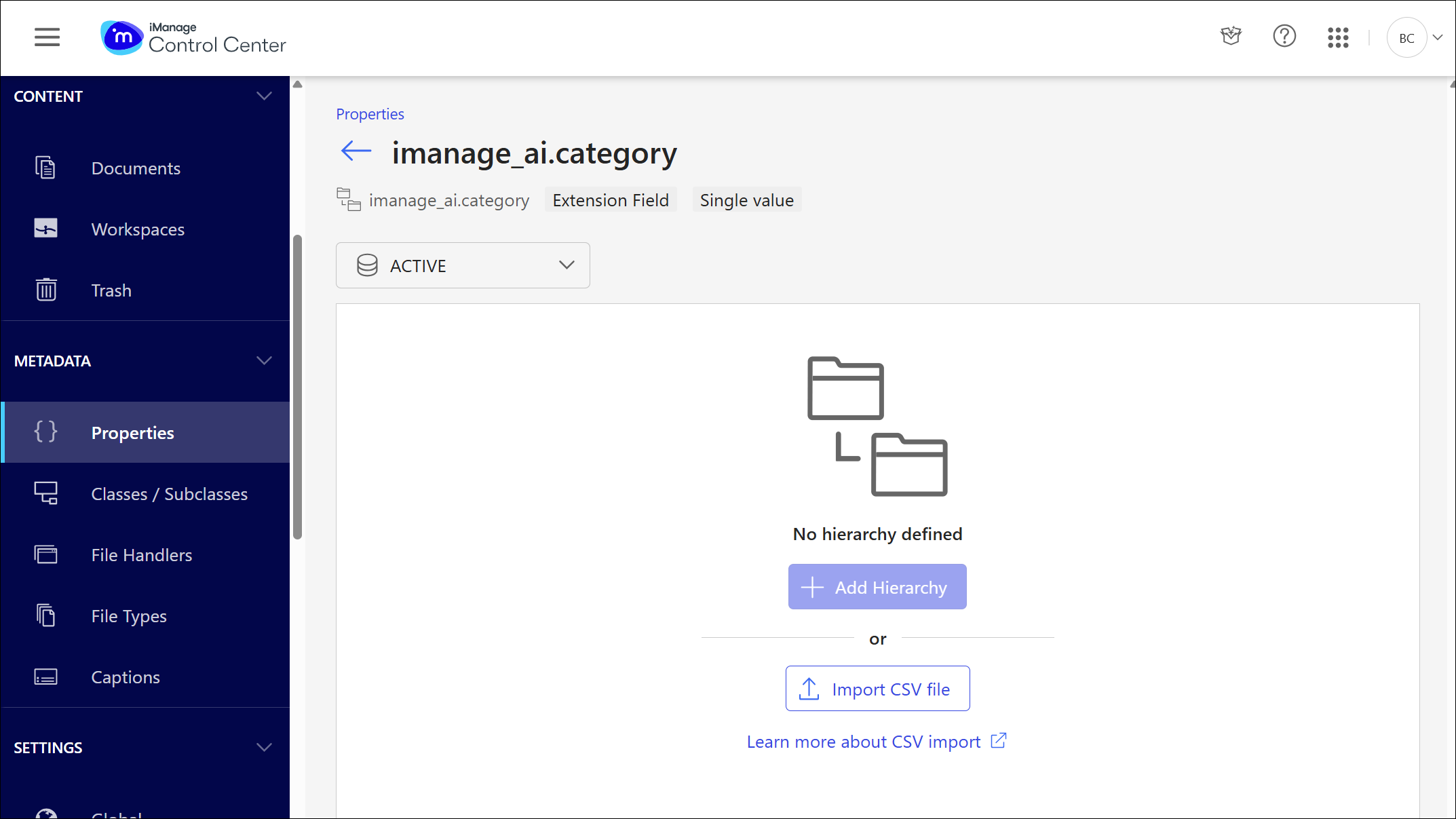
In the Import CSV file dialog, drag and drop the Category.csv file that you downloaded from iManage.
Review the imported values, then select Save.
Confirm your changes by selecting Save again.
Repeat Steps 3–7 to import the CSV files for the remaining properties:
imanage_ai.governing_law: Import Governing_law.csv.imanage_ai.jurisdiction: Import Jurisdiction.csv.
After importing a file, you can view the populated property and manage its descriptive metadata. Alias values can’t be edited or deleted after import.
Multiple library environments
If your environment includes multiple iManage Work libraries, repeat the import steps for each library. In iManage Control Center, the Properties page (Metadata > Properties) lets you switch libraries using the library drop-down menu in the bar below the tabs.
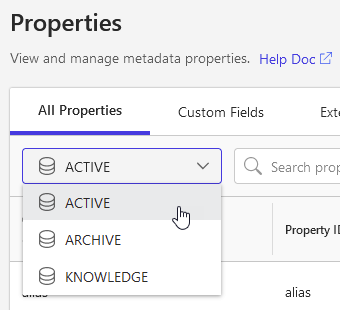
To ensure consistent display of AI-enriched metadata in Grid view, List view, search results, and filters, we recommend keeping the captions and value sets for the following properties identical across all libraries:
Category (
imanage_ai.category)Jurisdiction (
imanage_ai.jurisdiction)Governing Law (
imanage_ai.governing_law)
Inconsistent configuration across libraries can lead to differences in how metadata values appear to users when browsing, filtering, or searching across multiple libraries. For information on how these differences appear to users, refer to Display and consistency considerations in iManage AI Enrichment Help.
Reimport CSV files to update metadata
You can reimport CSV files for Category, Jurisdiction, and Governing Law, without resetting the system. This includes reimporting a CSV over a property that already has values populated; an empty field isn’t required, in the case of an initial upload error or in the case where iManage provides an updated version of a CSV.
Only users with appropriate administrative privileges can perform CSV imports. Before uploading, always verify the structure and content of the CSV files.
IMPORTANT: During the full 8-hour back-end propagation period after the application is enabled, the UI may appear ready while back-end services are still initializing, which can result in partial or failed imports. Administrators don't need to wait for the propagation period to complete or perform a system reset. The CSV imports can simply be retried after services are fully available.
When reimporting, the system displays deltas (changes made during import).
Reimporting doesn’t currently support moving a value to a different position in the taxonomy hierarchy, or disabling existing values.
NOTE: iManage recommends not editing the CSV files used for enrichment.
Verify application configuration
After back-end propagation has completed, verify that iManage AI Enrichment is working correctly by confirming that documents are being classified with a Category value of Agreement, Court Document, or Undetermined.
Category is the primary classification applied to all processed documents. Documents classified as Court Document or Undetermined aren't enriched beyond Category.
Task: Verify that documents are being categorized
You need a global role with the App Management privilege to complete this task.
To confirm iManage AI Enrichment is categorizing documents correctly:
In iManage Control Center, go to Metadata > Properties, then select the Extension Fields tab.
Select the Category property.
Verify that the classification values (Agreement, Court Document, and Undetermined) are configured and available.
To confirm categorization is being applied to actual documents, complete Task: Verify that AI Enrichment is working as expected in Validate and finalize setup after finishing the remaining setup steps.
If documents aren’t being categorized, this doesn’t necessarily indicate an issue with the service. Common causes include:
The 8-hour back-end propagation period hasn’t completed. The Extension Fields tab (and Category property) may be displayed before enrichment is fully available. For details about expected timing, refer to the IMPORTANT note in Step 8 of Task: Add and enable the application.
The document doesn’t qualify for classification (unsupported file type, under 100 characters, over the 1,000,000-character limit, less than 80% English content, or password-protected).
To confirm the cause for a specific document, check its Enrichment Status Code property. Refer to Enrichment status codes.