Administrators manage iManage AI Enrichment through the iManage - AI Enrichment application in iManage Control Center. This page covers the prerequisites and permissions required to enable the application, and the steps to add and activate it.
This is the first step in the Setup and validation workflow.
In this section:
Prerequisites
You must have a valid iManage Work account at cloudimanage.com.
The Optical Character Recognition (OCR) service must be enabled for iManage Work. OCR extracts document text before AI Enrichment can classify or extract metadata from it.
The iManage AI Enrichment feature must be enabled for your organization. AI Enrichment won’t run until this is done. Separately, an administrator can control which libraries display the resulting properties to users in iManage Work Web.
Regional availability
iManage AI Enrichment is supported in all cloudimanage.com regions and uses Data Zone regional processing.
Permissions
To enable and administer iManage AI Enrichment, the signed-in iManage Control Center user must be an admin user (including Tier 2 users) assigned a global role with the App Management privilege.
These permissions are required to:
Enable the iManage AI Enrichment application
View and manage properties in iManage Control Center
Upload CSV files for iManage AI Enrichment
For more information, refer to Global privilege descriptions.
The iManage AI Enrichment (iManage - AI Enrichment) application must be activated in your iManage environment. If you can’t find iManage - AI Enrichment in Control Center, contact iManage to confirm that the application has been activated on your tenant.
Task: Add and enable the application
Enabling the application activates iManage AI Enrichment for your organization. You’ll then import property values and wait for the required CSV files to fully propagate so that categorization works.
You need a global role with the App Management privilege to complete this task.
To add and enable the iManage AI Enrichment application:
In iManage Control Center, browse to Settings > Applications.
Search for iManage - AI Enrichment and select it.
Select Authentication. Then review and edit the following settings:
Allow Refresh Token: No (default)
Refresh Token Expiry: 365 days (default)
Access Token Expiry: 30 minutes (default)
Select Access, then choose one of the following options:
Custom: Specify the users who can view iManage AI Enrichment fields in the iManage Work Web UI.
All Users: Make enrichment fields visible to all users.
Select Review.
Confirm your settings, and then select Finish.
Refresh your browser, if prompted or if iManage Control Center doesn't update automatically.
In iManage Control Center, browse to Metadata > Properties and confirm that the Extension Fields tab is displayed at the top of the page.
IMPORTANT: After enabling the iManage AI Enrichment application, wait the full 8-hour back-end propagation period before performing configuration actions such as CSV imports or Insight+ setup. The Extension Fields tab and enrichment properties may be displayed within about 20 minutes, but back-end APIs may not yet be operational; actions performed before propagation completes may result in partial success or errors.
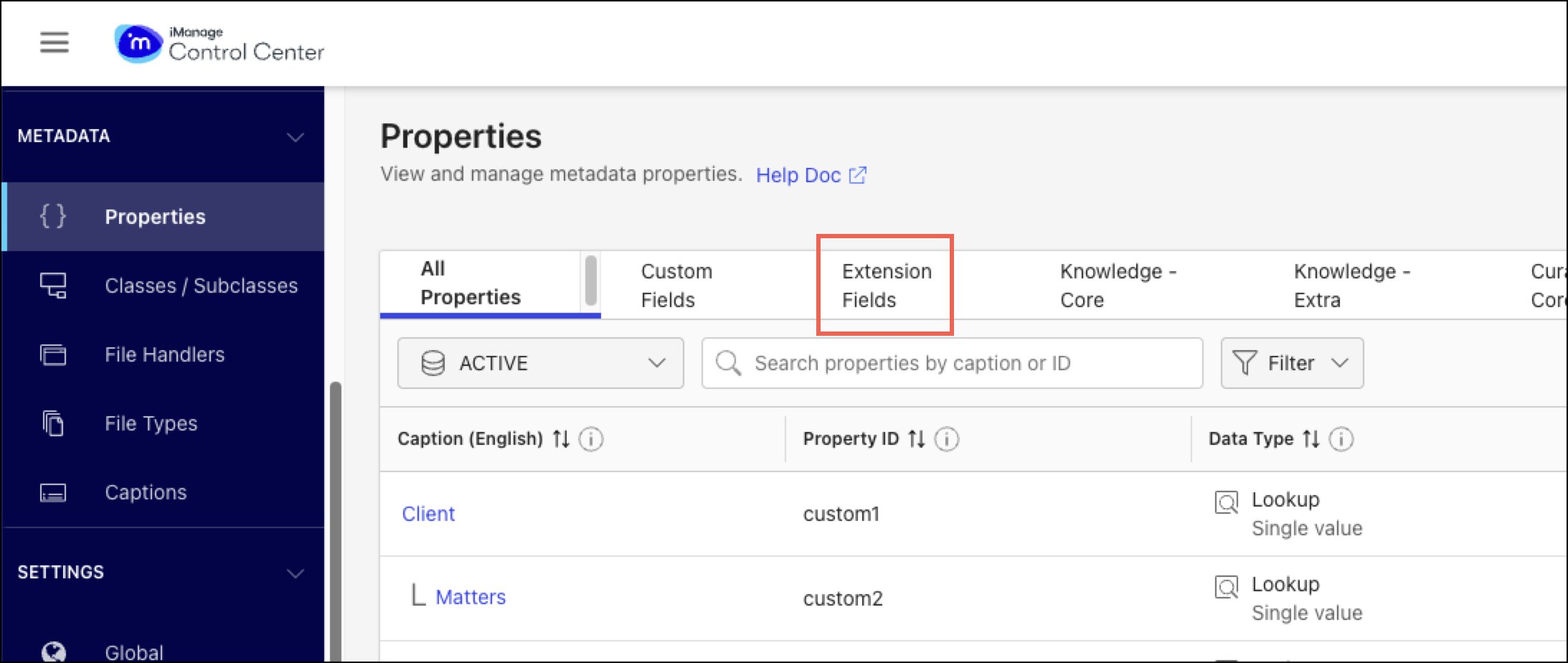
NOTE: In Insight+ environments, the Extension Fields tab isn't visible for knowledge libraries; those use the Knowledge-* metadata model instead. The tab remains visible for non-knowledge libraries. If your organization uses Insight+, refer to Enabling iManage AI Enrichment in Insight+ environments for details on how enrichment fields are handled in Insight+ configurations.
Additional considerations
After enabling and configuring iManage AI Enrichment, keep the following considerations in mind.
UI refresh
After completing configuration, changes may not be immediately visible in iManage Work due to browser-side caching. Refresh the browser if newly added or updated properties aren't visible. For more details, refer to Display AI Enrichment properties in iManage Work.
Extension Fields tab—additional fields
After enabling iManage AI Enrichment, the Extension Fields tab in iManage Control Center includes additional fields beyond those currently used by iManage AI Enrichment. Only the properties listed in the Recommended English captions section in Define property captions need to be configured for iManage AI Enrichment.
Bulk enrichment
To enrich all documents in a library (for example, for historical coverage), you must contact iManage. Administrators can’t initiate full-library reprocessing on their own.
Insight+ integration
If you're planning to use Insight+ or already have this deployed, refer to Enabling iManage AI Enrichment in Insight+ environments for the correct configuration sequence to avoid metadata loss or Insight+ disruption.