In iManage Work at cloudimanage.com, access Ask iManage home page.
Select Ask each document.
Figure: Select Question list in Ask each document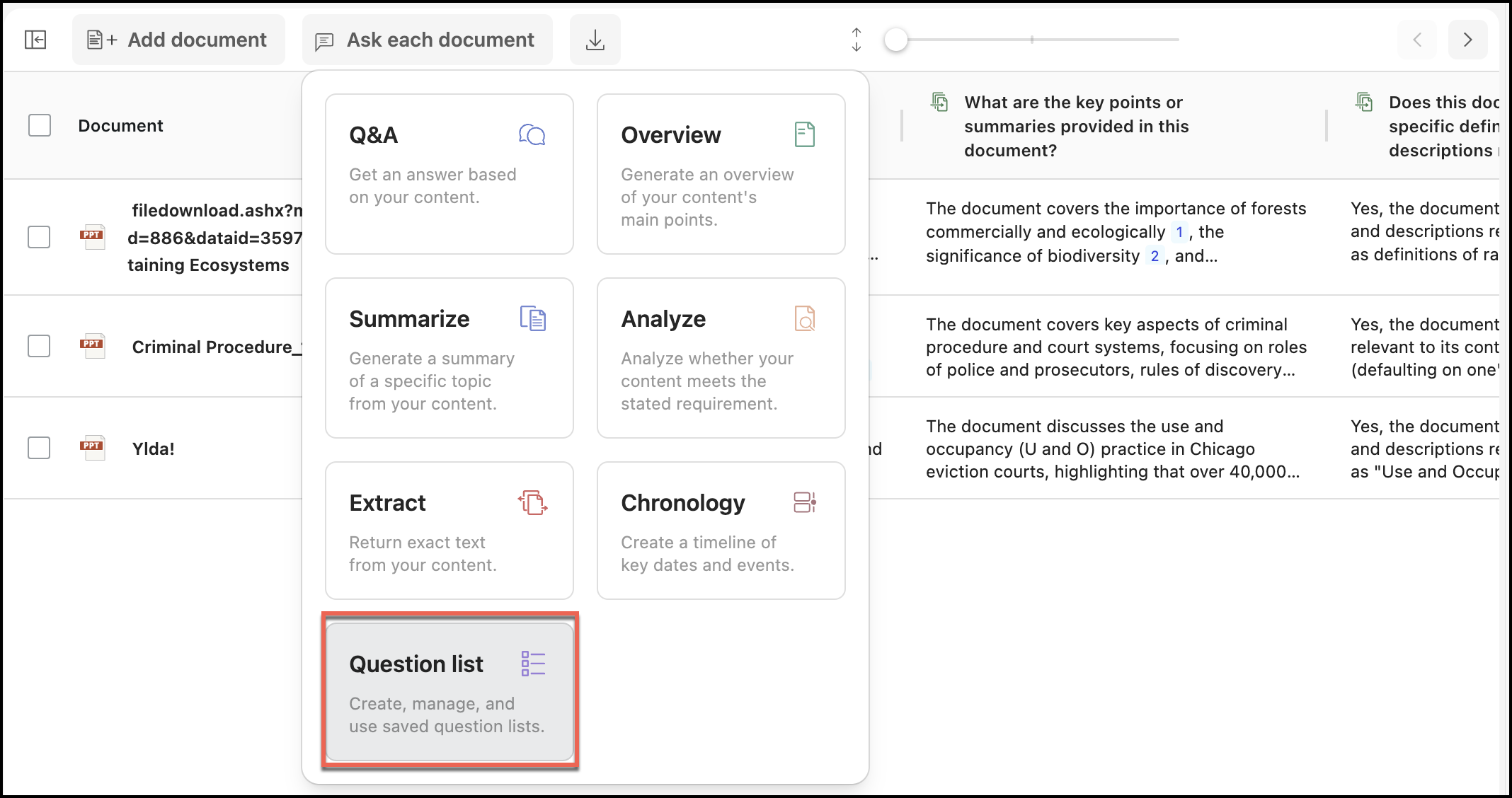
Select Question list and then a question list from the dialog that opens.
The question list is applied to the list of the documents. Ask iManage reads through them and fetches the answers. The system can run the question list for a maximum of 50 documents at a time. After you select a question list, you can view the list of labels for which you'll get answers.Figure: Ask a question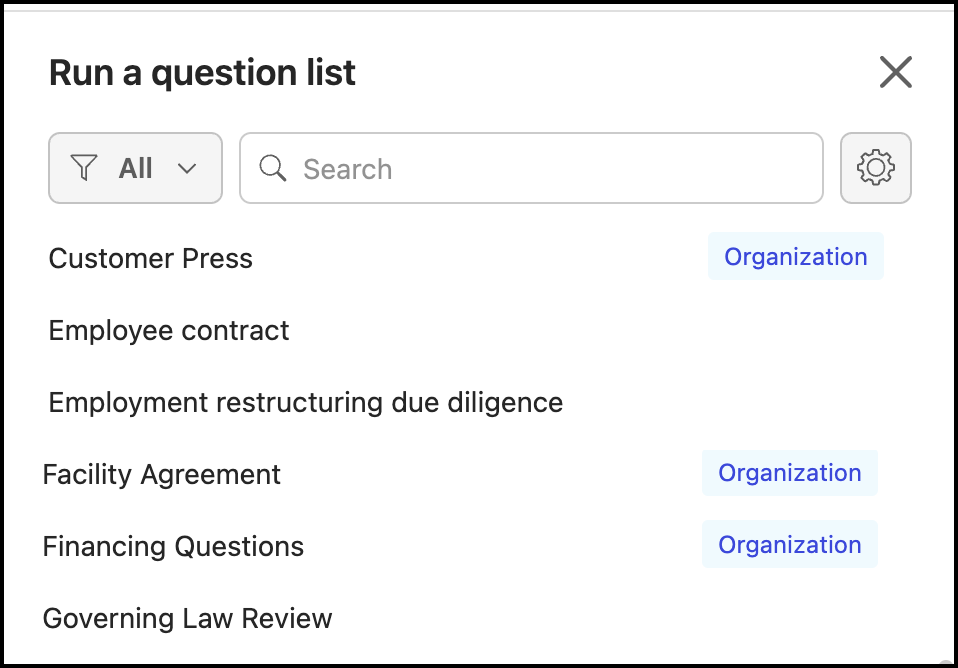
Ask iManage will read through all the unprocessed documents in the list. It may take a while for Ask iManage to fetch the answers based on the size and number of documents it has to read through.
Figure: Documents processing stage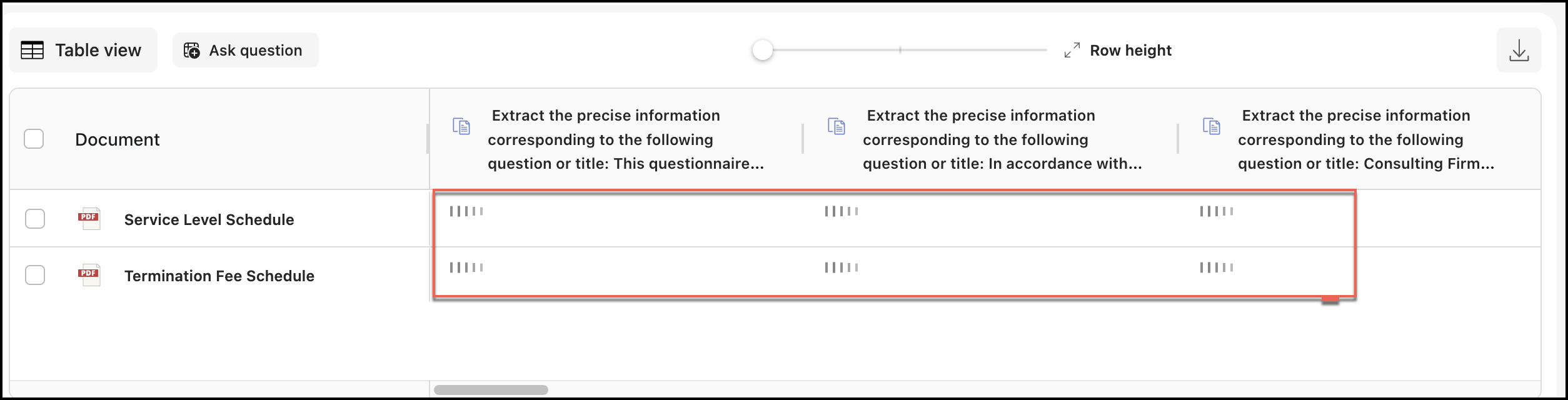
After the document processing is complete, the answers are populated in a tabulated format. You may notice that some of the labels have the “Answer not found” response. This indicates that Ask iManage didn't find the related information in the document.
Figure: Documents processed stage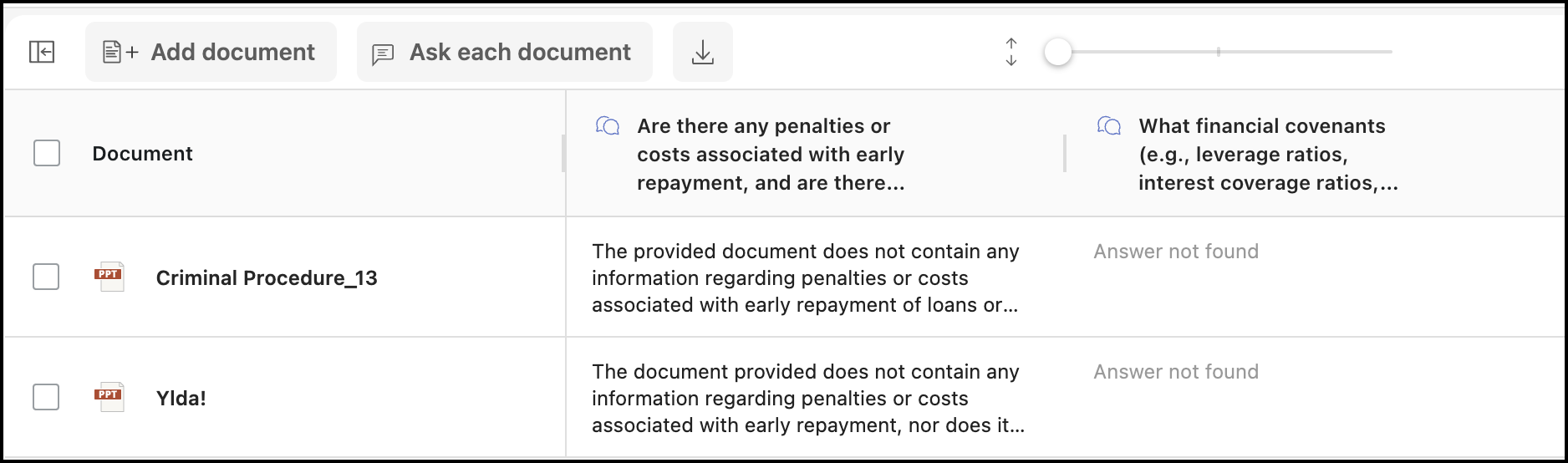
NOTE: If Ask iManage fails to find the relevant information in the document or relevant information doesn't exist for the question being asked, an “Answer not found” response is displayed.
The system saves the responses and they'll be displayed for you when you sign in again and apply the same combination of documents and question list. Further, the responses are visible to every user in your environment, provided they apply the same combination of documents and question list, if the question list applied was Organization.
However, the system saves only the responses from the last run question list. If you or any other user re-runs the question list or runs a different question list for the same set of documents, the current set of responses are deleted and the system saves the latest responses.