You can use projects and add documents or emails using any one of the following methods:
NOTES:
The projects created by you can be viewed only by you and can’t be viewed by other users.
You can add upto 50 documents or emails to a project.
Using the Ask iManage option from the left navigation page
In iManage Work at cloudimanage.com, select Ask iManage from the left navigation pane.
Figure: Selecting Ask iManage in left navigation panel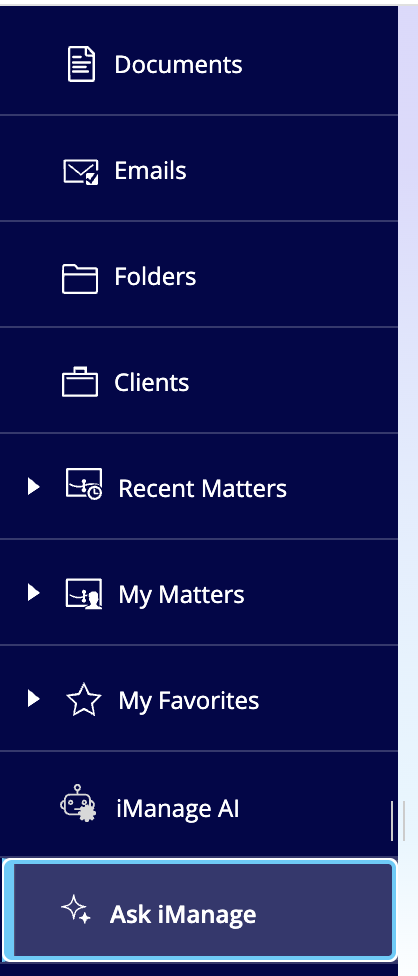
In the Ask iManage home page that appears, select
 .
.In the Select documents dialog that appears, select the documents you want to add to the project.
Figure: Selecting documents for projects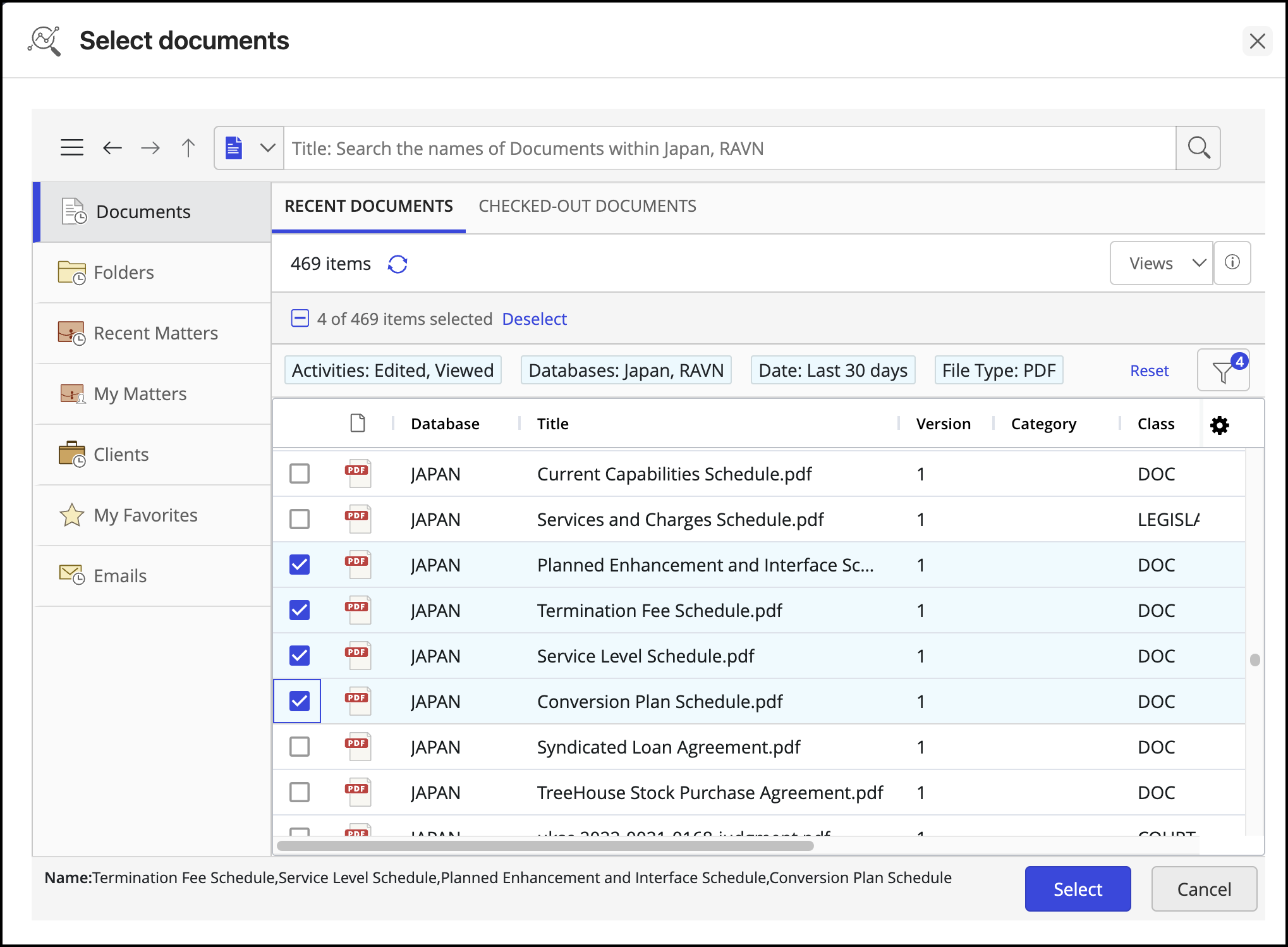
Alternatively, you can also search for documents using the search option in the Select documents dialog box.
Figure: Searching for documents to add to projects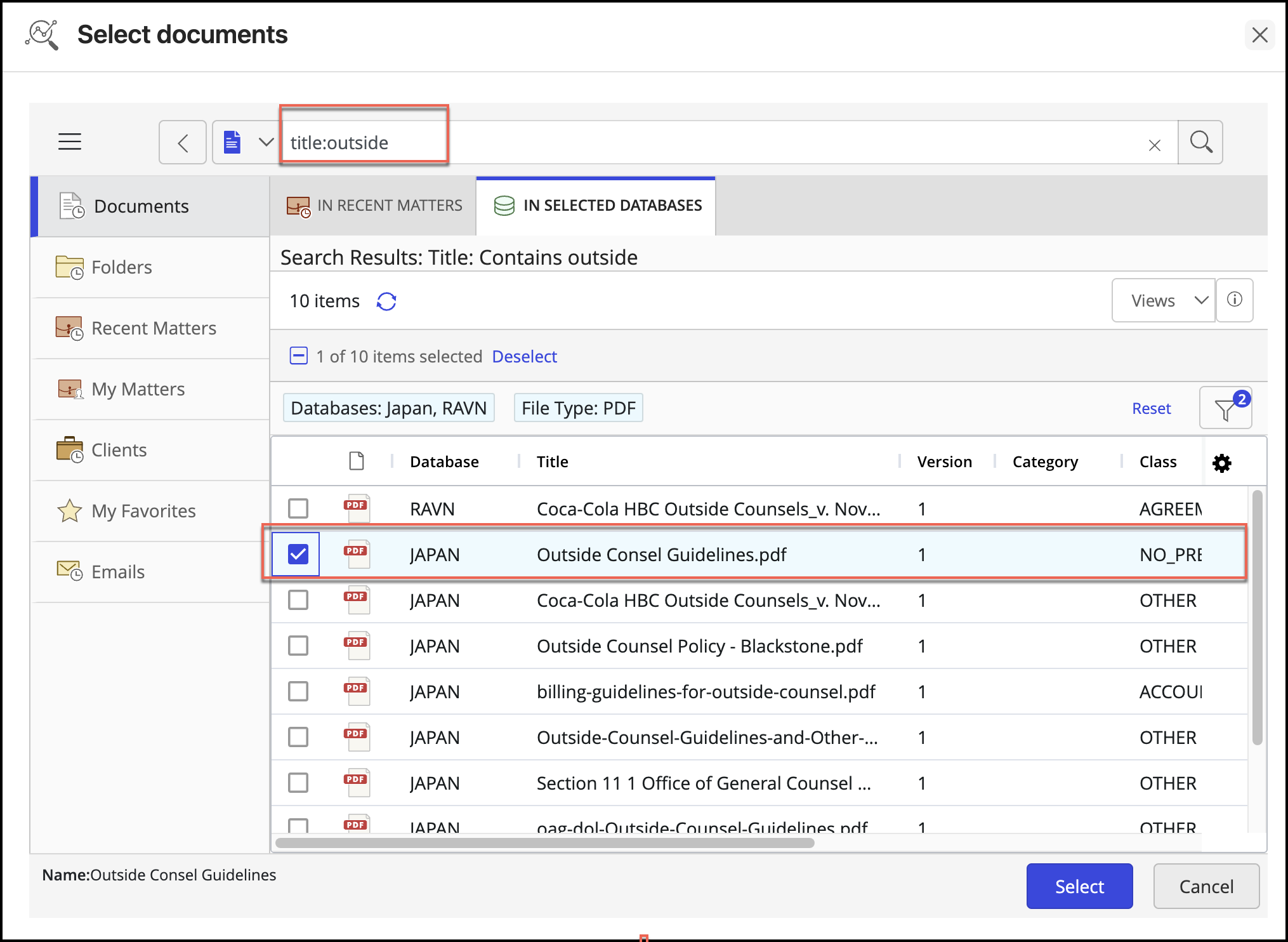
After you have selected all the documents, you want to add, click Select.
The project is added to the list.Figure: List of projects created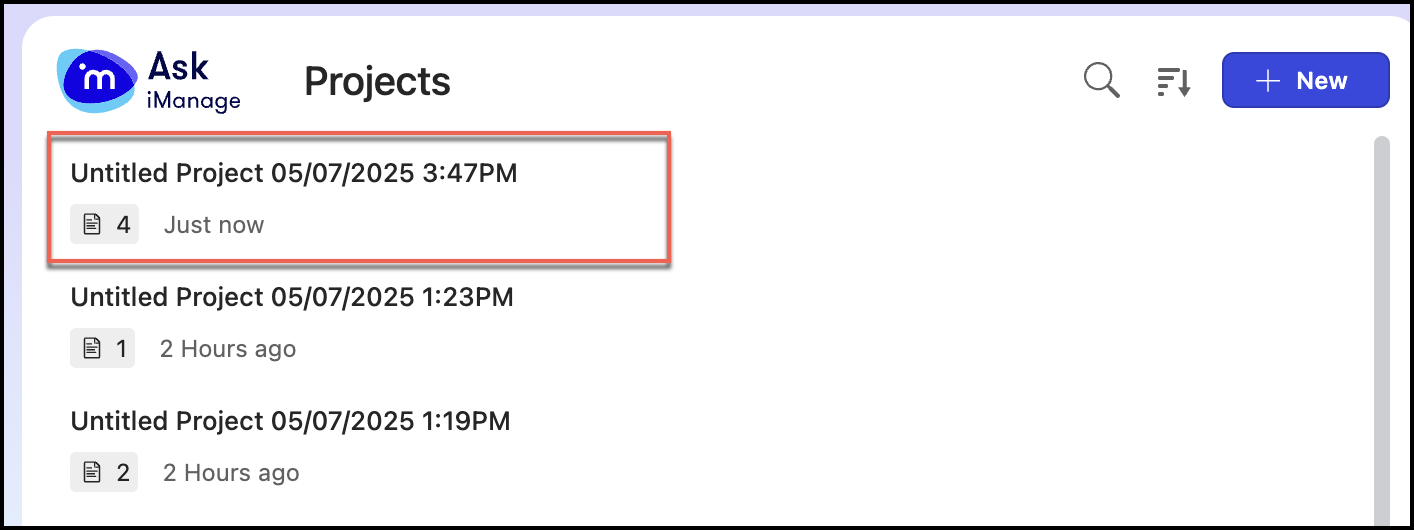
You can rename the project you have created. Refer to Renaming a project for more information.
Using the Ask iManage icon on the menu ribbon
In iManage Work at cloudimanage.com, select the documents/emails of your interest and select
 Ask iManage icon that is displayed at the top.Figure: Selecting documents to open in matrix view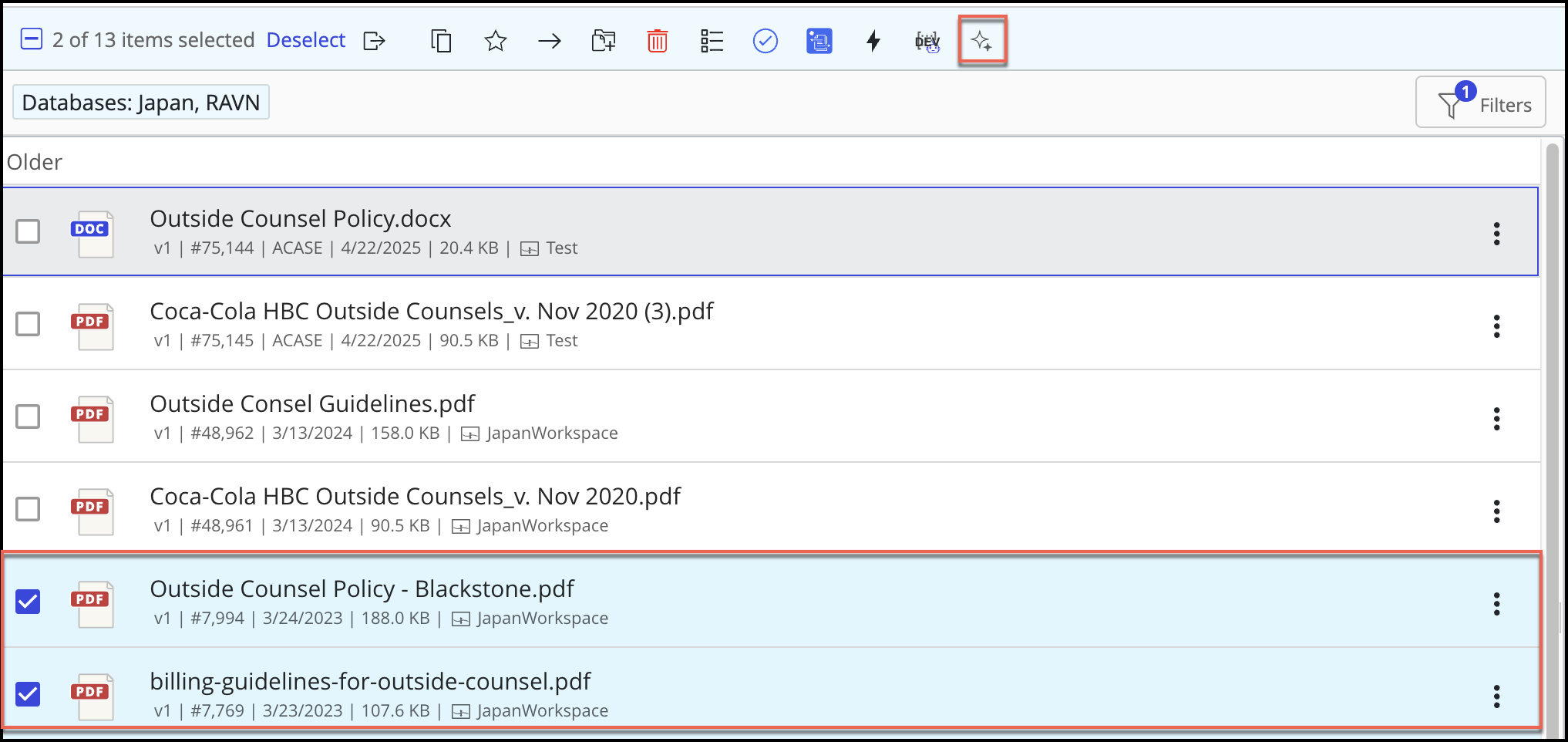
In the Ask iManage page that appears, enter the project name in the title field.
Figure: Modifying project details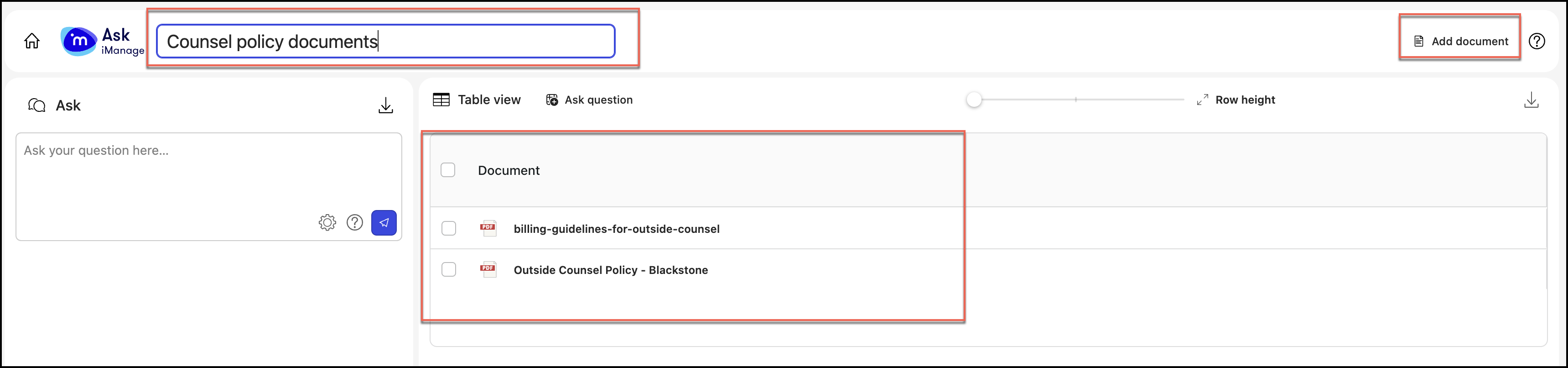
The documents you have selected in Step 1 are added to the project by default. To add additional documents, select Add document. In the Select documents dialog that appears, select the documents you want to add to the project.
Figure: Selecting documents to add to projectsAlternatively, you can also search for documents using the search option in the Select documents dialog box as shown in the following figure:
Figure: Search documents to be added to the projectClick Select. The selected documents are added to the project as shown in the following figure:
Select
 Back to projects to return to Projects page. The project is now displayed in the Projects page, as shown in the figure:Figure: Documents added to the project
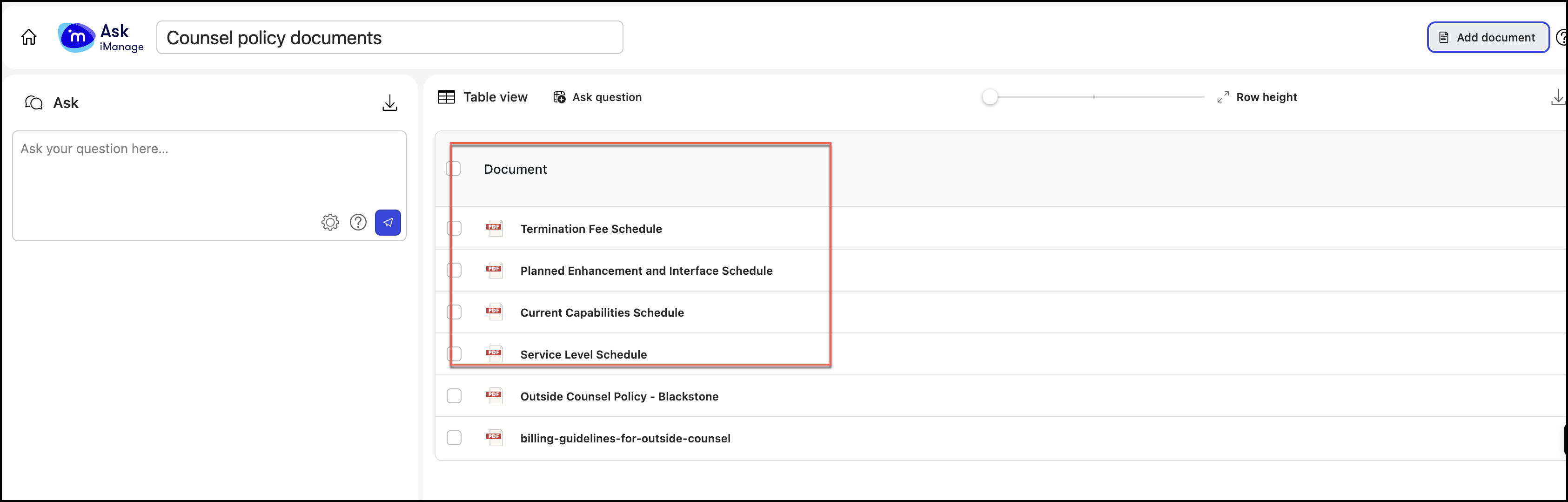 Figure: New projects available in Project page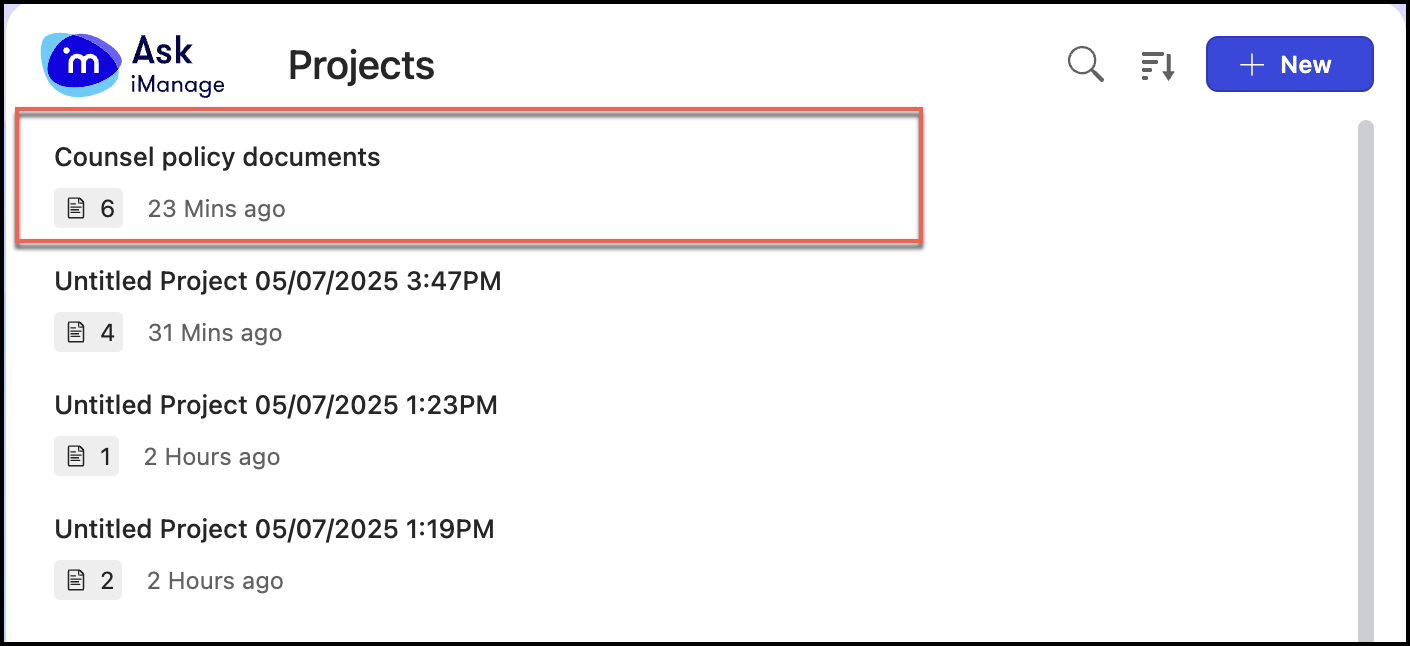
Using the Ask iManage icon from the more options menu
In iManage Work at cloudimanage.com, go to the document/email of your interest and select the more options
icon next to it.
Figure: Selecting More option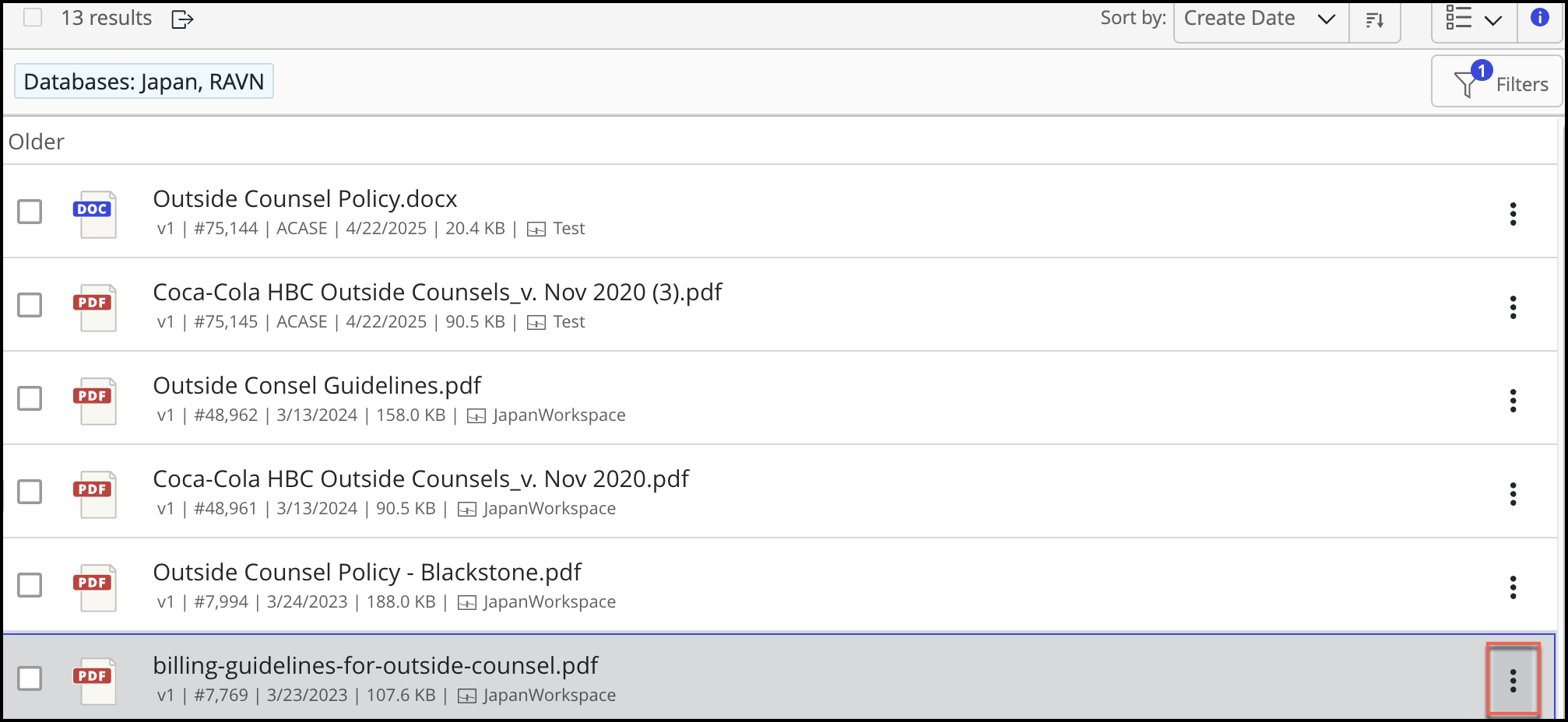
Select Ask iManage from the right-click menu.
Figure: Select Ask iManage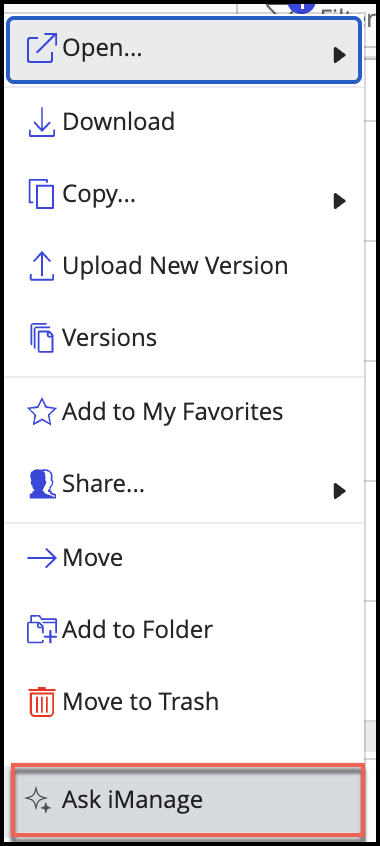
In the Ask iManage page that appears, enter the project name in the title field.
Figure: Modifying project details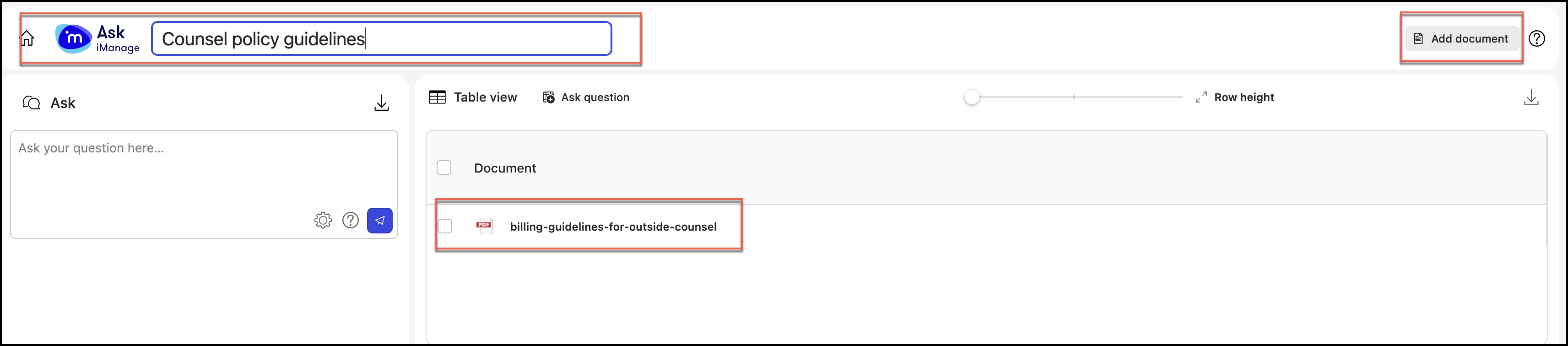
The document you have selected in Step 1 is added to the project by default. To add additional documents, select Add document. In the Select documents dialog that appears, select the documents you want to add to the project.
Figure: Selecting documents to add to projectsAlternatively, you can also search for documents using the search option in the Select documents dialog box.
Figure: Search documents to be added to the projectThe selected documents are added to the project.
Figure: Documents added to the projectSelect
Back to projects to return to Projects page. The project is now displayed in the Projects page.Figure: New projects available in Project page
Using Ask iManage icon in the document preview page
In iManage Work at cloudimanage,com, select the document/email of your interest.
Figure: Select the document to open in Preview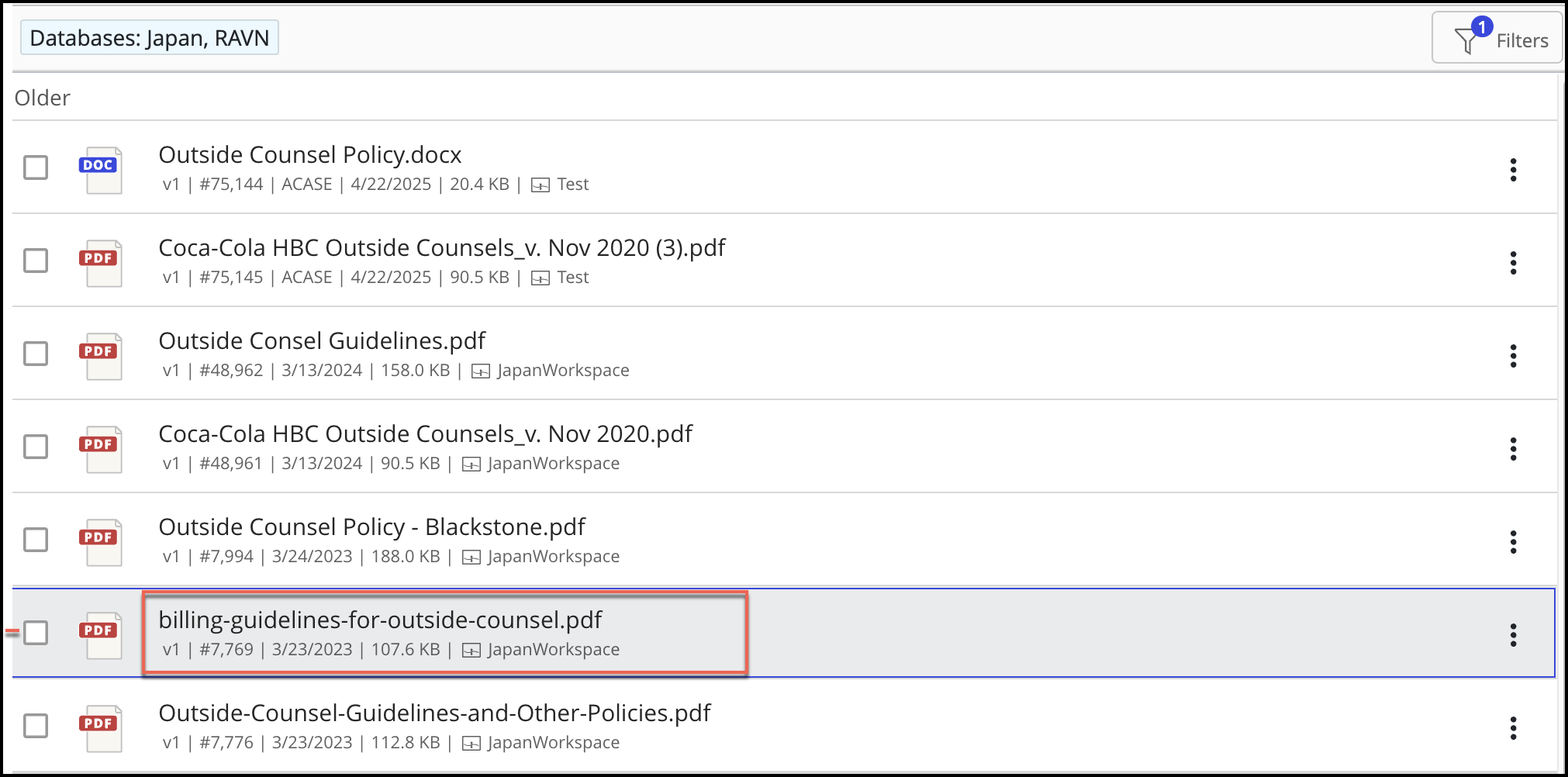
After the document opens in the preview mode, select the Ask iManage icon in the preview menu bar.
Figure: Select Ask iManage from Preview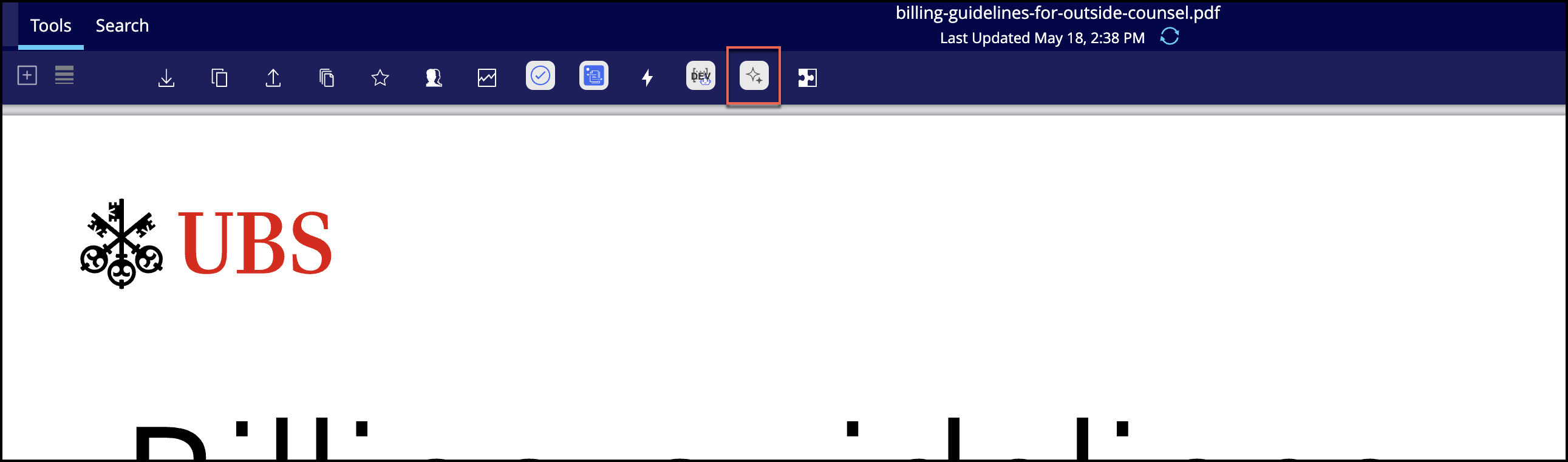
In the Ask iManage page that appears, enter the project name in the title field.
Figure: Modifying project detailsThe document you have selected in Step 1 is added to the project by default. To add additional documents, select Add document. In the Select documents dialog that appears, select the documents you want to add to the project.
Figure: Selecting documents to add to projectsAlternatively, you can also search for documents using the search option in the Select documents dialog box.
Figure: Search documents to be added to the projectThe selected documents are added to the project.
Figure: Documents added to the projectSelect
Back to projects to return to Projects page. The project is now displayed in the Projects page.Figure: New projects available in Project page