Signing in
Sign in to https://cloudimanage.com/mcp/web/ using your iManage credentials.
All the sessions during which you connected to iManage using iManage MCP Server are listed. By default, sessions are sorted by the last used date, in descending order—the most recently used session at the top and the oldest at the bottom.
Sorting and browsing through the sessions list
To view the oldest sessions first, select the sort arrow
 next to Last Used At. Select it again to switch back to the default sort order.
If your sessions span more than one page, select Prev or Next to move between pages, or select the page number drop-down list and then select or enter a page number to go to the page you want to view.
To change how many sessions are displayed per page, select the Items per page drop-down list and choose a value.
Viewing the details of a session
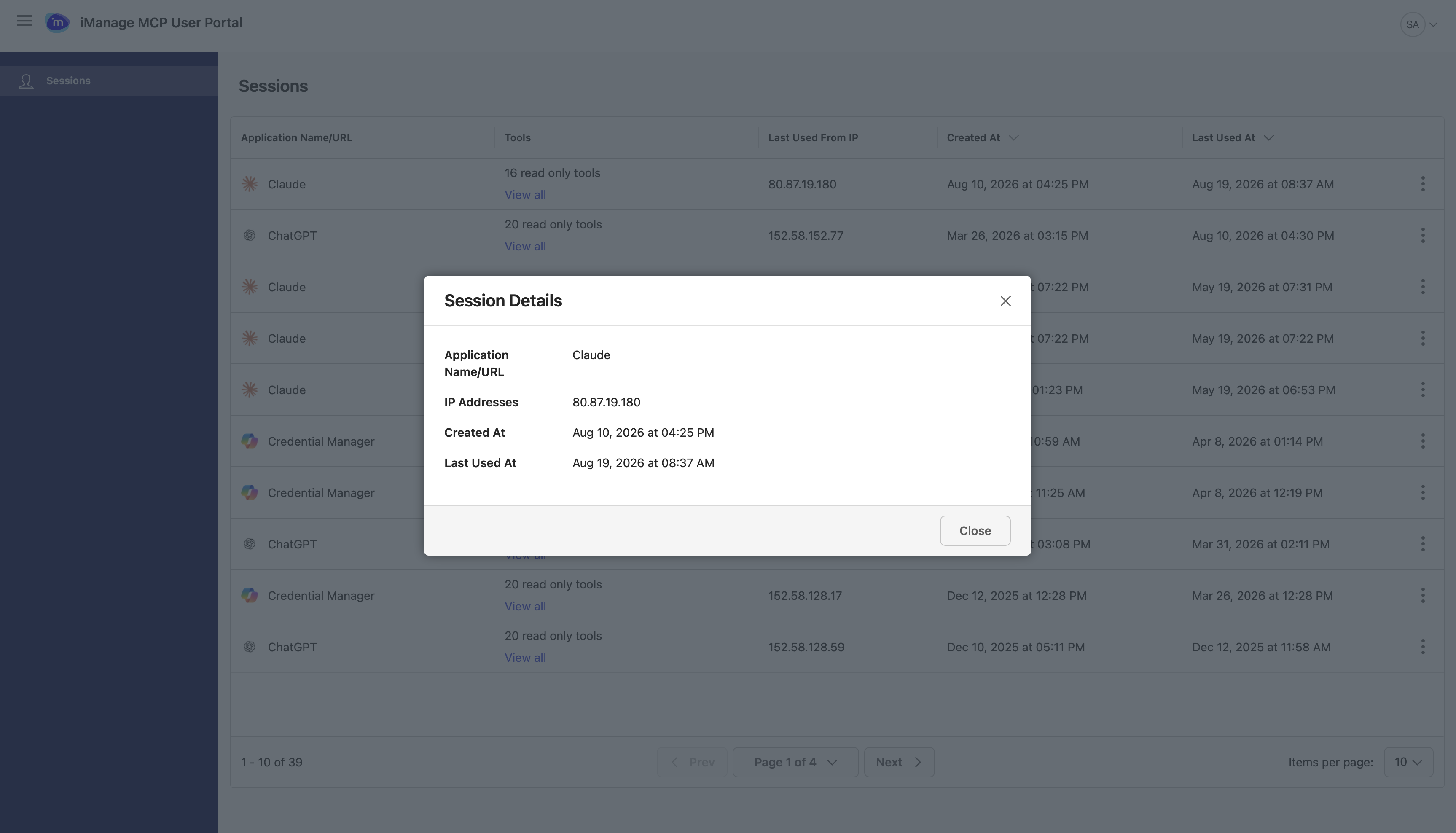
To view the details of a session, select the three dots  icon for it and then select Details.
The MCP-enabled client that was used for the session is displayed along with the session start time, IP address, and scope of the interaction with iManage.
Viewing the tools available for a session
To view the tools available for a session, select View all in the Tools column.
To collapse the tools list, select the  icon. It changes to the
  icon which you can select to expand the list again.
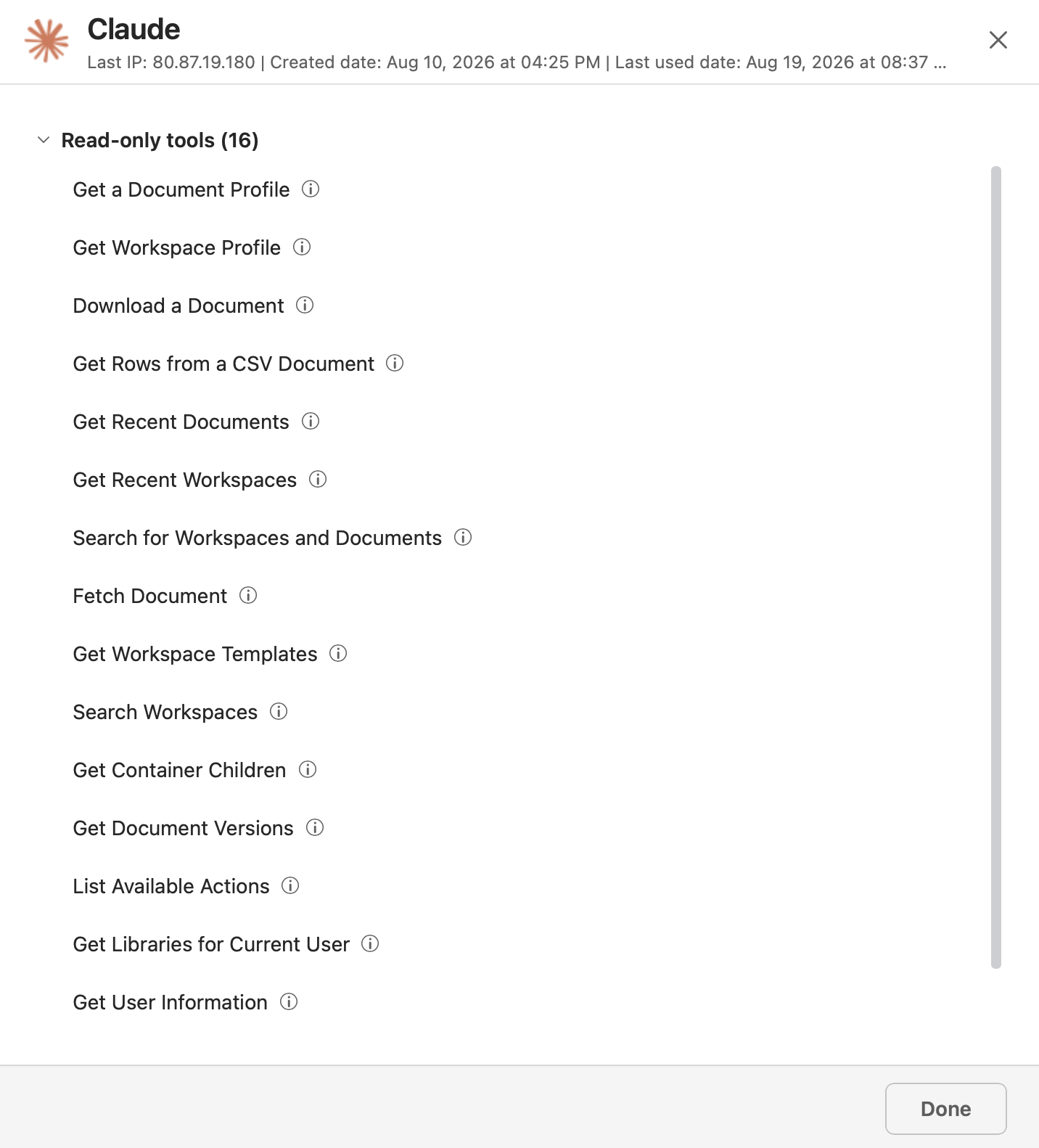
NOTE: The list of available tools depends on the settings your administrator has configured. For more information, refer to the Access Policies and Assign Access Policy sections in iManage MCP Server Administration Help.
Deleting a session
If you suspect unauthorized access to your device (for example, in case of theft) or want to withdraw access for some reason, delete the session:
Select the three dots
icon for the session and then select Delete. In the confirmation dialog, select Delete.
The MCP-enabled client will be prevented from accessing iManage MCP Server. A message will be displayed informing the user that the admin has restricted their access.