Properties
NOTE:
The features described on this page are coming soon. To request these features, contact your iManage Customer Success Manager or iManage Cloud Support.
Modifications to the settings on the Properties page may take up to four hours to take effect.
Introduction
Properties provide a method for storing information about documents, emails, and containers in iManage Work.
Properties store information such as the file name, the date the document was created, the client and matter the document is associated with, and so on.
The information stored in any property is known as the property value. Properties can store either a single value or multiple values.
These values can be:
Entered manually by users, such as a text property that stores comments about a document.
Selected by users from a predefined list of values, such as a lookup property that stores the practice area to which this document belongs. Administrators define this list of values on the Properties page in iManage Control Center.
Maintained and updated automatically by iManage Work, such as a date property that stores when the document was last edited.
Previously, iManage Work provided 30 properties, known as Custom Fields (Custom1-30), available for storing this information.
With the Extended Metadata feature, you now have access to many additional properties.
To learn more about the different property types available, refer to Key concepts.
Prerequisites
The Extended Metadata properties described here are available only when connecting to iManage Work at cloudimanage.com.
To view and perform operations on the Properties page, confirm the following:
The Extended Metadata feature is activated in your iManage environment.
For more information, refer to Request activation.You have enabled the Extended Metadata feature in iManage Control Center.
For instructions, refer to Enable the Extended Metadata feature.The user signed in to iManage Control Center must be a member of the NRTADMIN group within each iManage Work library, or be assigned to a library-level role with Tier 2 access to iManage Control Center.
For more information about the specific operations allowed, refer to Understanding tiers.
For more information about iManage Insight+ and iManage Insight+ Curation, refer to the following resources:
iManage Insight+ Administration Help
iManage Insight+ Curation Administration Help
iManage Insight+ User Help
Request activation
The Extended Metadata properties described are available by request.
To request activation of the Extended Metadata feature in your environment, submit a request on the iManage Customer Success Operations Request Center page on iManage Help Center (sign in required).
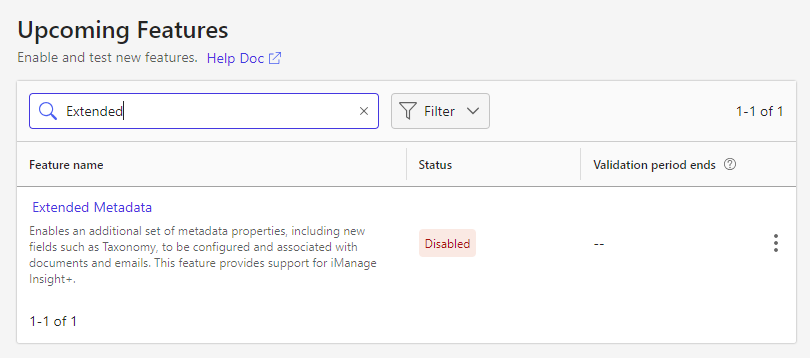
To confirm the feature is active in your environment, in iManage Control Center, browse to Settings > Upcoming Features. The Extended Metadata feature is shown in the list of features if it’s available in your environment.
Figure: Extended Metadata feature in Upcoming Features
Enable the Extended Metadata feature
The Extended Metadata feature is disabled by default. To enable it in your environment:
On the Upcoming Features page, right-click the Extended Metadata feature, and select Enable Feature.
Figure: Enabling the Extended Metadata feature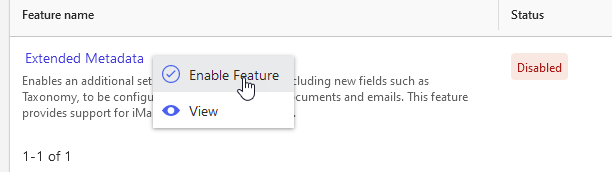
The following confirmation dialog box appears.
Figure: Extended Metadata feature confirmation dialog box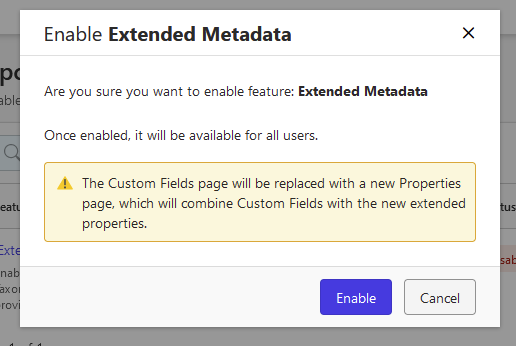
Select Enable.
After enabling this feature:
The Properties page (Metadata > Properties) is added to iManage Control Center. You may need to refresh your browser to display the page.
The Custom Fields page (Metadata > Custom Fields) is removed from iManage Control Center. Custom Fields are now integrated into the Properties page, on the Custom Fields tab.
Figure: Viewing Custom Fields after enabling the Extended Metadata feature
NOTE:
You may disable the Extended Metadata feature at any time. When you disable this feature, the Custom Fields page is displayed again, and the Properties page is removed.
Any values you added to properties are preserved, and can be accessed when you re-enable the feature.
To learn more about the general concepts of working with properties, see Key concepts.
For instructions about using iManage Control Center to manage these properties, see: