Working with properties
View all properties
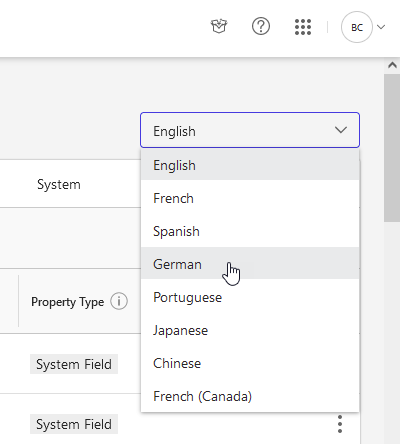
To view a list of all the available properties for a specific library, browse to the Metadata section in the left pane, then select Properties.
NOTE:
If you don't see the Properties node in iManage Control Center, refer to Prerequisites.
Figure: Properties page
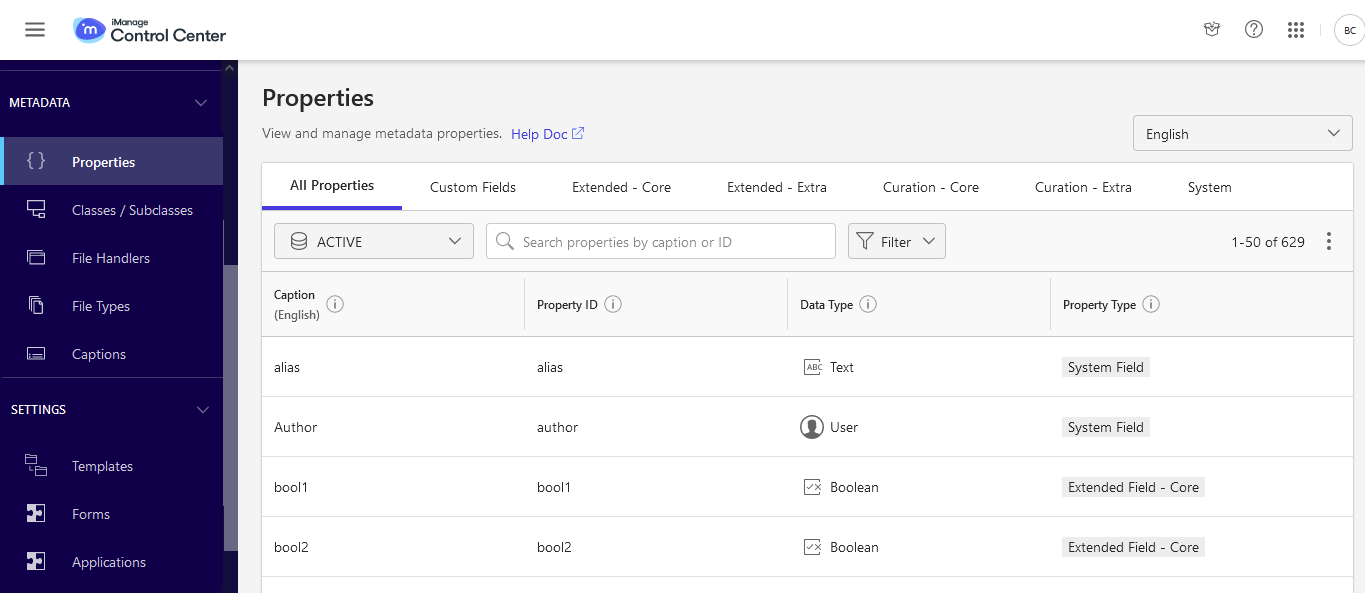
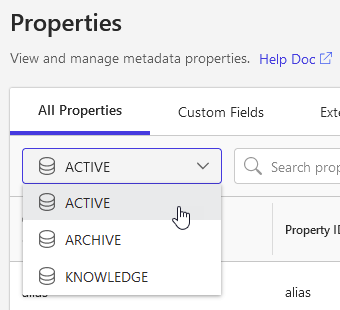
Properties are managed separately for each iManage Work library. Use the library drop-down menu to select a different library.
Figure: Select a different library
TIP:
When you navigate into a specific property to view or edit its values, you can use the library drop-down to quickly compare the values across your iManage Work libraries. If you navigate back to the list of all properties, pay attention to the library you've selected because iManage Control Center retains the library you’ve selected separately in each view.
Search for properties
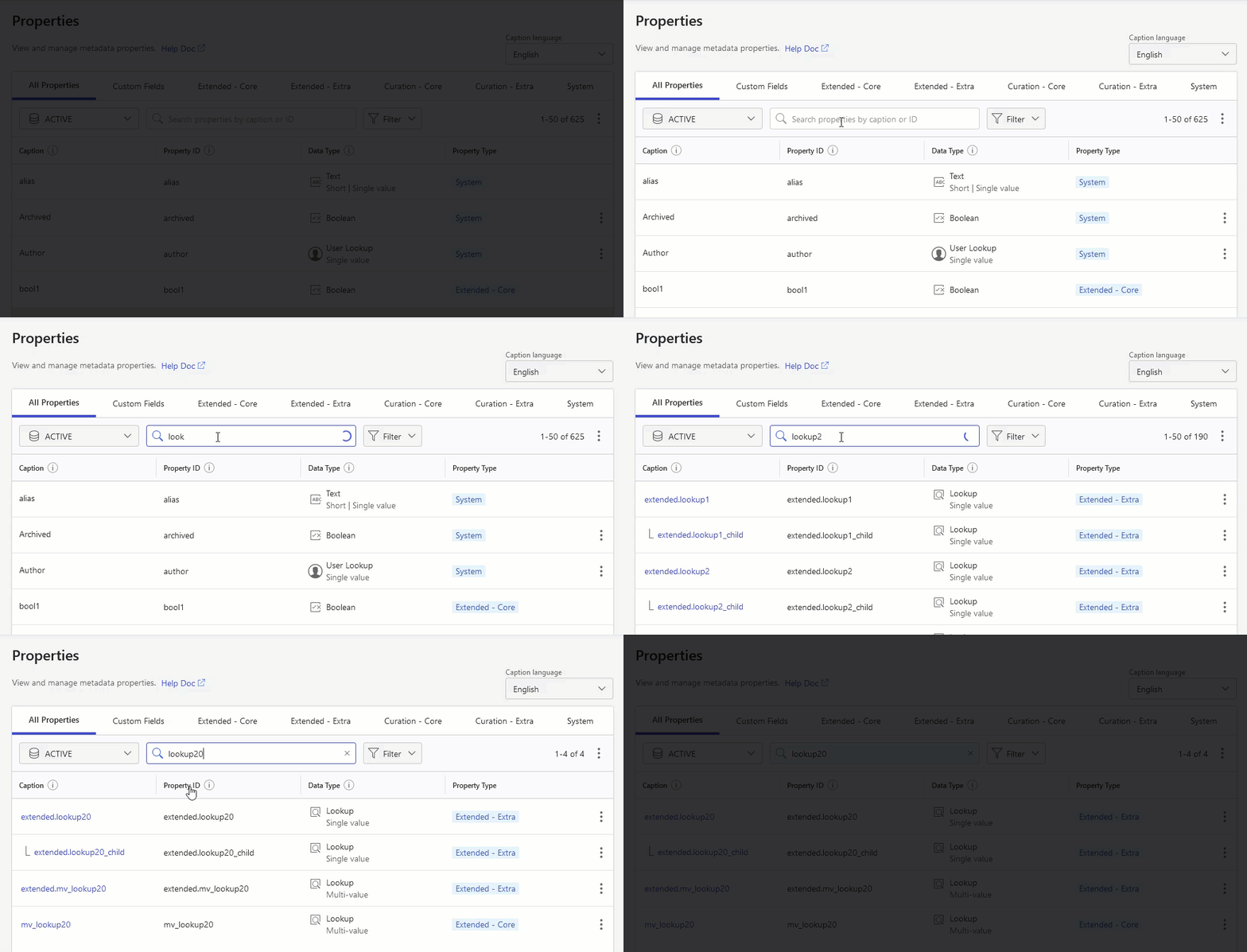
Use the search bar to quickly find a specific property by its Caption or Property ID.
Figure: Search for properties
Sort the list of properties
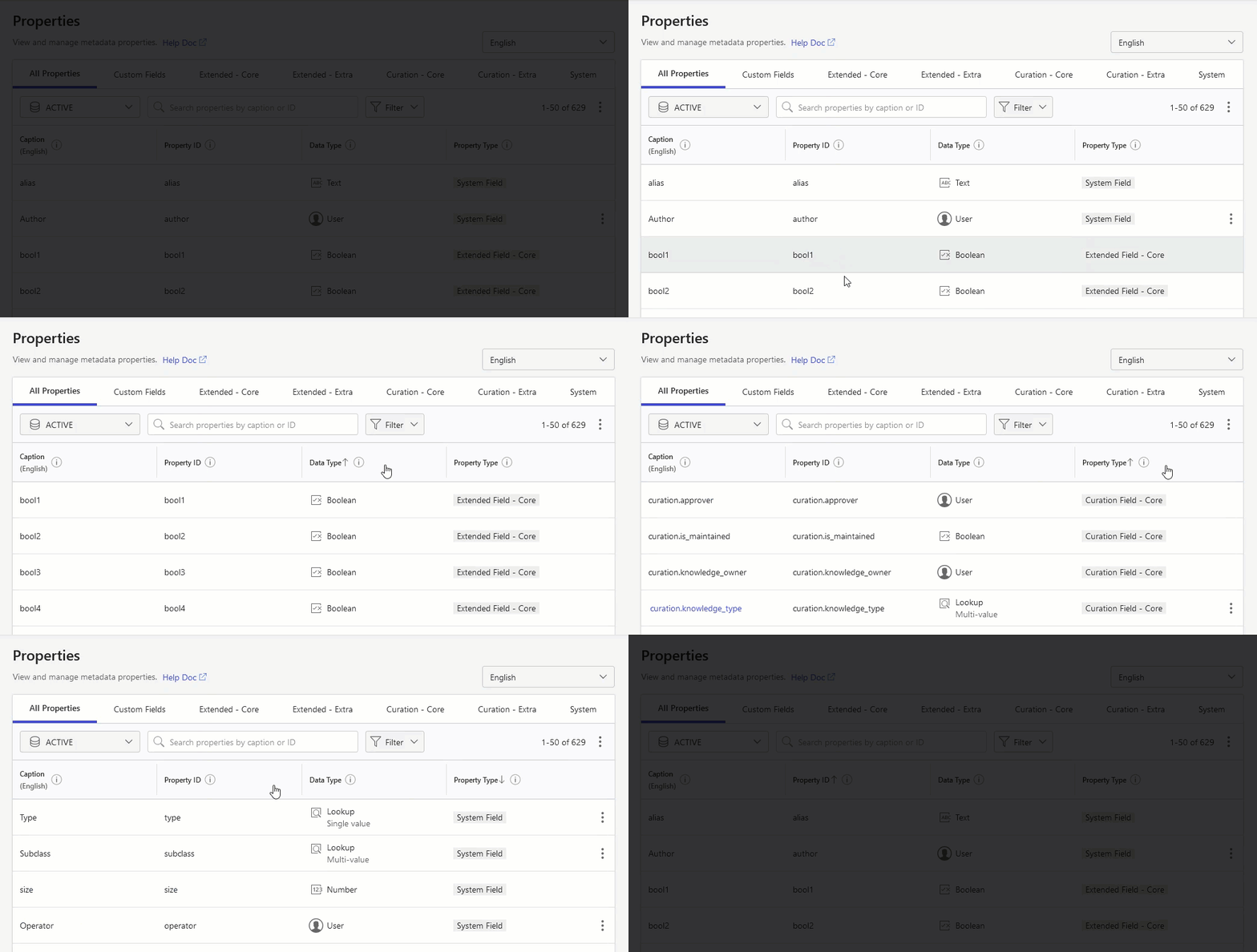
The list of properties is always sorted by the Property ID. Select any of the column headings to sort by that column. To reverse the sort order, select the column heading again.
Figure: Sort the list of properties
Filter properties by property type
In iManage Control Center, use either of the following options to filter properties by a specific property type.
TIP:
To learn more about property types, refer to Property Types.
Figure: Filter properties using the property type tabs

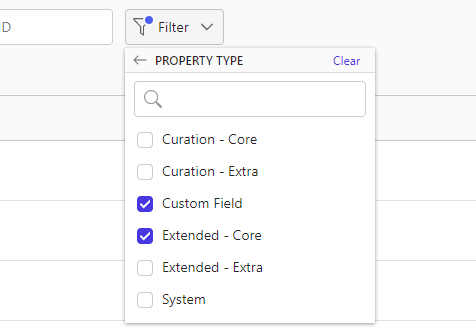
When viewing the All Properties tab, select Filter > Property Type to show one or more property types.
In the following example, only Custom Fields and Extended Field - Core properties are shown.
Figure: Filter properties using the property type filter
Filter properties by data type
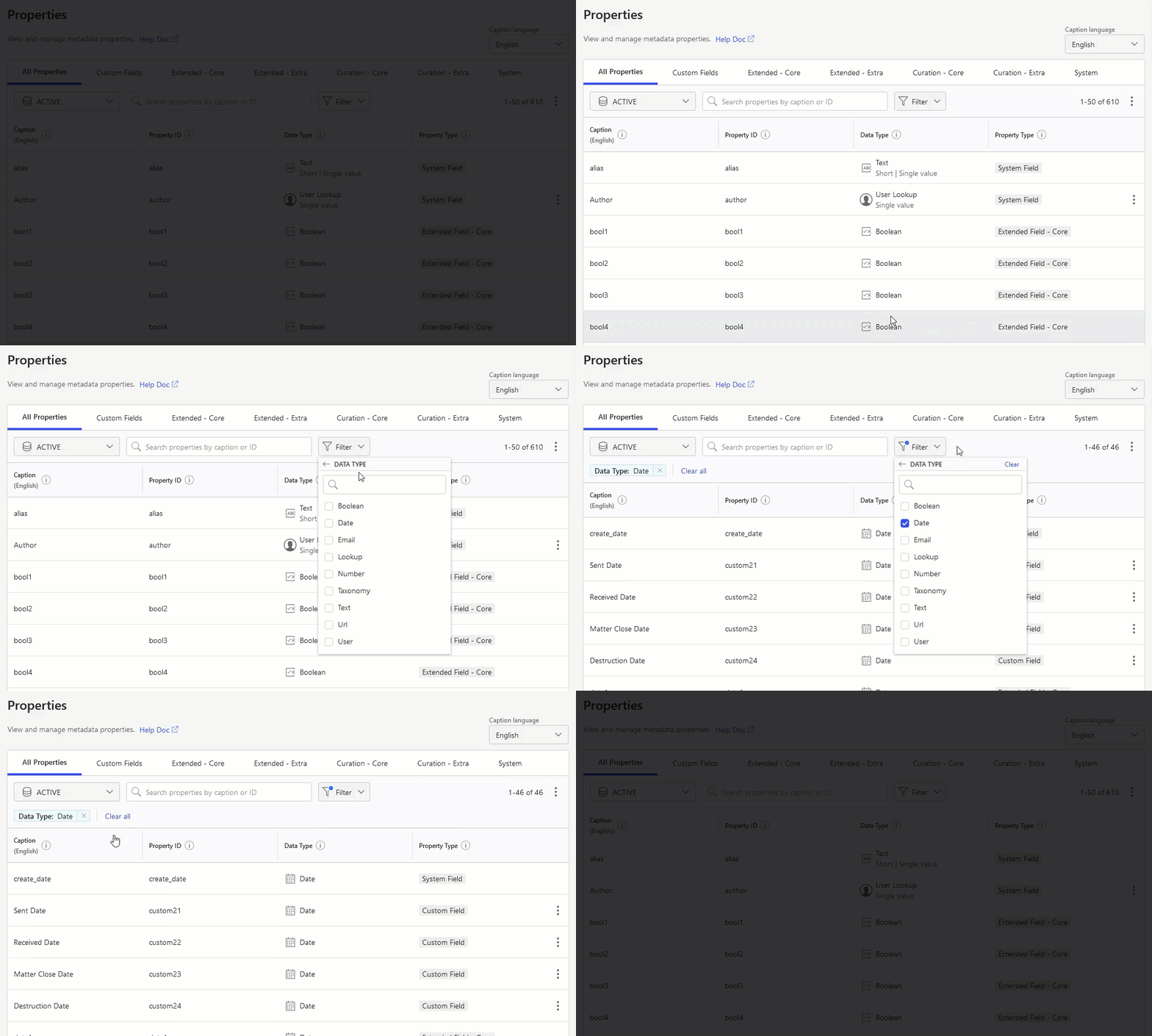
Use the Filter menu to display only the properties of specific data types (Boolean, text, taxonomy, and so on).
TIP:
To learn more about data types, refer to Data Types.
Figure: Filter properties by data type
Property captions
iManage Work administrators can customize the names of the custom1-30 properties using captions. The captions you define are automatically displayed to users wherever they interact with these properties.
NOTE:
Editing captions for Extended, Curation, and System properties is not currently allowed, but we plan to add this capability in a future update.
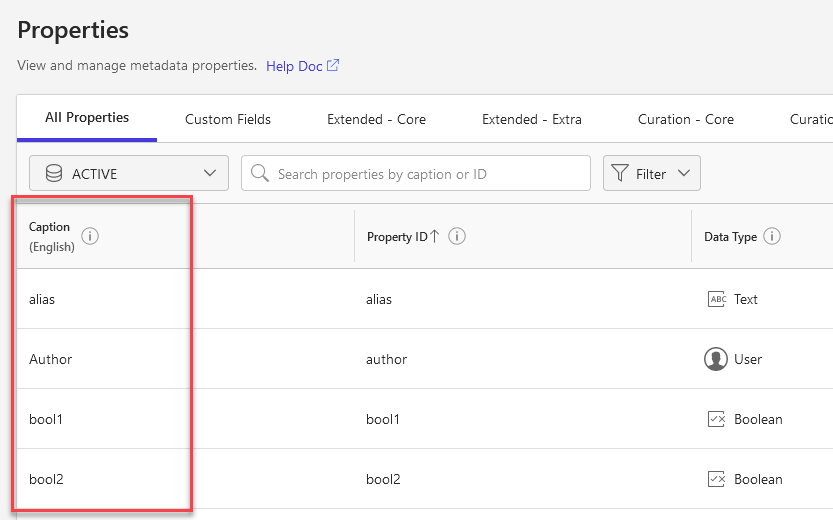
The Properties page displays these names in the Caption column.
Figure: Viewing the captions for properties
Captions can be customized for each library, and for each supported language.
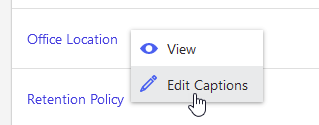
To edit a caption, right-click the property and select Edit Captions.
Figure: Edit a property’s caption
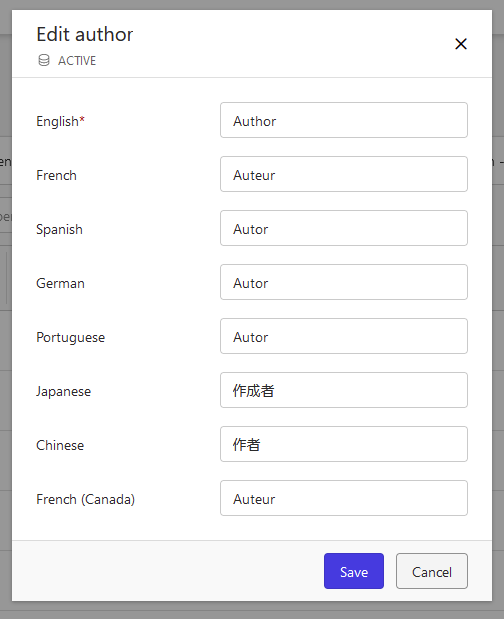
Enter your captions in each respective language, then select Save.
Figure: Enter new captions
To view captions for a specific language, select the language drop-down menu at the top of the Properties page.
Figure: View or edit captions in a different language