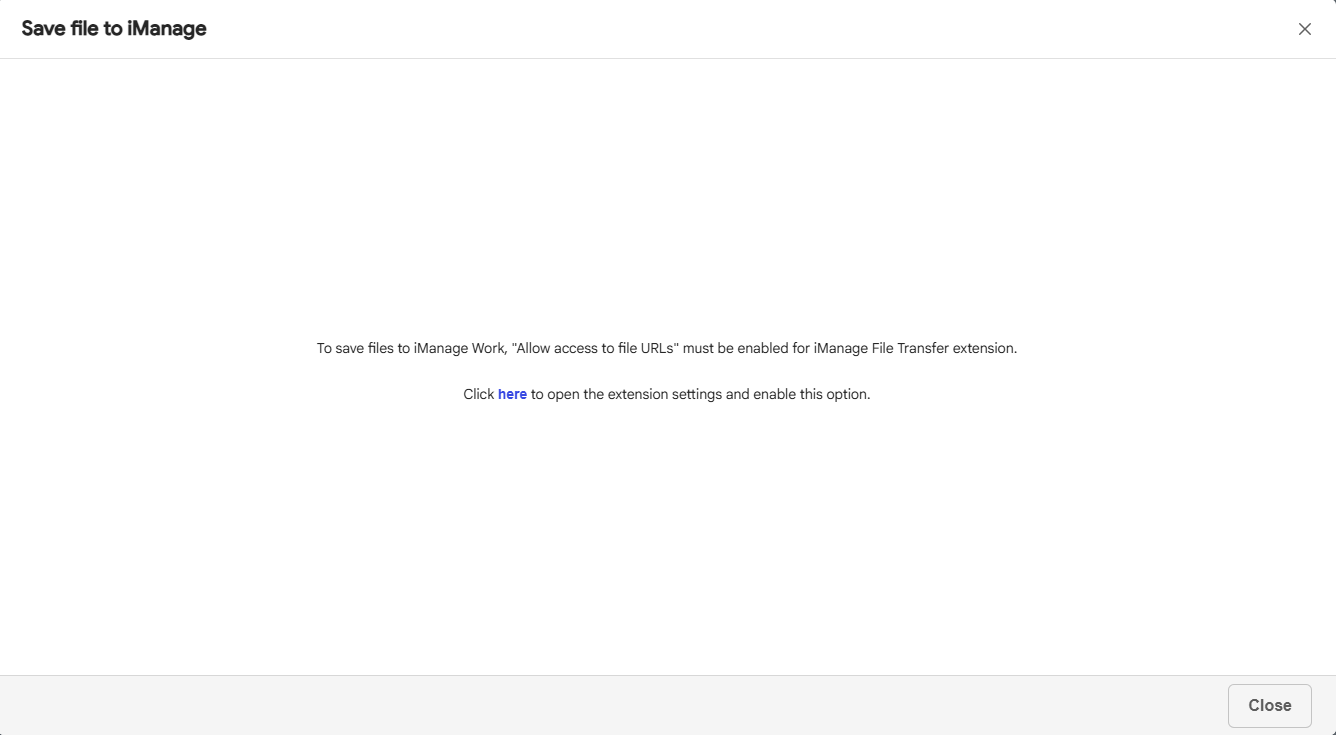
To save files to iManage Work from a third-party website,
Open the third-party website from which you want to download files.
Select the download option in the website.
Enter your iManage Work credentials, if prompted.
In the Save file to iManage dialog, browse to the location where you want to save the file.
Figure: Select location to save the file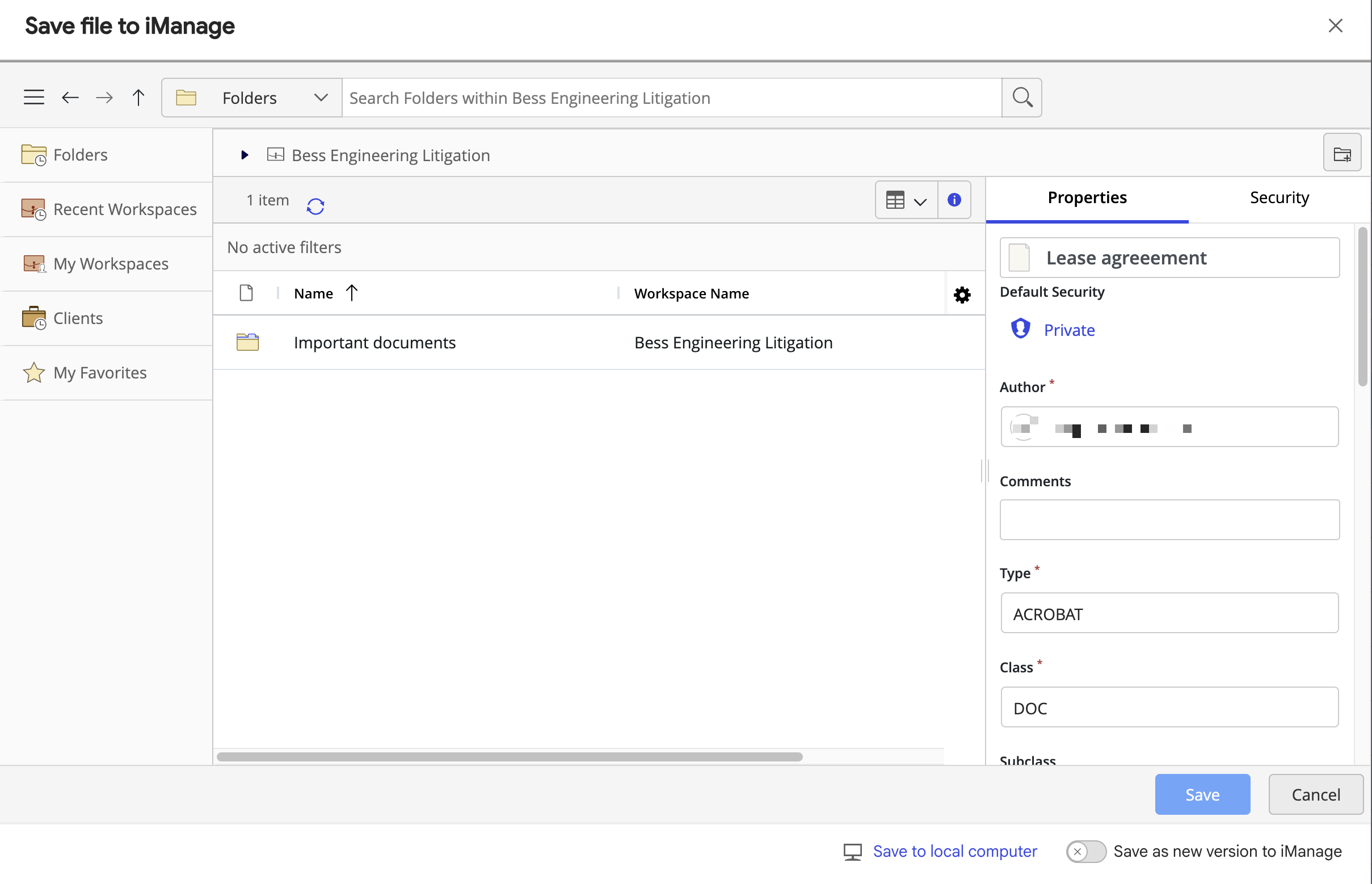
Select Save to save the file to iManage Work.
Figure: Saving files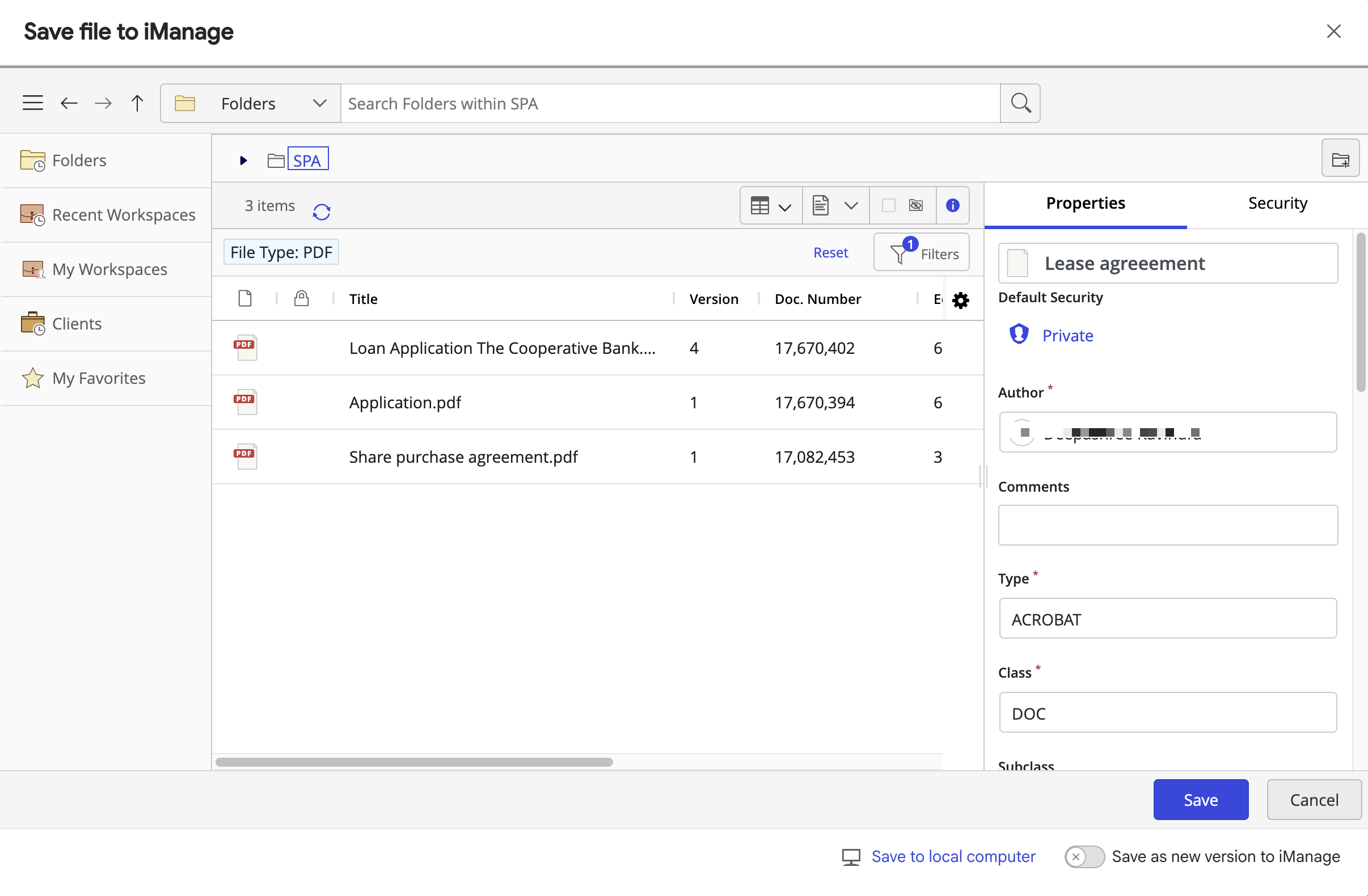
A progress message indicating the save action is displayed as shown in the following figure.
Figure: Save-in-progress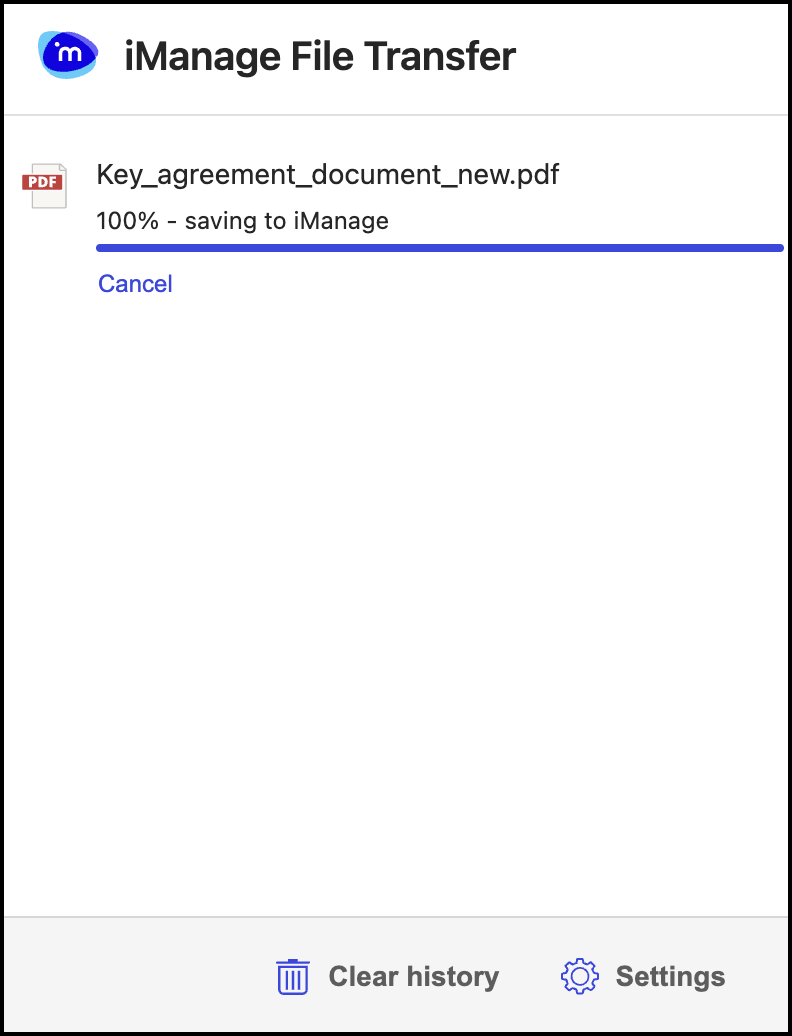
If you want to cancel the save, select Cancel. The save action is canceled and the file isn't saved to iManage Work as shown in the following figure.
Figure: Canceling the file save action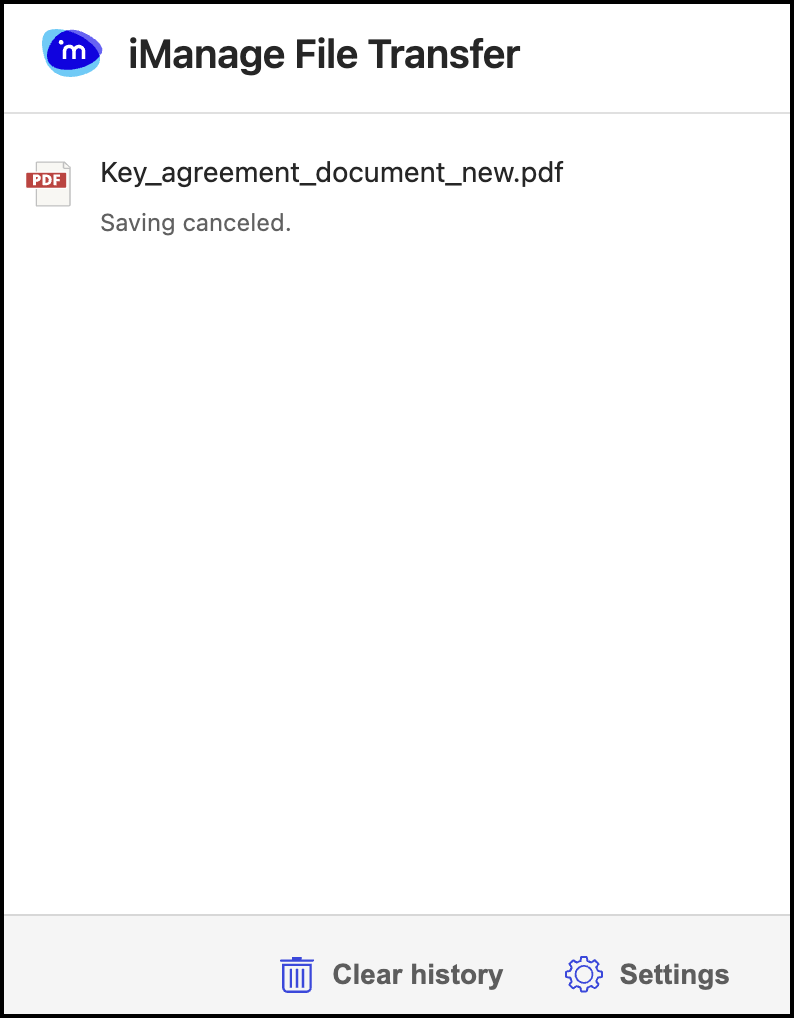
If you continue saving the file, after it is saved to iManage Work, the following message is displayed:
Figure: File successfully saved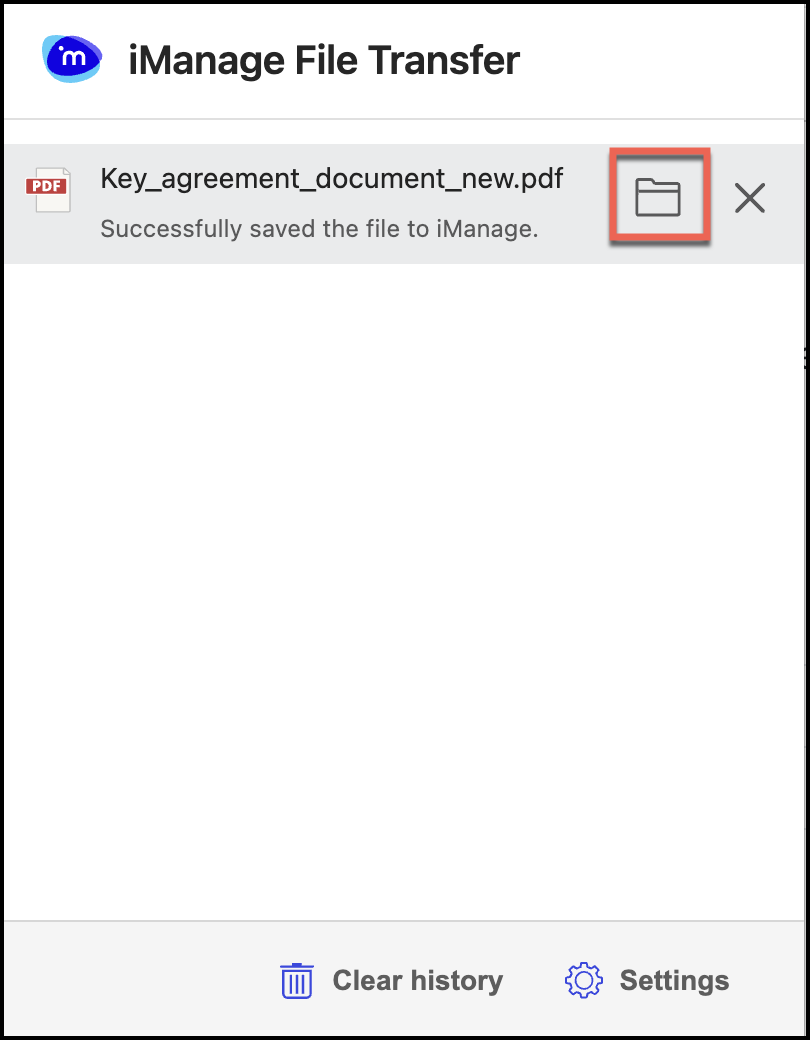
Select the document to open it in iManage Work. You can also select the folder
 icon to browse to the folder where the document was saved.
(Optional) To clear all the transfers history (completed and canceled), select
 Clear history. The transfer history is cleared.
Alternatively, you can select Remove from list to remove individual transfer history. The selected transfer history is removed. However, the files saved to iManage Work aren't removed.
NOTES:
When saving files to iManage Work, they're saved temporarily to your device and get deleted when the upload completes.
If you cancel your download, the files can be retained locally if your administrator has enabled Retain downloaded files locally on cancel in iManage Control Center. For more information, refer to (Optional) Retain downloaded files locally when canceling download.
To save the files to your device, select Save to local computer (refer to the option in the image in Step 4).
IMPORTANT: When saving files, if Allow access to URLs option isn't enabled in Chrome or Edge, then it's possible that you can’t save files to iManage Work and the following dialog might be displayed. In this case, select here to view the extension details and enable Allow access to URLs to save your files.