August 2026
Enhancements to the iManage File Transfer plugin
You can now:
Cancel the save action when saving files to iManage Work using the Cancel option. When you select Cancel, the file isn't saved to iManage Work.
Figure: Canceling a save action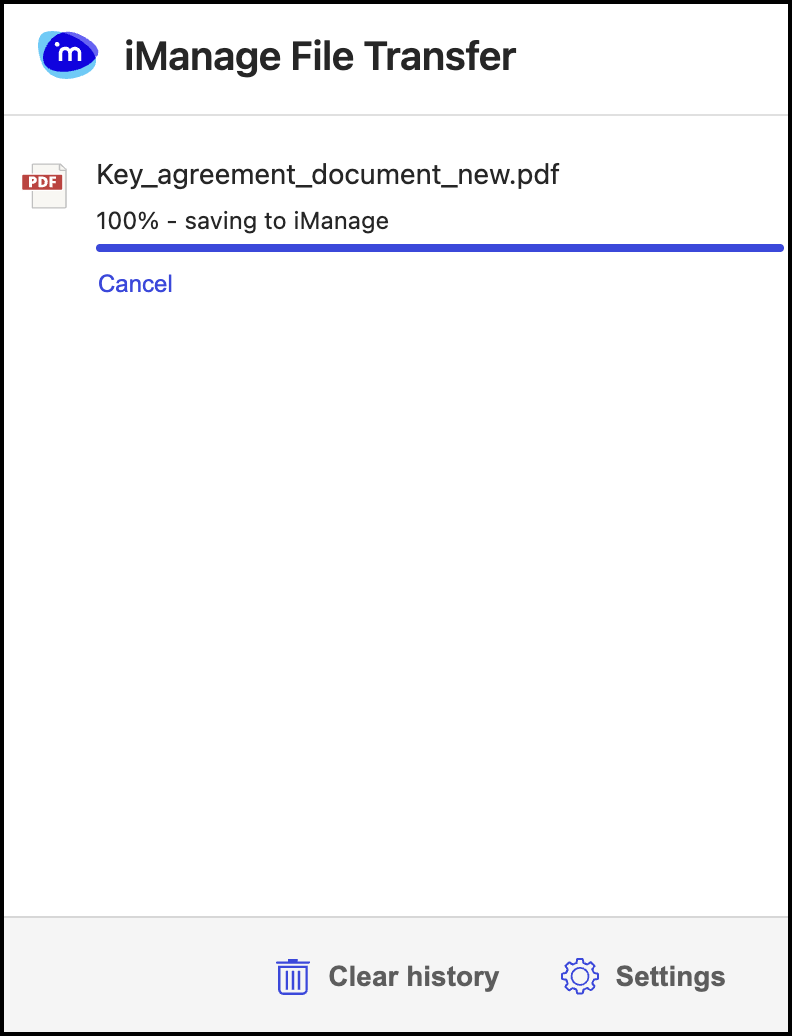
Use the Clear history option to clear all transfers that were completed, canceled, or failed.
NOTE: Clear history was previously called Clear completed.
Select
 Remove from list to remove individual transfer history. The selected transfer history is removed.
June 2026
Managing site preferences
You can now save your preferred upload or download location on your local computer for each site so you aren't prompted each time.
Select Yes to set your device as the upload from or download to location. To make this the default setting and stop seeing the notification, select Don't remind me.

Alternatively, just add the site and the preference mode by opening the extension and then selecting Settings, and we'll remember your choice going forward.
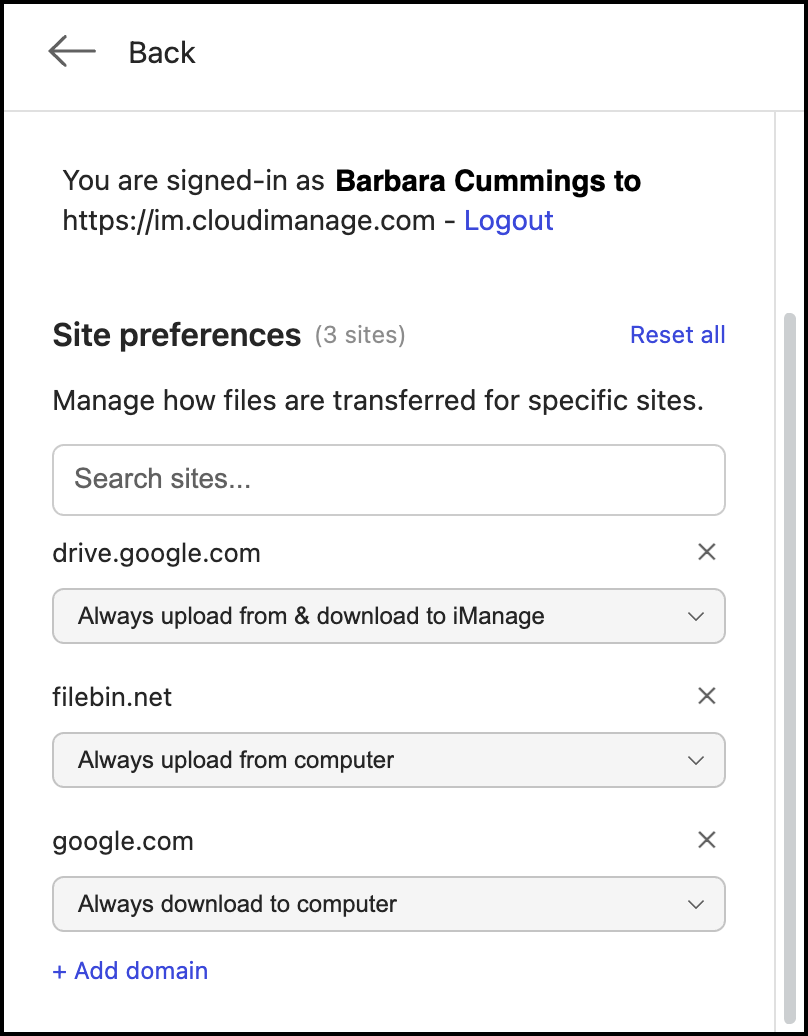
Although you can’t add domains if your administrator has enabled website restrictions, you can still set your preferences for all the websites that are allowed.
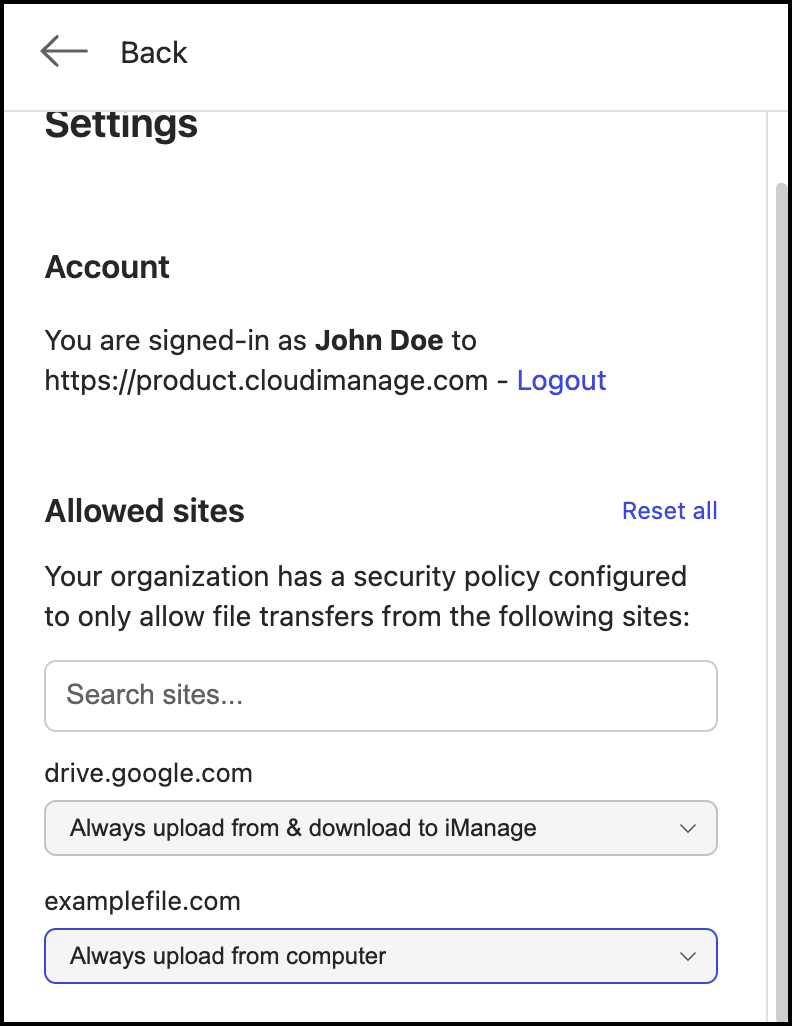
To reset your preferences, just select Reset all and the preferences are reset. For more information about this feature, refer to Managing site preferences.
February 2026
Timeout messages
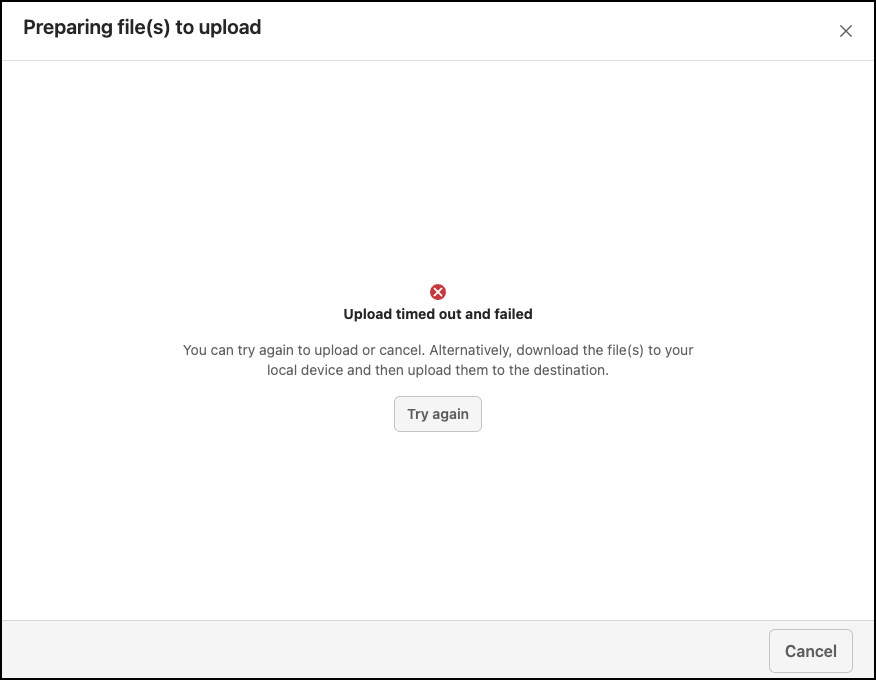
When uploading multiple files or large-size files, it's possible that the upload might time out or fail. In these cases, the following message is displayed. You can either cancel the upload or select Try again to restart it.
December 2025
Retain downloaded files locally when canceling the download
As an administrator, you can specify if users can retain files that are locally downloaded when they cancel the download. For more information about how to configure this setting in iManage Control Center, refer to (Optional) Retain downloaded files locally when canceling download.
September 2025
Saving files to iManage Work as new version
You can now save files as a new version to iManage Work when downloading files from a website. When downloading files, an option to enable saving files as a new version is available in the Save file to iManage dialog. Enabling this option opens the iManage Save as new version dialog and you can select the existing file to which you want to save these files as new version.
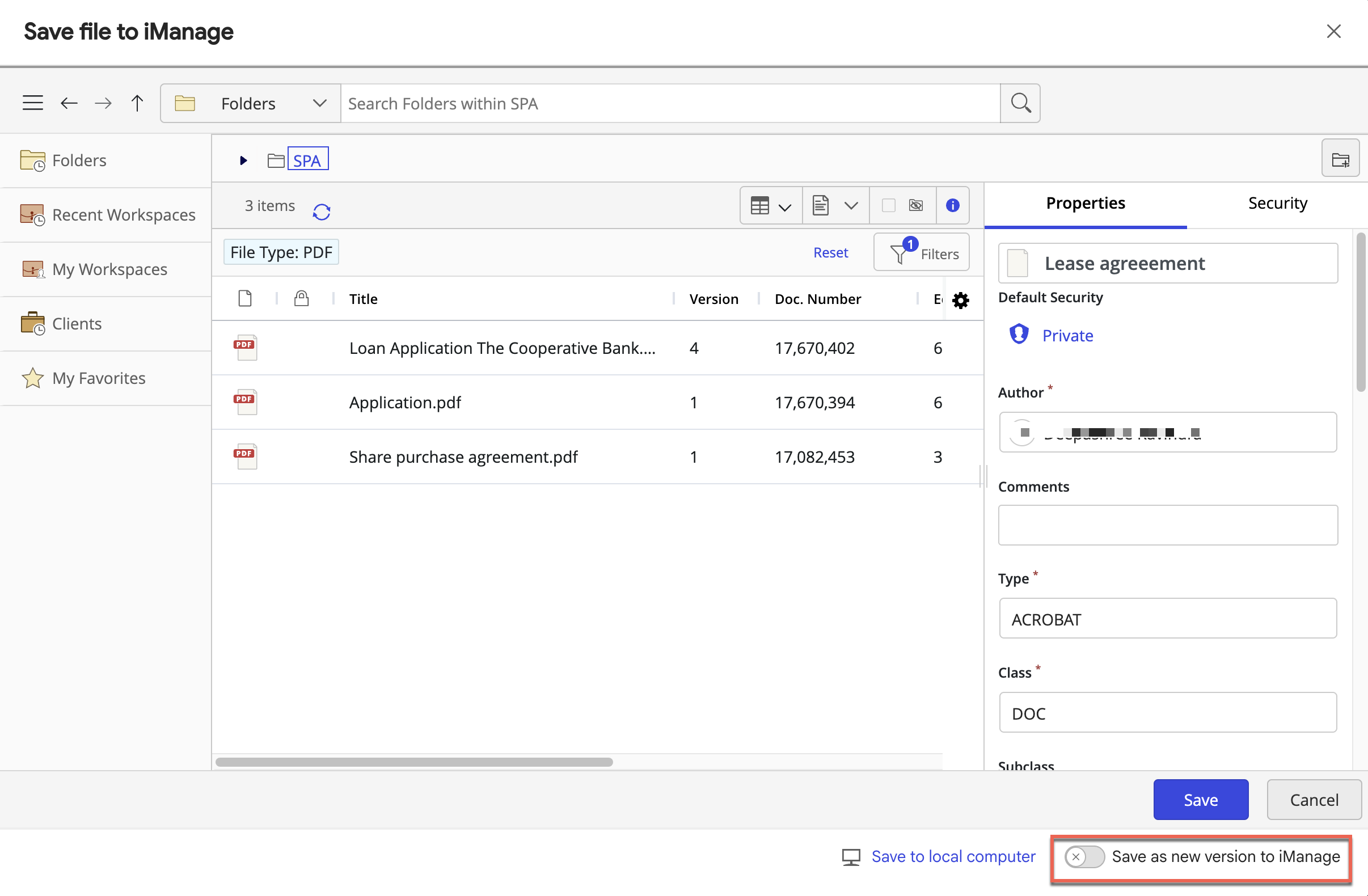
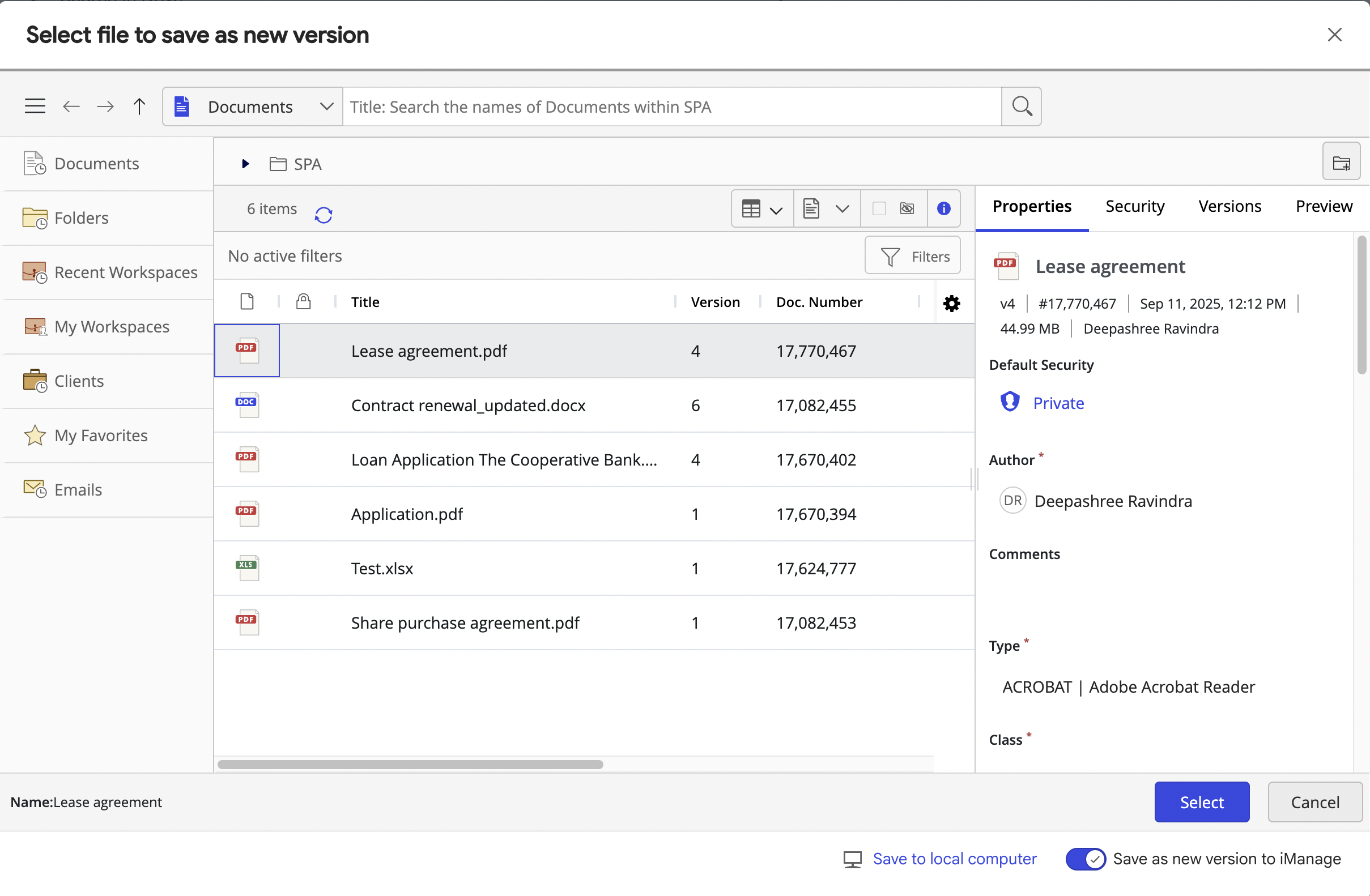
For more information about how to save files as new version, refer to Saving files as new version to iManage Work.
Configuring which websites are allowed to use iManage File Transfer
As an administrator, you can specify the list of websites that are allowed to use iManage File Transfer using the Allow List option in iManage Control Center.
This allows you to restrict the sites with which your users can use the iManage File Transfer extension. For more information about how to configure Allow list in iManage Control Center, refer to (Optional) Configuring Allow list in iManage Control Center.
When this security policy is applied, as an user, you will see a notification in the iManage File Transfer extension notifying you about the changes.
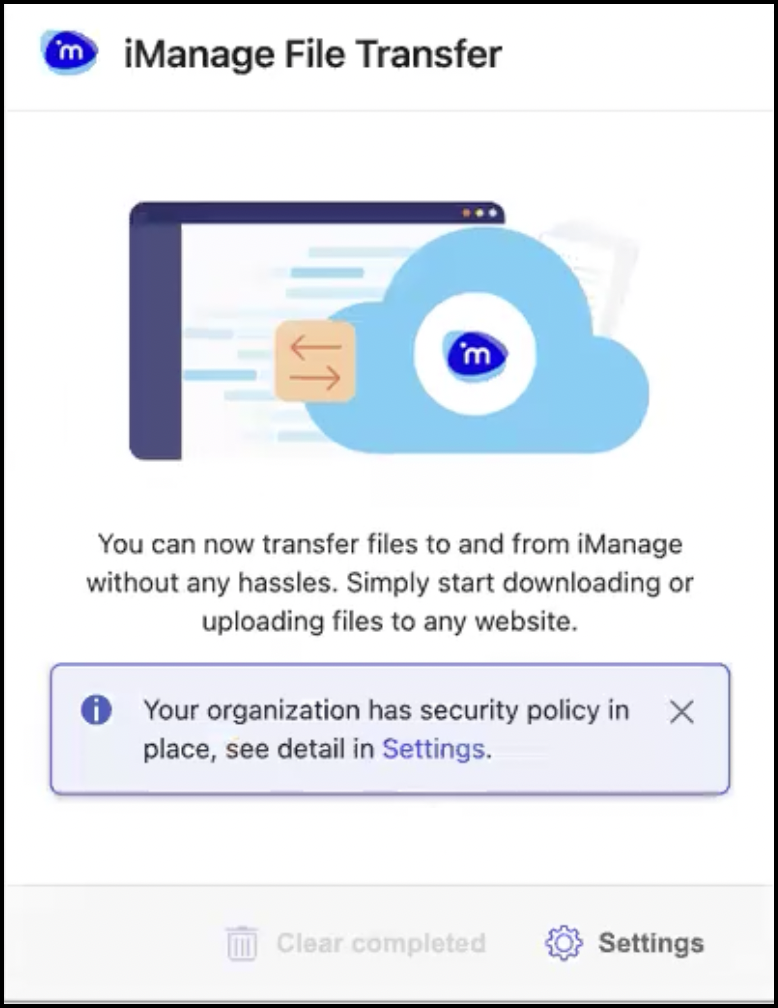
Selecting Settings displays all the websites to which you can upload or save files.
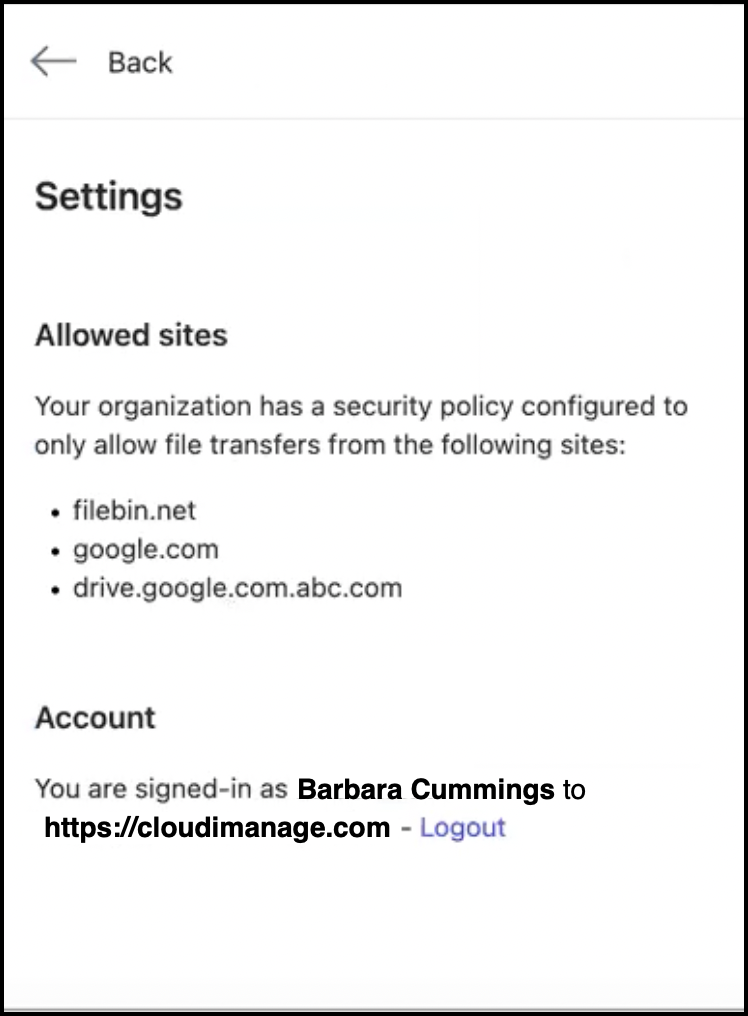
For additional information, refer to Viewing security policy notifications.