This section contains the following:
Reviewing pending tasks as Records Manager
In Review Mode, if Items are not destroyed until approval is received by an authorized reviewer is selected, as a Records Manager, you can approve or deny tasks by doing the following:
In the left view pane, under Retention, select Disposition Review.
Figure: Selecting Disposition Review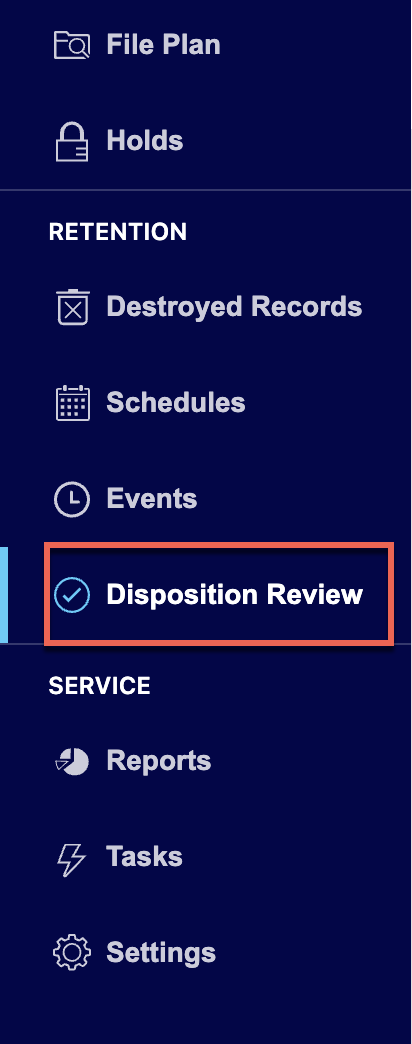
Select the
 kebab menu next to the task you want to approve or deny.
 Do one of the following:
Select Approve to approve the task. The status changes to Approved.
Figure: Select Approve to approve tasks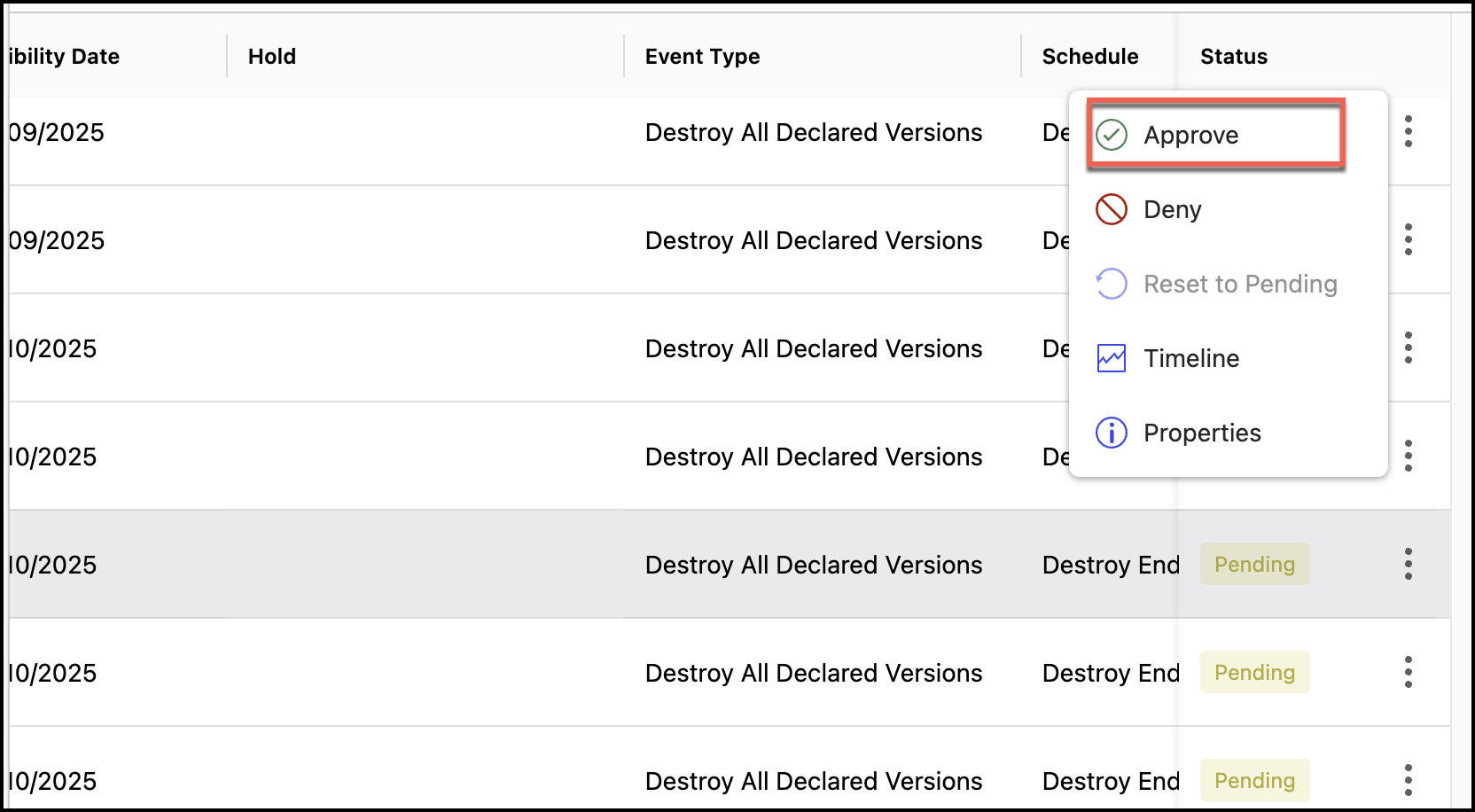
Select Deny to deny the task.
Figure: Select Deny to deny tasks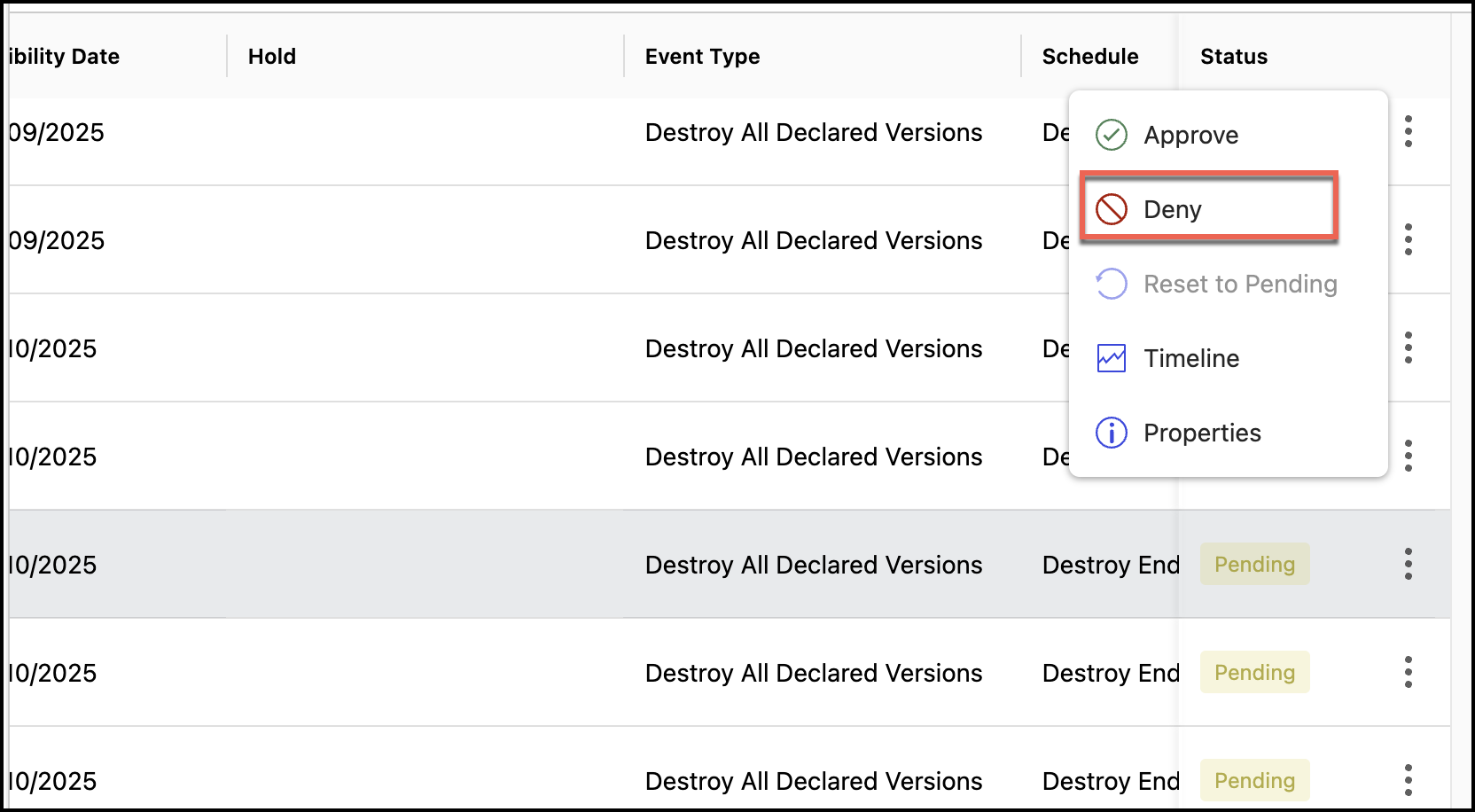
Enter the reason for denying the task and select Yes, Deny.
Figure: Enter the reason for denial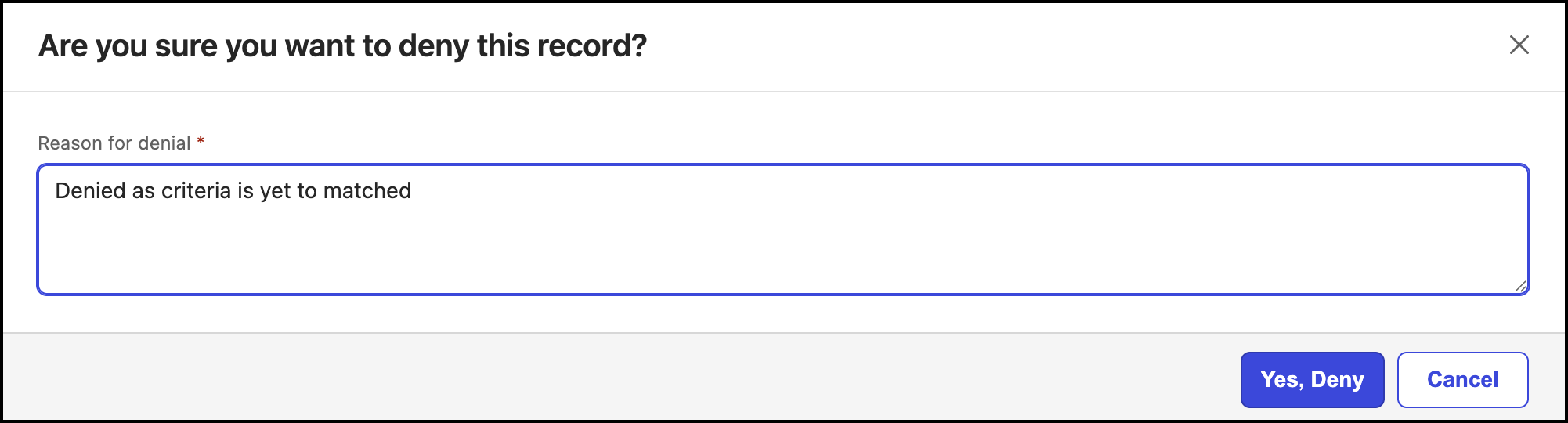
The status of the tasks changed to Denied.
(Optional) As a Records Manager, you can:
Select the
 kebab menu for the task that is approved and select Deny to deny the task.
 Select the
kebab menu for the task that is approved or denied and select Reset to Pending to change the status to Pending.
Reviewing pending tasks as a disposition reviewer
If the Records Manager has selected Items are not destroyed until approval is received by an authorized reviewer in Review Mode, as an authorized reviewer, you can review these tasks by doing the following:
In the left view pane, under Retention, select Disposition Review.
Figure: Selecting Disposition Review
Select the
kebab menu next to the task you want to approve or deny. Do one of the following:
Select Approve to approve the task. The status changes to Approved.
Figure: Approving pending tasks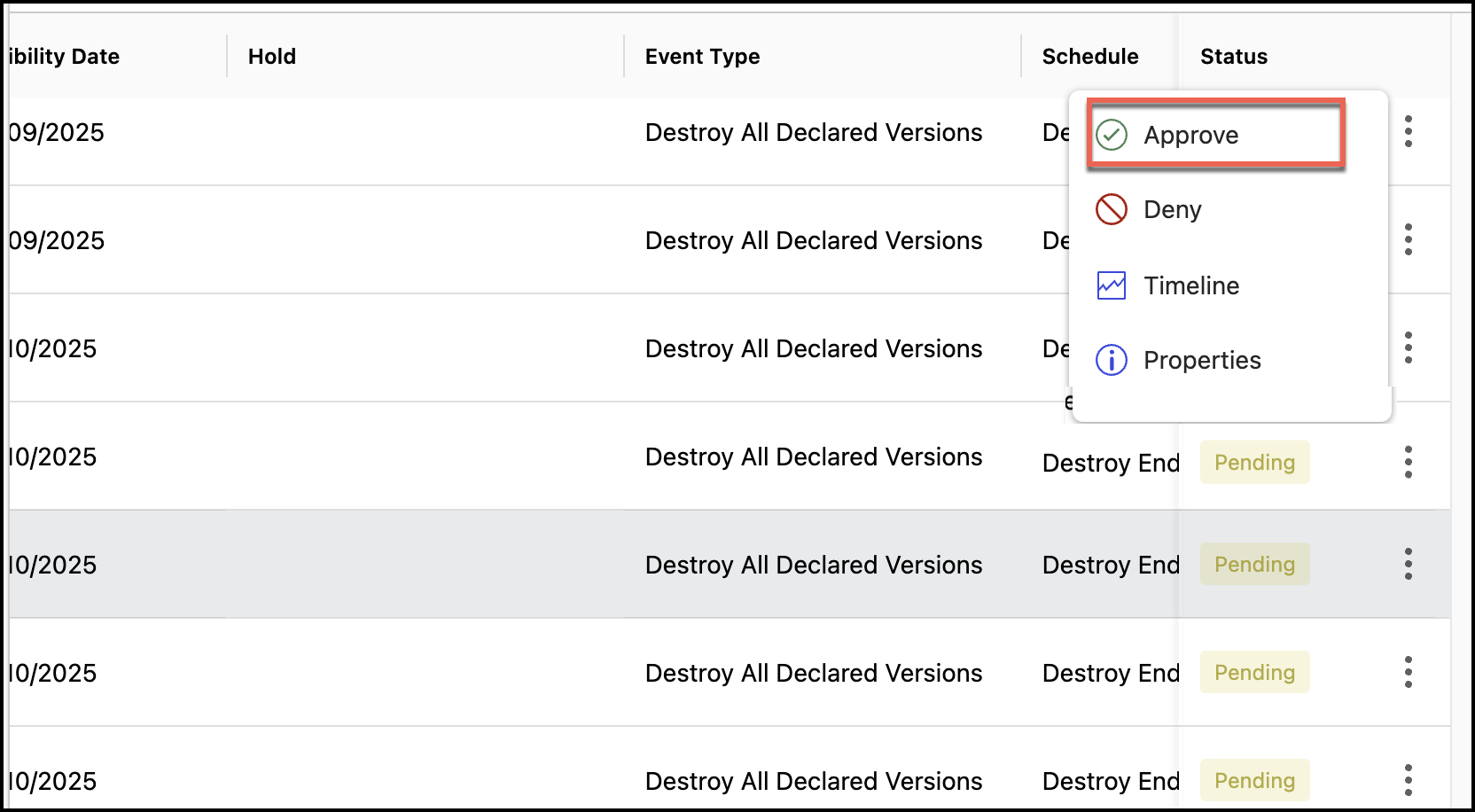
Select Deny to deny the task.
Figure: Denying records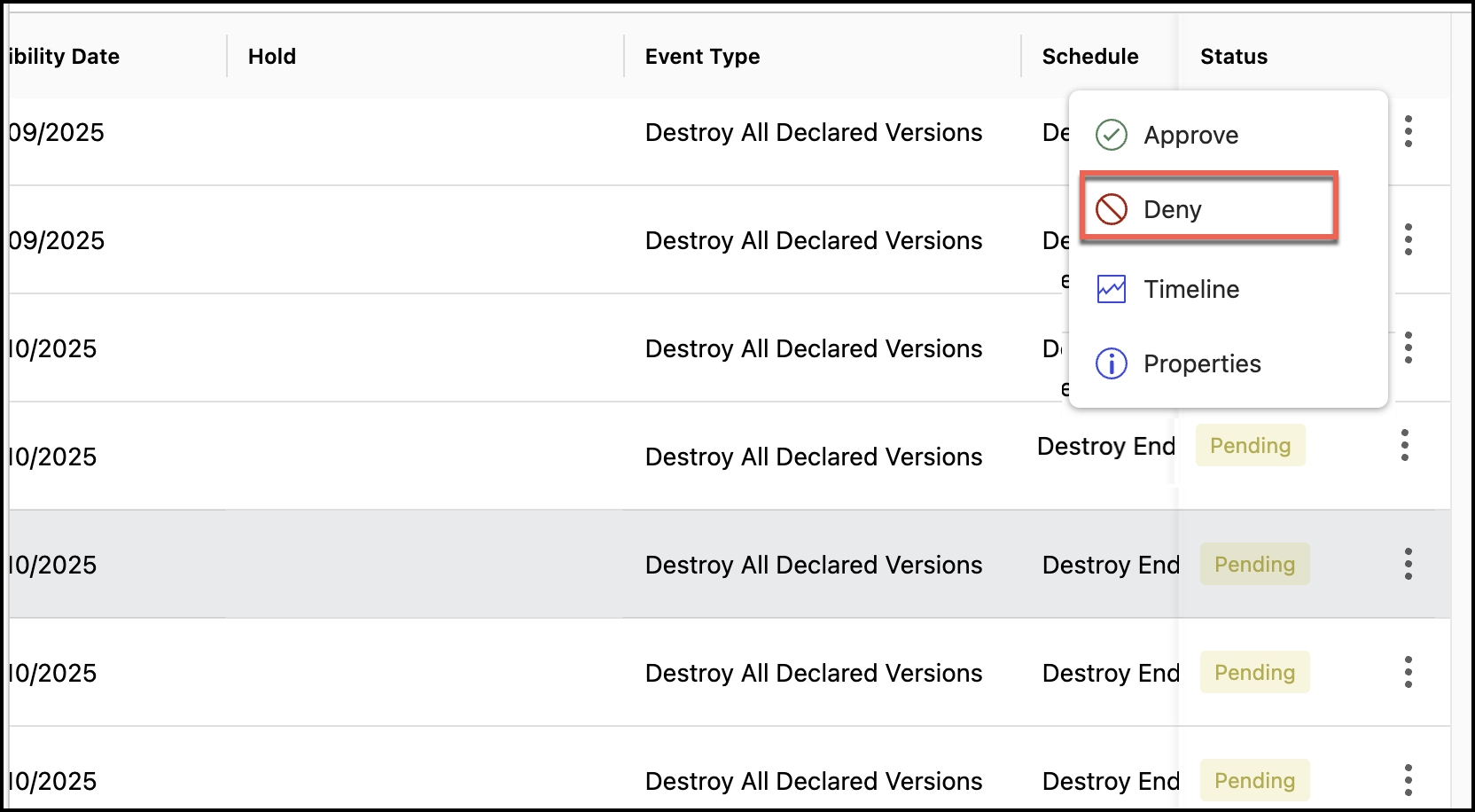
Enter the reason for denying the task and select Yes, Deny. The status of the tasks changed to Denied.
NOTE: As a reviewer, you can deny a task that was previously approved. However, after the task is denied, you can't approve the same task.
Reviewing tasks in bulk
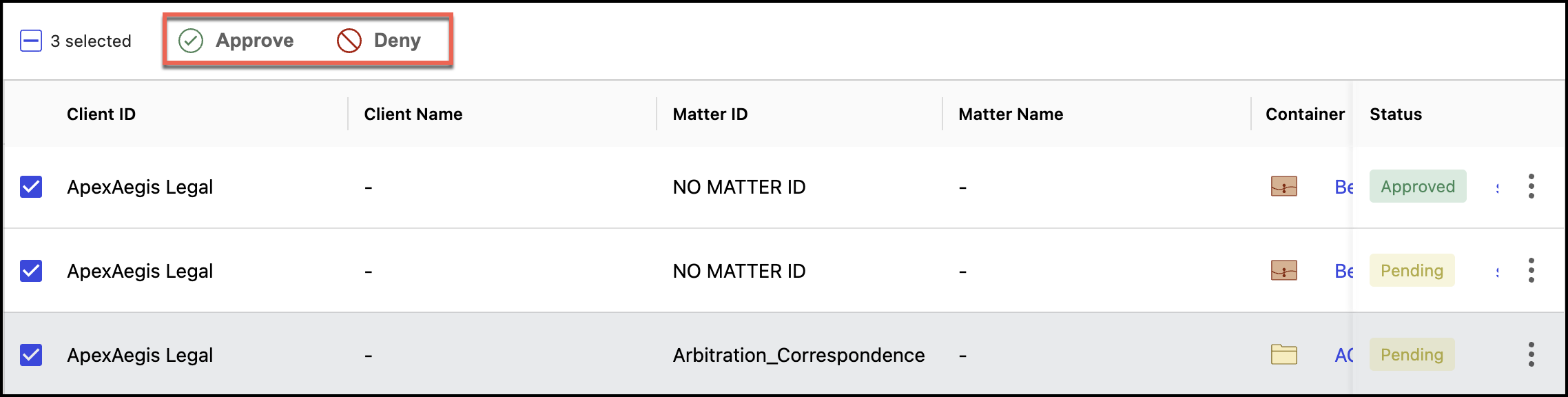
If the Review mode is set to Items aren't destroyed until approval is received by an authorized reviewer, then Records Managers and Disposition Reviewers can select multiple tasks and then select:
Approve or Deny if the status is Pending.
Deny if the status is Approved.
Based on the selection, if the task is approved, the status changes to Approved or if the task is denied, the status changes to Denied. Once they deny the tasks, Disposition Reviewers can no longer change the status of the tasks and have to contact Records Managers for any subsequent changes.
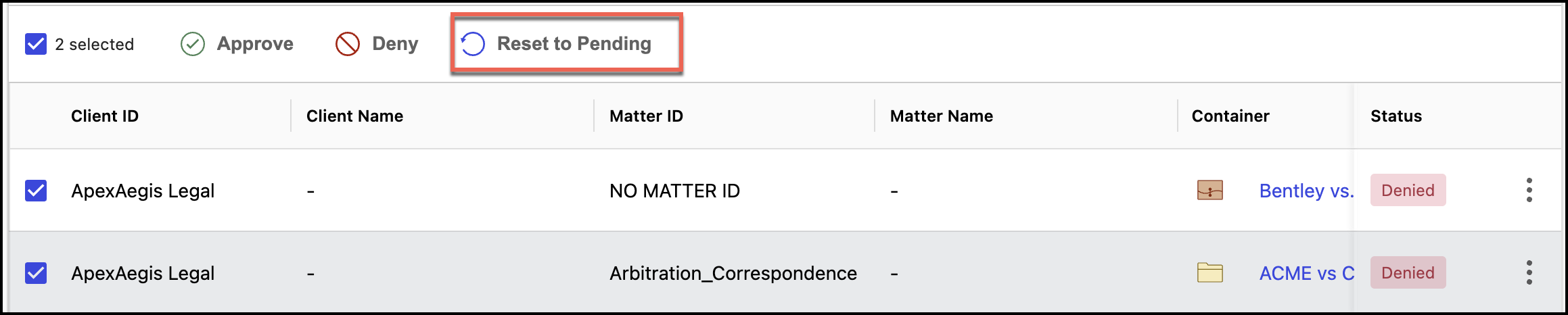
Additionally, Records Managers can change the status of all Approved and Denied tasks to Reset to Pending as shown in the following figure. The status then changes to Pending.
Viewing filters
Additionally, select Filters on the Disposition Review page to view or hide the filter panel. In the filter panel:
In the Status section, select the status types. There are three types of status available: Approved, Denied, and Pending. You may select multiple options. This displays all the tasks based on the selected status.
In the Eligibility Date section, select the eligibility date range. This displays all the tasks based on the eligibility date.
In the Items on Hold section, select the items on hold. This displays all the tasks based on the select item on hold.
In the Libraries section, select the library. This displays all tasks applicable to the selected library.
In the Matter section, select workspaces. You can select more than one workspace at a given time. This displays all triggered tasks for the selected workspace or workspaces.
In the Event Types section, select an event type. This displays all triggered tasks for the selected event type.
In the Event Name section, select an event name. This displays all records for the selected event name.
In the Schedule section, select a schedule. This displays all records for the selected schedule.
All the filters selected are displayed next to the Filters button as shown in the following figure. You can either select  to clear the particular filter or select Clear All to clear all filters selected.
