To generate reports for declare tasks:
Select Tasks > Upcoming. All upcoming tasks are displayed.
Select Filters to open Filters panel.
In the Eligibility date section, select the eligibility date, such as Next 30 days.
In the Status section, select the status, such as Pre-Approved. You can select multiple statuses.
In the Items on hold section, select one of the provided options, such as Items on hold.
In the Libraries section, select the library for which you want to generate reports, such as Records.
Figure: Making required filter selections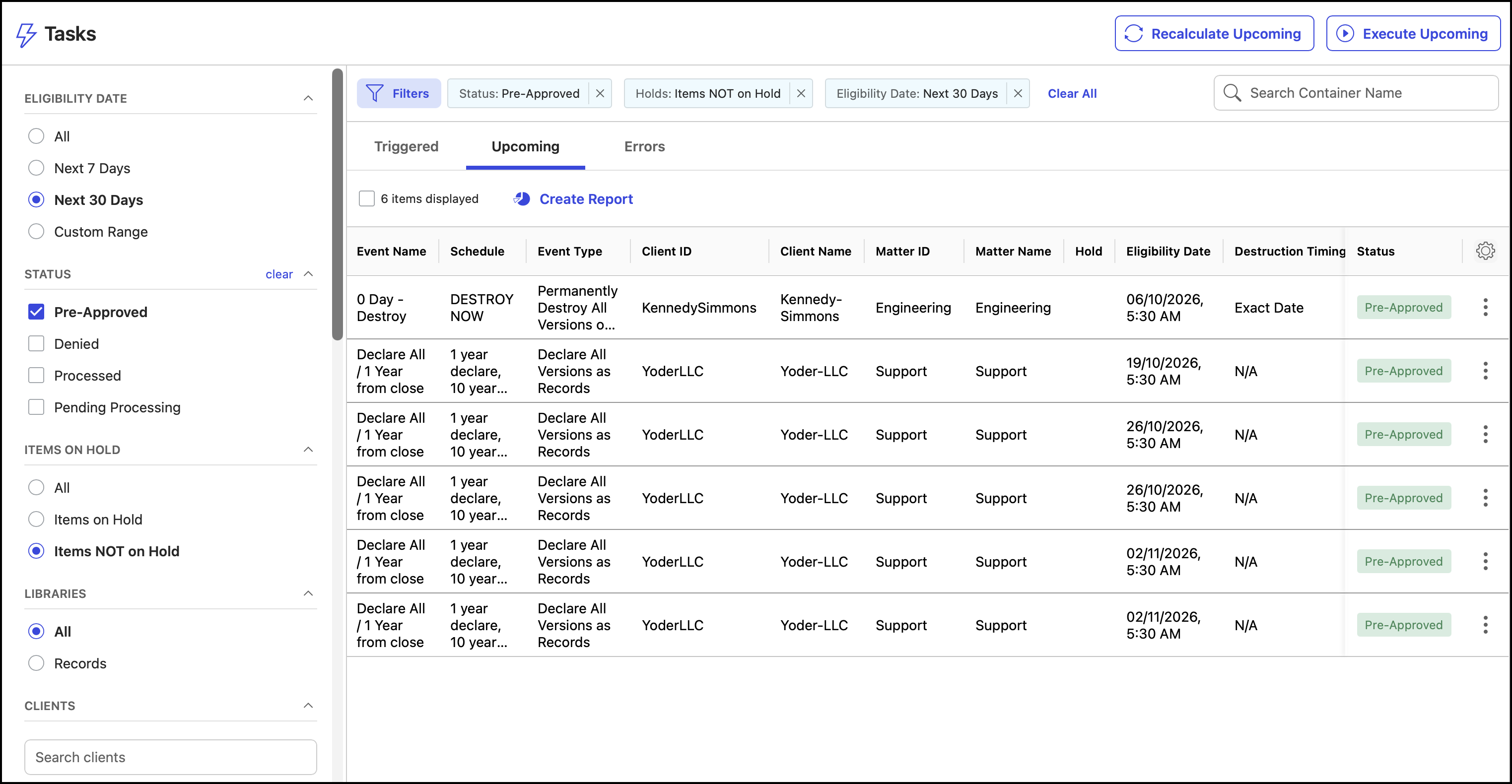
In the Clients section, select the client, such as Ajuba Law.
In the Matters section, select the workspaces for which you want to generate the report, such as Support, Sales. You can select more than one workspace at a given time.
In the Event Types section, select the declare events for which you want to generate the report—for example,
Declare All Versions as Records
Declare Latest Versions as Records
You can select more than one event type at the same time.Figure: Selecting event types and workspaces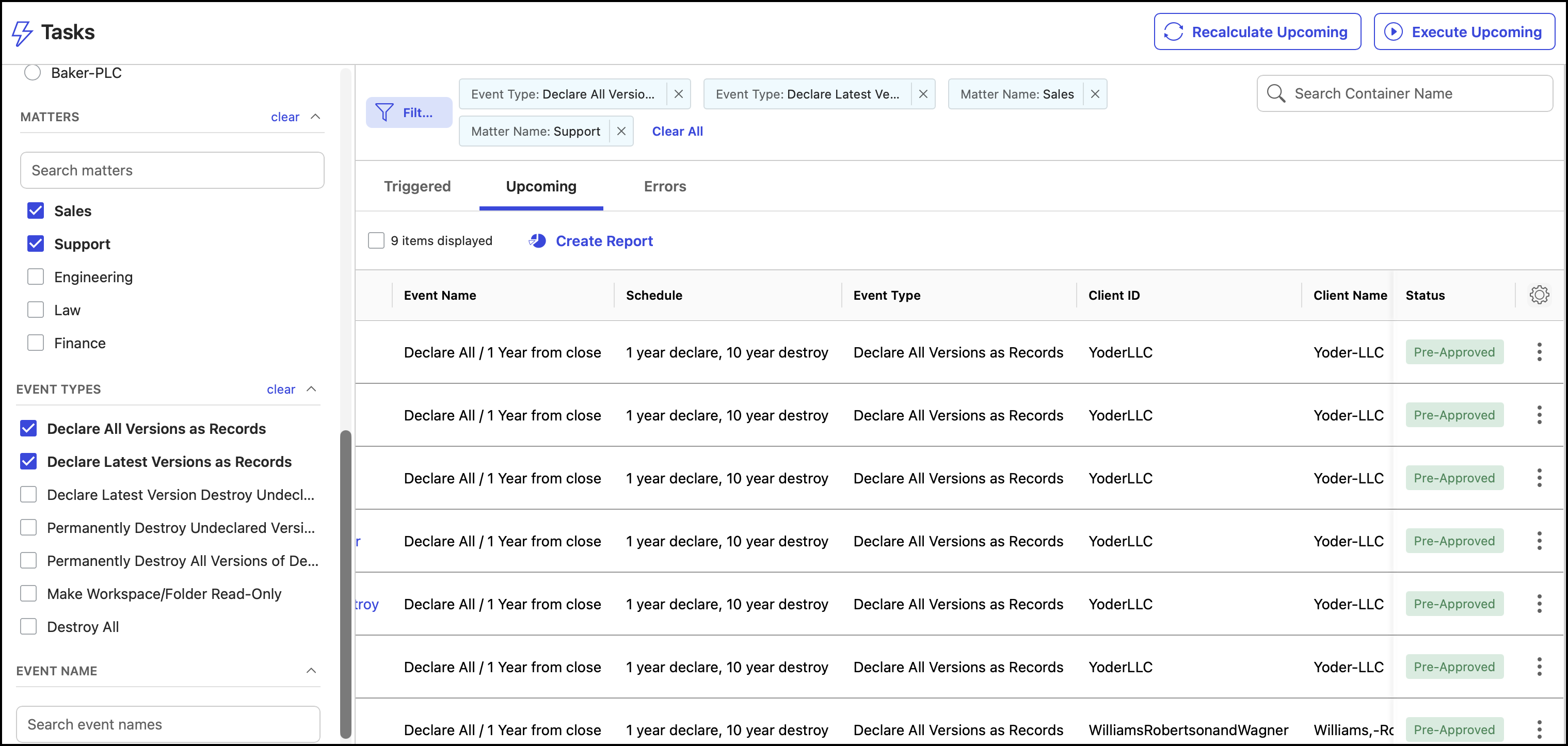
In the Event name section, select the event name, such as 10 year Declare.
In the Schedules section, select the schedule, such as 10 year declared.
Select Create Report.
In the Create Report dialog:
The title in the Title field—example, Declare reports tasks.
The description in the Description field—example, Event type - Declare All Versions as Records or Declare Latest Versions as Records
Select Create.
Select Reports in the left pane to view the Reports page. The generated report is now displayed on the Reports page.
Figure: Report for declared tasks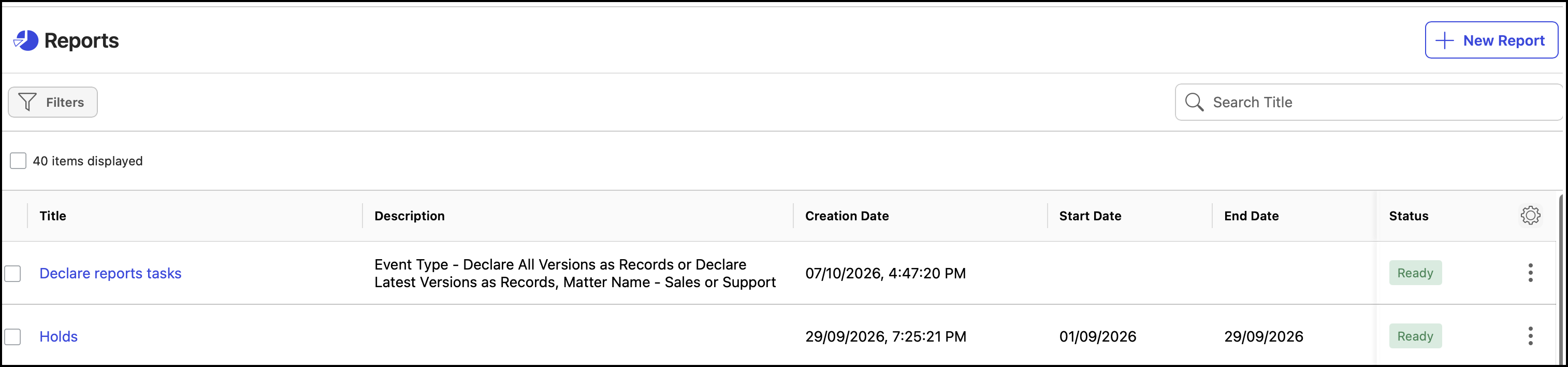
Select the report name. The report downloads to your device in CSV format. Alternatively, select the
 icon next to the report, then select Download.