Records Managers can generate reports directly from the Upcoming Tasks page. They can also download and manage the generated reports from the existing Reports page. This makes it easier to review and share upcoming retention, destruction, and review activity. Records Managers can also provide a custom title and description when creating a report, which helps distinguish reports created for different review activities or audiences.
Reports automatically respect the filters applied on the Upcoming Tasks page at the time of creation. The exported results therefore reflect the task subset being reviewed. Filter criteria are also included in the report details by default, which provides additional context about the contents of the generated report.
To generate reports for upcoming tasks,
Select Tasks > Upcoming. All upcoming tasks are displayed.
(Optional) Select multiple event types within the filters to generate eligibility reports covering multiple event types.
(Optional) Refine upcoming task reports by selecting the columns to include in the exported reports. This helps you create reports that are focused and tailored to different audiences.
Select Create Report.
Figure: Select Create Report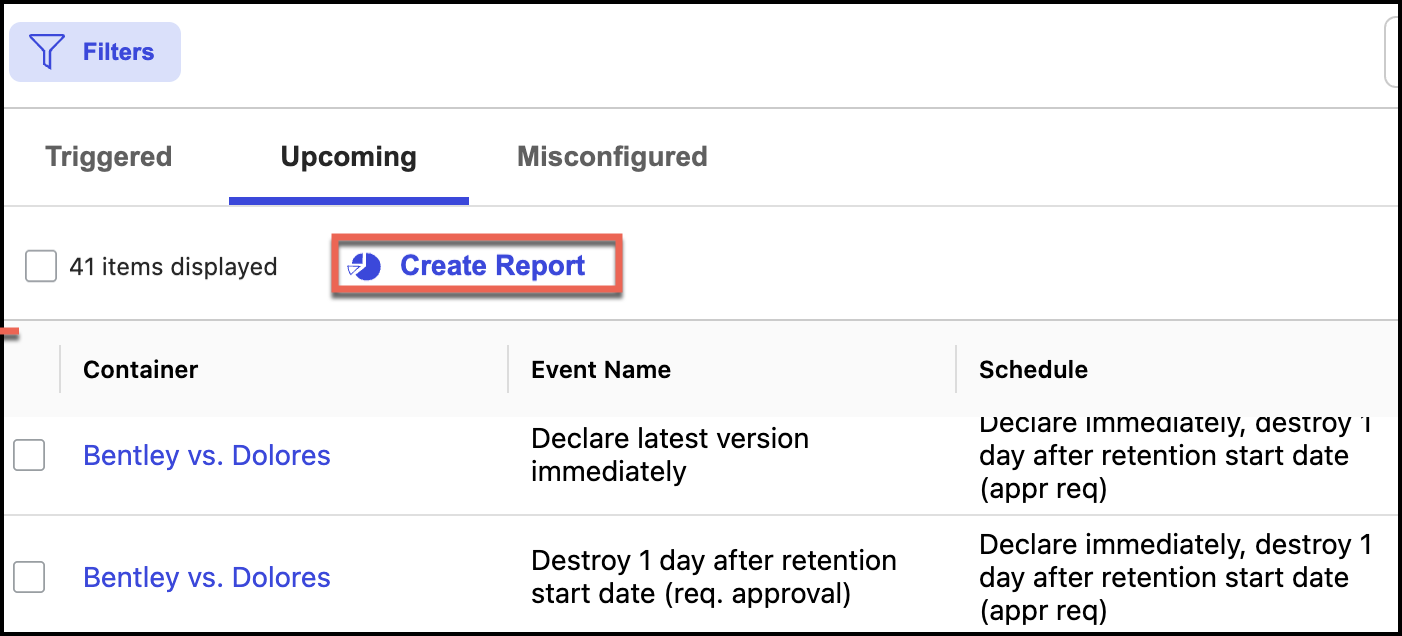
In the Create Report dialog that opens, enter the title (required) and description (optional).
Figure: Create report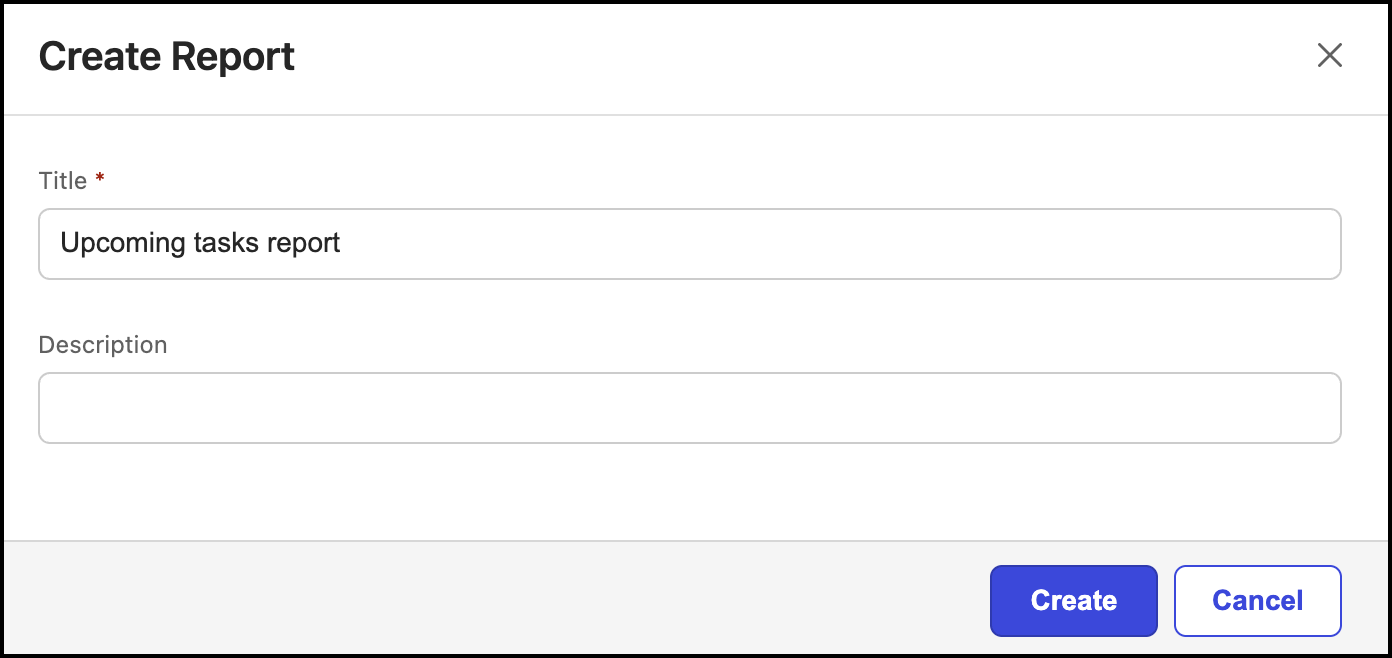
Select Create. The report is generated and saved on the Reports page.
Select Reports in the left navigation pane to open the Reports page to view the creation date and time for these reports.
Select the report name to download the report. Alternatively, select the
 icon next to the report you want to download and then select Download. The report is downloaded to your device in CSV format.