To review and process upcoming tasks:
NOTES:
If you've selected the Automated check box when creating or editing events, then you don't have to process the task. Automated events are run when you execute upcoming tasks.
All eligible tasks are automatically run once a day, at 3:00 PM UTC.
In the list pane, select Tasks and then select Upcoming. All upcoming tasks are displayed.
Figure: View upcoming tasks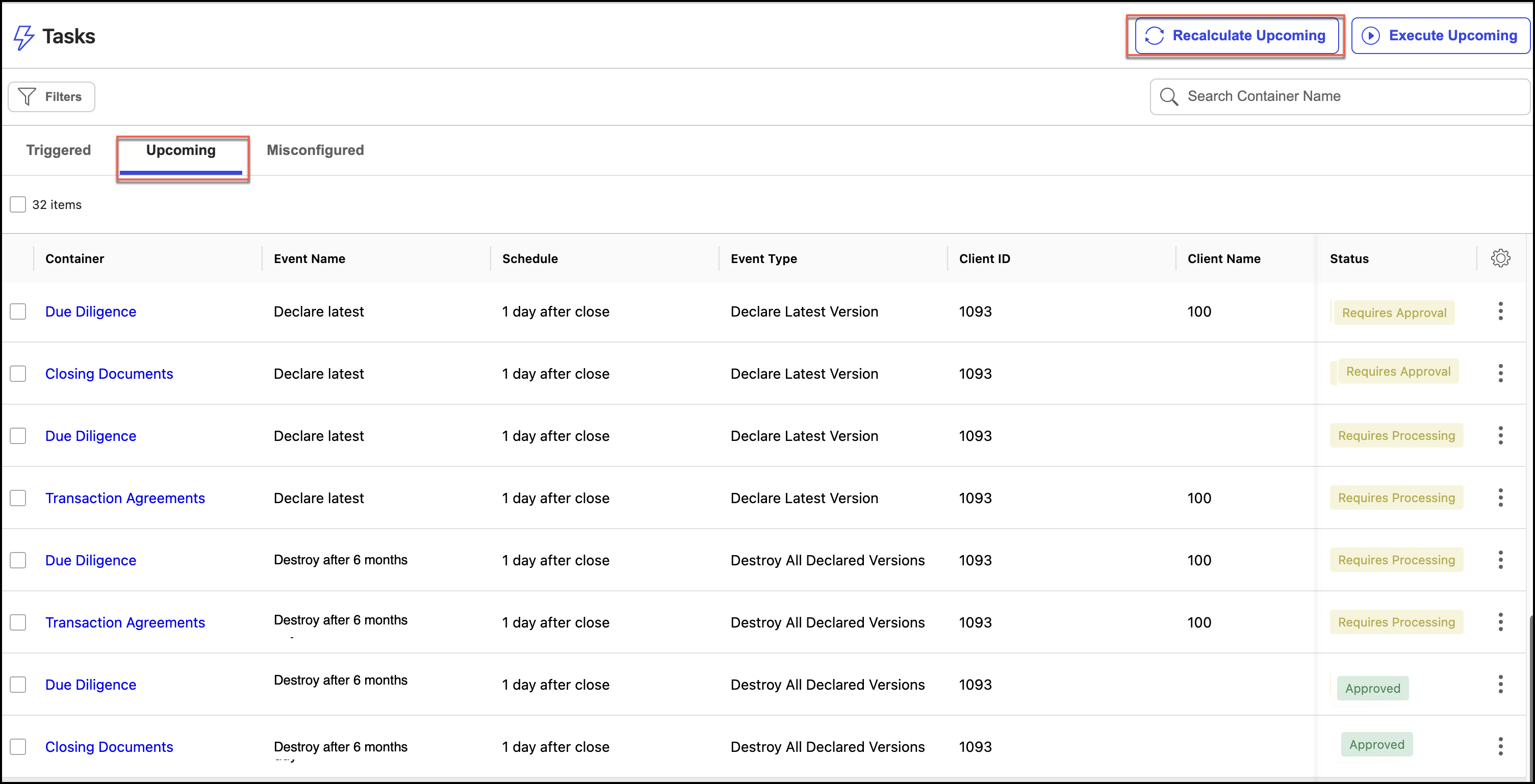
Select Recalculate Upcoming if you want the tasks to be triggered earlier. Tasks are triggered for recalculation.
After the recalculation is complete, do one of the following:
If the option is set to Items are not destroyed until approval is received by an authorized reviewer in Disposition Review Settings, then the status of the upcoming tasks is as follows:
Approved
Denied
Processed
Pending Approval
Pending Processing
Figure: Task status when items are not destroyed until approval is received by an authorized reviewer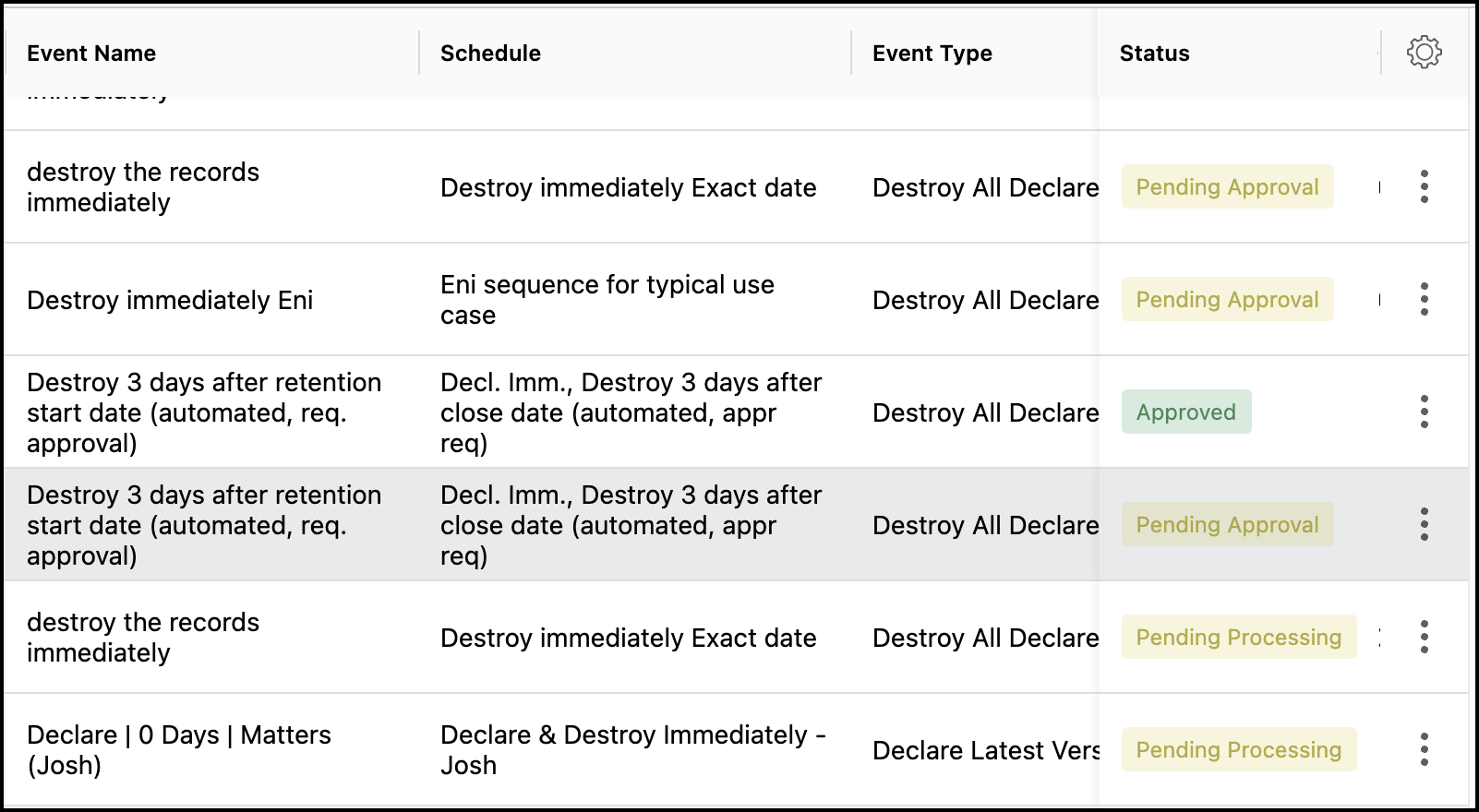
To change the status of the upcoming task, select the
 icon next to the upcoming task and change the status from:
 Pending Approval to Approve or Deny. The status changes to Approved or Denied based on your selection.
Pending Processing to Process. The status changes to Processed.
If the option is set to Item destruction is pre-approved unless denied by an authorized reviewer on the Disposition Review Settings page, the status of the upcoming tasks is as follows:
Pre-Approved
Denied
Processed
Pending Processing
Figure: Task status for Item destruction is pre-approved unless denied by an authorized reviewer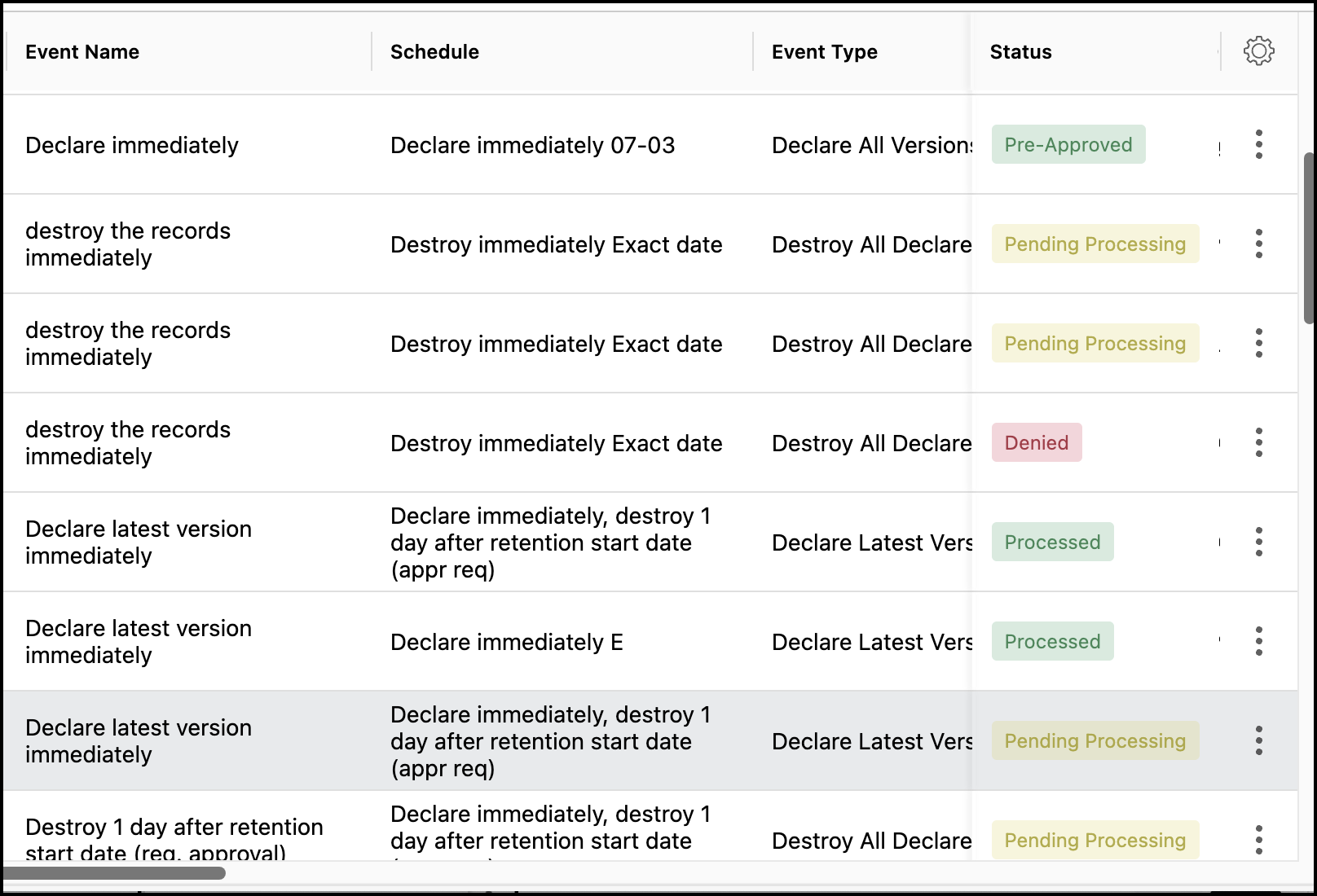
To change the status of the upcoming task, select the
icon next to the upcoming task and change the status from: Pre-Approved to Deny. The status changes to Denied.
Pending Processing to Process. The status changes to Processed.
IMPORTANT: When creating events, if you haven't selected the Automated check box, then you have to process the pending tasks and the Pending Processing and Processed statuses are displayed. The approval process is as follows:
Pending approval
Approval
Pending processing
Processed
If you deny any task, no further changes can be made to the task.
When records are destroyed, they're deleted from iManage Work at cloudimanage.com and can't be retrieved or restored. Records aren't destroyed immediately when events to destroy records are created or added to a schedule, or applied to workspaces, folders, or subfolders. Records are destroyed when tasks defined by these destroy events are manually or automatically executed.