In this section:
Using the File Plan
Using File Plan, you can do the following:
View workspaces, folders, and records
Select the following:
Library to view clients
Client to view workspaces
Workspace to view folders
Folder to view subfolders or records
View timelines
To view timelines for workspaces, folders, subfolders, or records:
Select the
 icon.
icon. Select Timeline next to the workspace, folder, subfolder, or record.
The Timeline dialog is displayed. For more information about timelines, refer to Viewing timeline entries.
View properties
To view properties for workspaces, folders, subfolders, or records:
Select the
icon.Select Properties next to the workspace, folder, subfolder, or record. Alternatively, select the workspace, folder, subfolder, or record name. The Properties pane is displayed.
To close the Properties pane, to either of the following:
Select the name of the workspace, folder, subfolder, or record for which you're viewing the properties.
Select the
icon and then select Properties.
View holds
To view holds that are applied to workspaces, folders, or subfolders:
Select the
icon and then select Properties. In the Properties panel that's displayed, select Holds to view all the holds that are applied for the selected workspace, folder, subfolder, or record.
Apply holds
To apply holds to workspaces, folders, or subfolders:
Select the
icon and then select Apply Hold next to the workspace, folder, or subfolder. In the Apply Hold dialog, select the holds you want to apply and then select Apply. The hold or holds are applied to the selected workspace, folder, subfolder, or record.
You can also select multiple workspaces, folders, or subfolders and apply holds to the selected items in bulk.
Remove holds
To remove holds applied to workspaces, folders, or subfolders:
Select the
icon and then select Properties. In the Properties panel, select Holds to view all the holds that are applied for the selected workspace, folder, subfolder, or record.
Select the
 icon next to the hold you want to remove.
Select Yes to confirm the deletion.
The selected hold is removed from the workspace, folders, subfolders, or record.
Apply schedules
To apply schedules:
Select the
icon and then select Apply to schedule next to the workspace, folder, or subfolder.Select the schedule you want to apply. The schedule is applied to the selected workspace, folder, subfolder, or record and is displayed in the Schedule column in File Plan.
You can also select multiple workspaces, folders, or subfolders, and apply schedules to selected items in bulk.
Remove schedules
To remove a schedule:
Select the
icon.Select Remove from schedule next to the workspace, folder, or subfolder.
The schedule is removed.
Search for records
Use the search option available in the File Plan to search for workspaces, folders, subfolders, or records. You can search for workspaces, folders, subfolders, or records by name or ID.
Viewing client and workspace details
Client name and client ID are both displayed in the header when Records Managers and Reviewers access the client.
Figure: Client name and ID in the header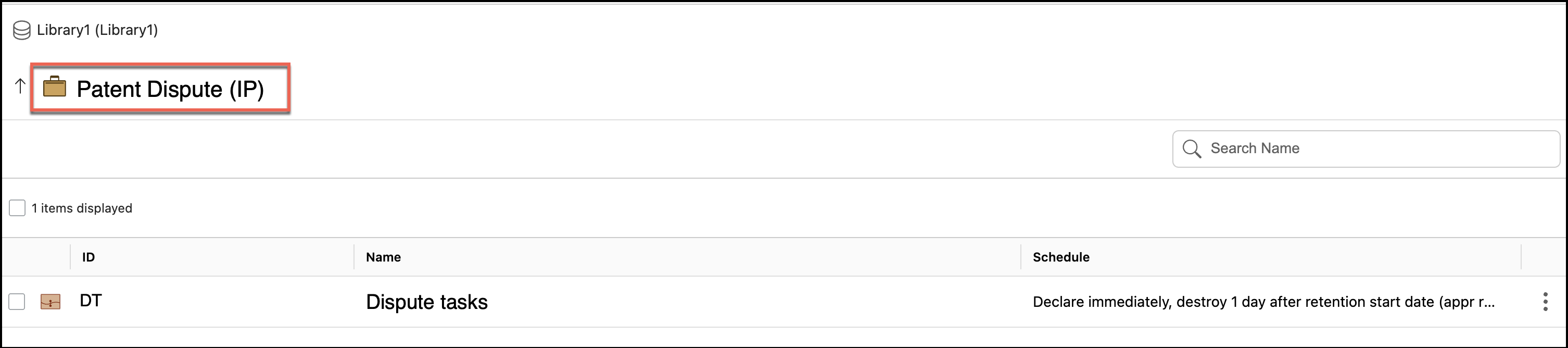
Workspace name and workspace ID are both displayed in the header when Records Managers and Reviewers access workspaces.
Figure: Workspace name and ID in the header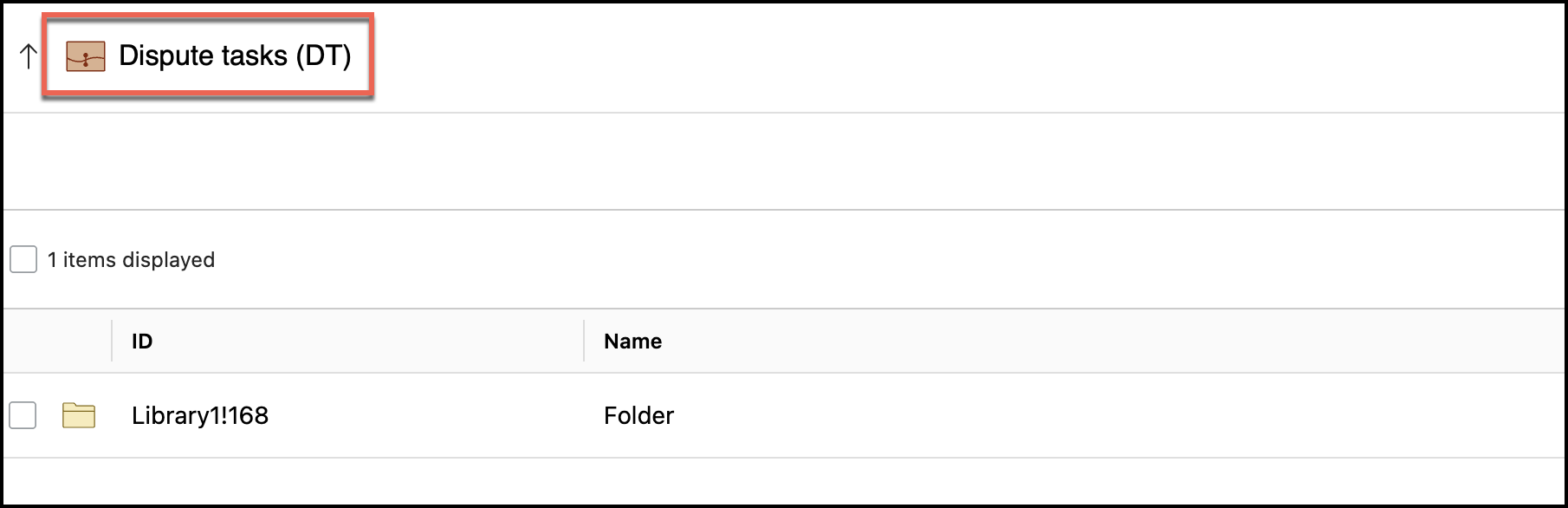
Viewing tooltips
Tooltips are displayed when users hover over the following icons:
Library icon: The Library tooltip displays.
Figure: Tooltip for library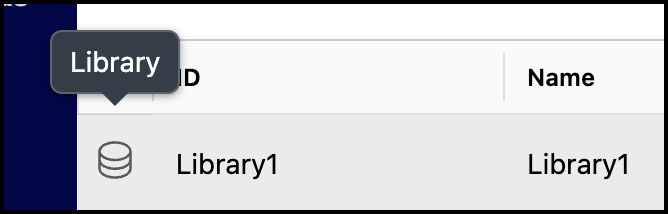
Client icon: The Client tooltip displays.
Figure: Tooltip for client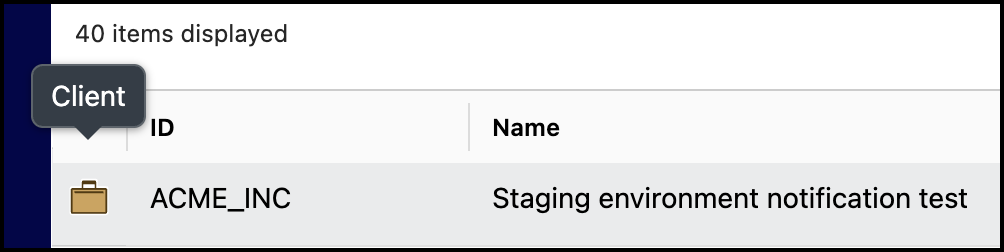
Workspace icon: The Matter tooltip displays.
Figure: Tooltip for workspace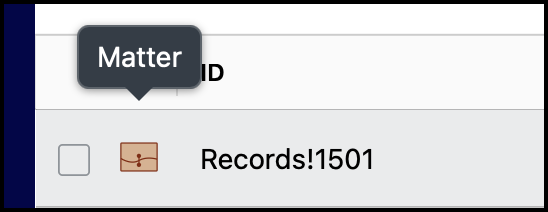
Empty workspace icon: The Empty Matter tooltip displays.
Figure: Tooltip for empty workspace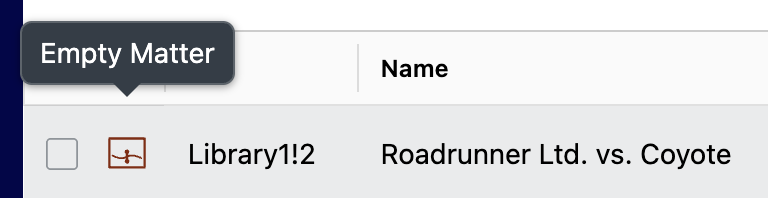
Folder that contains files icon: The Folder Containing items tooltip displays.
Figure: Tooltip for folder containing items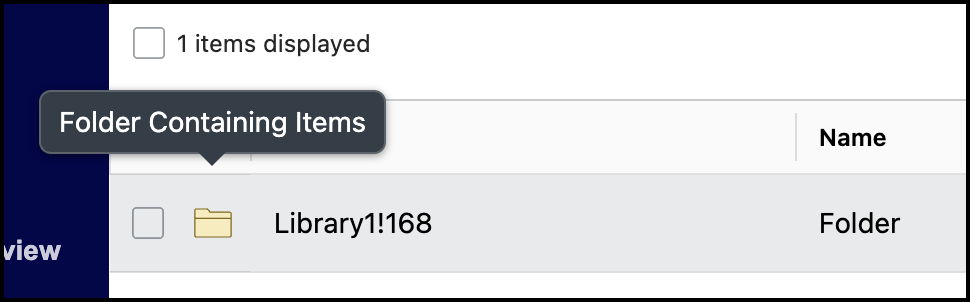
Empty folder. icon: The Empty Folder tooltip displays.
Figure: Tooltip for empty folder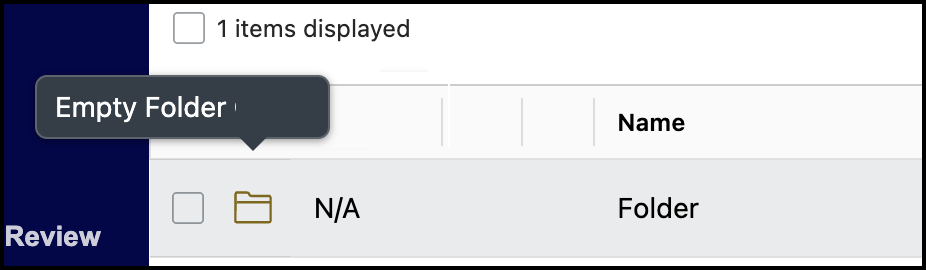
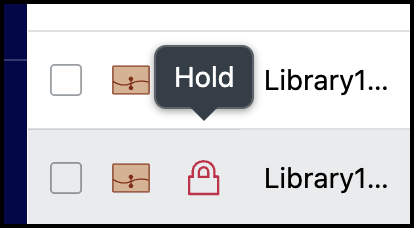
Lock icon: The Hold tooltip displays.
Figure: Tooltip for hold