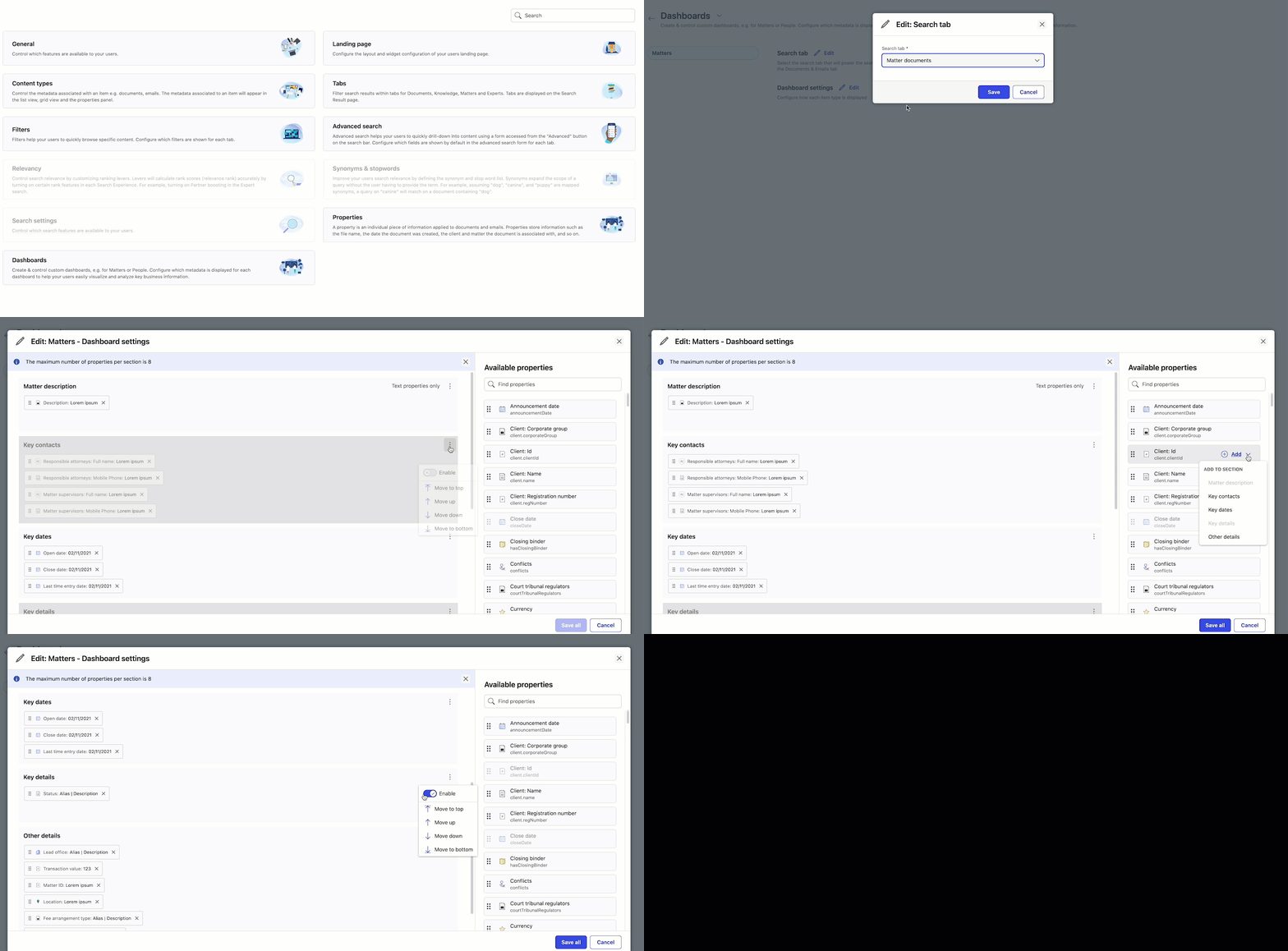
The Matter Locator (Matter Search) Dashboard gives an overview of the selected matter by displaying key metadata about the matter.
NOTE:
iManage Insight+ comes with pre-configured metadata for the Matter Search Dashboard.
You can add a maximum of eight properties for each of the sections.
You can use the Enable toggle switch, from the kebab menu, to customize the display of each section in iManage Insight+ Matter locator (Matter search) Dashboard.
Section names are editable.
To configure the Dashboard:
In iManage Control Center, browse to EXTENSIONS > iManage Insight+ Admin > Dashboards.
Figure: Dashboards in iManage Insight+ Admin page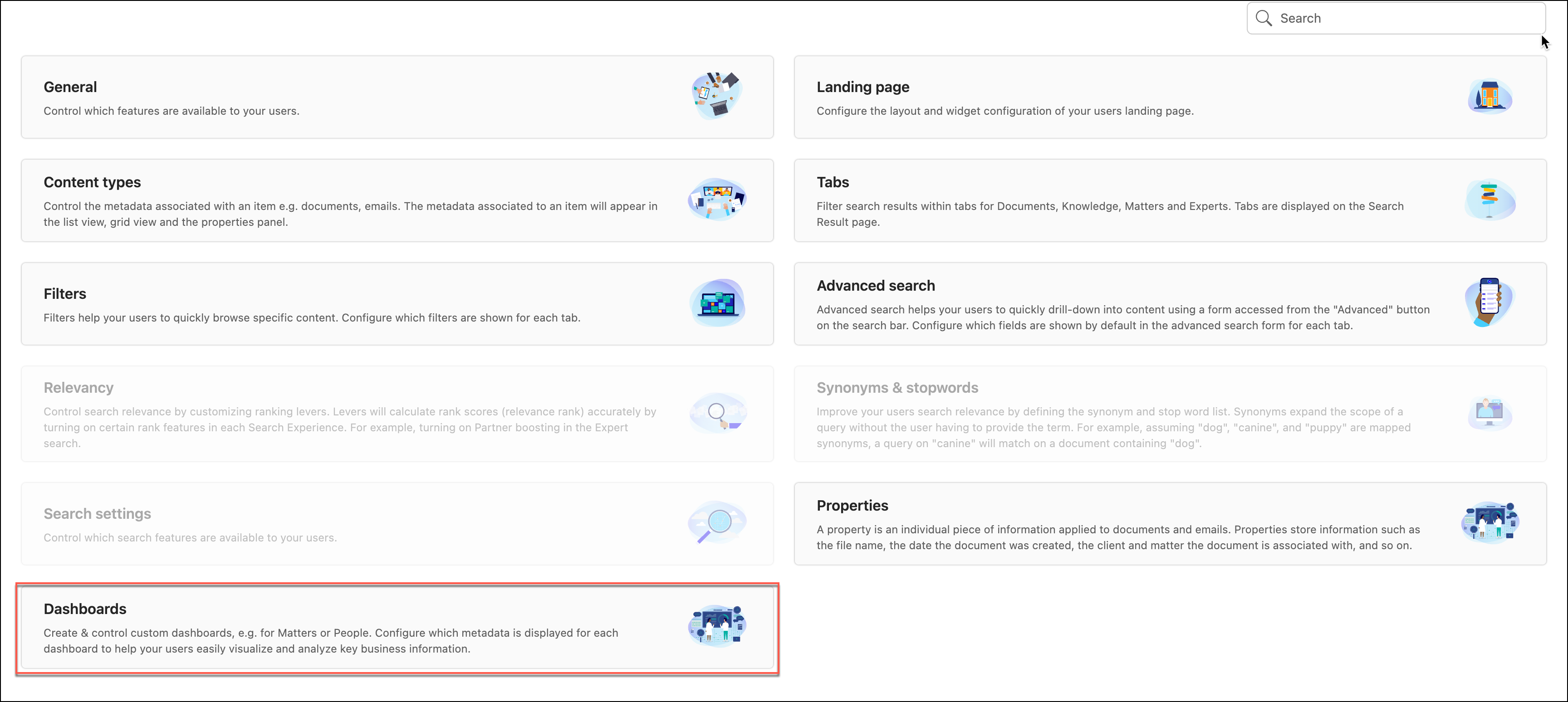
Select Matters.
Next to Search tab, select Edit.
In the Edit: Search tab dialog, from the Search tab drop-down list, select Documents.
NOTE: The Search tab will display the name configured in your iManage Insight+ Admin settings.Select Save.
Next to Dashboard settings, select Edit.
In the Edit: Matters - Dashboard settings dialog, add the Available properties relevant to the following sections. For more information on how to add properties, refer to Add properties to sections.
Matter description
Key contacts
Key dates
Key details
Other details
Add properties to sections
From the Available properties panel, hover over the required property, and then select Add or the drop-down list, or drag and drop the property.
In the ADD TO SECTION dialog, select the section you want to add the property to.
NOTES:
Sections that appear grayed out must be enabled first to add a property.
Properties that have already been added to a section, appear grayed out.
To remove a selected property, select  next to the added property name.
Select Save all.
Figure: Configuring the Dashboards in iManage Insight+ Admin