As an iManage Insight+ administrator, you can create the Matters search tab and customize it to meet the needs of your organization. The Matters search tab will provide a centralized location for accessing all matter-related information.
NOTE: This feature isn't available by default. To enable this feature or for more information, contact iManage Support.
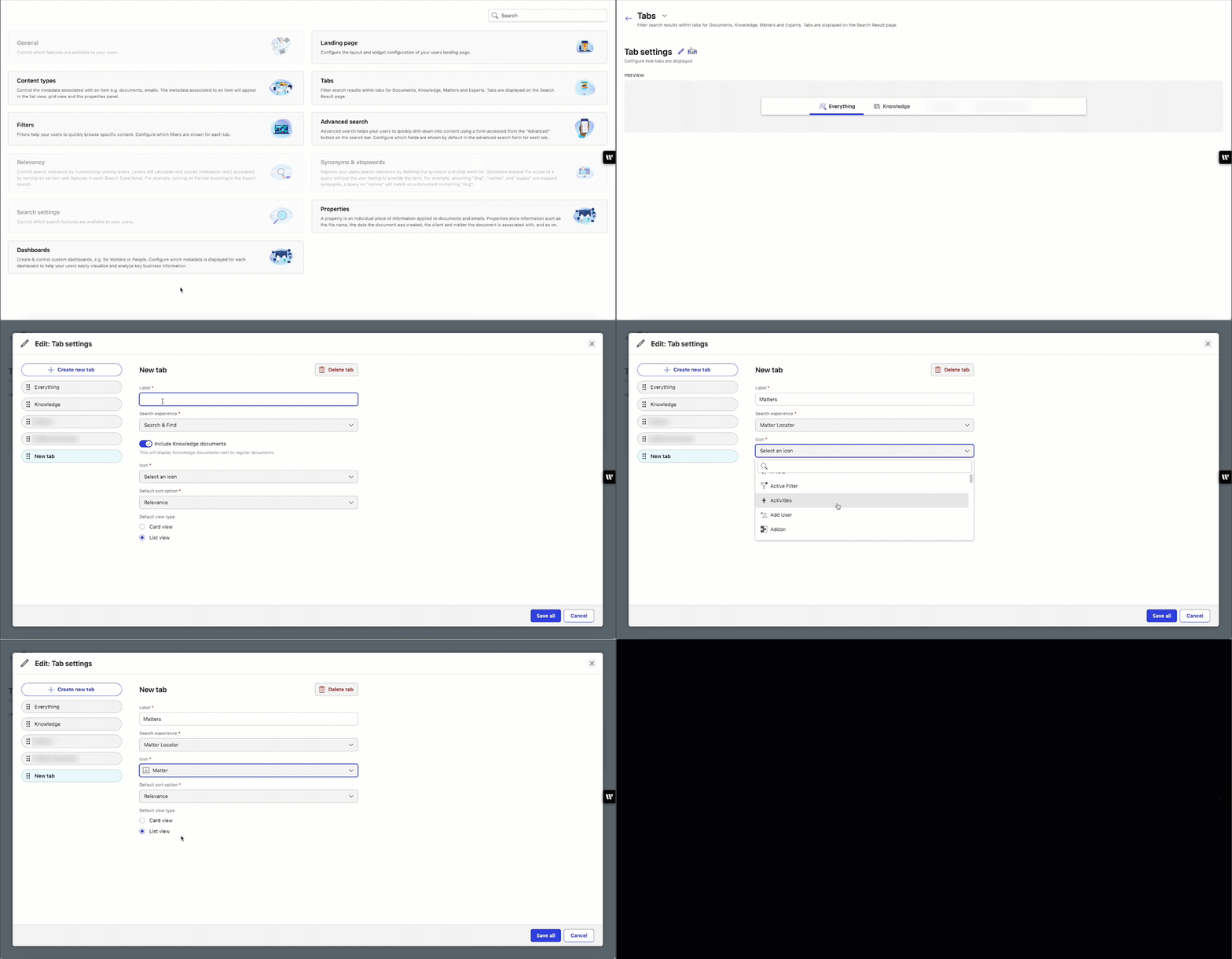
In iManage Control Center, browse to EXTENSIONS > iManage Insight+ > Tabs.
Select Edit, next to Tab settings.
In the Edit: Tab settings dialog, select Create new tab.
In the New tab dialog, enter the following details.
NOTE: Fields marked with an asterisk * are mandatory, while others are optional.Label: Enter a descriptive name for the tab—for example, Matters.
Select the relevant option from the following drop-down lists:
Search experience: Select Matter Locator (Matter Search).
Icon: Select Matter to assign an icon for the Matters search tab.
Default sort option: Select the sort order for displaying the search results.
Default view type: Select between List view or Card view to display the search results.
Select Save. After the tab is created, the following message is displayed:
”Successfully updated tabs”
As an administrator, you can define filters that help users refine their search results based on specific attributes and also customize metadata in the Properties panel.
For more information about:
How to add a filter, refer to Adding a filter.
How to add metadata, refer to Adding metadata to properties panel.
How to add Advanced search, refer to Adding properties to Advanced search.
How to add Content types, refer to Adding metadata to search result item.