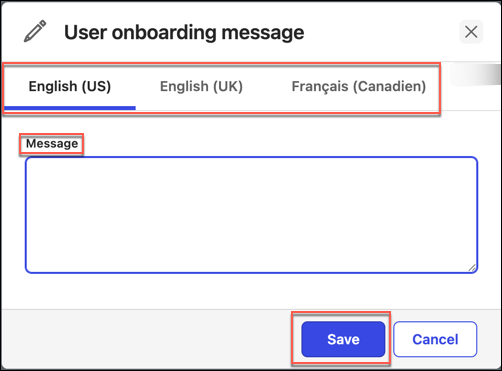
After configuring user profiles and setting up default filters and filter values, you can create user onboarding messages for all search experiences and Landing pages. The purpose of these messages is to explain why the user must select from the profile drop-down and, if needed, provide clarity on how they should select a profile or profiles that is where the Admin has set different profiles for Landing pages and search experiences.
You can target the language of these messages to users based on their Insight+ browser settings.
These onboarding messages will be visible to all Insight+ users on their first sign in following the configuration of the user profiles and default filters.
Once a user has selected a profile, if that profile is later deleted, the onboarding message will display again on the first sign-in of the user following the deletion of their profile, and they'll be asked to select a different profile.
To customize onboarding messages, follow these steps:
On the General tab, next to User onboarding message, select Edit.
In the User onboarding message dialog, select from the available language browser setting, for example—English (US), English (UK), and Francais (Canadien).
In the Message field, enter your onboarding message.
The onboarding message has a 2000-character limitation.Select Save to confirm, or select Cancel to go back.
After saving the onboarding message, the following message is displayed:
“Successfully updated user onboarding message”